

- Select a patient on the Patient List tab, or click on the Details icon from another option.
-
Click on Photos from the display list. The patient data display area shows the patient photos and PDFs that you are able to view.
- Each photo or PDF is displayed in a row with the Date/Time the item was taken or uploaded, the Title given to the item (or the default if none was given), the user who created the item (Created By), a thumbnail image of the item, and icons to Delete the item or mark it as Purgeable/Non-Purgeable, if you have rights to do so.
- You may change the order in which photos and PDFs are sorted by clicking on a column heading. For example, clicking the Title heading would sort the items alphabetically by name.
- The most recent photos and PDFs are displayed initially, and the number of items listed is based on an institution-level setting. If you are looking for an item that you do not see in the results list, click the Get More Photos button at the bottom of the list. If additional items exist, they are added to the bottom of the existing list incrementally based on the institution-level setting.
-
To view a photo, click on the row in the summary list. The photo opens inside an image viewer.
- You may adjust the photo using the viewer controls.
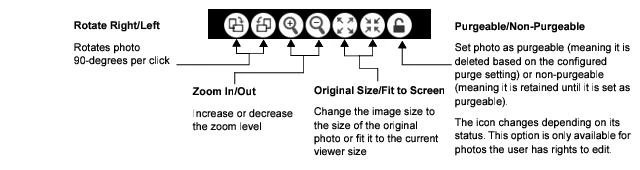
-
To view a PDF, click on the row in the summary list. The PDF opens inside an image viewer.
- You may adjust the PDF using the viewer controls.
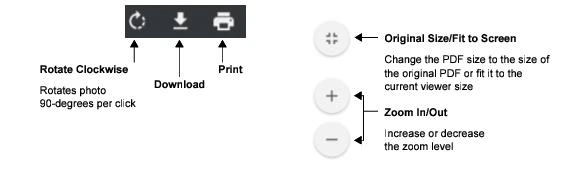
- Click the Previous button or the Next button to navigate to additional photos or PDFs in the summary list.
- Click Close to close the photo or PDF when you have finished viewing it. Or, if you click on a different patient from your list, the image automatically closes.
Displaying More Patient Photos
The Photos window displays the most recent photos or PDFs for the selected patient. If there are more items to display, you can load them into the window until you see what you are looking for or until all of the available items are displayed. The number of items displayed at a time is based on an institution-level setting. This settings affects the number of recent items that are initially displayed, as well as the number of additional items displayed each time more items are loaded. The default is 100 items. Consult your Commure Pro representative if you would like to adjust this value. To display more data, follow these steps:- Scroll to the bottom of the list so that the Get More Photos button is visible.
- Click the Get More Photos button to check for more photos or PDFs.
- (Optional) You reset the display to show only the most recent items by clicking Refresh . The most recent data is loaded when the list is refreshed.