

- Modify the preferences of items belonging to the Order Catalog The Order Catalog includes the Order Types, Groups, and Definitions from your back-end system, and their associated Field Sets.
- Create any additional Order Groups or Definitions in the CPOE application. Typically, you enter this data in your back-end system. However, you might encounter situations where you will want to enter physician-friendly equivalents of some Order Definitions. For example, you might want to create Order Definitions for some specific types of orders that are entered by your pharmacy, such as IV medication orders or medications ordered with weight-based dosing.
- Configure which Order Definition Fields to show in the Commure Pro CPOE application. All Fields belonging to Order Definitions that were interfaced from a back-end system are hidden by default. You can selectively configure which of these Fields you want to display to providers in the CPOE application. You can un-hide all Fields that are relevant to providers, but continue to hide all Fields that involve duties of an administrative nature, such as transport method or specimen collection information.
- Configure any Order Definitions that you want to hide from providers. If there are Order Definitions interfaced from your back-end system that are not relevant to providers, you should configure these Definitions to be hidden. For example, you might choose to hide all nursing standard of care orders.
Important Note About Order Catalog Edits
All Order Catalog edits in the CPOE application are restricted to level 1 administrators. You must ensure that all such administrators in your facility with level 1 access be properly trained so that edits to order data are performed only by authorized personnel. Note that edits to your Order Catalog are cosmetic; this data is never changed on your back-end system. These edits can involve modifying any of the groupings that are used to organize orders by function or type. These groupings include Order Definitions, Order Groups, and Order Types. Often, the modifications that you make to your Order Catalog supplement the data that was entered on a back-end system and imported into the Commure Pro CPOE application. In such cases, many of the configuration options available to you will display as read-only settings. This limitation is designed to ensure that all data remains consistent between your back-end system and the CPOE application. Sometimes, the modifications that you make to order data may involve editing of Order Groups or Order Definitions that were created directly in the CPOE application. In the sections that follow, note that some of the configuration options described will not be available to you if the Order Group or Order Definition that you want to edit was imported into the CPOE application from a back-end system.Modifying Order Catalog Settings
In the CPOE application, level 1 administrators can modify order data to define behavior for the various order entities that are used to categorize orders. Make sure to restrict level 1 access to authorized administrators who have been trained on the application. Order data that level 1 administrators can modify includes:- Order Types: The Order Types used to categorize Order Groups and Definitions are fixed in CPOE. Because of this fixed nature, editing options for Order Types are limited. Most Order Type data exists as read-only data in CPOE. For more information, see Editing Order Type Properties.
- Order Groups: The extent to which you can modify Order Group data largely depends on how the Order Group was created. If the Order Group was created on a back-end system, your ability to edit this data is more restricted than it would be if the Order Group was initially created directly in the CPOE application. For more information, see Editing Order Group Properties.
- Order Definitions: Like with Order Groups, the manner in which an Order Definition was created determines the extent of the modifications you can make to this data. When Order Definitions are created in a back-end system, much of the data remains read-only in the CPOE application, although there are exceptions. For more information, see Editing Order Definition Properties.
Working with the Order Catalog
The sections that follow provide both procedural and reference information for configuring the various elements that comprise the Order Catalog. Note that some of the settings discussed in these sections are configurable only during creation of new orders, as described in Creating Order Strings Manually. Other settings are used to modify existing orders only, as described in Modifying Order Catalog Settings. Some of these settings are common to both of these scenarios. In general, configuration of all data created on a back-end system is restricted to a small group of selected settings, and the settings enabling configuration of orders often display as read-only settings for data that is not created on the CPOE application directly.Precedence of Order Catalog Settings
Order configuration settings can apply to Order Types, Order Groups, or Order Definitions. In some cases, configuration settings affect multiple order entities, such as both order Groups and Order Definitions. In such cases, the following precedence rules determine how any setting conflicts are handled:- Order Type settings are applied to all orders belonging to an Order Type.
- Order Group settings are applied to all orders belonging to a particular Order Group. If a setting at the Order Group level conflicts with an identical setting for the group’s Order Type, the Order Group setting takes precedence.
- Order Definition settings are applied to all Order Strings belonging to a particular Order Definition. If a setting at the Order Definition level conflicts with an identical setting for the definition’s Order Group, the Order Definition setting takes precedence. Transitively, the Order Definition setting also takes precedence over any Order Type settings that govern the behavior of the type to which the Order Definition’s group belongs.
Restricting Orders to One or More Facilities
In deployments involving more than one facility, most of the data used by the CPOE application will be shared among the different facilities.belonging to a single institution. However, you might encounter cases requiring the restriction of certain data to one or more facilities, such as when a particular Medication Order is unavailable to all except a single facility within an institution. When facility restrictions have been defined on a back-end system, the CPOE application provides this information as read-only data displaying under the Facility or Field Set settings in the details pane that provides information about the selected Order Group or Order Definition (or Order Set). During editing of manually-created orders in the CPOE application, functionality is provided (if enabled) for enabling restriction of the following Order Catalog data to one or more specific facilities within your Facility Group:- Order Definitions
- Order Groups
- Field Sets (For more information, see Restricting Field Sets to One or More Facilities.)
- Order Sets and Sections (For more information, see Restricting Order Sets to a Facility, Department, or User.) Access for restricting data in this way is determined by configuration, and is configurable per Facility Group.
Before enabling this setting, it is important to note that you cannot make changes to this configuration once facility-specific data has been read from your back-end system or added from the CPOE application.
- Click the Admin tab and then the Facility Group or CPOE tab.
In deployments where Facility Groups are not enabled, the Facility Group tab is replaced by the CPOE tab.
- If your institution uses multiple Facility Groups, select the Facility Group you want to configure from the Facility Group drop-down list.
- Click the Order Definitions or Order Groups link. The CPOE Order Definition/Group Maintenance page is displayed.
- Enter your search criteria and click the Search button. Use the search filter settings to refine your search criteria so that only the Order Definition(s) or Order Group(s) you want are returned.
- Select the Order Definition or Order Group that you want to restrict, and click Edit in the lower-right portion of the screen.
- Locate the Facility setting and click the associated Add Facility Restriction link.
- Use the drop-down menu to select the facility to which you are restricting the selected Definition or Group. You can repeat steps 6 and 7 if your restriction involves multiple facilities.
- Click Save. The selected Order Definition or Order Group will be restricted to the specified list of facilities only.
Editing Order Type Properties
Order Types are general categories that are used to organize Order Groups and Order Definitions. These Order Types are fixed and cannot be changed, so editing of Order Types involves modifying some of the Order Type properties. Through configuration of Order Types, you can configure a few of the properties that are shared by all Order Groups and Order Definitions belonging to a particular Order Type:- Work flows: Several work flows can be enabled/disabled across all orders belonging to a particular Order Type: discontinuation of orders, repeating of orders, and (in the case of medication orders) modification, holding, resuming, and renewing of orders.
- Description: You can provide additional information about an Order Type in free text. This information remains available only to administrators of the CPOE application, and does not display to provider end-users. When CPOE is integrated with an external system, the Order Types, Order Groups and Order Definitions map to corresponding elements in the back-end system. For example, in a MEDITECH® system, Order Groups map to MEDITECH’s Categories and Order Definitions map to MEDITECH Procedures. The mapping between these elements is determined by the back-end system in use.
- Click the Admin tab and then the Facility Group or CPOE tab.
In deployments where Facility Groups are not enabled, the Facility Group tab is replaced by the CPOE tab.
- If your institution uses multiple Facility Groups, select the Facility Group you want to configure from the Facility Group drop-down list.
- Click the Order Types link. The CPOE Order Type Maintenance page is displayed.
- Select one of the available Order Types and click the Edit button that displays in the lower-right portion of the screen.
-
From the Edit CPOE Order Type screen, you can modify any of the following settings:
- Description
- Allowed Workflows
- Free Text Order Definition
- Hard Coded Fields Display
- Default Renew Prompt (Renew workflow only)
- Allow provider to edit renew period (Renew workflow only) For more information about any of these settings, see Order Type Settings.
- Click Save. Your edits are saved, and you are returned to the CPOE Order Type Maintenance screen.
Order Type Settings
The following settings are provided for configuring Order Type properties. Abbreviation The short name or identifier used to identify the Order Type; for example, Lab for Laboratory. In some configurations, the value of this setting is obtained directly from the back-end system. In such cases, this setting is provided as a read-only setting in the Commure Pro CPOE application. Allowed Workflows Determines which workflows are available for orders belonging to a particular Order Type. These workflows govern activity during order entry of orders in the CPOE application. The workflows available to each Order Type are:- DC: Determines whether orders of this Order Type can be discontinued by users in your institution. This workflow governs modify activity during order entry of medications in the CPOE application.
- Order Again: Determines whether orders of this Order Type can be submitted as repeat orders by users in your institution.
The Order Again and Discontinue functions may only be used with existing orders having the same set of Order Definitions from the same Facility Group. A Facility Group, which can consist of one or more facilities such as a hospital, has its own distinct set of Order Definitions that are only shared by its facilities. An order from one Facility Group (Facility Group A) will not match an order in a different Facility Group (Facility Group B). However, facilities within a Facility Group can share a set of Order Definitions.
-
Hold: Determines whether orders (of Medication Order Type only) can be placed on hold by users in your institution. Functionality for holding orders is supported on all platforms (web, Apple, and Android). There are several additional options available to medication orders when used with the Hold workflow:
- Require Hold Reason: This option determines whether providers are required to enter a reason when choosing to hold medications during order entry. When this setting is disabled, a Hold Reason text field displays when a provider holds a medication, but it is not required. When this setting is enabled, the Hold Reason text field displays and is required. Providers must complete it before they can hold the medication. This functionality is supported on all platforms (web, Apple, and Android).
- Future Hold: This option determines whether providers are prompted to enter a hold date and time when choosing to hold medications during order entry. When this setting is disabled for medication orders, the Hold Date/Time fields do not display when a provider holds a medication, and the hold goes into effect immediately. When this setting is enabled, the Hold Date/Time fields display. Providers can either leave the field blank (to hold the order immediately), or enter a future date and time to start the hold at a specific date in the future. This functionality is supported on all platforms (web, Apple, and Android).
- Require Resume Date/Time for Hold: This option determines whether providers are required to enter a resume date and time when choosing to hold medications during order entry. When this setting is disabled for medication orders, the Resume Date/Time fields display, so that a provider can indicate when the medication should resume, but they are not required. When this setting is enabled, the fields are displayed and are also required. This functionality is supported on all platforms (web, Apple, and Android).
- Resume: Determines whether orders (of Medication Order Type only) that have been placed on hold can be resumed by users in your institution. Once medication orders are restored from a status of held, they are identified by the word “Resume” on both the order list and on printed order sheets. Functionality for resuming orders is supported on all platforms (web, Apple, and Android).
- Modify: Determines whether orders (of Medication Order Type only) can be modified by users in your institution. Functionality for modifying medication orders is supported on all platforms (web, Apple, and Android).
- Renew: Determines whether clinicians can renew orders (Medication Type only) that are approaching their stop date. When you enable the renewal workflow for medication orders, clinicians are given the option to renew medications on their Existing orders list that are nearing their stop date. You can configure when the Renew button appears in relation to the medication stop date. For more information, see the related setting Default Renew Prompt (available to Renew workflow only) below. You can also enable the related setting Allow provider to edit renew period (also available to the Renew workflow only) to let clinicians make changes to the renewal period for medications that they add to their New Orders list. More information about both of these settings is provided below. Functionality for renewing medication orders is supported on all platforms (web, Apple, and Android).
- Default Renew Prompt: (available to Renewal workflow only) Specifies when to begin displaying the Renew button that lets clinicians renew medications on their Existing Orders list. This value represents the number of hours before a medication’s stop date to begin displaying the option to renew the medication. For example, when you specify a value of 72 for this setting, clinicians then start to see the Renew button display whenever medications are three days away from their stop date.
- Allow Provider to Edit Renew Period: (available to Renewal workflow only): Determines whether clinicians can make changes to the renewal period when renewing medications. If you enable this setting, then when clinicians select an order from their New Orders list after renewing the order from their Existing Orders list, the header of this medication displays the renewal period as an editable field. If you disable this setting, clinicians are unable to make any changes to this value. Instead, the renewal period will be retained form the back-end system and clinicians will be unable to edit this field from Commure Pro CPOE.
- Pop-up Detail: the Order Detail screen displays when users click the Change button during the transfer order reconciliation process.
- Pop-up Search: the Order Search screen displays when users click the Change button during the transfer order reconciliation process. Description Provides additional information about the selected Order Type. This setting is restricted to 1000 characters in length. Note that this description data is not displayed to CPOE users in the Commure Pro CPOE application, but is visible to level 1 administrators only.
Editing Order Group Properties
Order groups are used to further categorize the Order Definitions that belong to one of the six Commure Pro default Order Types. Use of Order Groups enables facilities to organize order definitions around a specific function, department, or other type of grouping. The rules governing order entry for a particular order are frequently determined by the Order Group to which the order belongs. In many customer deployments, it is expected that most (if not all) of the Order Groups in CPOE will correspond to order group assignments that have been made on a back-end or other source system. Since the Order Groups that display in the CPOE application are almost always obtained from a back-end system, much of this information typically displays as read-only data. The modifiable properties of Order Groups originating from a back-end system are:- Order Type: Enables you to change the Order Type with which the Order Group is associated.
- Description: You can provide additional information about an Order Group in free text. This information remains available only to administrators of the CPOE application, and does not display to provider end-users.
- Search availability: Indication of whether the Order Group and all associated Order Definitions should display or be hidden from order searches. These properties control the behavior of Order Groups within the domain of the CPOE application only. Any edits that you make to an Order Group property affect the Order Group in the CPOE application only; these edits do not update the Order Group data on your back-end system.
- Click the Admin tab and then the Facility Group or CPOE tab.
In deployments where Facility Groups are not enabled, the Facility Group tab is replaced by the CPOE tab.
- If your institution uses multiple Facility Groups, select the Facility Group you want to configure from the Facility Group drop-down list.
- Click the Order Groups link. The CPOE Order Group Maintenance page is displayed.
- Enter your search criteria and click the Search button. Use the search filter settings to refine your search criteria so that only the Order Group(s) you want are returned.
- Select one of the available Order Groups and click the Edit button that displays in the lower-right portion of the screen.
-
From the Edit CPOE Order Group screen, you can modify any of the following settings:
- Order Type
- Description
- Hidden from Search
- Duplicate Timeframe (for Order Groups created in CPOE only)
- Display Frequency (except Diet Order Groups) For more information about any of these settings, see Order Group Settings.
- Click Save. Your edits are saved, and you are returned to the CPOE Order Group Maintenance screen.
Order Group Settings
The following settings are provided for configuring Order Group properties. Abbreviation The short name or identifier used to identify the Order Group; for example, OT Svcs. This might be an acronym or a more commonly-used short name that is used by the facility or department as a substitute for the more formal name. This setting is restricted to 50 characters in length. In some configurations, the value of this setting is obtained directly from the back-end system. In such cases, this setting is provided as a read-only setting in the Commure Pro CPOE application. Auto-Move Mnemonics to/from this Group This setting is used during the process of automatically assigning Order Definitions into Order Groups during facility creation (selected MEDITECH customers only). Do not configure this setting without first consulting your Commure Pro representative. For more information, see Assigning Order Definitions to Groups During Facility Creation. Backend Hard-Coded Field Set: (Expanse only) Displays the standard Field Set that is associated with the Order Group in MEDITECH Expanse. For example, Order Definitions belonging to the Radiology Order Group might be associated with a Field Set named Radiology a system with an Expanse back-end. Note that in MEDITECH Expanse, Order Definitions can have an association with more than one Field Set. Description Provides information about the Order Group. This setting is restricted to 1000 characters in length. Note that this description data is not displayed to CPOE users of the Commure Pro CPOE application, but is visible to level 1 administrators only. Duplicate Timeframe (hrs) Specifies the amount of time that must elapse before a second (identical) order belonging to the selected Order Group is considered to be a separate order. If an identical order is entered within the duration specified by this limit, it is considered a duplicate instance of the previous order, which (if configured to do so) may trigger a duplicate alert message to display. Last Updated By Displays the most recent date and time that edits were made to this data, as well as the user name of the person responsible for this change. Name The full name of the Order Group; for example, Occupational Therapy Services. This setting is restricted to 50 characters in length. In some configurations, the value of this setting is obtained directly from the back-end system. In such cases, this setting is provided as a read-only setting in the Commure Pro CPOE application. Order Type Specifies the Order Type to which the Order Group belongs. Each Order Group maps to one of the six defined Order Types. Typically, the assignment of Order Groups to an Order Type is obtained from your back-end system. Commure Pro Key Specifies a unique identifier for the Order Group. This key is used to identify an Order Group in the database used by the CPOE application. Status Determines whether an Order Group is active or inactive. When an Order Group’s status is set to inactive, the group is hidden from all order search operations, as if the Hidden from Search setting had been set to Yes. However, an Order Group’s status affects the Order’s behavior both in the CPOE application and, if CPOE interfaces with another application, in the back-end system. The following setting is used by Order Groups with an Order Type of Lab, Radiology, and Other only. Allow subscribing to alert when order resulted Determines whether clinicians can subscribe to alerts indicating when order results become available. When this setting is enabled for an Order Group, the Order Detail window shows the option “Notify when order resulted” for all orders in this group. Clinicians enabling the checkbox with this option are alerted via messaging whenever the order results become available. For more information about configuring this feature, see Configuring CPOE to Notify Providers of Order Results. For the information on how users can make use of this feature, see “Requesting Notifications when Results are Available” in the Commure Pro CPOE User’s Guide. Also see “Viewing and Responding to Unread Messages or New Result Notifications” in the Commure Pro Physician Portal User’s Guide. The following two settings are used by Order Groups belonging to the Medication Order Type only. Field Set Defines a group of Fields that are common to a particular Order Group or Order Definition. In addition to grouping related Fields, a Field Set also includes additional information about the Fields it contains. You can modify Field Sets that are associated with Order Groups of type Medication. You can also add or edit the individual fields belonging to each of these Field Sets. Edits made to a Field Set from within an Order Group affect the fields of the selected Order Group only. For more information, see Field Sets and Fields. Interface Medication Types Specifies the interface medication type options that are available for a particular medication Order Group. The options that display here are the same options that are available to the institution preference Backend IV Piggyback. These options are determined by your back-end system. Note that when two Order Definitions associated with the same medication belong to two distinct Order Groups, the Dose value is not shared between these Order Definitions (or their associated order strings, related orders, or strings of related orders) when the two Order Groups are assigned to different interface types. For Dose values to be shared among multiple Order Definitions or strings belonging to distinct Order Groups, the two Order Groups must be assigned the same interface medication type. However, note that Order Definitions do share Dose values when the interface medication type of both Order Definitions is not specified. The following setting is used by Order Groups except those belonging to the medication Order Type. Disallow workflows Determines whether the DC and Order Again options are available to orders belonging to the Order Group. Use this setting to hide these workflows when they are not applicable for orders belonging to a specific Order Group, such as nursing ER treatments, restraints, or resuscitation status orders. When you set this for an Order Group, the DC and Order Again workflows are hidden for all back-end and Commure Pro orders belonging to this group, both on the portal and on mobile devices. Note that this property is also available to configure non-medication orders at the Order Definition level if you want more granularity in configuring this behavior. Additional Order Group settings are described in the following sections, and are included with their associated task.Hiding Order Groups from Order Search Results
The complete set of Order Groups that you interface from a back-end system might include groups that you do not want to expose to providers. For example, there may be Order Groups relating to housekeeping services or inventory in the store room that you do not want to expose to providers. You can configure these Order Groups to be hidden so that they are excluded from Order Groups that are returned from an Order Search operation. To hide an Order Group from all Order Search results:- Click the Admin tab and then the Facility Group or CPOE tab.
In deployments where Facility Groups are not enabled, the Facility Group tab is replaced by the CPOE tab.
- If your institution uses multiple Facility Groups, select the Facility Group you want to configure from the Facility Group drop-down list.
- Click the Order Groups link that displays on the left-hand side of the screen.
- Enter your search criteria and click the Search button. Use the search filter settings to refine your search criteria so that only the Order Group(s) you want are returned.
- Select the Order Group you want and click Edit.
- Set the Hidden from Search option to Yes.
- Click Save. The selected Order Group and all associated Order Definitions will be excluded from all order search results.
Order Group Search Status Settings
The following setting enables you to configure Order Groups to be hidden from the results of an Order Search operation. Hidden from Search Determines whether an Order Group is available to providers when they conduct an order search operation. Hiding an Order Group is similar to making the group inactive, except that an Order Group’s hidden status is the same whether the Order Group is active or inactive. Although these two settings function identically in the Commure Pro CPOE application, they exist as distinct settings so that a group can be hidden in CPOE without affecting its status in the back-end system.Displaying Lab Quantity Data in the Add Order Screen
You can configure the Order Details screen using the standard lab display override to optionally include or exclude quantity data for all labs that share a particular display override configuration. When you enable the display of lab quantity, clinicians can either be enabled or required to enter this data during order entry. When you configure lab orders to display and require the Lab Quantity/Units field, clinicians must enter a value into the Qty/Units field during order entry. Any quantity limits that are defined in the (MEDITECH) back-end system are enforced so that clinicians are prevented from proceeding with order entry if they enter a quantity that exceeds the defined maximum. Configuring the display of Quantity / Units data for lab orders is accomplished through configuration of the Generic Lab field display override. You can edit this display override to display or hide this field from clinicians during order entry of lab orders. You can also require clinicians to select a value for this field during order entry, as demonstrated above. For more information, see Creating Display Overrides, Applying Display Overrides to an Order Group, and Applying Display Overrides to an Order Definition.Defining the Order Type Association of Order Groups During Order Catalog Updates
A new preference setting (Override Interfaced Order Types) controls whether updates to Order Catalog data overwrite all data defining the relationship between Order Groups and their associated Order Types. When this setting is set to:- Yes: All Order Type data remains unchanged when HL-7 data is received from the dispatcher.
- No: All Order Type associations for all Order Group data will be overridden as HL-7 data is received.
This setting is for HL-7 customers only, and is not intended to be used in deployments where the CPOE application interfaces to a MEDITECH back-end. You must restart the dispatcher after making changes to this setting.
Editing Order Definition Properties
Configuration of Order Definitions can involve either editing an existing Order Definition or creation of a new Order Definition. The extent to which you can edit an Order Definition depends on how the original definition was created; Order Definitions that were created on a back-end system are mostly provided as read-only data, whereas you can edit most of the data associated with Order Definitions that were created directly in the CPOE application. To edit an existing Order Definition:- Click the Admin tab and then the Facility Group or CPOE tab.
In deployments where Facility Groups are not enabled, the Facility Group tab is replaced by the CPOE tab.
- If your institution uses multiple Facility Groups, select the Facility Group you want to configure from the Facility Group drop-down list.
- Click the Order Definitions link. The CPOE Order Definition Maintenance page is displayed.
-
Use the search settings at the top of the screen to refine your search criteria so that only the Order Definitions you want are returned. You can narrow your search to display only those Order Definitions belonging to a specific Order Group or Order Type. Two search fields are provided enabling you to search for Order Definitions by name or by NDC code.
When entering a medication Order Definition into the Order Name field, you can specify the medication by either its generic name or by its trade name. For example, you can search for a medication order using either the name acetaminophen or Tylenol. Search results include all orders that match the specified search query by (primary) order name.
- Select one of the available Order Definitions and click the Edit button that displays in the lower-right portion of the screen.
-
From the Edit CPOE Order Definition screen, you can modify any of the following properties. When CPOE interfaces with a back-end system, one or more of these fields may be read-only. For more information, see Order Definition Settings.
- Order Group
- Abbreviation
- Name
- Alternate Name
- Status
- DEA Class Code (US only) pulls and displays the medication’s control schedule if an FDB medication, pulls and displays the most restrictive control schedule of all related orders if not FDB
- Medication Class (Canada only) Displays the medication’s Canadian Federal Regulatory Code (read-only), and identifies both the key and medication class (for example: D (Biologicals)).
- Duplicate Timeframe (hrs) (for Order Definitions belonging to Lab, Radiology, or Other Order Type only)
- Field Set
- Automatically launch Order Detail
- Exclude From DMR
- Exclude From Transfer
- External ID
- Hidden from Search
- Auto-hide from Active Order List
- Corresponding Backend Order
- Require Review For more information about any of these settings, see Order Definition Settings.
- Add or edit any Synonyms or Strings for this Order Definition. For more information, see Creating Synonyms for Order Definition Searches or Adding Order Strings to an Order Definition.
- If you need to access the NDC List (or DIN List, if in Canada) as a resource during edit of your medication Order Definitions, click the View NDC/DIN button.
- Click Save. Your edits are saved, and you are returned to the CPOE Order Definition Maintenance screen.
Order Definition Settings
The following settings are used to configure CPOE Order Definitions. Abbreviation The short name or identifier used to identify the order definition; for example, OT CONSULT. This might be an acronym or a more commonly used short name that is used by the facility or department as a substitute for the more formal name. This setting is restricted to 50 characters in length. Alternate Name Specifies a name to use in place of the generic Order Definition name. When this value is specified, note that the value of this field displays in search results in place of the generic Order Definition name. Note that any associated volume (for example, 1000ML) is excluded from the alternate name that displays in CPOE when this value is pulled from a MEDITECH back-end system. (However, this value is included with the alternate name if expressed as part of a ratio in MEDITECH (for example 100 MG / 10ML)). Auto-hide from Active Order List Determines whether to include or exclude Order Definitions from the list of active orders available to clinicians during order entry. Auto-launch Order Detail Determines whether providers are prompted to complete an Order Detail screen when they enter an order that meets the selected Order Definition. Note that configuration of this setting is retained for order strings that are interfaced from the back-end system; changes made to this configuration do not get over-written by order string updates that are pulled over the bridge. However, note that medication order details (such as medication dose, route and frequency) are not shared between discharge order strings (from RXM in MEDITECH) and inpatient order strings (from PHA in MEDITECH). So for example, the Order Detail screen launched for inpatient order strings excludes the details that pertain to the same medication when entered as a discharge order string. Backend Alternate Name Specifies a name that is used in place of the generic Order Definition name from the back-end system. This name is formed using the MEDITECH Pharmacy Full ID and Trade Name ID Display Names fields (appending the latter to the former). Note that precedence is given to alternate names over this value when used in Order Strings, but this value serves as a substitute for the generic Order Definition name when there is no alternate name associated with the Order Definition. Backend Hard-Coded Field Set (Expanse only) Displays the standard Field Set that is associated with the Order Definition in MEDITECH Expanse. Note that in MEDITECH Expanse, a single Order Definition can have an association with more than one Field Set. Corresponding Backend Order Indicates whether the Order Definition in CPOE has a corresponding order on the back-end system. As Order Definitions are pulled over the bridge from the back-end system, the value of this setting is automatically set to Yes. This value is also automatically set to Yes during import of medication orders from the drug database. You should also set this preference to Yes for any manually-created Order Definitions created by your users that you expect to be eventually replaced by a corresponding order from the back-end system. For example, if providers enter complex medication protocol orders that your pharmacist will have to re-enter from the back-end system, you should set this preference to Yes so that the Commure Pro order is eventually removed from the order list and is replaced by the order that the pharmacist entered. DEA Class Code Specifies the code used by the drug enforcement agency (DEA) to categorize controlled or scheduled medications based on their restriction level. These values include the standard definitions for controlled (scheduled) medication orders (“None”, C-I through C-VI). For back-end medications belonging to First Databank (FDB), the DEA class code is obtained directly from the medication order. For all other medications (including manually-created orders and back-end orders not found in FDB), the DEA class code is obtained from the related order with the highest (most restrictive) control schedule. Note that you can configure medication orders to require co-signature based specifically on their specific DEA class code. For more information, see Configuring the Display of Radiology Orders. Duplicate Timeframe (hrs) Specifies the amount of time that must elapse before a second (identical) order belonging to the selected Order Definition is considered to be a separate order. If an identical order is entered within the duration specified by this limit, it is considered a duplicate instance of the previous order, which (if configured to do so) may trigger a duplicate alert message to display. Exclude From DMR Exempts selected Order Definitions from displaying when clinicians reconcile medications during patient discharge. When this value is set to Yes for a particular Order Definition, all instances of the order (including any associated strings) are excluded from the left-hand side of the Discharge Med Rec (DMR) screen during the discharge med rec process. Note that this configuration option is only available to orders that are manually created in the Commure Pro CPOE application. Exclude From Transfer Exempts selected Order Definitions from displaying when clinicians reconcile medications during patient transfer. When this value is set to Yes for a particular Order Definition, all instances of the order (including any associated strings) are excluded from the list of orders that is available from the Transfer Order Reconciliation screen. External ID Specifies the unique ID value(s) used to reference Order Definitions on the back-end system. Note that this field is typically read-only, except for customers interfacing to their back-end system over HL7. Field Set Specifies the Field Set that is used by the selected Order Definition. You cannot make any edits to Field Sets of Order Definitions that are interfaced from a back-end system, unless they are orders belonging to the medication Order Type. You might choose to add a Field Set to a Medication Order Definition if there is additional information that you want to obtain from providers when they enter a particular type of Order Definition. For more information, see Creating and Editing Field Sets. First letters only Restricts the search results to first-letter matches only. This setting narrows search scope by allowing administrators to restrict search results to terms starting with the letter specified. For example, enabling this setting and entering the letter “S” in the Order Name search field returns only orders whose names start with the letter “S”. This search operation is conducted among the following elements belonging to the order catalog: order abbreviation, order description, order synonym, trade name, and generic medication name. Configuration of this setting is retained until users log out of the system. This option is disabled by default. Formulary Only Provided during Order Definition search operations, this setting enables administrators to determine whether to restrict the results of a search query to Order Definitions from the formulary list only. Hidden from Search Determines whether to include or exclude Order Definitions from all search results, including results from order searches that clinicians conduct during order entry but also from search queries that administrators initiate from the CPOE Order Definition Maintenance pane. Include Hidden Provided during Order Definition search operations, this setting enables administrators to determine whether to include or exclude orders that have been configured to be hidden from search results. Include Inactive Provided during Order Definition search operations, this setting enables administrators to determine whether to include or exclude inactive orders from search results. Last Updated By Displays the most recent date and time that edits were made to this data, as well as the user name of the person responsible for this change. Manually Updated Only Provided during Order Definition search operations, this setting enables administrators to determine whether to restrict the display of orders to manually-updated orders only. Name Identifies the Order Definition by its most commonly-used name; for example, OCCUPATIONAL THERAPY CONSULT. This setting is restricted to 100 characters in length.When an Order Definition exceeds 100 characters, the Name field is truncated to display the first 97 characters followed by ellipses (…) to indicate that the name has been truncated. The entire contents of the Order Definition are populated in the Backend Alternate Name field.
- The Existing Orders pane (Patient List > Orders link)
- The Add Order pane, when providers search for and enter orders
- The Add Order pane, when providers search for and modify an order
- The Discharge Medication Reconciliation (DMR) window, when providers continue hospital med orders The following settings are available for configuration of medication Order Definitions only:
- The medication order has an alternate name
- The strength value does not contain one or more of the following characters: /, -, % The medication strength and form do not show during DMR if the medication has no alternate name and the strength value DOES contain one or more of the following characters: /, -, %
- The medication order has an alternate name
- The strength value does not contain one or more of the following characters: /, -, % The medication strength and form do not show during DMR if the medication has no alternate name and the strength value DOES contain one or more of the following characters: /, -, %
- Medication
- IV Fluid
- IV Drip
- IV with Additive
- IV with Additive (Pre-Mix)
- IV with Supplements
- TPN
- Additive
- IV Fluid / Additive Note that in some cases, the Medication Type assignment occurs automatically as some Medication Types are pulled from the back-end system’s pharmacy dictionary. In other cases, you must manually assign the Medication Type of an Order Definition. You must work with your pharmacy and Commure Pro representative to make these Medication Type assignments so that all of your institution’s combined I.V. medications display correctly in CPOE. For more information, see Configuring CPOE to Support Combined I.V. Medications.
- The numerical code associated with the medication
- Both the name of the medication and the generic name, if one exists You can filter the list of NDCs or DINs that display by selecting how many results to display, or by entering a portion of a code (as a series of numbers).
- Using the OE Procedure Dictionary, in MEDITECH MAGIC environments, or
- Using the Nursing Intervention Dictionary, in Client / Server environments. The following setting is available for manually-created Order Definitions only:
Viewing and Editing Interface Properties of Order Strings
The interface properties associated with some Order Strings can be viewed and sometimes edited by administrators depending on whether these strings are manually-created or interfaced from a back-end system. A standard number of interface properties are delivered with CPOE, but administrators wanting to add to this definition have the option to do this through configuration of the Interface Properties reference list. When interfaced Order Strings have interface properties, users can access and view these properties from an Interface Properties link that displays below the Order Detail pane within the larger Orders pane (Patient List > [select patient] > Orders (module link)). When manually-created Order Strings have interface properties, users can access and edit these properties from this same Interface Properties link below the Order Detail pane. The standard interface properties (those defined in the Interface Properties reference list by default) are:- Interface Medication Type—This is a standard field that is used for mapping back-end medication types (PHA Order Type) to Order Groups in CPOE, which serves two main purposes:
- When interfacing PHA mnemonics between systems, this mapping establishes the relationship between CPOE and MEDITECH for determining which Order Group/Order Type to use for a given order
- When pulling orders from MEDITECH, the Interface Medication Type serves as a tie-breaker in selecting which Order Definition to use when a single PHA mnemonic is associated with more than one Order Definition.
- Label Comments—Provides additional information about the medication, such as any side effects to be aware of when monitoring the patient, or that the medication is stored in the pyxis machine.
- Par Level—Use in maintaining control over inventory so that the pharmacy knows when to re-order or re-stock the medication.
- Prep Instructions—Nursing instructions such as how to mix a specific medication or what the medication needs to be diluted in before clinicians administer it.
- Rate—Provides information for nursing on how fast to run the IV pump. Authorized administrators can expand this list of properties or make other revisions by configuring the Interface Properties reference list. For more information about configuring and using reference lists, see “Managing Reference Lists and System Settings” in the Admin Help (Admin: Configuring Core Features, Charge Capture, & Clinical Results).
Configuring the Bridge to Pull Interface Properties
It is important to note that manually-added interface properties are not pulled over the bridge by default. Instead, you will need to work with your Commure representative by requesting that they configure the bridge to enable it to pull this data.Configuring CPOE to Support Combined I.V. Medications
Some additional configuration is required in CPOE for simplifying the display of combined I.V. medication orders. Combined I.V. medications are typically handled by an institution’s pharmacy, which prepares these types of medications, usually by combining several ingredients (each represented by its own Order Definition in CPOE) into a single solution or compound. Configuring combined I.V. medications in CPOE involves assigning a Medication Type to each of the various Order Definitions that are used to create a single combined I.V. medication, such as an I.V. fluid that contains additives. Note that the medication types assignments of Order Definitions in Commure Pro might differ from the assignments made in the back-end pharmacy system. When Commure Pro is interfaced with MEDITECH, the Medication Type Field is set automatically for orders that have been assigned the Medication Types IV Fluid and IV Fluid / Additive on the back-end system. Assignment of Medication Types to other types of Order Definitions is done manually in Commure Pro. To assign Medication Types to Order Definitions making up a combined I.V. medication:- Click the Admin tab and then the Facility Group or CPOE tab.
In deployments where Facility Groups are not enabled, the Facility Group tab is replaced by the CPOE tab.
- If your institution uses multiple Facility Groups, select the Facility Group you want to configure from the Facility Group drop-down list.
- Click the Order Definitions link. The CPOE Order Definition Maintenance page is displayed.
-
For each Order Definition that is used to create a combined I.V. medication:
- Use the search settings at the top of the screen to search for the Order Definition by its name or NDC code. Additional filters let you search within a specific Order Group belonging to the Medication Order Type.
When entering a medication Order Definition into the Order Name field, you can specify the medication by either its generic name or by its trade name. For example, you can search for a medication order using either the name acetaminophen or Tylenol.- Select one of the available Order Definitions and click the Edit button that displays in the lower-right portion of the screen.
- Location the Medication Type setting and select the type that defines how this Order Definition is used in relation to its associated combination medication.
- Click Save. This Medication Type assignment is used to determine how to display medication orders when they are entered in a single session as part of a combined I.V. medication order.
Configuring How Combined I.V. Medications are Obtained from MEDITECH
(MEDITECH customers only) The approach you take to pull the order strings of combined I.V. medications into Commure Pro CPOE depends on your specific deployment scenario. You can configure the bridge to pull these strings from the MEDITECH QuickScripts dictionary, the MEDITECH RXM module, and/or the MEDITECH PHA module. For more information, consult with your Commure Pro representative.Displaying Combined I.V. Medications in a “Parent / Child” Hierarchy
The CPOE application uses the Medication Type assignments to determine how best to display combined I.V. medications so that they are easily identified by providers. The display of these medications is organized into a “parent / child” hierarchy, so that the single Order Definition which best conveys the combined medication order - the “parent” - displays first in the list in Commure Pro. Then, all other Order Definitions belonging to the combined medication - the “children” - display below the parent. Actions taken upon combined medications are applied to all medications belonging to these medications on the Medication Orders list. For example, when clinicians discontinue or cancel a combined medication, both parent and children display with strike-through notation on the medication list.When providers modify combined I.V. medications, they can only modify the Fields that are associated with the parent Order Definition of a combined medication. Providers cannot modify the Fields of “children” Order Definitions (such as additives or diluents).
Rules for Determining Which Medication to Display First in the List
When medication orders are displayed in CPOE, any Medication Types that have been assigned to Order Definitions (either manually or automatically from the back-end system) are evaluated to determine whether they belong to a combined I.V. medication. This evaluation is performed in CPOE for all combined I.V. medication orders. When specific combinations of orders are encountered, specific rules are triggered so that these orders display appropriately in Commure Pro CPOE. The following table provides a summary of these display rules. In this table, the Combined Medication I.V. medication shown in the left column is obtained by checking the Medication Types of Order Definitions. The Combination Medication Type is then used to determine how the medication displays in the CPOE applicationExempting Specific Orders From Parent / Child Hierarchy Display Rules
You might encounter specific scenarios requiring variation in how the ‘parent / child’ display rules are applied to a group of medication orders. More specifically, you might have one or more medications triggering the standard parent / child logic that you do not want to be factored into these display rules. By enabling the Order Definition property Empty Container (for back-end orders only, not order strings created in Commure Pro), you can exempt specific Order Definitions from the parent / child hierarchy rules that are normally used to simplify the display of combined I.V. medication orders.Understanding Rules Governing the Display of Compound Medications
Pharmacies often create compound medications for cost efficiency or as a way of responding to medications that are unavailable. For example, the brand Vytorin is a combination tablet consisting of ezetimibe and simvastatin. In the hospital, the pharmacist can substitute individual tablets of ezetimibe and simvastatin when a provider orders Vytorin. A pharmacist may also prepare a suspension made up of multiple ingredients. Compound medications display as a single order in CPOE. The individual elements forming the compound (and their dosages) are identified as “compound ingredients” below the order name on the Order Detail screen. The CPOE is capable of interfacing all such compound medications with a MEDITECH Magic back-end; check with your Commure services/support representative to ensure that your system is correctly configured to interface this data.Configuring CPOE to Notify Providers of Order Results
Customers enabling both the CPOE and Messaging applications can configure the system so that during order entry, clinicians can choose to be notified of order results for certain types of orders (specifically those belonging to the lab, radiology, and other Order Groups). After you enable this feature, when clinicians click the option Notify me when order resulted on the Order Detail screen during order entry, they are then informed via Commure Pro messaging when the results of this order become available. Use of this feature requires Commure Pro Messaging in addition to CPOE. For more information about enabling Commure Pro Messaging, see the section “Messaging Settings” in the Commure Pro Administration Tools User’s Guide. To configure CPOE to notify providers of order results:- Enable the New Result Notification option for the institution setting Message Types (Admin > Institution > Edit Settings [Messaging]).
- Check to make sure that your user(s) are granted access to use Commure Pro Messaging by checking the Enable Commure Pro Messaging user preference (Admin > User > Edit Settings [Messaging]).
- From the CPOE Order Group Maintenance pane (Admin > Facility Group > Order Groups), use the Select Order Type menu to choose any Order Group that supports this feature (Lab, Other, Radiology) and click Edit.
- Locate and enable the setting Allow subscribing to alert when order resulted.
- Click Save. During order entry, the selected user(s) will see the option Notify me when order resulted on the Order Detail screen when entering orders belonging to any Order Group configured to use this feature.
Configuring Orders to Allow for Medication Renewals
An additional workflow, Renew, is available to orders belonging to the medication Order Type. When you enable this workflow, clinicians are given the option to renew medication orders whenever these orders are nearing their stop date. This option takes the form of a Renew button that displays next to any such orders on the clinician’s Existing orders list, as shown below. Note that all medications due for renewal display at the top of the clinician’s list to bring more attention to the need to renew these orders.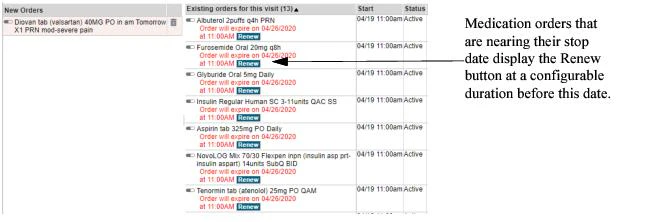
- Click the Admin tab and then the Facility Group or CPOE tab.
In deployments where Facility Groups are not enabled, the Facility Group tab is replaced by the CPOE tab.
- If your institution uses multiple Facility Groups, select the Facility Group you want to configure from the Facility Group drop-down list.
- Click the Order Types link. The CPOE Order Type Maintenance page is displayed.
- Select the Medication Order Type and click the Edit button that displays in the lower-right portion of the screen.
- From the Edit CPOE Order Type screen, locate the Allowed Workflows setting and enable the Renew workflow.
-
(optional) Configure the following settings to further configure the Renew workflow:
- Default Renew Prompt: To configure how much time before each medication’s stop time to display the Renew button to providers.
- Allow provider to edit renew period: To grant permission to clinicians to make changes to the renewal period of medications once they renew medications from their Existing Orders list.
- Click Save. The Renew workflow is enabled for all medication orders within your selected Facility Group. Users can renew medications on the portal, as well as on both iOS and Android mobile devices.
Modifying Data of Interfaced Order Groups and Order Definitions
Some deployments might require you to perform limited edits of the Order Catalog data that is brought over from your back-end system. In each of the following cases, an administrator’s access to perform such edits is controlled by the setting “Edit Interfaced Order Catalog”, which is provided as a Facility Group preference setting. When this setting is enabled, administrators can modify some data from the order catalog. In the sections that follow, instructions are provided for selectively making these modifications.Adding Field Sets to Interfaced Order Groups and Order Definitions
Depending on the type of back-end system that you are using, you might find the need to add a Field Set to an Order Group or Definition that was interfaced from your back-end system. To add a Field Set to an interfaced Order Group or Order Definition:- Click the Admin tab and then the CPOE tab.
- Set Edit Interfaced Order Catalog to Yes (Admin > CPOE > CPOE Preferences > Edit) and then click Save.
- The administrative user interface now enables you to add a Field Set to an Order Group or Order Definition that was interfaced from your back-end system. For more information, see Creating Field Sets.
Modifying the Duplicate Time Frame of an Interfaced Order Definition
Depending on the type of back-end system that you are using, you might find the need to modify the duplicate time frame of an Order Definition that was interfaced from your back-end system. To modify the Duplicate Timeframe setting of an Order Definition:- Click the Admin tab and then the CPOE tab.
- Set Edit Interfaced Order Catalog to Yes (Admin > CPOE > CPOE Preferences > Edit) and then click Save.
- The administrative user interface now enables you to modify the duplicate time frame setting of an interfaced Order Definition. For more information, see Defining a Duplicate Time Frame for Orders Created in CPOE.
Modifying an Order Group Name
Depending on the type of back-end system that you are using, you might find the need to modify the name of an Order Group that was interfaced from your back-end system. To modify the name of an Order Group that was interfaced from your back-end system:- Click the Admin tab and then the CPOE tab.
- Set Edit Interfaced Order Catalog to Yes (Admin > CPOE > CPOE Preferences > Edit) and then click Save.
- The administrative user interface now enables you to modify the names of Order Groups that were interfaced from your back-end system. For more information, see Editing Order Group Properties.
Manually Assigning or Modifying Order Definition Mnemonics
You can add, delete and modify the home medication or pharmacy mnemonics associated with any Order Definition. Typically, mnemonic values are updated over the interface, but there may be occasions for modifying these values through the administrative user interface. Note that these values must be unique, so you are prevented from adding or modifying a mnemonic value that has already been assigned to another Order Definition. Mnemonic values are used to determine the formulary assignments for each Order Definition. When no mnemonic value is found, the NDC value of an Order Definition is used as the basis for determining a particular Order Definition’s formulary assignment. In the case of either approach, note that whenever null values are encountered for formulary indicators during the loading process, the loading process leaves these null values as-is (no default formulary assignment is made in such cases). To manually add, change, or delete an Order Definition’s home medication mnemonic value:- Click the Admin tab and then the Facility Group or CPOE tab.
In deployments where Facility Groups are not enabled, the Facility Group tab is replaced by the CPOE tab.
- If your institution uses multiple Facility Groups, select the Facility Group you want to configure from the Facility Group drop-down list.
- Click the Order Definitions link. The CPOE Order Definition Maintenance page is displayed.
- Search for and select the medication order(s) with the back-end mnemonic value(s) you want to modify, and click Edit. The Edit CPOE Order Definition screen displays.
- Locate the Home Medication Mnemonics setting and click the associated View/Edit Home Medication Mnemonics button. The Med Order Home Mnemonics window displays.
- Select a value from the table and click the Edit button on the right-hand side of the window.
- The Edit Medication window displays.
- Make the necessary change to the Mnemonic field and click Save. Note that you are prevented from saving your edit if this mnemonic is already in use for another order belonging to the same medication type. Otherwise, two Order Definitions can share the same back-end mnemonic value as long as these definitions belong to different medication types.
- Click Save, then close the Med Order Home Mnemonics window. Your modifications are applied to the home medication mnemonic value(s).
To manually add, change, or delete an Order Definition’s home medication mnemonic value
- Click the Admin tab and then the Facility Group or CPOE tab.
In deployments where Facility Groups are not enabled, the Facility Group tab is replaced by the CPOE tab.
- If your institution uses multiple Facility Groups, select the Facility Group you want to configure from the Facility Group drop-down list.
- Click the Order Definitions link. The CPOE Order Definition Maintenance page is displayed.
- Search for and select the medication order(s) with the back-end mnemonic value(s) you want to modify, and click Edit. The Edit CPOE Order Definition screen displays.
- Locate the Pharmacy Mnemonics setting and click the associated View/Edit Pharmacy Mnemonics button. The Med Order Pharmacy Mnemonics window displays.
- Select a value from the table and click the Edit button on the right-hand side of the window.
- The Edit Medication window displays.
- Make the necessary change to the Mnemonic field and click Save. Note that you are prevented from saving your edit if this mnemonic is already in use for another order belonging to the same medication type. Otherwise, two Order Definitions can share the same back-end mnemonic value as long as these definitions belong to different medication types.
- Click Save, then close the Med Order Pharmacy Mnemonics window. Your modifications are applied to the pharmacy mnemonic value(s).
Defining Preferred Mnemonics
Authorized administrators (typically pharmacy administrators) can define specific mnemonics as preferred mnemonics so that a particular selection is made when no matching mnemonic can be found. Defining preferred mnemonics for pharmacy and home medication mnemonics is helpful in cases where a specific bulk mnemonic is the preferred option. Preferred mnemonics also serve as tie-breakers in cases where medications have multiple mnemonics with the same strength value. To define a mnemonic as a preferred mnemonic:- Click the Admin tab and then the Facility Group or CPOE tab.
In deployments where Facility Groups are not enabled, the Facility Group tab is replaced by the CPOE tab.
- If your institution uses multiple Facility Groups, select the Facility Group you want to configure from the Facility Group drop-down list.
- Click the Order Definitions link. The CPOE Order Definition Maintenance page is displayed.
- Search for and select the medication order(s) with the back-end mnemonic value(s) you want to modify, and click Edit. The Edit CPOE Order Definition screen displays.
- Locate the Pharmacy Mnemonics (or Home Mnemonics) setting and click the associated View/Edit Pharmacy Mnemonics button. The Med Order Pharmacy Mnemonics window displays.
- Select a value from the table and click the Edit button on the right-hand side of the window.
- The Edit Medication window displays.
- Click the Add Mnemonic button and in the Add Medication window set Preferred to yes for the mnemonic you want to designate as the preferred mnemonic.
- Click Save. The selected mnemonic will be chosen in cases where no matching mnemonic is found, or in cases where a tie-breaker is needed between two mnemonics with the same strength.
Hiding Order Definitions from Order Search Results
Your complete set of Order Definitions might include definitions that you do not want to expose to providers. If only some definitions need to be hidden as opposed to all Order Definitions within an Order Group, you can configure these specific definitions to be hidden. For example, you might decide to hide Order Definitions that are not intended for providers, such as Order Definitions that pertain to inventory control or nursing standards of care. These Order Definitions are excluded from the results that are returned from an Order Search operation. To hide an Order Definition from an Order Search operation:- Click the Admin tab and then the Facility Group or CPOE tab.
In deployments where Facility Groups are not enabled, the Facility Group tab is replaced by the CPOE tab.
- If your institution uses multiple Facility Groups, select the Facility Group you want to configure from the Facility Group drop-down list.
- Click the Order Definitions link that displays on the left-hand side of the screen.
- Enter your search criteria and click the Search button. Use the search filter settings to refine your search criteria so that only the Order Group(s) you want are returned.
- Select the Order Definition you want and click Edit.
- Set the Hidden from Search option to Yes.
- Click Save. The selected Order Definition will be excluded from all order search results.
If necessary, you can also hide an entire Order Group, which is quicker than hiding each Order Definition individually. For more information, see Hiding Order Groups from Order Search Results.
Order Definition Search Status Settings
The following setting enables you to configure Order Definitions to be hidden from the results of an Order Search operation. Hidden from Search Determines whether an Order Definition is available to providers when they conduct an order search operation. Hiding an Order Definition is similar to de-activating the definition, except that an Order Definition’s hidden status is independent from its active status. Although these two settings function identically in the Commure Pro CPOE application, they exist as distinct settings so that an Order Definition can be hidden in CPOE without affecting its activity status in the back-end system.Configuring Removal of Order Definitions from the Active Orders List
You can configure individual Order Definitions so that they remain on the Active Orders list for a specified amount of time only. When an Order Definition is configured to be automatically hidden from the Active Orders list, it is moved from the Active Orders list to the Inactive Orders list. For example, you might want to hide instructions such as “Call the patient’s family” after a short period of time. Or you might decide to hide a physician consult order after a couple of days. (The amount of time that Order Definitions remain on the Active Orders list is determined by an institutional preference; see Order Duration and Expiration Settings. To remove inactive Order Definitions from the Active Orders list:- Click the Admin tab and then the Facility Group or CPOE tab.
In deployments where Facility Groups are not enabled, the Facility Group tab is replaced by the CPOE tab.
- If your institution uses multiple Facility Groups, select the Facility Group you want to configure from the Facility Group drop-down list.
- Click the Order Definitions link that displays on the left-hand side of the screen.
- Enter your search criteria and click the Search button. Use the search filter settings to refine your search criteria so that only the Order Definition(s) you want are returned.
- Select the Order Definition you want and click Edit.
- Set the Auto-hide from Active Order List option to Yes.
- Click Save. The selected Order Definition will automatically be removed from the Active Orders list and added to the Inactive Orders list after a configurable period of time. For more information, see Order Duration and Expiration Settings.
Active Order List Display Settings
The following setting enables you to control the display of Order Definitions when they move from an active to an inactive state. Auto-hide from Active Order List Determines whether to remove an Order Definition from the Active Orders List after a configurable duration. When its activity period expires, an Order Definition that is set to become automatically hidden is added to the Inactive Orders list. For more information about configuring the duration to display active orders, see Order Duration and Expiration Settings.Defining a Default Rate to Display for “Other” Choice in the Rate Field
You can define a default rate to display with the “Other” option in the Rate field that displays during entry of some medication orders. When clinicians then enter orders requiring a Rate value (such as I.V. medication orders), this default rate then appears next to the “Other” choice. Clinicians can use this default value or enter a replacement value into this field. Note that you can define this field for both Order Definitions and Order Groups. When you configure values for both an Order Definition and its larger Order Group, note that the Order Definition value is used as the default Rate value. To define a default Rate value to display for the “Other” choice in the Rate Field:- Click the Admin tab and then the Facility Group or CPOE tab.
In deployments where Facility Groups are not enabled, the Facility Group tab is replaced by the CPOE tab.
- If your institution uses multiple Facility Groups, select the Facility Group you want to configure from the Facility Group drop-down list.
- Click either the Order Groups or Order Definitions link that displays on the left-hand side of the screen.
- Enter your search criteria and click the Search button. Use the search filter settings to refine your search criteria so that only the Order Group(s) or Definition(s) you want are returned.
- Select an Order Group or Order Definition and click Edit.
- Locate and enter a value (including units) into the Default Unit of Rate field.
- Click Save. When the Rate Field displays to clinicians, the ‘Other’ choice will display this specific value.
Default Rate Display Settings
The following setting lets you define a default value to display with the “Other” option in the Rate field that displays to clinicians during entry of some medication orders. Default Unit of Rate Specifies a default rate to display for the “Other” option in the Rate field. You can define this default value for both an Order Definition and its larger Order Group. Note that when both values are defined, the default rate defined at the Order Definition level is the default value that is used.Defining Alternate Names for an Order Definition
If you want to provide alternate (physician-friendly) names for one or more of your Order Definitions, you can define these during configuration of your Order Definitions. Alternate names remain local to the CPOE application, serving to replace their corresponding Order Definition names in the back-end system. For example, you might choose to define the alternate name “D5W” to replace the original name of “Dextrose 5%”. To define an alternate name for an Order Definition:- Click the Admin tab and then the Facility Group or CPOE tab.
In deployments where Facility Groups are not enabled, the Facility Group tab is replaced by the CPOE tab.
- If your institution uses multiple Facility Groups, select the Facility Group you want to configure from the Facility Group drop-down list.
- Click the Order Definitions link that displays on the left-hand side of the screen.
- Enter your search criteria and click the Search button. Use the search filter settings to refine your search criteria so that only the Order Group(s) you want are returned.
- Select the Order Definition you want and click Edit.
- Enter the new name in the Alternate Name text field. Note that this value takes precedence over any alternate name that is defined in the back-e nd system (and which populates the Backend Alternate Name field in CPOE). For more information, see Backend Alternate Name.
- Click Save. The alternate name is created for the selected Order Definition. This name is what displays to providers during order entry.
Configuring Whether Back-end Alternate Names are Pulled from MEDITECH
(MEDITECH customers only) In some environments, alternate names are maintained and stored in the back-end system that can be pulled into Commure Pro CPOE and used as a back-up approach whenever the Alternate Name property of Order Definitions fails to specify a value in CPOE. A bridge configuration determines whether or not to pull these names from MEDITECH. Back-end alternate names are also factored into calculations made by the order string description generator (OSDG) to derive medication names as they should display to providers throughout the CPOE application and use these names to automatically set the Physician Facing Name property of medication Order Definitions. For more information, see Physician Facing Name. For more information, consult with your Commure Pro representative.Alternate Name Settings
The following setting enables you to create an alternate name for an Order Definition. Alternate Names replace an Order Definition name in the Order Entry screen that providers use to enter orders. Alternate Name Provide a name that your facility or institution uses for this Order Definition instead of the name used by your back-end system. This name displays in the Order Entry screen that providers use to enter orders. Unlike abbreviations, which are usually imported from your back-end system, the alternate name remains local to the Commure Pro CPOE application. This setting is restricted to 100 characters in length. Note that any details associated with alternate names are omitted from displaying on the Order Detail screen when the Order Definition property Use Backend Description is set to Yes. Also note that when an alternate name is specified for an Order Definition that uses a trade name, the ability to search for this order by its trade name remains unaffected. Backend Alternate Name Some environments use an alternate name on the back-end system. In such cases, the back-end alternate name is used when no alternate name is specified in CPOE. For more information, see Backend Alternate Name.Creating Synonyms for Order Definition Searches
If you want to create additional names that can be used to search for an Order Definition, you can accomplish this through the creation of synonyms. If the providers in your facility or department are accustomed to referencing orders using informal or multiple names, you can create one or more synonyms for an Order Definition. For example, you might define “CXR” as a synonym for chest x-ray. Use of synonyms enables you to associate multiple names with a particular Order Definition so that providers can locate orders easily, without having to frequently refine their search criteria until it matches the formal name of the order. To create a synonym for Order Definition searches:- Click the Admin tab and then the Facility Group or CPOE tab.
In deployments where Facility Groups are not enabled, the Facility Group tab is replaced by the CPOE tab.
- If your institution uses multiple Facility Groups, select the Facility Group you want to configure from the Facility Group drop-down list.
- Click the Order Definitions link that displays on the left-hand side of the screen.
- Enter your search criteria and click the Search button. Use the search filter settings to refine your search criteria so that only the Order Group(s) you want are returned.
- Select the Order Definition you want and click Edit.
- Click the Add Synonym link.
- Enter the synonym for the selected Order Definition into the text field that displays.
- Click Save.
Search Synonym Settings
The following setting enables you to view and create synonyms for an Order Definition. Use of synonyms enables you to account for variations in order names to improve the success of Order Search operations. Synonyms Enables the creation of synonyms. You can define one or more synonyms for a particular Order Definition. Unlike Alternate Names, which display in place of the back-end name given to an Order Definition in the CPOE application, the use of synonyms is restricted to Order Search operations. By defining synonyms for an Order Definition, you can ensure that Order Search operations succeed when providers enter name variations when searching for a particular Order Definition. For more information, see Creating Synonyms for Order Definition Searches.Adding Order Strings to an Order Definition
An Order String is a set of order details associated with an Order Definition that serve as a “data set” to help automate order entry. For example, an Order String for a 12-hour decongestant medication might include a specific dose and frequency. Rather than having to enter details manually, providers can select a single Order String, which enters an order and its details with a single selection.Order Strings inherit their Route setting from their corresponding Order Definition. The list of Route settings assigned to Order Strings is restricted to any Routes that are assigned to each Order Definition, its associated Order Strings (including any hidden Strings), and any related orders. The Order Definitions and Strings used as sources for Route values are selecting by matching their short name value (this value is visible to providers only when placing the cursor over the Order Definition in the user interface). When the short name is not specified, the Order Definition name is used for this comparison.
Availability of Order Definitions in Relation to Strings During Order Entry
When users search for orders during order entry, Order Definitions belonging to the medication, lab, and radiology Order Type are included in the search results when there are no order strings associated with the Order Definition. In the case of medications, the Order Definition is not included among search results when there is a minimum of one manual, inpatient or discharge string associated with the Order Definition. During inpatient ordering, availability of Order Definition strings is not affected by the existence of discharge order strings. Order Definition strings are only hidden during inpatient ordering when one or more non-discharge strings are found.Order String Settings
The following settings enable you to view and create Order Strings that are associated with a particular Order Definition. Order Strings Provides a list of the Order Strings associated with each Order Definition, and enables the creation of additional Order Strings that providers can use with a specific Order Definition. By clicking the Add Order String link, you can specify the frequency and dose, as well as other information used to define the string. Order strings from the drug database are automatically hidden from the CPOE Order Definition Maintenance screen when orders have one or more interfaced order strings. In such cases, the interfaced order string(s) display in the lower-right portion of the screen and are identified by either the label ORDER STRING (if interfaced from the MEDITECH PHA Order Strings dictionary) or QUICKSCRIPT (if interfaced from the MEDITECH QuickScripts dictionary). Note that some order strings are exempt when interfaced strings are pulled into CPOE from the MEDITECH Quickscript dictionary. Order strings meeting the following criteria do not get pulled into CPOE:- Order strings without an assigned Order Type
- Order strings that lack values for BOTH the Dose and Frequency fields
- Order strings specifying a frequency value in either the form XnED or nXED (where n is any numeric value)
- Order strings specifying a frequency value in either the form 1XED or 1XED-BOLUS Special Instructions Provides a text area Field that providers can use to enter notes that serve as supplementary notes. Data entered into this Field displays on the Order String (Detail) screen only, in contrast with the Nursing Instructions Field that displays information on both the Order Definition and Order String (Detail) screens. In interfaced environments supporting this Field, these instructions might be populated from your institution’s back-end system.
Requiring Order Definitions to be Reviewed Prior to Processing
You can configure Order Definitions individually so that providers are always or never required to review orders of a particular Order Definition. You can also configure an Order Definition so that providers are required to review the order whenever one or more of its required fields have not been completed. For an Order Definition to be processed by your back-end system, providers will either always be required to review orders with this definition, or else they will be required to review these orders when one or more Fields are incomplete, depending on your configuration. For more information about configuring fields to be required for processing, see Making One or More Fields Required for Processing. To require an Order Definition to be reviewed before it can be processed:- Click the Admin tab and then the Facility Group or CPOE tab.
In deployments where Facility Groups are not enabled, the Facility Group tab is replaced by the CPOE tab.
- If your institution uses multiple Facility Groups, select the Facility Group you want to configure from the Facility Group drop-down list.
- Click the Order Definitions link that displays on the left-hand side of the screen.
- Enter your search criteria and click the Search button. Use the search filter settings to refine your search criteria so that only the Order Definition(s) you want are returned.
- Select the Order Definition you want and click Edit.
-
Use the Require Review setting to specify either:
- Always: If you always want to require reviews to be passed in the interface.
- Never: If you never want to require reviews to be passed in the interface.
- When Missing Required Fields: Fields are evaluated individually based on their “Required for back-end processing” setting. When Fields have this setting enabled, values for these Fields are required to be passed in the interface.
- Click Save. You are returned to the CPOE Order Definition Maintenance screen.
Order Definition Review Settings
The following setting determines whether to require the ordering provider to review a particular Order Definition prior to order submission. Require Review Determines whether an Order Definition requires a status of reviewed to be passed in the interface. You can set an Order Definition so that it always requires a review, never requires a review, or whether orders are to be held for review only when there are one or more required fields that belong to the Order Definition’s Field Set. For more information, see Creating and Editing Field Sets.Marking Order Definitions to Require Provider Co-Signature
Administrators can configure the CPOE application to require providers to obtain a co-signature from a second provider before they are allowed to submit orders. This restriction can be configured as a user preference, to require co-signature from one or more individual providers, or as a bulk user preference, if you want to require co-signature from all providers within your facility. For more information, see Requiring Users to Obtain Co-Signature for CPOE Orders. Whether requiring co-signature of individual users or all users, administrators can selectively apply the co-signature restriction to orders. Configuration options are provided to require co-signature for all orders, for medication orders only, for controlled (scheduled) medication orders only, or for a defined (custom) grouping of orders. (For more information about configuring scheduled medications, see Configuring the Display of Radiology Orders.) As a prerequisite step for requiring co-signature on a custom (‘marked’) grouping of medications, administrators must first mark one or more Order Definitions for co-signature before they configure one or more providers to require co-signature on entry of this custom (marked) grouping of medications. It is important to note that when an order session includes both marked and admission orders with co-signature requirements, the provider list presented to clinicians is defined by the narrowest definition (only the admitting providers). As a result, there are scenarios in which co-signing providers defined for a group of marked orders might not be available to clinicians submitting an order session with admission orders. For more information, see Requiring Co-Signature for Admission Orders. For each Order Definition that you want to mark as requiring co-signature:- Click the Admin tab and then the Facility Group or CPOE tab.
In deployments where Facility Groups are not enabled, the Facility Group tab is replaced by the CPOE tab.
- If your institution uses multiple Facility Groups, select the Facility Group you want to configure from the Facility Group drop-down list.
- Click the Order Definitions link that displays on the left-hand side of the screen.
- Enter your search criteria and click the Search button. Use the search filter settings to refine your search criteria so that only the Order Definition(s) you want are returned.
- Select the Order Definition you want to mark for co-signature and click Edit.
- Enable the setting Requires Co-Signature for Designated Users.
- Click Save. Whenever the user preference Co-Signature Required is set to “Marked Order Defs”, providers will be required to obtain co-signature when submitting an order session that includes the selected order(s).
Creating a Related Orders List for an Order Definition
Some Order Definitions can be made up of several compound ingredients. For example, you might have Order Definitions for banana bags, magic mouthwash, or rocket boosters. For interaction checking to be effective on the CPOE application, each of these compound ingredients must be factored into any interaction checking that is performed. To address this need, administrators can add a Related Orders list to specify the compound ingredients comprising a particular Order Definition. When interaction checks are run on a manually-created Order Definition that has a Related Orders list, checking is also performed on each ingredient that is specified on this list.You can only create a Related Orders List for Order Definitions that have been manually created. When you edit Order Definitions that are interfaced from your back-end system, no access is provided for working with related orders lists on the Edit Order Definition window.
- From the CPOE Order Definition Maintenance window (Admin > Facility Group > [select Facility Group] > Order Definitions), search for and select any manually-created Medication Order Definition, and click Edit. This is the Order Definition that is made up of the compound ingredients.
-
For each Order Definition that you want to add to the Related Orders list:
- Click the Add Related Orders link.
- From the Add Related Orders window, use the search criteria to locate and select the Order Definition that you want to add to the Related Orders list. You can limit your search to include only medications from your facility or institution’s formulary. If at any time you link an order in error, you can remove it from the Related Orders list by clicking the trash icon that displays to the left of each order on the list.
- Click the Link Definition button. Each Order Definition is added to the Related Orders list.
- When the linked list is complete, click View NDC/DIN.
- From the Med Order NDC/DIN List window, search for and select an associated NDC (or DIN if Canada).
- Click Save, and then Close. The custom NDC (or DIN) is added, and is associated with the Order Definition that is made up of the component ingredients.
- On the Edit CPOE Order Definition window, click Save. Both the linked list and the associated NDC are saved with the selected Order Definition. When interaction checking involves this definition, both the linked list and the NDC are used during the interaction checking process.
Exporting the Order Catalog for Review
You can export all of your Order Catalog data into a comma-separated format (such as Excel file) that you can print in order to review your Order Catalog assignments. After the order data is brought over from your back-end system, exporting this data into a spreadsheet enables your institution to review this data. By carefully reviewing your Order Catalog, you can ensure that your Order Definitions display correctly and that these definitions belong to the correct Order Types and Order Groups. A full export of the Order Catalog includes the following Order Definition data:
A full export of the Order Catalog includes the following Order Group data:
Once you print the contents of the export file, you can then delegate review of specific data to the most appropriate departments, such as by dividing up and distributing your data by Order Type or Order Group.
To export the Order Catalog for data verification:
- Click the Admin tab and then the Facility Group or CPOE tab.
In deployments where Facility Groups are not enabled, the Facility Group tab is replaced by the CPOE tab.
- Select the Facility Group whose data you want to export from the Facility Group drop-down list.
- Click the Order Definitions link. The CPOE Order Definition Maintenance pane displays.
- Enter your search criteria and click the Search button. Use the search filter settings to refine your search criteria so that only the Order Definition(s) you want to export are returned.
- Click the Export Data button. The Export CPOE Order Definitions window displays.
- From the Options tab, locate the Format setting and select csv, and then specify a value for the Destination File setting, which is the name to use for the Excel file to contain the exported data. Note that the file extension is automatically appended to the end of the Destination File name when you select the format. You can also choose between exporting all data or restricting the export to active order strings only.
- Click Export. If prompted, disable your browser’s pop-up blocker.
-
When prompted, click the here link provided to initiate the download.
A temporary message indicates that the file can take several minutes to generate. When this message is replaced by the here link, the export file is ready to download.
In cases where the Order Catalog exceeds a size of 2 MB or so, the exported data file is written to the export server’s tomcat directory, and you are not prompted to save this file to a target directory.
- From the Export CPOE Order Definitions window, click the Download tab, enter the credentials required to access the exported data, and then click the Download button associated with the export file you just created. Note that your credentials are encrypted and stored in a password-protected folder on the remote server. You are prompted to open or save the zip file to a specified location on your local machine.
Exporting the Order Catalog for Pharmacy Usage
You can generate an export report that is specifically for your pharmacy. This report (“Medication export by Pharmacy Mnemonic”) lists all medication order definitions and associated order strings, sorted in ascending alphabetic order by pharmacy mnemonic. This report is provided as a pharmacy-specific alternative to the (more comprehensive) Order Definition export file. A full export of the Order Catalog for Pharmacy Usage includes the following data:
This report, which also uses a comma-separated format (such as Excel file) for this data, includes only the data that is most useful to pharmacy. Note that while some of this data duplicates data found in the larger Order Catalog export, some of the data contained in this report is unique to the pharmacy export file.
To export the Order Catalog for data verification:
- Click the Admin tab and then the Facility Group or CPOE tab.
In deployments where Facility Groups are not enabled, the Facility Group tab is replaced by the CPOE tab.
- Select the Facility Group whose data you want to export from the Facility Group drop-down list.
- Click the Reports link. The Reports pane displays a list of the available types of reports that you can run.
- From the list of Report Type list, select Medication export by Pharmacy Mnemonic.
- Click Run. You are prompted with a status message that the operation is in progress.
- Click OK, and wait for the process to complete. Note that this process can sometimes take several minutes to complete. You are prompted to open or save the zip file containing the report to a specified location on your local machine.
Configuring SOLR Search for the Search Indexer
Commure Pro CPOE is designed to be fully interoperable with the latest version of the Apache SOLR server. The approach you take to configure your SOLR server depends on how you deploy the CPOE application and, more specifically, whether you plan to deploy CPOE on a single-instance or multi-instance mobilizer server. Many of the benefits from using SOLR sever are seen in multi-mobilizer environments, since customers can fully exploit SOLR’s flexibility to achieve upgrades that do not require system downtime. (In the instructions that follow (for both single-instance and multi-instance configurations), all examples assume that Tomcat is configured on port 8080. Your configuration may require a change in port configuration.)Configuring SOLR Search for a Single Server
The following instructions are provided for simple configurations that deploy the CPOE application on a single server. As mentioned previously, the example provided below assumes that Tomcat server is configured to use port 8080. To configure the SOLR search server in deployments using a single mobilizer instance:- Click the Admin tab and then the Facility Group or CPOE tab.
In deployments where Facility Groups are not enabled, the Facility Group tab is replaced by the CPOE tab.
- If your institution uses multiple Facility Groups, select the Facility Group you want to configure from the Facility Group drop-down list.
- Click the Edit button.
-
Locate and configure the SOLR settings as in the following example:
- Solr Mobilizer Name:
[machine name of single-instance Mobilizer] - Solr Master URL:
http://[SOLR master hostname]:[SOLR master port]/solr-app - Solr Search URL: (hard-coded to always point to)
http://localhost:[local mobilizer port]/solr-app
- Solr Mobilizer Name:
- Click Save. You are returned to the CPOE Preferences screen and your configuration changes are applied.
- Re-start the mobilizer server and run the search indexer. For more information, see Running the Search Indexer. You can monitor SOLR search engine activity from the Self Test screen to see when the SOLR search indexing last occurred at a particular facility. (Admin > System Maintenance > Self Test). For more information, see Monitoring SOLR Search Activity.
Configuring SOLR Search for Multiple Servers
The following instructions are provided for multi-instance environments that deploy and configure multiple servers to achieve a no-downtime solution. In such environments, all (two or more) mobilizer instances connect to and share data from a single operational database. Only one of these instances is designated as the master, which is the one SOLR server that performs all of the re-indexing. When the master SOLR server completes re-indexing activity and commits a new index, all other (slave) instances replicate their index from the master (upon re-start of these ‘slave’ instances). The example provided below assumes that Tomcat server is configured to use port 8080. To configure the SOLR search server in deployments using multiple mobilizer instances:- Click the Admin tab and then the Facility Group or CPOE tab.
In deployments where Facility Groups are not enabled, the Facility Group tab is replaced by the CPOE tab.
- If your institution uses multiple Facility Groups, select the Facility Group you want to configure from the Facility Group drop-down list.
- Click the Edit button.
-
Locate and configure the SOLR settings as in the following example:
- Solr Mobilizer Name: [machine name of Mobilizer instance]
- Solr Master URL:
http://[SOLR master hostname]:[SOLR master port]/solr-app - Solr Search URL: (hard-coded to always point to)
http://localhost:[local mobilizer port]/solr-app
- Click Save. You are returned to the CPOE Preferences screen and your configuration changes are applied.
- Re-start the mobilizer server and run the search indexer. For more information, see Running the Search Indexer. You can monitor SOLR search engine activity from the Self Test screen to see when the SOLR search indexing last occurred at a particular facility. (Admin > System Maintenance > Self Test). For more information, see Monitoring SOLR Search Activity.
Running the Search Indexer
Typically, you should perform updates of the Search Indexer whenever you make changes such as manually adding Order Strings. You can use the progress indicator for the Search Indexer to determine when this process completes, so that you know when you can expect to find the newer Order Strings. Note that, when you select a specific Facility Group, the Search Index updates apply only to the data that is associated with the facilities belonging to the specified Facility Group. To run the Search Index:- Click the Admin tab and then the Facility Group or CPOE tab.
In deployments where Facility Groups are not enabled, the Facility Group tab is replaced by the CPOE tab.
- If your institution uses multiple Facility Groups, select the Facility Group you want to configure from the Facility Group drop-down list.
- Click the CPOE Utilities link, followed by the Search Index tab.
- Click the Run Search Index button. The Search Index process is run on all Order Catalog data belonging to the selected Facility Group.
Creating Order Strings, Groups, and Definitions
Because it is essential that the CPOE application remain consistent with your facility’s back-end system, you must restrict the creation of any Order Catalog elements in the CPOE application to trained level 1 administrators. In addition, you must ensure that all administrators with access to the application understand the limitations around creation of Order Groups and Order Definitions in the Commure Pro CPOE system. Although most updates to your Order Catalog will come from your interfaced back-end system, you can also make additions to your Order Catalog directly from the Commure Pro CPOE application. Most often, these additions involve creation of Order Strings for some medication orders that would be placed by providers differently than they appear from their ordering history (as entered by your pharmacy). For more information, see Creating Order Strings Manually.About Pharmacy Orders
A pharmacist’s role sometimes involves translating a physician’s order from the therapeutic perspective into a more product-oriented perspective during order entry. As a result of this translation, some of the orders entered in your pharmacy system may be entered in a different form than what is used when providers enter these orders (for example, as a volume instead of a rate). Typically, this kind of translation occurs during two types of order entry:- Intravenous medication orders
- Medication orders involving weight-based dosing, such as pediatric orders To ensure that these types of orders are easily understood by all physicians in your facility, you should consider manually creating Order Strings to serve as “physician-friendly” equivalents to orders that were entered by your pharmacy.
Creating Order Strings Manually
In some circumstances, you might want to manually create Order Strings directly in the CPOE application. Typically, you will create Order Strings in this way each time that you need to create “physician-friendly” equivalents of some types of Order Definitions. For more information about some possible scenarios, see About Pharmacy Orders. To define a manually-created Order String:- Click the Admin tab and then the Facility Group or CPOE tab.
In deployments where Facility Groups are not enabled, the Facility Group tab is replaced by the CPOE tab.
- If your institution uses multiple Facility Groups, select the Facility Group you want to configure from the Facility Group drop-down list.
- Click the Order Definitions link.
- Use the search settings at the top of the screen to refine your search criteria so that only the Order Definitions you want are returned. In this case, you are going to want to restrict your search to medication orders.
- Select one of the available Order Definitions and click the Edit button that displays in the lower-right portion of the screen.
- From the Edit CPOE Order Definition screen, locate the Order Strings setting and click the associated Add Order String link.
-
From the Add Order String window, select the criteria that you want to use to define the Order String.
When you add new order strings for medication orders, note that the Order Detail screen prevents you from selecting STAT for orders that are configured with the settings ONCE and PRN. Also note that when PRN is selected for an order you cannot select the Frequency option “Spec. Instr”.
- When you are done defining your String, click OK. The Order String is saved. When physicians in your facility search for a related order, this Order String will be available among the related options.
Note that this new Order String inherits its Route setting from its corresponding Order Definition. Whether you choose this default assignment or change this Route setting, note that the list of Route settings made available to providers is restricted to any Routes that have been assigned to each Order Definition and any of its associated Order Strings (including any Strings that are configured to be hidden). Also note that this list excludes any med route values of associated Order Definitions or strings that include a concentration as part of their Medication Strength value (as determined by inclusion of one or more of the characters %, /, or -). This rule is enforced to prevent errors that might occur when converting concentration values during creation of order strings from Order Definitions.
Hiding Order Strings from Users
You can hide any of the Order Strings that are associated with a particular Order Definition. Hidden Order Strings do not show among the options that physicians see when they search for associated orders. These Order Strings are hidden from both the order list and from order search, and are visible only to administrators. Note that whenever you hide an Order String, any field values unique to this Order String (or shared only among hidden Order Strings) will be excluded from the Order Detail window for this Order Definition, unless you explicitly configure these field values to display among the available field options that display for the associated Order Definition and all related Order Strings that are not hidden. (More information on this configuration option is provided in the following procedure.) To hide Order Strings from Users;- Click the Admin tab and then the Facility Group or CPOE tab.
In deployments where Facility Groups are not enabled, the Facility Group tab is replaced by the CPOE tab.
- If your institution uses multiple Facility Groups, select the Facility Group you want to configure from the Facility Group drop-down list.
- Click the Order Definitions link.
- Use the search settings at the top of the screen to refine your search criteria so that only the Order Definitions you want are returned. In this case, you are going to want to restrict your search to medication orders.
- Select one of the available Order Definitions and click the Edit button that displays in the lower-right portion of the screen.
- From the Order Strings list toward the bottom of the Edit CPOE Order Definition screen, locate the Order String to hide among entries on the list and enable the associated Hidden setting
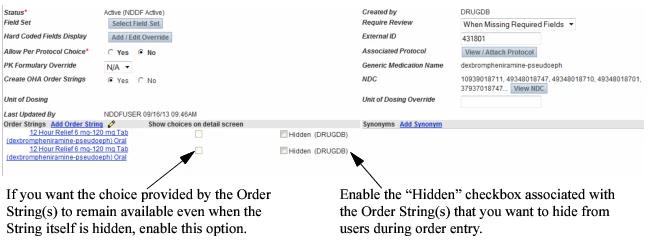
- (optional) If there are field values you want to include in the Order Detail window that are either specific to this Order String or shared among only hidden Order Strings, enable the Show Choices on detail screen setting that is associated with the hidden Order String.
- Click Save. The Order String will be hidden from both the order list and from order search. Any field values that are specific to this Order String or shared only among hidden Order Strings will also be hidden from the Order Detail window, unless you enabled the Show Choices on detail screen setting.
Creating Lab Order Strings with the Most Common “When” Values
Customers can now automatically create three order strings from each of their lab orders to obtain the most common “When” values used for labs. A new option is provided enabling the automatic creation of order strings with “When” values that are most commonly used during entry of lab orders. This option is run as a single task that produces the following three order strings for each lab Order Type:- Labs specifying a “When” value of In AM
- Labs specifying a “When” value of Today
- Labs that are marked as STAT orders Completion of this process requires execution of an administrative command that is run outside of the Commure Pro administrative user interface.
Creating Order Groups
In most if not all cases, you should plan to create any new Order Groups in your facility’s back-end system. This approach ensures consistency between your external system and the Commure Pro CPOE application. If the need arises, you can create additional Order Groups in the CPOE application. However, note that all Order Groups created directly in CPOE remain local to the CPOE application; this data is not synchronized with Order Groups that are stored and updated in your back-end system.It is recommended that you consult with a Commure Pro representative before creating Order Groups in the CPOE application.
- Click the Admin tab and then the Facility Group or CPOE tab.
In deployments where Facility Groups are not enabled, the Facility Group tab is replaced by the CPOE tab.
- If your institution uses multiple Facility Groups, select the Facility Group you want to configure from the Facility Group drop-down list.
- Click the Order Groups link.
- Click the Add Order Group button at the bottom left portion of the screen. The Add CPOE Order Group screen displays.
- Use the Order Type drop-down menu to assign the Order Group you are creating to one of the available Order Types.
-
Enter information about your new Order Group into the following fields:
- Abbreviation
- Name
- Description
-
Configure the following settings for your Order Group:
- Status
- Hidden from Search
- Select Field Set For more information about any of these settings, see Order Group Settings.
- Click Save. Your Order Group is created, and you are returned to the CPOE Order Group Maintenance screen.
Creating Order Definitions
In most if not all cases, you should plan to create any new Order Definitions directly in the back-end system that interfaces with your CPOE application. This approach ensures consistency between your external system and the Commure Pro CPOE application. If the need arises, you can create additional Order Definitions in the CPOE application. However, note that all Order Definitions created directly in CPOE remain local to the CPOE application. To create a new Order Definition:- Click the Admin tab and then the Facility Group or CPOE tab.
In deployments where Facility Groups are not enabled, the Facility Group tab is replaced by the CPOE tab.
- If your institution uses multiple Facility Groups, select the Facility Group you want to configure from the Facility Group drop-down list.
- Click the Order Definitions link.
- Click the Add Order Definition button at the bottom of the screen. The Add CPOE Order Definition screen displays.
- Use the Order Type and Order Group drop-down menus to assign the Order Definition you are creating to one of the available Order Types and Order Groups.
-
Enter information about your new Order Definition into the following fields:
- Abbreviation
- Name
- Alternate Name
-
Configure the following settings for your Order Definition:
- Status
- Duplicate Timeframe (hrs)
- Field Set
- Automatically launch Order Detail
- Hidden from Search
- Auto-hide from Active Order List
- Corresponding Backend Order
- Require Review
- Allow Per Protocol Choice (medication Order Definitions only)
- Associated Protocol (medication Order Definitions only) For more information about any of these settings, see Order Definition Settings.
- Add or edit any Synonyms or Strings for this Order Definition. For more information, see Creating Synonyms for Order Definition Searches or Adding Order Strings to an Order Definition.
- Click Save. Your edits are saved, and you are returned to the CPOE Order Definition Maintenance screen.
Creating Free Text Order Definitions
You can use the CPOE application to create Free Text Order Definitions. A Free Text Order Definition enables your providers to enter descriptive text into a free text field. When you create a Free Text Order Definition, your providers can use this Definition to create Free Text Orders in the event an Order Definition they need does not exist. For example, you might want to create a Free Text Order Definition for miscellaneous lab orders. You can add the definition “Free Text Lab Orders” to your Lab Order Definitions. Then, when your providers are unable to locate a particular Lab Order Definition, they can use the “Free Text Lab Orders” Order Definition to add their lab order using free text. To create a free-text Order Definition:-
Create a Field and set the following properties in the following option:Admin > Facility Group > [select Facility Group] > Fields:
- Name: Specify a descriptive name for the Free Text Field, such as “Comments:”.
- Status: Set this Field to Active.
- Field Type: Set this value to Text.
- Number of Characters: Specify the maximum number of characters that providers can enter into this Field. For more information about creating this Field, see Creating Fields.
-
Set the following institutional preferences to enable the use of Free Text Orders and reference your new Field in the following option:Admin > Facility Group > [select Facility Group] > CPOE Preferences:
- Enable Free Text Orders: Click Yes to enable the use of Free Text Orders.
- Free Text Description Field: Click the Select Field button and use the search criteria to locate the Field that you created in Step 1 above. For more information about these settings, see Free Text Order Settings.
- Create a Field Set using a descriptive name to identify it as a Field Set that contains a Free Text Field in the following option:Admin > CPOE > Field Sets. For example, “Free Text Order Field Set”. For more information, see Creating Field Sets.
- Add the Free Text Field (for example, “Free Text Order Description:”) to your new Field Set.
-
Create an Order Definition and set the following properties in the following option:Admin > Facility Group > [select Facility Group] > Order Definitions.
- Order Type: Select the Order Type of the new Definition.
- Order Group: Select the Order Group of the new Definition.
- Abbreviation: Specify the abbreviation to use for the new Definition. For example, “Misc. Labs”.
- Name: Specify a descriptive name to use for the new Definition. For example, “Miscellaneous Lab Orders”. You might also consider including “Free Text” as part of the name to identify this Order Definition as a Free Text Order Definition. For example, “Miscellaneous Lab Free Text Orders”.
- Status: Set this Field to Active.
- Field Set: Click the Select Field Set button and use the search criteria to locate the Field Set that you created in Step 3.
You can define one Free Text Order Definition for each Order Type.
- Associate your new Order Definition with its Order Type to identify this new Definition as a Free Text Order Definition. You can make this association by editing the Order Type properties. For more information, see Editing Order Type Properties.
- You must grant permission to users before they can enter Free Text Orders. This permission is granted in the following option:Admin > User > [Edit User] > [Edit CPOE Settings] > Allow Free Text Orders. For more information, see User Order Entry Access Settings.