

Administrative and Configuration (Admin) Reports
Administrative and configuration reports provide details on several Commure Pro areas, including CPOE-related orders, incomplete NoteWriter reports, facility information, field set details, transmission issues, reference lists, and user settings. These reports are available from the Admin tab > Tracking/Reporting tab > Admin Reports tab. The Admin Reports tab appears in the application only if the XML Customization to display it was added for your organization. To enable the Admin Reports tab, consult with your Commure Pro representative.CPOE Favorites Report
This report provides a listing of each String or Order Set favorite for all users. Criteria Fields:- Facility Group: Select the facility group you want to include in the report.
- Facility Group: The name of the facility group that contains the favorite.
- User Name: The username of the user who is the owner of the favorite.
- Full Name: The full name of the user who is owner of the favorite.
- Parent Folder: The favorites category within which the favorite is filed.
- Order Definition/Order Set: The Order Definition from which a favorited order string was created, or the name of the favorited order string.
Each Favorite category and sub-category header will show an entry in this column as “sub folder” and can be filtered out of the report for clarity.
- Order Type: The associated order type for a favorite order string. For favorited order sets, this column is blank.
- Order Group: The associated order group for a favorited order string. For favorited order sets, this column is blank.
- Order Def Key: The unique identifier that is used to reference the order definition in Commure Pro.
- Order Def Abbrev: The short name or identifier (an acronym, for example) used to identify the order definition.
- Order Def Name: The name of the order definition in Commure Pro.
- Description: The order string description, or the name of the favorited order set.
- Level Desc: The administrative level of the user who created the favorite
- Field Set Name: The names of any field sets contained in the favorite order definition. For favorited order sets, this column is blank.
- Field Set Abbr: The short name (an acronym, for example) used to identify a field set contained in the favorite order definition. For favorited order sets, this column is blank.
- Row ID: The row count (with each row representing an individual Field) in the report, in ascending order.
DQM Report
The Data Quality Management (DQM) Report is used for tracking the status of incomplete NoteWriter reports (Commure Pro-Notes). The DQM Report includes only notes that have not been progressed to a finalized state (completed, final-signed, etc.). By default, All incomplete notes are listed. You can select a tab at the top of the report to view just Pending notes, Declined notes, or Draft notes. To save a copy of the report, click Download Report to download an Excel file of the results. In order for a user to view this report, the setting User Can Search for Notes must be set to All. Criteria Fields:- Facility: Use this to select the Facility for which you want to see incomplete notes.
- Facility: This column shows you the Facility.
- Patient Name: This column shows you the name of the patient.
- MRN: This column shows you the patient MRN.
- Account Number: This column shows you the patient account number.
- Admit Date: This column shows you the patient admit date.
- Discharge Date: This column shows you the patient discharge date.
- Template Name: This column shows you the name of the note template.
- Type: This column shows you the Note Type.
- Status: This column shows you the note status from within Commure Pro.
- Author: This column shows you the author of the note.
- Note Date: This column shows you the note date.
- Co-Signer: This column shows you the provider who is assigned as the co-signer.
- Co-Sign Status: This column shows you the co-sign status for the note.
- Interface Status: This column shows you the note status as being processed by an interface to a back-end system.
eRx Orders Report
Individual facilities can run and download this report to provide a listing of all eRx submissions. The information in the report includes a variety of data to help administrators with troubleshooting, as well as data to help customers understand how providers are using the eRx application. Note that this report can contain a large volume of data and it is recommended that customers run the report using Chrome browsers only. Criteria Fields:- Facility Group: Select the facility group you want to include in the report.
- Start Date: Specify the start date to narrow the search scope so that the report includes only relevant data.
- End Date: Specify the end date to narrow the search scope so that the report includes only relevant data.
- Submission Type: Indicates whether the submission is of type erx (routed to pharmacy) or type print (routed to printer Destination).
- Destination: The target route Destination of the submission.
- Facility: The facility of the patient associated with the submission.
- URN: The unique record number that uniquely identifies the patient and their associated clinical record in the back-end system (MEDITECH only).
- Unit Number: The medical record number that is assigned to the patient. This assignment remains the same for patients across visits.
- Account Number: The visit-specific record number that is assigned to the patient.
- Patient First Name: The first name of the patient associated with the submission.
- Patient Last Name: The last name of the patient associated with the submission.
- Patient DOB: The date of birth for the patient.
- Care Unit: The unit within the patient’s location.
- Room: The patient’s room assignment.
- Bed: The patient’s bed position in their assigned room.
- Patient Type: Indicates the patient’s visit type (such as current inpatient visit, discharged inpatient visit, observation visit).
- Discharge Date: The discharge date and time of the patient visit.
- Destination Pharmacy Name: The name of the route destination.
- NCPDPID: The unique identifier that identifies the pharmacy within the National Council for Prescription Drug Program (NCPDP).
- Backend Mnemonic: The back-end mnemonic of the medication associated with the submission.
- Controlled Substance: Indicates whether the medication associated with the submission is a controlled or scheduled medication.
- Prescription Med: The prescription as it appears on the label of the medication that is associated with the submission.
- Provider: The provider who entered the order associated with the submission.
- Prescriber NPI: The National Provider Identifier number for the prescriber.
- NDC: The national drug code of the medication associated with the submission.
- Order ID: The unique ID associated with the order.
- Submission State: The current status of the submission.
- Successfully Transmitted: Indicates whether routing of the submission completed successfully.
- Error Message: If unsuccessful, the error message indicating the specific nature of the failure or delay.
- Rx Order Date: The date on which an order was sent to the default pharmacy.
- Date Transmitted: The date / timestamp indicating when routing of the submission was completed.
- Row Number: The row count (with each row representing an individual Field) in the report, in ascending order.
Facility Report by Department
This report includes all Commure Pro departments for the division and specifies the facilities for which a department exists. You can view and download a list of all departments and the facility and parent facility they are associated with. You can also list the users (providers) associated with each department. Criteria Fields:- Show all users and departments: Select this to list all users that are associated with a department.
- USERS: This column shows you all users associated with the department.
- DEPARTMENT: This column lists the department.
- PARENT FACILITY: This column displays the parent facility, if there is one.
- FACILITY: This column displays the facility.
Field Set Report
This report provides a complete inventory of the Fields and Field Sets that have been manually added or interfaced in the Commure Pro CPOE application, and includes all associated configurations. Filtering options let you include all Field Sets in the report, whether or not they are currently associated with Order Definitions or Order Groups. Criteria Fields:- Facility Group: Select the facility group you want to include in the report.
- Attached to active order definition and active order group: limits Field Sets in the report to those that have an association with active Order Definitions and Groups only.
- With one or more Order Types: When you enable the setting above, this setting lets you specify one or more Order Types to narrow the scope of the search results.
- Facility Group: Identifies the selected facility group to improve report usability.
- Commure Pro Key: The unique identifier used to reference the Field Set within Commure Pro.
- FieldSet Abbrev: The short name used to reference the Field Set.
- FieldSet Name: The complete name used to reference the Field Set.
- FieldSet Description: Optional free-text description used to provide additional information about the Field Set.
- FieldSet Status: Indicates whether the Field Set is active or inactive.
- FieldSet Last Updated By: Identifies the most recent user to edit or update the Field Set.
- FieldSet # of Columns: Indicates how many columns are used to display Fields on the Order Details screen.
- Field Type: Identifies the Field type in use, such as Radio button type, Text type, Number type.
- Field Abbrev: The short name used to reference the specific Field.
- Field Name: The complete name used to reference the specific Field.
- Field Suffix: Indicates whether a suffix has been defined to display custom text after the field.
- Field Default Value: Indicates the default value if one has been defined for the field.
- Field Total Length: Indicates the maximum number of characters that users can enter into a Field (number type fields only).
- Field # Decimals: Specifies the allowed decimal precision for Number type fields.
- Field # Characters: Specifies the maximum allowed character limit for Text type fields.
- Field # Columns: Specifies how many columns to use when displaying structured response options for applicable Field types (such as Checkbox Group and Radio Button fields).
- Field Include in Order Description: Indicates how the Field response displays as part of the Order Description (options are to display the Field response, Field response with label, or to display no Field information).
- Field Include Other Choices: Indicates whether the Field is configured to allow for an additional free text response option on Field Types with structured response options.
- Field Hide Other Choices: Indicates whether a free text other response option is suppressed on supported Field types originating from MEDITECH.
- Field Reference List: Specifies the reference list (if there is one) associated with the field.
- Field Status: Indicates whether the field is active or inactive.
- Field Last Updated by: Identifies the most recent user to edit or update the Field.
- Field Required for Ordering Provider: Indicates whether the field is mandatory during provider order entry.
- Field Required for Processing: Indicates whether the field is mandatory when the order submission is processed after provider order entry.
- Field Hidden From Provider: Indicates whether the field is configured to be hidden from or visible to the provider during order entry.
- Field Display At Top Of Screen: Indicates whether the field is configured to be positioned above Display Override Fields on the Order Details screen during order entry.
- Field Hide Name On Print-Out: Indicates whether the field is configured to be hidden from or visible on the printed order sheet.
- Field Exclude From Discharge: Indicates whether the field is configured to be hidden on the Order Details screen during Discharge Medication Reconciliation.
- Field Sort Order: Indicates the relative sorting position of the field as relates to other fields in its Field Set.
- FieldSet Source/Created By: Indicates whether the Field Set was manually created in Commure Pro or interfaced from the back-end system.
- FieldSet used within Order Types: Indicates the corresponding Order Type for the Order Definition or Order Group to which the Field Set is associated.
- FieldSet used within Order Groups: Indicates the corresponding Order Group for the Order Definition or Order Group to which the Field Set is associated.
- FieldSet associated with Order Groups: Defines a group of Fields that are common to a particular Order Group (Order Groups belonging to medication Order Type only).
- Row Number: The row count (with each row representing an individual Field) in the report, in ascending order.
Interface Failure Report
Administrators can export this report to help with troubleshooting when latency or failures affect the transmission of submissions over the outbound interface, including charges, orders, and notes. Administrators can define a time frame and investigate specific submission statuses by clicking on the result count or by clicking the individual error messages. Criteria Fields:- Start Date: Specify the start date to narrow the search scope so that the report includes only relevant data.
- End Date: Specify the end date to narrow the search scope so that the report includes only relevant data.
- Destination: Restricts the submissions included in the report to a specific Destination.
- Submission State: Restricts submissions included in the report to those with a specific submission state.
- Destination: The target route Destination of the submission.
- Submission State: The status describing the specific nature of the submission (typically PROCESS_FAILURE, DEST_UNREACHABLE_FAILURE, EXCEEDED_INTERFACE_TIMEFRAME, or SUCCESS_WITH_WARNING). Each error is reported once and administrators can click the submission count total to view details about the various individual submissions that exist in this state.
- Submission Count: The total number of submissions that exist for a specific error. Clicking this number yields a detailed list of submissions along with details about each.
- Error Message: The error message (and any associated error code) that provides more detail about the specific nature of the error.
Med Frequency Def Report
This report provides a complete inventory of frequency definitions used in Commure Pro CPOE, including the definitions created by the interface and all of the manually-created frequency definitions. Administrators can use this report to help with maintenance of frequency definitions. Criteria Fields:- Facility Group: Select the facility group you want to include in the report.
- Include Inactive: Enable to include both active and inactive frequency definitions; disable to restrict report to active values only.
- Facility Group Name: Identifies the selected facility group to improve report usability.
- Commure Pro Key: The unique identifier used to reference the frequency definition within Commure Pro.
- Abbrev: The short name used to reference the frequency definition.
- Name: The full name used to reference the frequency definition.
- Patient Instructions Name: The full name of the frequency definition as it displays in the patient-facing medication description (for prescriptions sent to SureScripts).
- Num Hours to First Dose: The number of hours used by the First Dose Now calculation, where if the number of hours between the current time and the next scheduled time exceeds this value, prompt to start the medication ‘now’.
- Day Schedule: Indicates the schedule for the frequency definition (such as QD or Q2D).
- Med Times: Provides a list of time values (in military time format) indicating the time(s) at which the medication is to be administered.
- Non-Med Times: Providers a list of time values (in military time format) indicating the time(s) at which the orders (other than medications) are to be fulfilled.
- FDB Frequency Interval: Specifies an FDB frequency interval at which a medication is to be administered.
- Med # of Times per Day: Indicates how many times a medication is to be administered over the course of a single day. This value is either interfaced or calculated on manually-created frequency definitions based on the Med Times value.
- Status: Indicates whether the med frequency definition is active or inactive.
- Last Updated By: Identifies the most recent user to edit or update the frequency definition.
- Row Number: The row count (with each row representing an individual Field) in the report, in ascending order.
Med Order Definition Report
The Med Order Definition report lists all order definitions and their associated strings within the Medication Order Type that have associated PHA or home medication mnemonics. Used for Medication build and maintenance, export to Excel. Information is displayed in string format. Criteria Fields:- Facility Group: Select the facility group you want to include in the report.
- Order Group: Select the order group(s) you want to include in the report.
- Manual Definitions Only: Select this option to include only manually created definitions in the report.
- Commure Pro Key: The unique identifier used to reference the order definition in Commure Pro.
- Order Group: The associated order group for an order string.
- Medication Type: The medication type (IV fluid, for example) that is configured on the order definition.
- Abbrev: The short name or identifier (an acronym, for example) used to identify the order definition.
- Hidden from Search: Indicates whether the order definition is visible, or hidden in search results.
- Source: The source from which the data in the order definition was derived, such as a drug database.
- Pharmacy Mnemonic: The pharmacy mnemonic from the backend pharmacy module.
- Home Med Mnemonic: The home med mnemonic from the backend ambulatory module.
- Name: The name of the order definition in Commure Pro.
- Alternate Name: The name of the order definition as defined by your facility or institution. This name is used in Apache Solr.
- Backend Alternate Name: The name defined on the backend system and used in Apache Solr, unless an alternate name is defined.
- Field Set Name: The names of any field sets contained in the order definition.
- Field Set Abbrev: The short name (an acronym, for example) used to identify a field set contained in the order definition.
- Order String ID: The Commure Pro order string ID for a string on an order definition.
- Order String: The description for an order string on an order definition.
- Admin Criteria Name: The admin criteria attached to the order string.
- Admin Criteria Abbrev: The short name (an acronym, for example) used to identify the admin criteria on an order string.
- Type: The type of order string: interface, discharge, or manual; also specifies if the order string is hidden or visible.
- Auto Launch Detail: Indicates if the Order Details screen is automatically launched when a user selects this order string.
- Instructions: Indicates if any special instructions are included in the order string.
- Frequency: The default frequency for the order string.
- Administration Type: The default start time for the order string.
- Duration: The numeric value defined for the Over display override field when that field is set in an order string.
- Duration Unit: The unit for the length of time (minutes, for example) that is applicable to the Over display override field when that field is set in an order string.
- Quantity: The dispense quantity defined on a discharge type order string.
- Route: The default name of the route of administration associated with the medication order string.
- Dose: The default dose for the order string.
- PRN: Indicates the selection for PRN included with the order string.
- PRN Reason: Indicates if a default PRN reason is included with the order string.
- Number of Doses: The defined number of doses for the order string.
- IV Rate: The default rate value for an intravenous medication administration for an order string.
- Number of Days: If defined for the order string - a generic medication display override for the order definition that shows the number of days.
- Number of hours: If defined for the order string - a generic medication display override for the order definition that shows the number of hours.
- Number of Bags: If defined for the order string - a generic medication display override for the order definition that shows the number of bags.
- Volume: A generic medication display override for the order definition that shows the dose volume. For IV fluids - the default fluid volume.
- Interface Duration: Specifies the timeframe (hours, for example) during which an intravenous medication is administered. For interfaced IV fluid strings, this is the length of time over which a medication is infused.
- Interface Rate: Specifies the rate (volume per hour, for example) during which an intravenous medication is administered. For interfaced IV fluid strings, this is the rate at which a medication is infused over the course of the timeframe specified in Interface Duration.
- Row ID: The row count (with each row representing an individual Field) in the report, in ascending order.
Med Order Def Export Report
The Med order definition export report displays medication order definitions and their settings in excel format. Criteria Fields:- Facility Group: Select the facility group you want to include in the report.
- Order Group: Select the order group(s) you want to include in the report.
- Include Inactive: Include inactive definitions in the report.
- Include Hidden: Include hidden definitions in the report.
- Formulary Only: Limit the report to include formulary definitions, only.
- Manual Definitions Only: Select this option to include only manually created definitions in the report.
- Include Physician facing Name: Select this option to include the name of a medication as it is displayed to a physician in the CPOE application.
- Facility Group Name: The name of the facility group to which the definition is assigned.
- Commure Pro Key: The unique identifier used to reference the order definition in Commure Pro.
- Order Type: The type of order (Laboratory, Radiology, or Medication, for example. For this report, the order type is Medication.)
- Order Group: The associated order group for an order string.
- Order Group Active Status: Indicates if the order group is active or inactive.
- Order Group Hidden from Search: Indicates if the order group is hidden, or visible in search results.
- Medication Type: The medication type (IV fluid, for example) that is configured on the order definition.
- Abbreviation: The short name or identifier (an acronym, for example) used to identify the order definition.
- Name: The name of the order definition in Commure Pro.
- Physician Facing Name: Specifies medication names as they should display to physicians in the CPOE application.
- Alternate Name: The name of the order definition as defined by your facility or institution. This name is used in Apache Solr.
- Backend Alternate Name: The name defined on the backend system and used in Apache Solr, unless an alternate name is defined.
- Active Status: Indicates if the order definition is active or inactive.
- Restricted to Facilities: Indicates that the order definition is available only to providers and patients who belong to a specific facility, or several facilities.
- Field Set: The names of any field sets contained in the order definition.
- Admin Criteria Names: The name of any admin criteria field sets used in the order definition.
- Admin Criteria Mnemonics: The mnemonic assigned to an admin criteria field set used in the order definition.
- Hard coded Field Set: Indicates which hard coded field set (also known as display overrides) is assigned to an order definition.
- Commure Pro Formulary Override: Determines if the selected medication order definition should be included on the formulary list maintained by the backend pharmacy system. This value supersedes the value for the Formulary setting.
- Unit of Dosing: The unit of measurement for a medication dose.
- Dispense Unit: The default unit (capsule, for example) used to dispense a medication.
- Force Order Search Upon AMR Continue: Indicates if an order definition search is automatically initiated when the order definition is continued as a home medication in an AMR workflow.
- Related Orders: The list of related orders associated with a manually created medication order definition.
- Related Order Status: Indicates if a related order is active based on duration and expiration settings.
- Medication Strength: The amount of drug in the dosage form, or a unit of the dosage form (mg/ml, for example) indicating the strength of a medication.
- Medication Form: Specifies how the medication is packaged (tablet, capsule, for example) for administration.
- DEA Class Code: Specifies the code used by the drug enforcement agency (DEA) to categorize controlled or scheduled medications based on their level of restriction.
- HiddenFromSearch: Indicates whether the order definition is visible, or hidden in search results.
- CorrespondingBackendOrder: Indicates if a backend order is expected to replace an order in Commure Pro.
- UseBackendDescription: Indicates if a backend description of the order definition is used in the CPOE application.
- AutoLaunchOrderDetail: Indicates if the Order Details screen is automatically launched when a user selects an order.
- ReqCoSignature: Indicates if a user is required to obtain a co-signature when submitting an order.
- ExcludeFromTransfer: Indicates if an order definition is excluded from any transfer order reconciliation workflow.
- EmptyContainer: For backend orders, indicates if the order defintion is exempt from the standard parent/child heirarchy.
- ExternalId: Specifies the unique ID values used to reference an order definition for a formulary service.
- FormularyPhaMnemonics: Indicates if a particular PHA mnemonic should be prioritized for use in mnemonic selection logic.
- FormularyPhaPreferred: Indicates whether the results of a search query on order definitions are restricted to a formulary list.
- NonFormularyPhaMnemonics: Indicates that a PHA mnemonic is non-formulary on an order definition. This type of mnemonic is marked as Formulary = N.
- RxmMnemonics: Indicates a home medication mnemonic.
- GenericMedicationName: The chemical name of a medication, as shown on brand name order definitions.
- UnitOfDosingOverride: A generic medication display override for an order definition that displays the unit of dose.
- Synonyms: Any synonyms used for the name of an order definition.
- GcnSequenceFsvId: The formulary service ID used for interaction checking purposes.
- PieceCount: The number of pieces into which a medication can be divided.
- OrderdefSource: The source from which the data in the order definition was derived, such as a drug database.
- RequireDoseCheckOverride: The order definitions that are configured to require a dose check override.
- CreatedBy: Indicates how the order definition was created. This could be a backend process or by an administrator.
- LastUpdatedBy: Indicates how the order definition was most recently updated. This could be a backend process or by an administrator.
- NDCs: The national drug code for a medication.
- RowNum: The row count (with each row representing an individual Field) in the report, in ascending order.
Med Order Defs with Different Mnemonic Strengths
The Med Order Defs with Different Mnemonic Strengths report shows all medication type order definitions with multiple formulary mnemonics that have different strength units. This report identifies order definitions that require manual splitting or separation as part of building an Advanced Clinical Site. This report can also be used as a reference for on-going maintenance to ensure appropriate interfacing of medications. Criteria Fields:- Facility Group: Select the facility group you want to include in the report.
- Facility Group Name: The name of the facility group to which the definition is assigned.
- Order Definition Name: The name of the order definition in Commure Pro. This name is often a more user-friendly version of the corresponding name on the backend server.
- Order Definition ID: The unique ID associated with the order definition.
- Order Definition Abbreviation: The short name or identifier (an acronym, for example) used to identify the order definition.
- Medication ID: The unique ID associated with each medication in the order definition.
- Medication Mnemonic: The mnemonic assigned to the order definition.
- Medication Strength: A unit of measurement (mg/ml, for example) indicating the strength of a medication.
- Row ID: The row count (with each row representing an individual Field) in the report, in ascending order.
Med Route Mapping Report
This report provides a complete inventory of all medication routes that have been defined and mapped in Commure Pro CPOE. Administrators can use this report to help with medication route maintenance. Criteria Fields:- Facility Group: Select the facility group you want to include in the report.
- Facility Group: Identifies the selected facility group to improve report usability.
- Route Mapping Name: This name is obtained from the “Name” field in the Route Definition section.
- Mapping (CPOE Med Route): The corresponding medication route as defined in the CPOE application.
- Commure Pro Key: The unique identifier that is assigned to the medication route in Commure Pro CPOE.
- FDB Abbrev: The abbreviation used to reference the medication route in the drug database.
- Name: The name assigned to the medication route in the back-end / source system.
- FDB Name: The name assigned to the medication route in the drug database.
- Patient Instructions Name: The patient-facing instructions that are used (both in ePrescribing and DMR) for administering the medication.
- Discharge Route: The medication route of administration used by Discharge Medication Reconciliation.
- RowNum: The row count (with each row representing an individual Field) in the report, in ascending order.
Order Definition Report
The Order Definition report shows a list of the Order Definitions for a facility group, as well as individual order definition settings. This report allows you to filter order definitions by order type and order group. Criteria Fields:- Facility Group: Select the facility group you want to include in the report.
- Commure Pro Order Type: Select the order type you want to include in the report.
- Order Group: Select the order group you want to include in the report.
- Include Hidden: Include hidden definitions in the report.
- Commure Pro Key: The unique identifier used to reference an order definition in Commure Pro.
- Abbrev: The short name or identifier (an acronym, for example) used to identify the order definition.
- Name: The name of the order definition in Commure Pro. This name is often a more user-friendly version of the corresponding name on the backend server.
- Alt Name: The name that your facility or institution uses for the order definition, instead of the name in your backend system.
- Status: Indicates whether the order definition is active or inactive.
- DUP TIMEFRAME (HRs): Specifies the amount of time required to elapse before a second (identical) order belonging to the order definition is considered to be a separate order.
- Field Set Name: The names of any field sets contained in the order definition.
- Field Set Abbrev: The short name (an acronym, for example) used to identify a field set contained in the order definition.
- Manually Updated: Indicates whether an order string has been manually added to the order definition by using the CPOE Order Definition screen.
- Order Strings: The names of order strings contained in the order definition.
- Hidden: Indicates if the order definition is hidden from search results.
- COSIG REQ: Indicates if a user is required to obtain a co-signature when submitting an order.
- EXCLUDE FROM TX: Indicates if an order definition is excluded from any transfer order reconciliation workflow.
- REVIEW REQ: Indicates when the order details is shown to the provider for additional information.
- SYNONYMS: Any synonyms used for the name of the order definition.
Order Group Report
The Order Group report shows a list of the Order Groups for a facility group. This report includes all of the order groups and their associated settings, including field sets and display overrides. Criteria Fields:- Facility Group: Select the facility group you want to include in the report.
- With one or more Order Types: Select the order type you want to include in the report.
- Include Inactive: Select this option to include inactive order groups the report.
- Include Hidden: Select this option to include hidden order groups in the report.
- Facility Group: The name of the facility group to which the order group is assigned.
- Commure Pro Key: The unique identifier used to reference the order group in Commure Pro.
- Order Type: The type of order (Laboratory, Radiology, or Medication, for example.)
- Abbreviation: The short name or identifier (an acronym, for example) used to identify the order group.
- Name: The name of the order group in Commure Pro. This name is often a more user-friendly version of the corresponding name on the backend server.
- Description: Additional descriptive information used to identify the order group.
- Status: Indicates whether the order group is active or inactive.
- HiddenfromSearch: Indicates if the order group is hidden from search results.
- Duplicate Timeframe (Hrs): Specifies the amount of time required to elapse before a second (identical) order belonging to the order group is considered to be a separate order.
- Set future end date N days after start date: Indicates if an order group has an end date configured to be a specified number of days after the start date defined in the backend system.
- Default Unit of Rate: The default rate value for an intravenous medication administration
- Restricted to Facilities: Indicates that the order group is available only to providers who belong to a specific facility, or several facilities.
- Field Set: The names of any field sets contained in the order group.
- Last Updated By: Provides information (including user ID, date and time) about the most recent changes made to this data.
- Hard coded Fields Display: Indicates which hard-coded field set (also known as display overrides) is assigned to all order definitions contained in this order group.
- Allow subscribing to alert when order resulted: Determines if clinicians can subscribe to alerts indicating when order results become available.
- Interface Medication Type: Determines how medications in this order group are interfaced back to MEDITECH.
- Auto-Move Mnemonics to/from this Group: Indicates if mnemonics are moved when an order definition is automatically assigned to an order group.
- Priority: Indicates if the setting Now is the default priority for the order group.
- When: A generic medication display override that indicates when a medication should be administered.
- Frequency: The default timeframe during which the medication is to be administered to the patient.
- Total # of Times: A generic medication display override for the order definition that shows the total number of times a medication should be administered to a patient.
- Qty/Units: The dispense quantity defined on a discharge type order string.
- Total # of Days: A generic medication display override for the order definition that shows the total number of days a medication should be administered to a patient.
- Nursing Instructions: For nursing orders, indicates if any special instructions are included in the order definition.
- Row ID: The row count (with each row representing an individual Field) in the report, in ascending order.
Order Set Report
The Order Set report shows a list of the Order Sets for a facility group. This report includes the order set settings and all order definitions included in an order set, as well as individual order definition settings. Criteria Fields:- Facility Group: Select the facility group you want to include in the report.
- Active Order Sets Only: Select this option to include active order sets, only.
- Order Set: The order set assignment established on the backend server.
- Order Set Name: The name of the order set.
- Source: The source from which the data in the order definition was derived, such as a drug database.
- Active: Indicates if the order set is active.
- Hidden: Indicates if the order set is hidden from search results.
- Description: Additional descriptive information used to identify the order set.
- Departments: The departments within a facility to which the order set is assigned.
- Users: The users within departments to which the order set is assigned.
- Embedded Order Set: Indicates if there is an embedded order set contained in the order set.
- Embedded Order Set Name: Indicates if there is an embedded order set contained in the order set.
- Section: The names of any sections included in the order set. Sections are configured by using the order set section properties.
- Order Definition Name: The name of the order definition that was used to create the order set
- Pre-checked: Indicates if the order definition on the order set has been configured to be selected by default in the Order Behavior section.
- Commure Pro Key: The unique identifier used to reference fields or field sets within Commure Pro.
- Order Type: The type of order (Laboratory, Radiology, or Medication, for example.)
- Order Group: The group or the order definition within the order set.
- Pharmacy Mnemonic: The pharmacy mnemonic from the MEDITECH PHA module, along with the backend strength value.
- Order String: The order string contained in the order set.
- Frequency: The default timeframe during which the medication is to be administered to the patient.
- Administration Type: The default name administration type (capsule, for example) for a medication.
- Route: The default name of the route action associated with the order set report.
- Dose: The type of dose on a order definition (weight-based, or a specific unit of measurement, for example.)
- PRN Indicates the selection for PRN included with the order definition.
- PRN Reason: Indicates if a default PRN reason is included with the order.
- IV Rate: The default rate for an intravenous medication administration.
- Number of Days: A generic medication display override for the order definition that shows the number of days.
- Number of hours: A generic medication display override for the order definition that shows the number of hours.
- Number of Bags: A generic medication display override for the order definition that shows the number of bags.
- Special Instructions: Indicates if any special instructions are included in the order definition.
- Field Set Name: The names of any field sets contained in the order definition.
- Field Set Abbrev: The short name (an acronym, for example) used to identify a field set contained in the order definition.
- Last Modified: Provides information (including user ID, date and time) about the most recent changes made to this data.
- Row ID: The row count (with each row representing an individual Field) in the report, in ascending order.
Provider Mnemonic Report
The Provider Mnemonic report includes all Commure Pro users (for the specified facility group), who are set up to enter notes or orders and are missing a provider mnemonic. You can use the data in this report to check if the users have any configuration issues that need to be addressed. To be included in this report, the user must meet the following criteria:- Has access to a department associated with the specified facility.
- Is set up to enter notes or orders.
- Has Level 3 access in Commure Pro.
- Does not have a provider mnemonic from MEDITECH for the selected facility’s market in Admin > User > Provider Info settings.
- Facility Group: Use this to select the facility group for which users will be included in the report.
- NAME: This column shows you the user’s last and first name.
- USER_NAME: This column displays the user name for logging into Commure Pro.
- DEPARTMENTS: This column lists all departments to which the user belongs.
Reference List Report
The Reference List Report allows administrators to view all the reference lists that were manually created within Commure Pro (including the contents of those reference lists), for a given Facility Group. This report can help with build and maintenance of manual reference lists and provides an alternative way to search for a list and review its contents. Criteria Fields:- Facility Group: Select a facility group to view the reference lists that are used by that facility group.
- Facility Group: The facility group that you selected as your criteria.
- List Name: The name of the reference list.
- Name: The name of the entry in the reference list.
- System Identifier: The system identifier for the entry in the reference list.
- Sort Order: The sort order number for the entry in the reference list.
- RowId: The row number in the report.
User Settings eRx / CPOE Report
This report provides a list of user settings that are available to the ePrescribing and CPOE applications. Administrators can choose to restrict the report scope to providers or instead display settings for all users. Criteria Fields:- Facility Group: Select the facility group you want to include in the report.
- Only Providers: Enable to restrict search scope to provider only; disable to include all users.
- Specialties: Select one or more specialties to narrow the scope of the search results.
- Facility Group: The user’s facility group.
- Username: The user’s login name.
- First Name: The user’s first name.
- Middle Name: The user’s middle name.
- Last Name: The user’s last name.
- Departments: Lists all departments to which the user belongs.
- Specialties: Lists all of the user’s areas of specialization.
- access level: Indicates whether the user has admin access (0,1,2) or is restricted to user access (level 3).
- Created Date/Time: The date/time stamp indicating when the user record was first created.
- Created By: The administrator responsible for creating the user record.
- CPOE Administrator: Indicates whether the administrator has CPOE admin authority.]
- Can Edit CDS Drools: Indicates whether the user has CDS Drools permissions.
- Can Enter Orders: Indicates whether the user is authorized for order entry.
- Allow Free Text Orders: Indicates whether the user is authorized to create free-text orders.
- Enable AMR: Indicates whether the user has med rec permissions during patient admission.
- Enable TMR*: Indicates whether the user has med rec permissions during patient transfer.
- Enable DMR: Indicates whether the user has med rec permissions during patient discharge.
- Add Home Medications: Indicates whether the user has permission to enter home medications directly from the AMR window.
- Create Pre-Admission CPOE Visits: Indicates whether the user is authorized for pre-admission workflows.
- Continue Home Meds: Indicates whether the user is authorized to continue home medications in an emergency department or emergency room setting.
- User Can Search for Orders: Indicates the search scope defined for this user during order search.
- CPOE Co-Sig Required: Indicates whether this user requires provider co-signature during order entry.
- CPOE Scheduled Meds Requiring Co-Signature: Indicates which controlled substances require co-signature for this user (with 0 being unrestricted, 6 being maximum restrictions requiring co-signature for schedules C-II through C-VI).
- DMR Co-Signature Required: Defines the scope of the co-signature rules as they apply to order entry of Order Definitions during discharge medication reconciliation.
- DMR Scheduled Med Requiring Co-Signature: Indicates which controlled substances require co-signature for this user during discharge medication reconciliation (with 0 being unrestricted, 6 being maximum restrictions requiring co-signature for schedules C-II through C-VI)
- DMR Co-Signer Sent in ePrescribing as: Determines how co-signature rules are applied during ePrescribing activity as far as who to designate as prescriber (current user or co-signer) in the electronic prescription that is sent to the pharmacy by this user.
- Restrict Co-Signature to Providers: When this user is required to obtain co-signature, the providers that they can select are restricted to this list.
- Restrict Co-Signature to Department: When this user is required to obtain co-signature, the providers that they can select must belong to this department (or one of these departments, if multiple are selected).
- View Unreconciled Home Meds Alert Upon Entering Orders: Indicates whether this provider is configured to be prompted to reconcile unreconciled home medications when submitting an order session.
- Enable Banner Alert for Patients on List with Unreconciled Home Meds: Indicates whether this provider is configured to be reminded of the need to follow-up on unreconciled orders with a link (‘unreconciled home meds’) that displays prominently at the top of their Patient List (in red banner)
- Multi Factor Authentication Credentials:
- Enable ePrescribing: Indicates whether the user is authorized for ePrescribing.
- Grant EPCS Approver: Indicates whether this user has been given full permission for ePrescribing of controlled medications by meeting the entire criteria (having been granted permission by two authorized approvers).
- Grant EPCS Permissions/Approver 1: The user name of the first authorized administrator to grant this user EPCS permissions.
- Grant EPCS Permissions/Approver 2: The user name of the second authorized administrator to grant this user EPCS permissions.
- Enable EPCS Prescriber Report: Indicates whether this user has permission to
- EPCS Admin: Indicates whether this user has been granted permission to view the EPCS Prescriber History report.
- View Type: Indicates whether this user is configured for Commure Pro Classic or Dashboard (revenue reports) view. Note that among ePrescribing users and administrators, Dashboard view should be restricted to EPCS administrators only.
- Roles: Lists one or more roles for which this user has been defined. For example, nurse practitioner, user, and / or provider.
- RowNum: The row count (with each row representing an individual Field) in the report, in ascending order.
User Settings Report
The User Settings Report is used to determine which users have been granted access to specific modules in the Commure Pro system, and/or which major functions in a given module have been granted to each user. Please note that this report does not list every setting in a given module—only the most important ones are listed. Criteria Fields:- Facility: Select a facility to view information for only those users who work in that facility (based on the Departments to which they belong, as defined in their user profile).
- Only Providers: Check this box to view information for only those users who are providers (and for whom the Provider setting is configured to Yes in their user profile).
- Specialties: Select one or more specialties to view information for only those users who are members of that specialty (as defined via the Specialties setting in their user profile).
- User Settings: Select the module for which you would like to view the users’ settings.
Display Columns: - These columns show on every version of the report:
- Selected Facility: The facility that you selected in the Facility criteria field.
- Username: The user’s username.
- First Nam e: The user’s first name.
- Middle Name: The user’s middle name.
- Last Name: The user’s last name.
- Departments: The Departments to which the user belongs.
- Specialties: The Specialties to which the user belongs.
- Pat Access Level: The user’s PAT Access Level.
- Use Basic Authentication: The value of the Use Basic Authentication setting in the user’s profile.
- Created Date/Time: The date and time the user’s profile was created in Commure Pro.
- Created By: The administrative user who created the user’s profile in Commure Pro.
- RowId: This is always the last column of the report, and it is simply the row number.
- If you chose “NoteWriter” in the User Settings criteria field, then the values for each of the following NoteWriter user settings are displayed as a column. Each column heading is preceded by the abbreviation “NW.”
- NW Can Add Notes on the Web
- NW Scribe User
- NW Can Add Notes on the Handheld
- NW User Can Search for Notes
- NW Allow User to Delete Other User’s Draft Notes
- NW Use Templated Addendum
- NW Can Edit Note Templates
- NW Allow user to share draft notes
- NW All Templates Require Co-Signature/Scribe
- NW Select Templates Requiring Co-Signature/Scribe
- NW Restrict Co-Signature/Scribe to Department
- NW Restrict Co-Signature/Scribe to Providers
- If you chose “Sign Out” in the User Settings criteria field, then the values for each of the following Sign-Out user settings are displayed as a column.
- If you chose “Patient List” in the User Settings criteria field, then the values for each of the following Patient List user settings are displayed as a column. Each column heading is preceded by the abbreviation “PL.”
- If you chose “HIE” in the User Settings criteria field, then the values for each of the following HIE user settings are displayed as a column. Each column heading is preceded by the abbreviation “HIE.”
- If you chose “User Permissions” in the User Settings criteria field, then the values for each of the following User Permission settings are displayed as a column. Each column heading is preceded by the abbreviation “UP.”
- If you chose “Device” in the User Settings criteria field, then the values for each of the following Device user settings are displayed as a column. Each column heading is preceded by the abbreviation “DV.”
- If you chose “Messaging” in the User Settings criteria field, then the values for each of the following Messaging user settings are displayed as a column. Each column heading is preceded by the abbreviation “MS.”
Missing NPI Report & Bulk Update
A Provider’s NPI Property is used by the CPOE and Desktop Charge Capture applications. For sites where interfaces are configured to treat NPI as a Provider Alias instead of a formal Provider Property, a bulk update process is available to migrate Provider NPI data from Alias to Property. This Missing NPI Report identifies providers in a department with a Missing NPI Property, and includes an option to update some or all of the NPI Properties directly from the dynamic report. To update a provider’s NPI Property, select the checkbox next to the provider’s name, or select the checkbox in the list header to select all, and then click Update Missing NPI. The selected NPI properties are updated and the providers are removed from the results lists. Repeat these steps for other Departments and NPI Auth values you want to check. Criteria Fields:- Department: Use this to select the Department for which you want to see missing NPI’s.
- NPI Auth: Source value to check.
- Select: This column lets you select the provider(s) to update.
- First Name: This column shows you the provider’s First Name.
- Last Name: This column shows you the provider’s First Name.
- User Name: This column shows you the provider’s First Name.
- NPI: This column shows you the provider’s NPI property.
Appropriate Use Check (AUC) Report
The Appropriate Use Check report tracks all AUC orders submitted within a specified date range. The data from these reports can then be used for additional validation purposes, such as manual claim submission. You can include a single facility, or multiple facilities in the report.Before you run this report, verify that:
- The Appropriate Use Check feature is enabled.
- Your CDSM vendor (NDSC, MedCurrent, or Medicalis) is properly configured with Commure Pro. To run an AUC report:
- Click the Admin tab, followed by the System Management tab.
- Click the AUC Report option.
- Complete these sub-steps:
- Select a date range.
- Select a facility. You can use the control key to select multiple facilities.
- Select an output option.
- Show AUC Records: Displays the results in the AUC Report window.
- Export AUC Records: Generates a .CSV file that contains the results of the report. You can then save the file to a local directory.
Audit Report
The Audit Report option tracks activity that occurs on the following platforms:- Android and Apple devices: Audit information from these devices is submitted to the server (and visible on the Audit Report) every 20 minutes. (See also Device Sessions Reports and Submission Status Reports for information about other reports on Android and Apple activity.)
- Web: Audit information is submitted immediately and is visible on the Audit Report immediately. (See also System Reports for information about other reports on Web activity.) The Audit Report provides a record of which users viewed which patients’ data and with which modules. This enables institutional compliance with the HIPAA Privacy Rule1. The audit report enables the administrator to answer two key questions:
- Who has looked at a particular patient’s records (on which platform, when and what type of data)
- Which patient records has a particular user been looking at (on which platform, when and what type of data) For each module, the audit report contains an entry stating that a patient’s data was viewed with that module. Mere existence of patients on a user’s patient list does not cause entries to be made in the Audit Report; only when the user actually selects a patient is an entry made. For example, if the user selects a patient in Patient List, then an entry is made in the Audit Report for the current patient for Patient List. If the user switches to another module, then an entry for the current patient is made for that module. For the Audit Report entries that record viewing patient data in a given module, the report contains only one entry per patient per module per session (for example, if the user viewed the Allergies module for a given patient three times in a session, only one audit entry is listed on the report).
The ability to generate audit reports is supported on both MEDITECH® and HL7-based systems.
- Click the Admin tab, followed by the System Management tab.
- Click the Audit Report option.
- Select a Start Date and End Date for the audit report by either clicking the calendar button and selecting a date from the popup calendar, or entering a date in mm/dd/yyyy format.
- If you want to audit a particular user’s activity, in the Select Users text entry field enter one or more characters from the user’s name, click the Search button and then pick a name from the popup list of names. The usernames of persons that have been deleted from the system are listed in red italics, followed by an asterisk. Leaving the Select Users field blank selects all users.
- If you want to find out who has viewed or accessed a particular patient’s record, you can use the Select Patient option. Click the Select Patient button, search for the patient using the desired search criteria, select a patient, and then close the Search for a Patient dialog. The patient’s name appears in the text field next to the Select Patient button. Leaving this field blank selects all patients.
- If you want to clear the search criteria and start over, click the Clear Criteria button and re-enter the desired search criteria.
- Decide whether you want to view, print, or export the report.
- To view the report on the screen, click the Show Audit Records button. The resulting report shows the users who meet the search criteria who have viewed the records of the specified patients within the specified time range. The report columns include the date and time the action was taken or the information was viewed, a description of the user action and/or the type of information that was viewed (see Audit Report Activity Descriptions), the name and MRN of the patient whose information was viewed, and the username of the person who viewed it. The usernames of persons that have been deleted from the system are listed in red italics, followed by an asterisk.
- To print the report, click the Show Audit Records button, and then click the Print button at the bottom of the Audit Report screen.
- To export the report to a Comma Separated Values (CSV) file, click the Export Audit Records button. The system displays a dialogue box indicating that the export should start automatically. If it does not start automatically, click the Here link in the dialogue box. Depending on the criteria you used, the amount of data on the report may be rather large. For large reports the system automatically creates a zip archive file (.zip) that contains one or more CSV files. The maximum size of each CSV file is 65536 rows, since that is the maximum number of rows allowed in a Microsoft Excel® spreadsheet, which is the application that most clients will use to view the report details.
1 “The Standards for Privacy of Individually Identifiable Health Information (“Privacy Rule”) establishes, for the first time, a set of national standards for the protection of certain health information. The U.S. Department of Health and Human Services (“HHS”) issued the Privacy Rule to implement the requirement of the Health Insurance Portability and Accountability Act of 1996 (“HIPAA”). The Privacy Rule standards address the use and disclosure of individuals’ health information—called “protected health information” by organizations subject to the Privacy Rule — called “covered entities,” as well as standards for individuals’ privacy rights to understand and control how their health information is used.”—excerpted from Summary of the HIPAA Privacy Rule, published by the Office for Civil Rights (OCR), an agency of the US Department of Health and Human Services.
Audit Report Activity Descriptions
Explanations for each of the user actions that one might see on the Audit Report are listed in the table below.Device Sessions Reports
The Device Sessions tab enables you to review the transactions that take place during a device session. A device session consists of any information exchange between an Android or Apple device and the Commure Pro Application Server. Each time a device communicates with the Commure Pro Application Server, a device session is established. The Device Session tab consists of a set of search criteria that allows the user to display both a summary and detailed results for the selected criteria. To view device sessions:- Select Admin > Tracking/Reporting > Device Sessions. The Device Sessions screen appears that displays the Search Criteria pane (at the top) and the Summary pane (at the bottom).
-
To view more details for each device session count, click the corresponding link in the Summary pane at the bottom of the screen.
- Total Device Sessions: The total number of device sessions established between handheld devices and the Commure Pro Application Server. Click the blue hypertext link to view details for all the device sessions.
- Successful Sessions: The number of successful sessions established between handheld devices and the Commure Pro Application Server. Click the blue hypertext link to view details for all the successful sessions.
- Failed Sessions: The number of failed sessions established between handheld devices and the Commure Pro Application Server. Note that Application Update and Submission device sessions can contain multiple submission records. These types of device sessions are considered failed if one or more of the submission records contained within them have failed. Click the blue hypertext link to view details for all the failed sessions.
- In Progress Sessions: The total number of device sessions that have not completed, or for which no end time value has been specified. Click the blue hypertext link to view details for all the sessions that are currently considered in progress. In addition, the following information is also displayed on the Device Sessions Summary:
- Average Submission Size Received: The average size of submissions sent from handheld devices to the Commure Pro Application Server.
- Max Submission Size Received: The maximum size of a submission sent from a handheld device to the Commure Pro Application Server.
- Average Server Processing Time: The average amount of time the Commure Pro Application Server took to process device session requests before returning a response to handheld devices.
- Maximum Server Processing Time: The maximum time the Commure Pro Application Server took to process a device session request before returning a response to the handheld device.
- Average Server Response Size Sent: The average size of responses sent from the Commure Pro Application Server to handheld devices.
- Max Server Response Size Sent: The maximum response size sent from the Commure Pro Application Server to a handheld device.
- Average Server Transmission Time: The average amount of time the Commure Pro Application Server took to transmit responses to handheld devices.
- Maximum Transmission Time: The maximum amount of time the Commure Pro Application Server took to transmit a response to a handheld device.
- Number of Unique Devices: The number of unique handheld devices that synced at least one time during the reporting period.
- Number of Unique Users: The number of unique users whose handheld device synced at least one time during the reporting period. Click this link to see a list of users’ names.
Device Session Types
The device session types are described below.- All: Displays the details of all sessions..
- Interactive: Displays information about sessions that contain real-time interaction between a handheld device and the server. It can include any combination of the following types of activities:
- Add Patient: When a user adds a patient to their patient list.
- CPT Lookup: When a user searches for a CPT code.
- Department List: When the application searches for a department.
- Diagnosis Lookup: When a user searches for a diagnosis code.
- Patient List Profile: No longer used.
- Patient Search: When a user accesses the search screen to find a patient to add to their patient list.
- Provider Directory Lookup: When a user accesses the Provider Directory to find provider contact information.
- Remove Patient: When a user removes a patient from their patient list.
- Submissions Search: When a user retrieves, and possibly edits/deletes a previously submitted Vital or I/O submission.
- Time Sessions: When a handheld device requests the time from the Commure Pro Application Server.
- Unknown: Indicates that a device session is unknown, possibly due to an error.
- User Login: When a user logs in, such as when a user logs in for the first time, or when a user’s password had changed.
- Application Update: Displays the details of application updates. Application Update sessions can also contain User and/or Audit submission records.
- Device Provision: Displays information related to device provisioning. Device provisioning is to the process by which a device is assigned to a user or a department.
- MCR Sync/Pre-Update: (Mobile Clinical Results and Mobile Charge Capture only) Displays information about data sent from the Commure Pro Application Server to a Mobile Clinical Results or Mobile Charge Capture handheld device. When syncing, the server sends the user’s patient list and associated clinical and charge data.
- Submission: Displays information about data sent from a handheld device to the Commure Pro Application Server. A Submissions device session can contain multiple submission records. For example, in the case of Mobile Clinical Results or Mobile Charge Capture, a Submission session might include audit trail information or Commure Pro Mail that users have sent to each other. For Submission sessions, a link is available from the Device Session tab to the submission details.
Filtering Device Session Results
Use the criteria at the top of the Device Sessions tab to filter the device session results:- Select Admin > Tracking/Reporting > Device Sessions.
- Filter the results by entering one or more of the following search criteria:
- Select Patient: Click this button to display the Select Patient screen. On the Patient Search screen, you can enter partial or complete patient information (first/last name, date of birth, social security number or medical record number) to search for a specific patient.
- Timeframe: Enter the period of time for viewing device session history. Options include current week (default), custom range, today, yesterday, last week, current month, last month, and last “n” days.
- Application: Select one of the available Commure Pro applications associated with the device sessions.
- Device Type: Enter the type of device:
- iOS™ (Apple devices running Commure Pro’s Apple application)
- Android™ (Android devices running Commure Pro’s Android Original application, now sunsetted)
- Android™ Native (Android devices running Commure Pro’s newest Android application)
- Start Date: Enter the start date of a custom range.
- Status: Enter the status (Success or Failure) of a specific device session.
- Device: Enter the provisioned name of the device associated with the device session.
- End Date: Enter the end date of a custom range.
- Session Type: Enter one of the available types of device sessions (for example, Device Provision, MCR Sync/Pre-Update, or Submission) to limit the types of device sessions displayed (see Device Session Types).
- User: Enter a user name to display their associated device session records and submissions.
- Session ID: Enter the unique ID number for the device session.
- Department: For Mobile Clinical Results and Mobile Charge Capture, enter a department to find device sessions for users who are members of that department.
- Location: Enter a location to view the device sessions for departments that have this location defined on the department’s General Settings. This field should be left blank when searching for Mobile Clinical Results and Mobile Charge Capture device sessions, since those sessions are not associated with locations.
- Submission Size (kb) >: Enter a submission size to show device sessions with a submission size greater than this many kilobytes.
- Server Time (ms) >: Enter a server time to filter the results list that will display device sessions with server times greater than this many milli-seconds.
- Server Response Size (kb) >: Enter a size to filter the results list that will display device sessions with a server response size greater than this many kilobytes. (This includes all data sent down to the device.)
- Refresh Summary button: Click this button to refresh the screen and show the most current summary of device sessions.
- Maximum # of Results: Enter the total number of search results that you want to display when you click the Show Detailed Results button.
- Show Pre-Update and Diagnostic Sessions checkbox: This option is available to only Level 0 and 1 users. Check this box to find either of the items below:
- Pre-Update Sessions: A pre-update session is a session that pre-computes the update data for a device, prior to the device connecting to the server. When the device connects to the server, the session loads the pre-computed update information from the database to the device.
- Malformed Sessions: Normally, the Device Sessions report systematically excludes malformed sessions. When troubleshooting, check this box to include malformed sessions.
Some criteria are preset to “non-null” when “All” is selected. However, when Show Pre-Update and Diagnostic Sessions is checked, these preset criteria are cleared. Checking the checkbox with no criteria set should list all sessions.
- Click Reset Criteria to set the search criteria to their default settings. This allows you to enter new criteria to perform a new search.
-
Click the Show Detailed Results button to view detailed information for device sessions. The Search Results screen appears.
The search results include the following details about the various types of device sessions (Device Provision, MCR Sync/Pre-Update, Submission, etc.):
- id: The unique ID number for the device session. Click the hypertext link in the id column to open the Device Session Details screen, which consists of up to three sub-tabs (Device Session, Server Log, and possibly Submission). These sub-tabs are described in Viewing Additional Information about a Device Session.
- Start/End Dates: The times that the device session began and ended
- Duration (sec): The duration of a device session, in seconds.
- Device: The provisioned name of device.
- Device Type: The operating system of the device (for example, iOS™, Android™, or Android Native™).
- UserName: The username associated with the device session.
- App: Indicates which application was selected: Mobile Clinical Results or Mobile Charge Capture.
- Dept: Indicates the department associated with the device.
- Type: The device session type such as MCR Sync, Device Provision, or Submission (see Device Session Types).
-
Pts: The number of patients included in a sync.
-
Subms: The number of submission records included in a submission. This number is determined when the device session content has been processed. Click this hypertext link to open the Submission sub-tab of the Device Session (see Viewing Additional Information about a Device Session).
- Sync Proc Time (sec): The processing time in seconds that it takes to sync a device.
- Transf Time (sec): The amount of time in seconds that it takes to transfer data to the device.
- Sub Proc Time (sec): The amount of time in seconds that it took to process the submission records that are part of this device session.
- Sub Size (kb): The size of the request as it relates to the data sent from the handheld device to the server.
- Resp Size (kb): The size of the request’s response as it relates to the data sent from the server to the handheld device.
- Failure Reason: The reason that a device session failed.
- (Optional) Click any column heading to sort the results.
- (Optional) Click a link in the id column or the # Subms column to see additional information about a device session. See Viewing Additional Information about a Device Session.
-
Click Back to Criteria to return to the Device Sessions main screen.
- Click Refresh Summary to view the most current session information based on the search results that were returned.
- Click Reset Criteria to set the search criteria to their default settings. This allows you to enter new criteria to perform a new search.
Viewing Additional Information about a Device Session
From the search results screen of the Device Session tab, you can click the links in the Start column and the # Subms column to see additional information about a specific device session.-
The id column displays the unique ID of the device session, and is a link to more detailed logging and submission information for the device session. When you click the link, the Device Session Details screen appears.
The Device Session Details screen consists of three sub-tabs: Device Session, Server Log, and Submission.
- The Device Session sub-tab displays the same details (only in a vertical layout) as those shown on the Search Results screen.
- Exclude from Purge checkbox: This checkbox is visible to only Level 0 and Level 1 users. Check the box to stop this particular device session log from being automatically purged from the system. If this is an Application Update or Submission device session, then all submission records included in the session are also excluded from purging. See Purge Criteria.
- ID: The session ID number for the record.
- Type: The device session type, such as MCR Sync, Device Provision, or Submission.
- Time: The time of the device session.
- Device: The provisioned name of device.
- Device Type: The type of device (for example, iOS™, Android™, or Android Native™).
- Connection Type: Not implemented at this time, can be ignored.
-
Pts: The number of patients included in a sync.
-
Submissions: The number of submission records included in a device session, if any. This is determined when processing the content of the device session.
- Commure Pro App Version: The version number of the Commure Pro application that is running on the handheld device.
- Device Version: The version number of the handheld device’s operating system. This data is updated each time users sync to the server, to ensure that Commure Pro support remains informed when users upgrade their handheld device (iOS only).
- Device Model: The handheld device’s model type and/or number.
- Sync Proc Time (ms): The processing time in milliseconds that it took to sync a device.
- Sync Transf Time (ms): The amount of time in milliseconds that it takes to transfer data to the device.
- Sub Proc Time (ms): The amount of time in milliseconds that it took to process the submission records that are part of this device session.
- Sub Size: The size of the request as it relates to the data sent from the handheld device to the server.
- Resp Size: The size of the request’s response as it relates to the data sent from the server to the handheld device.
- Failure Reason: The reason that a device session failed (appears only if the session fails).
- Dept: Indicates the department associated with the device.
- The Server Log sub-tab displays the log of activity between the handheld and the Commure Pro Application Server for this device session.
- Save Log button: Click this button to save a copy of the log file. The log is zipped into a zip archive file (.zip) to conserve space. You can save it to your hard drive, or unzip the file and view it right away.
- The Submission sub-tab displays a list of the submission records associated with the device session. This tab appears only when you view details of a Submission session type.
At the top of the screen, there is a row for each submission record in the device session. Each row displays the following information: - o Submitted #: The number of submission records included in a submission. This is determined when processing the content of the device session.
- Submitted Date: The dates associated with the submission records within the device session.
- Device: The provisioned name of device.
- Type: The type of submission, such as Audit Submission, Message Submission (Commure Pro Mail), or Vital Submission.
- Status: The status of the submission, such as Submission Parsing Failure, Submission Record Parsing Failure, Queued for Backend Processing, In Backend Processing, or Completed.
- Patient: The name of the patient(s) associated with the submission records, if any.
- User Name: The username of the user who submitted the record.
- Correction Status: Indicates whether the record was corrected. Statuses include Deleted, Updated, or Blank (an original record).
- Correction Reason: Indicates the reason the correction was made, as entered by the user when they made the correction.
- Failure Reason: The reason why a device submission failed. When you click on any row at the top of the screen, the details of that submission record are displayed in the bottom half of the screen. The details shown here are the same as those seen when viewing the details of a submission record on the Submission Status tab (see Viewing Additional Information about a Submission Record).- The #Subms column lists the number of submission records that are contained in the device session (if any), and is a link to more detailed information. Click the link to view the Device Session Submission Records screen. This screen displays the same information that is seen on the Submission sub-tab described in the bullet above.
- The Device Session sub-tab displays the same details (only in a vertical layout) as those shown on the Search Results screen.
Latency Tables and Graphs
The Latency Tables and Latency Graphs options are available only in a Direct Integration to MEDITECH® with Downtime Solution configuration. Both provide information on how long it takes for data that is posted in the MEDITECH system to appear in the Commure Pro system. It is important to understand the relationship between the two options, as well as the differences between them.- The Latency Tables report both average and maximum latency information, while the Latency Graphs report only maximum latency.
- The Latency Tables summarize data for the entire day, while the Latency Graphs plot periodic data points throughout a given day.
- If you were to compare the two reports for the same day (without excluding the outliers), the values in the Worst Case Latency column on the Latency Table would map to the highest data points on each of the Latency Graphs.
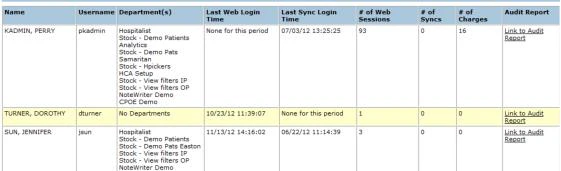
Latency Tables
The Latency Tables report displays the amount of time it takes for data that is posted in the MEDITECH system to appear in the Commure Pro system. The report displays the average latency, as well as the worst case latency, for each type of interfaced data (for example, lab results, allergies, clinical notes, etc.). The bottom of the report tabulates the average and worst case latency across all of the data types (labeled Average Across Data Types). To use this report, follow these steps:- Click the Admin tab, then click the System Management tab.
- Click the Latency Tables option.
- Select the criteria for the report:
- Bridge: Select the bridge (interface) to the MEDITECH system for which you want to review latency. Most systems have only one bridge.
- Download Files: Determine the approximate amount of latency data that you want to review, and download the files for that time. Your choices are From Today or Since n days ago.
- Performance Log Dates: This option lists the dates that have performance logs, within the time frame of the files that you downloaded. If a date has only partial performance data, as might be the case for today, the word “(partial)” is appended to the date.
-
Exclude: Determine whether you want to exclude any outliers when the system examines the latency data. Your choices are:
- None: This option examines all of the latency times, calculates the average latency for each data type, and also displays the worst case latency for each data type.
- 1 High Outlier: This option excludes the “worst case” from the data set (the highest latency value), assuming that this might be an outlier that is artificially inflating the average latency. Based on this reduced data set, it calculates the average latency, and also shows the worst case latency for each data type (which is in fact the second-worst latency value).
- 2 High Outliers: This option excludes the two “worst cases” from the data set (the two highest latency values), assuming that these might both be outliers that are artificially inflating the average latency. Based on this reduced data set, it calculates the average latency, and also shows the worst case latency for each data type (which is in fact the third-worst latency value). The Latency Table is now displayed. It contains the following columns:
- Server: The server from which the data is derived.
- Facility: The facility from which the data is derived.
- DataType.level: The type of data (for example, Allergy) and the level from which the data was derived in MEDITECH (for example, from the account level or the patient level).
- Average Latency (min): The average latency for this type of data, in minutes. If 1 High Outlier or 2 High Outliers were chosen in the Exclude criteria, the outliers are not included in the calculation of the average latency.
- Worst Case Latency (min): The highest value for latency that was recorded for this type of data, in minutes. If 1 High Outlier or 2 High Outliers were chosen in the Exclude criteria, the value shown is either the second or third worst latency value (respectively).
Latency Graphs
The Latency Graphs report the maximum amount of time it takes for data that is posted in the MEDITECH system to appear in the Commure Pro system. There is a separate graph for each type of data (for example, lab results, allergies, clinical notes, etc.). The maximum latency is calculated at regular intervals, and is displayed as individual data points along the horizontal axis. Older data points are on the left and more recent data points continue on to the right. The vertical axis lists the maximum amount of time (registered during the interval between data points) that it took for a given type of data to be transferred to Commure Pro. For example, at 3:00 the system reviews all the lab data that arrived in the Commure Pro system between 2:55 and 3:00, and calculates the longest amount of time it took for any one piece of data to reach the Commure Pro system. If 15 minutes was the longest amount of time, it records a data point at 15 minutes (vertically) and at 3:00 pm (horizontally). At 3:05, it repeats the process for data that arrived in Commure Pro between 3:00 and 3:05, and records another data point at 3:05 pm. In reviewing the graphs, you may note that the value of a given data point can be greater than the time between the data points. For example, a data point might be plotted at 30 minutes on the vertical axis (indicating the maximum latency registered for that type of data to be 30 minutes), but the data points themselves might be registered every 5 minutes or so along the horizontal axis.- Click the Admin tab, then click the System Management tab.
- Click the Latency Graphs option.
- Select the criteria for the report:
- Bridge: Select the bridge (interface) to the MEDITECH system for which you want to review latency. Most systems have only one bridge.
- Download Files: Determine the approximate amount of latency data that you want to review, and download the files for that time. Your choices are From Today or Since n days ago.
- Available Dates: This option lists the dates that have performance logs, within the time frame of the files that you downloaded. If a date has only partial performance data, as might be the case for today, the word “(partial)” is appended to the date.
- Available Types: Select All to view latency graphs for all available data types. Or, select a specific type of data, such as Lab, to view a latency graph for just that one type. If you select only one type, the graph is enlarged.
- Available Facilities: Select the facility for which you want to view latency data. The latency graph(s) are now displayed.
Monitoring Billing Activity
Authorized administrators can view all billing thread activity directly from the System Management screen (Admin > System Management > Billing Monitor Thread). To access the billing monitor logs, click the Billing Monitor Thread link. The administrative interface displays information about each billing area (the name and ID), batch scheduling information (time of last batch created, time of next scheduled batch, and time until next run), the department associated with the batch and the batch name assigned by the department.Monitoring Global Tasks
Global tasks are tasks that need to be managed and scheduled in clustered (or multi-mobilizer) environments. These tasks are registered centrally in one location (the Oracle database) and task queues are updated at regular intervals (as is determined by the Quartz scheduler). Cleanup of global tasks is performed at regular intervals and also during startup of the mobilizer server. This approach to global task management is designed so that configuration changes made on one mobilizer server are propagated out to other servers in the cluster at regular intervals, ensuring consistency in how these tasks are managed. Authorized administrators (level 0 and 1 only) can use the Global Tasks tab (Admin > Tracking/Reporting > Global Tasks) to monitor operation of these tasks and also troubleshoot when errors occur (such as task failures or scheduling errors). After they define their search criteria and click the Show Detailed Results button, administrators can access data about each Global Task, including the task name, the start and end times, and the mobilizer and specific queue associated with each task. Do not perform monitoring of Global Tasks or act upon any such reporting without first consulting your Commure Pro representative. Monitoring efforts should be conducted autonomously by customers only after they work with Commure Pro to define a thorough and comprehensive strategy for monitoring and reporting on Global Task behavior.Problem Detail Report
A report is available to display the Problems and associated Assessment and Plan that were added to a clinical note for a patient. This Problem Detail Report is specific to the Diagnoses picker on the A/P tab in NoteWriter, and can include a timeframe of up to 30 days at a time. The Problem Detail Report is generated in CSV format. Each row in the report displays a new instance when a diagnosis was added to the A/P tab in a note. The report displays the Patient Name, Facility, Diagnosis that was selected, the associated High-Risk Diagnosis (if applicable), and more. Since some diagnoses can be defined in the system as High-Risk Diagnoses, this report helps identify usage of those High-Risk Diagnoses relative to other diagnoses entered in notes. For information about configuring High-Risk Diagnoses, see the Problem List setting High-Risk Diagnoses For information about High-Risk Diagnoses, see Entering an Assessment and Plan in Response to the Problem List. Below is a description of the full report contents:- Date Signed - The date the note was signed.
- Facility ID - The facility (or facilities) that were selected for the report. If no facilities were selected, all facilities are displayed.
- Patient Name - Name of the patient for which the diagnosis was selected.
- MRN - MRN of the patient for which the diagnosis was selected.
- Author Name - Name of provider who created the note and selected the diagnosis.
- Author Specialty - Specialty of provider who created the note and selected the diagnosis.
- Template - Name of the note template used to create the note.
- High Risk Dx - the configured high-risk diagnosis that was selected.
- IMO Code - The IMO code for the selected diagnosis.
- Provider Entered Diagnosis - The diagnosis the provider selected or typed on the A/P tab in the note.
- Free Text Dx - Specifies if the provider entered a free text diagnosis.
- AP Text Box - Specifies the text that was entered in the Assessment and Plan field for the diagnosis. To generate a Problem Detail Report:
- Click Admin > System Management > Problem Detail Report.
- Specify the report criteria.
- Date Range- select a date range of up to 30 days.
- Select Facility (optional)- Select the facility (or facilities) you want to include in the report.
- Template Utilized (optional)- Select the template (or templates) you want to include in the report.
- Click Export Problem Detail Records. Depending on your browser, the file may be saved automatically to your Downloads folder, or you may be prompted to Open or Save the file.
Problem Report
Authorized administrators with access to the System Management tab can create a report to display the history of problem search queries entered by all system users over a defined date range. This report is useful for identifying popular searches entered by users that yielded no IMO search result and resulted in free-text entries. When your report identifies such searches, you can take the appropriate follow-up action and consider requesting that IMO add these terms to their dictionary. The Problem Report lists each search query that was entered and sorts the results (from most-frequently to least-frequently entered). The report also indicates whether the search query matched an IMO term or instead required the user to create a new free-text entry to describe the problem. Once you define a date range and generate a report, you can export this report to an Excel document that you can save and print for future use. To create a Problem Report that lists all search queries entered by users:- Click Admin, then select the System Management tab.
- From the options on the left column, click the Problem Report link.
- Define a date range using the Start Date and End Date options.
- Click Show Problem Records to view the list of all problem search queries entered by users within the specified date range. Alternatively, you can click Export Problem Records to export this data to an Excel document.
Promoting Interoperability Compliance (PI) Report
Authorized administrators (level 0 and selected level 1 users) can generate reports to display compliance data for both Stage 2 and Stage 3 Promoting Interoperability (PI) measures. (Note that this program was previously named “Meaningful Use”). These PI reports display certification data for several reportable measures, including the following Promoting Interoperability Stage 2 PI objectives:- Computerized Provider Order Entry
- Problem List
- Medication Reconciliation (available in 3 distinct reports for admission, transfer, and discharge data)
- ePrescribing (including the Order Description details associated with each submission) Additional reporting provides Promoting Interoperability certification data for the following Stage 3 PI objectives:
- Computerized Provider Order Entry
- Clinical Information Reconciliation (available in 3 distinct reports for admission, transfer, and discharge data, but also including allergies and problem list reconciliation)
- ePrescribing (including the Order Description details associated with each submission)
Generating Reports for Promoting Interoperability Attestation
Access to the Promoting Interoperability reporting is provided from the PI Report sub-tab under the Tracking/Reporting tab. From this tab, you can select a facility and then generate reports for Promoting Interoperability compliance with any of the objectives from a specified start date. In addition to choosing between stage 2 and stage 3 reporting, you can define the reporting period to use for generating the compliance data. To generate reports for Promoting Interoperability attestation:- Click the Admin tab, then the Tracking/Reporting tab.
- From the Tracking/Reporting tab, click the PI Report link.
- From the Search Criteria pane, configure the following settings to define your report:
- Facility: Select the facility upon which to base your report.
- Reporting Period Type: Use the drop-down menu to choose from the following options:
- 90 days: to create a report based on data for 90 consecutive days from the reporting start date.
- Custom: to define a custom range of dates that specifies both a start date and an end date.
- Reporting Start Date: Clicking the Reporting Start Date field yields a calendar that you can use to define the start of the reporting period. The report uses the Admit Date of any selected Inpatient Visit Types and Schedule Date of selected Outpatient Visit Types to qualify patients for inclusion in the report.
- Reporting End Date: (available to Custom reporting period type only) Defines the end of the reporting period.
- Stages of PI: Use the drop-down menu to choose either stage 2 or stage 3 compliance.
- Commure Pro Visit Types: Select one or more of the specified visit types or click All to choose all of the visit types shown.
- From the PI Objectives list, choose one or more of the objectives. Note that these objectives change to dynamically reflect the selected PI stage.
- Click Run to begin generating your report. The results of your report display in the lower portion of the screen, under the PI Numerators list. The total number displays to the left of the Promoting Interoperability objective(s) that you selected to define your report.
- (optional) Click Print to send a copy of your report to the local printer.
- (optional) Click Download to download an Excel file containing your report to your local machine. The file contains demographic and visit level details for all patients reflected in the relevant objective’s numerator. This detail is aimed at facilitating reconciliation between the numerators generated within the Commure Pro system and the denominators generated in other system(s). You can identify the filename by its prefix (PI_). The file name includes the specific PI measure contained in the report, as well as the date that the report was generated. For example, a PI report for the Medication Reconciliation application might use a file name such as PI_MedRec_10202014.
Scripter Status Reports
The Scripter Status tab is available only if the organization’s source HIM system is MEDITECH®. This tab provides a summarized view of the HL7 interface status. The Scripter Status tab displays the following information:- Name: Displays the unique ID of the application (for example, Mobile Clinical Results, etc.), its version, and a unique interface ID.
- Last Contact Time: Indicates the date and time that the interface contacted the Commure Pro Application Server.
- Status: Indicates the interface status of Active or Fatal as described in the following:
- Active: Indicates that the interface is running successfully.
- Fatal: Indicates that the interface has stopped in either a fatal or unknown state.
In most cases, a fatal error occurs when the interface encounters an issue that it cannot resolve. This requires the administrator to determine what type of event caused the error. Once the issue is resolved, the interface can be restored to active status.
- Select All: Click this button to select all the interfaces in the list. For example, select this button if all the interfaces in the list have a status of fatal.
- Select None: Click this button to deselect all the selected interfaces in the list.
- Reinstate Selected Scripters: Click this button to restart all the selected interfaces. The interface status is then updated in the database.
Self Assignment Report
The Self Assignment Report tracks each instance that a user manually adds a patient from the web census list to their personal patient list (whether performed on the Android, Apple, or Web platform). Typically, patients are automatically added to a provider’s patient list when the provider has a relationship to the patient visit, such as might be the case when a provider is the scheduled provider on an outpatient appointment, or the admitting or attending provider on an inpatient visit. A provider would only need to manually add a patient to their patient list if they did not already have a relationship with that patient visit. Your organization may want to monitor how frequently this is necessary from a process efficiency standpoint. The report can also be used to ensure that providers are only adding patients to their patient lists, and viewing patient data as a result, when appropriate (for HIPAA compliance). To view the Self-Assignment Report, follow these steps:- Click the Admin tab, followed by the System Management tab.
- Click the SelfAssign Report option.
- Enter a date range for the report using the Start Date and End Date fields. This is the date on which the user manually added the patient to their patient list.
- If you want to restrict search results to a specific facility, use the Facility drop-down menu to select the facility that has the visit assignments you want to include in your report. Only the records from this facility will be displayed in your report.
- Display the report on your screen, or download it to a Comma Separated Values (CSV) file.
- To display the report on your screen, click the Show Report button. You can then click the Print button at the bottom of the report to send the it to a printer.
- To send the report to a CSV file, click the Export Report to CSV File button. The CSV file will be compressed in a zip archive (.zip) format. In the following dialogue, click Open to immediately view the zip file, or click Save to save the zip file to your hard drive. Whether viewed as an on-line report, a printed report, or a CSV file, the report contains columns with the following information: today’s date, the patient’s current location, the user ID (under the Username column) and username (under the User column) of the person who manually added the patient to their patient list, the patient’s medical record number and full name, the patient’s visit date, the date the user manually added the patient to their patient list, and the relationship the user selected at that time.
Session Status Reports
The Session Status tab (Admin > Tracking/Reporting > Session Status tab) provides options to filter and monitor data pertaining to session activity. The tab provides several options to search for sessions by their associated patient, patient visit, or by the user who created and submitted the session. Additional options let you search by session status (indicating which stage of session processing) or by order session ID. You have the option to filter sessions by the following routing session types:- Background task — restricts search query results to order sessions run in the background
- Charge Capture — restricts search query results to Charge Capture order sessions
- Day of Admission — restricts search query results to order sessions from the day of patient admission
- Meds Rec - Admission — restricts search query results to AMR order sessions
- Meds Rec - Discharge — restricts search query results to DMR order sessions
- Meds Rec - Rx — restricts search query results to ePrescribing order sessions
- Meds Rec - Transfer — restricts search query results to Transfer Order Reconciliation order sessions
- Note Writer — restricts search query results to NoteWriter order sessions
- Order Entry — restricts search query results to CPOE order entry order sessions
- Pharmacy Update — restricts search query results to pharmacy update order sessions
- Pre-Admission Testing — restricts search query results to pre-admission order sessions The search results from a session search include the following details pertaining to each session:
- Date and time the session was submitted
- The routing session type of the session
- The session processing status
- The patient associated with the session
- The user submitting the session
- The session ID
- The specific mobilizer and host name associated with the session activity
Ignoring Specific Sessions
An additional Ignored column on the Search Results pane provides an additional option for ignoring individual routing sessions. This option can be quite helpful in reducing the maintenance effort involved in managing problematic sessions by eliminating the need to delete these sessions.Viewing and Re-submitting Order Session PDFs
If you want to view the printed order sheet associated with a particular order session entry, click the date/time link associated with the order session (under the Submitted column on the Search Results tab), which launches the Generate PDF window. From this window, you can re-try processing failures of the selected order session by clicking the Resubmit Session button. For CPOE order sessions, you have the additional option to download the printed order sheet to your local machine by selecting the appropriate template from the drop-down menu and clicking the Generate PDF button.Submission Status Reports
Use the Submission Status tab to view information about the status of data submissions:- For handheld devices, this tab reports on submissions from an Android or Apple device to the Commure Pro Application Server. For example, in the Mobile Clinical Results or Mobile Charge Capture applications, submission records are created when audit trail information is recorded. The content and frequency of submissions depends on the type of submission record. For example, audit information is bundled and submitted to the Commure Pro Application Server at regular intervals, approximately every 15 minutes; the audit record contains information about all the patients and data that the user has accessed during that period.
- For the CPOE and NoteWriter applications, you can review data submissions between Commure Pro and your organization’s backend HIM system.
- For the Charge Capture application, you can review data submission between Commure Pro and an external billing system.
Depending on what applications and options are enabled for your system, you may see different options displayed.
- Select Admin > Tracking/Reporting > Submissions Status. The Submissions Status screen appears, displaying a Search Criteria pane for filtering submissions records, and a Summary pane that summarizes the volume and status of submission records, as well as server processing data for each submission.
-
To view summaries of submission records and server processing, click the corresponding blue hypertext links for the following:
- Total Submission Records: The total number of submission records.
- Submission Parsing Failures: The total number of submission records held by the Commure Pro Application Server because either they are duplicates or could not be validated.
- Submission Record Parsing Failures: The total number of failed submission records held because they could not be successfully parsed.
- Validated - No Further Processing Required: The number of submission records that were validated by the Commure Pro Application server (such as Audit records), and that require no further processing.
- Validated for Back-End Processing: Indicates the number of submission records validated successfully by the Commure Pro Application Server.
- Held by Condition: Indicates the total number of submission records waiting for condition vetting.
- Queued to Destination: Indicates the total number of submission records queued to the destination.
- Queued for Processing: Indicates the total number of submission records waiting to be processed.
- Queued for Reprocessing: Indicates the total number of submission records waiting to be reprocessed.
- In Processing: Indicates the total number of submission records in processing.
- Destination Unreachable Failure: Indicates the total number of submission records that failed to reach the destination.
- Processing Failures: Indicates the number of submission records that failed back end processing. (An example of this failure type is when a record could not be interfaced into MEDITECH.) Typically, an administrator determines whether or not the record can be re-processed successfully on a subsequent attempt. To re-process the submission record, the administrator changes the record’s status so that it is placed in the back end queue again. The interface will then attempt to re-process the submission record.
- Successfully Processed: Indicates the number of submission records successfully processed by the backend server.
- Average Back End Processing Time: The average amount of time the back-end takes to process a submission record.
- Max Back End Processing Time: The maximum amount of time the backend server takes to process a submission record.
- Average Server Processing Time: The average amount of time the Commure Pro Application server takes to process a submission record.
- Max Server Processing Time: The maximum amount of time the Commure Pro application server takes to process a submission record.
Submission Record Types
The following types of submission records are available:- All Submissions: All submission record types.
- Alteration: (Mobile Clinical Results and Mobile Charge Capture only) Submissions of changes to data (for example, an Inbox e-mail that a user has deleted or marked as viewed).
- Audit: Submissions of audit information (for example, the patients that a particular user has accessed).
- CC Pickers: Submissions of Charge Capture pickers, which are subsets of codes organized into custom categories that clinicians belonging to the same department use to enter charges.
- CPOE Favorites: Submissions of favorite orders from the CPOE application. Clinicians can create and use favorites as a convenient way to access and enter their most frequently-used orders with a minimum amount of navigation and searching.
- Charge Transaction: (Mobile Charge Capture only) Submissions of charge transactions that users have entered on their handheld devices.
- Charge Transaction Routing: (Charge Capture only) Submissions of charge transactions from the Commure Pro server to an external system via an HL-7 interface, typically for billing purposes.
- Clinical Preselection: (NoteWriter only) Submissions containing clinical information preselected for use in a note.
- Error: (Mobile Clinical Results and Mobile Charge Capture) Submissions containing information about an error that occurred on a handheld device.
- HH CPOE Orders: (Mobile CPE only) Submissions of orders that were entered on a handheld device in the Mobile CPOE application.
- IO: Submissions of Intake/Output data.
- Log: (Mobile Clinical Results and Mobile Charge Capture) Submissions of log files from handheld devices.
- Manual Registration: (Mobile Charge Capture only) Submissions of patients that users have manually registered on their handheld devices.
- Message: This category is no longer used.
- Note Submission: (NoteWriter only) Submissions of interfaced NoteWriter templates. Administrators can use the standard templates provided with the NoteWriter product and customize these standard templates from the Note Template Maintenance window (Admin > Institution > Edit Settings [NoteWriter] > Note Templates > Edit).
- Note Routing Submissions: (NoteWriter only) Route submissions that are sent from the NoteWriter application. These submissions are used to transmit physician notes from the NoteWriter application over the HL-7 interface to the back-end system. When you select this submission record type, an additional search field dynamically displays to let you search for these submissions by their Note Routing Session Id value.
- PQRS Measures: Submissions of responses by clinicians to the quality measure questions which are used to evaluate whether specific charge transactions meet the Physician Quality Reporting System (PQRS) criteria.
- Problem Interface: (Mobile Charge Capture only) Submissions of problems (diagnoses) with interfaces that users have entered on their handheld devices, either as part of a charge transaction, or entered directly in the Problem List module. Submissions are generated for level 3 users only; submissions from level 2 users are not created. The problems workflow for level 3 users is unchanged.
- Problem: (Mobile Charge Capture only) Submissions of problems (diagnoses) that users have entered on their handheld devices, either as part of a charge transaction, or entered directly in the Problem List module.
- Route: (CPOE only) Route submissions that are sent from the CPOE application only. These submissions are used to transmit orders and order-related data from the CPOE application over the HL-7 interface to the back-end system.
- Send Patient: (Mobile Clinical Results and Mobile Charge Capture only) Submissions of information related to when a user sends a patient to another provider, using their handheld devices.
- Unrecognized: Submissions that are of an unknown type.
- User: (Mobile Clinical Results and Mobile Charge Capture) These submissions are generated whenever user authentication information is required from the server. Typically, user submissions consist of changes or updates to information related to a specific user, such as when a user logs in after choosing Clear Data and/or Provisioning a Device; changes their password on the Physician Portal (that requires syncing to handheld); associates a bar-coded value to the username on the application; or has a failed login attempt.
Ordinary logins, where user authentication has already been established between the device and the server, do not generate user submission records.
Filtering Submission Records
To filter the list of submission records:- Select Admin > Tracking/Reporting > Submissions Status.
- Enter one or more of the following search criteria:
- Select Patient / Visit: Click the Select Patient / Visit button to search for a patient. All submission records associated with this patient are returned.
- Timeframe: Enter the period of time for viewing the device’s data submission history. Options include current week (default), custom range, today, yesterday, last week, current month, last month, and last “n” days.
- Application: Select submission records for All or one of the available Commure Pro applications: MCR/MCC (Mobile Clinical Results or Mobile Charge Capture), NoteWriter, CPOE, or Charge Transaction.
- Device Type: (Mobile Clinical Results or Mobile Charge Capture) Enter the type of device (for example, iOS™, Android™, or Android Native™) of the device associated with the submission record.
- Route Type: (CPOE and Charge Capture only) For HH CPOE Order Submissions or Route Submission in CPOE, or for Charge Transaction Routing Submissions in Charge Capture, select the type of Route Action used to route the order or charge submissions within your facility or institution.
- Start Date: Enter the start date of a custom range.
- Status: Enter the submission status of a specific device session. The types of statuses include All and the following:
- Sent: Indicates the submission was sent.
- Submitted: Indicates the submission was successfully created and parsed and is ready for processing.
- Sending for Processing: The submission has been picked up from the queue and is undergoing preparations prior to being sent for processing.
- In Processing: The submission is currently undergoing processing with no detection of errors.
- Completed: Indicates that the submission record was processed successfully and completed.
- Waiting n minutes before being reprocessed again: The submission is delayed for a configurable amount of time after problems were encountered with the initial processing attempt. When this time limit is reached, the submission will be sent for one or more processing attempts. You can configure both the re-processing interval and the maximum number of retries. For more information, consult with your Commure Pro representative.
- Queued for Reprocessing: The initial processing attempt failed and the submission is awaiting subsequent processing attempt(s). This submission status applies to submissions routed to printers, e-mail or file servers, but does not apply to submissions routed to interface Destinations (such as HL7 or scripter). Instead, interface submissions remain in a queued state until they are picked up by the interface Destination.
- Processing Failure: Indicates a processing (or re-processing) failure that cannot be sent for additional processing attempts. Process failures can result from configuration problems (such as a mis-configured Destination) or an internal system failure. Processing failures can also result when the maximum number of re-tries is reached without success.
- Submission Parsing Failure: Indicates that a submission has been held, because the submission was a duplicate, or because there was some information missing on the server when it was received from the device.
- Destination Unreachable Failure: Problems occurred when sending a specific submission to the specified Destination. When a single submission enters this status, all submissions routed to the same Destination are put on hold, and are assigned the submission status ‘Waiting Behind Destination Unreachable Failure’.
- Waiting Behind Destination Unreachable Failure: Submissions are entered into this state when they are stuck behind a single submission that remains stuck in a state of ‘Destination Unreachable Failure’.
- Submission Record Parsing Failure: Indicates that the submission record failed due to a parsing error, the submission from the device was bad.
- Sync Version Mismatches from concurrent modifications: Indicates that discrepancies were found between the data in the Commure Pro application and the back-end application, likely resulting from data synchronization issues.
- Permissions have changed on the server since last sync: The specified user is not authorized to submit this order due to restrictions placed on the user, such as enforcement of co-signature rules or a change in authorization level.
- Superseded by Another Submission: Indicates that a user has made edits to a previously submitted record, via the Make Corrections option on a handheld device. Once the edits are submitted, the original record is marked as Superseded by Another Submission, and a new, updated record is created.
- Completed with Warnings: Processing has been completed for this submission but non-critical errors were encountered during processing of the order.
- Queued to Destination: The submission is queued at its configured Destination and is awaiting processing. Submissions routed to interface Destinations (such as HL7 or scripter) remain in this state until they are picked up by their designated interface Destination. In the case of other types of Destinations (printers, e-mail, file servers), submissions remain in a queued state until they are processed or sent for re-processing.
- Submission Locking Failure: Too much time elapsed between the original processing attempt and subsequent attempts to re-process the order submission.
- ROUTING Delayed for Processing due to dxml condition: The order submission is in a pending state, awaiting a specific condition to be met before it is sent to its configured Destination. You can create rules so that order submissions are withheld until one or more conditions (defined using DXML) are satisfied. For more information, contact your Commure Pro representative.
- Submission too Old to route: Indicates that the submission has aged beyond the configured time limit and will be excluded from the submission records sent over the outbound interface. You can configure this threshold independently for order sessions with one or more STAT orders vs. those sessions that have no STAT orders.
- Verified: Indicates that the submission has been verified.
- Ignorable Failure: Indicates the presence of errors that are not considered urgent and which are reported for informational purposes only. You can define specific conditions that warrant this error level, such as errors that are triggered by a test Destination, or errors that do not prevent order submissions from successfully being processed and sent to their Destination.
- Device: (Mobile Clinical Results, Mobile Charge Capture) Enter the name of the device associated with the submission record.
- Destination Group: (CPOE and Charge Capture only) For HH CPOE Order Submissions or Route Submission in CPOE, or for Charge Transaction Routing Submissions in Charge Capture, select the Destination Group used for routing the order or charge submissions within your facility or institution. Destination Groups are used to link each Route Action to one or more Destinations.
- End Date: Enter the end date of a custom range.
- Submission Record Type: Select the type of submission records that you want to see. Select All for all submission records, or select a specific type, such as Audit Submissions, Log Submissions, Unrecognized Submissions, or User Submissions. The different submission record types are described in Submission Record Types.
When searching Log Submissions or Audit Submissions for a specific user, do not enter a username in the User criteria field (or none will be found). Instead, enter the user’s device name in the Device criteria field. Also of note, Log Submissions that have failed are not included on the report results. These submissions are instead classified as “unrecognized.” To view failed Log Submissions, you should instead search for Unrecognized Submissions. On the search results screen, the Type column displays “FailedSubmission,” and the Failure Reason contains the comment “Failed to create a submission object for the type ‘LOG.’” Click on the link in the Submitted column to see the details.
- User: Enter a user name (or choose one from the list) to display their associated submission records.
- Destination: (CPOE and Charge Capture only) For HH CPOE Order Submissions or Route Submission in CPOE, or for Charge Transaction Routing Submissions in Charge Capture, select the Destination to which order or charge submissions are routed within your facility or institution. Orders or charges are routed to one or more Destinations, such as printer, file system, or file share.
- Submission Id: Specify the unique identifier for a specific submission record.
- Department: For Mobile Clinical Results or Mobile Charge Capture, enter a department to find all submissions for users who are members of that department.
- Location: Enter a specific location to review submission records for patients associated with this location.
- Session ID: For Charge Transaction Routing Submissions in Charge Capture, enter the Session ID for a specific batch of charges. When charges are committed from the Outbox to final billing, whether done manually or automatically according to a schedule, they are placed in a session with a Session ID.
- Correction Status: Specify the correction status of the submission records you want to view. Users can make corrections to previously submitted submissions, via the Make Corrections option on the handheld device. When a user edits or deletes a previously submitted record, the original record is marked as Superseded by Another Submission, and a new record is created for the deletion or the update. You can search for:
- All: all records, including original, deleted, and updated.
- Original Records Only: only original submission records.
- Corrections Only: only new deletion or update submission records resulting from a correction.
- Server Processing Time (ms) >: Enter a server processing time in milliseconds to display all submission records that took at least this amount of time to process.
- Backend Processing Time (ms) >: Enter a backend processing time in milliseconds to show all those submissions records with a backend processing time greater than this many milliseconds.
- Maximum # of Results: Enter the total number of search results that can be displayed when you click the Show Detailed Results button.
- Include Ignored Records: Check this box to include the records that were marked as ignored. (Administrators can mark failed submission records as ignored after they have been investigated).
- Click the Show Detailed Results button to view detailed information for submission records and their related statuses. The Search Results screen appears.
- Queue for Reprocessing button: This button is visible only if the current user has the Submission Record Management preference set to Yes, and if one or more records in the Search Results has a status of “Backend Processing Failure.” A submission is assigned this status once it has been submitted for processing in the backend system the maximum number of times (as defined in your system configuration), and has failed each time. To try processing the record again, select the submission record and then click the Re-queue for Backend Processing button.
- Submitted column: The date and time when the record was submitted to the Commure Pro Application Server.
- Device column: The provisioned name of the device associated with the submission record.
- Type column: The type of record being submitted. For descriptions of submission record types, see Submission Record Types.
- Status column: The status of the submission, such as Completed, Submission Parsing Failure, Submission Record Parsing Failure, or Completed with Warnings. The Completed with Warnings status appears when the user attempts a submission that is rejected by the server. For example, if a user has stale data on their handheld device because they have not synced recently, and then attempts to edit or delete a charge that has been sent to the Outbox or Final Billing on the server since their last sync, they will receive a warning message indicating that their change was rejected.
- Patient column: The name of a patient.
- User Name column: The user who is associated with the submission record.
- Ignored column: This column is visible only if the current user has the Submission Record Management preference set to Yes, and if one or more records in the Search Results has a status of Backend Processing Failure.
- Submission ID column: Indicates the submission ID.
- Order/Note Routing Session ID column: Indicates the Order Session ID.
- Additional Info column: Displays any additional information.
- Failure Reason: Displays the reason this submission failed.
- Click Back to Criteria to return to the Submission Status main screen.
- Click Refresh Summary to view the most current submission information.
- Click Reset Criteria to set the search criteria to their default settings. This allows you to enter new criteria to perform a new search.
Viewing Additional Information about a Submission Record
From the search results screen of the Submission Status tab, you can click the link in the Submitted column to see more detailed information about a particular submission record. The following information displays:- Submission Record Details
- Type: Indicates the submission record type. For descriptions of the available submission record types, see Submission Record Types.
- Status: Indicates the status of the submission, such as Completed, Submission Parsing Failure, or Submission Record Parsing Failure.
(For Level 0 Users only) If a submission has a status of “Submission Parsing Failure” (which can mean that the submission was a duplicate, or there was some information missing on the server when it was received from the device), a Level 0 user can choose to reparse it (by clicking the Reparse Record button), so that the submission will then be in a state that it can be sent to the backend for processing.
- Exclude from Purge: This checkbox is visible to only Level 0 and Level 1 users. Check the box to stop this particular submission record from being automatically purged from the system. Any other submission records that were contained in the same device session as this one, are also automatically excluded from purging. See Purge Criteria.
- Submission Record ID: Indicates the submission record ID.
- Ignored: Indicates whether or not the record was marked as ignored.
- Session Id: The unique identifier for the device session. Click this link to view the device session sub-tabs:Device Session, Server Log, and Submission. See Viewing Additional Information about a Device Session for a description of these tabs.
- Reparse Allowed: Indicates whether a failed submission record can be reparsed. Only Level 0 user may reparse submission records.
- Event Time: Indicates the actual time that the vital or I/O data was taken from the patient. The capture time may be edited by the user when entering or capturing vitals or I/Os.
- Submitted Time: Indicates the time the data was submitted from the handheld device to the server.
- Entered Time: For Mobile Clinical Results and Mobile Charge Capture, indicates the time the device was synced after the user viewed patient data (for audit submissions), or the time data was originally entered on the device (such as Commure Pro Mail or charges). This time cannot be edited by the user.
- Commure Pro App Version: The version number of the Commure Pro application that is running on the handheld device.
- Device Version: The version number of the handheld device’s operating system.
- Device Model: The handheld device’s model type and/or number.
- Audit Records: This link is visible for Audit Submissions only. Click the link to view the specific audit records that were included in the Audit Submission.
- Correction History: If this record has been corrected, or if this record is the correction itself, a history of correction information is shown.
- Date/time: The date/time that the record was submitted to the Commure Pro server.
- Submission ID: The submission ID of the current submission record, or links to related submission records. For example, a record that was edited by a user will have a link to the updated record that replaced it.
- Submission Status: The status of the record, such as an original record that was Superseded by a correction, an update/deletion that was successfully Submitted, or an update/deletion that was Held because of an error.
- Correction Status: Indicates whether the record was corrected. Statuses included Deleted, Updated, or Blank (an original record).
- Submission Record Changes
- Status: Indicates the status of the submission.
- Date/Time: Indicates the date and time that the submission took place.
- Error: Indicates the type of error, if any.
- Message: Shows log file details about the submission record if available.
- Submission Details
- Name: Indicates the type of data that was submitted (for example, for a Vital submission, it might list Pulse or Blood Pressure).
- Value: Indicates the value of the submission (for example, for a Vital submission, it would list the numeric value of vital).
- Log Submission: This section is present only if the submission is a Log submission. It displays all the information contained in the Log that was submitted from a handheld device.
- Save Log link: Click this link to save a copy of the log file. The log is zipped into a zip archive file (.zip) to conserve space. You can save it to your hard drive, or unzip the file and view it right away.
- Patient Location (Current): Displays the patient’s current location, which is the visit location at the time the Submission Record Detail screen is first loaded (or refreshed). The current patient location is reported for all submissions sharing the Commure Pro routing infrastructure and includes CPOE, Charge Capture, and NoteWriter submissions.
- Patient Location (At time of order entry): Displays the patient’s location at the time of order entry, when all orders belonging to the selected session (referenced by order session ID) were submitted to the specified Destination. The patient location at time of order entry is reported for all submissions sharing the Commure Pro routing infrastructure and includes CPOE, Charge Capture, and NoteWriter submissions.
- Routing Location (route submission): Displays the location that was used to determine the Destination for the specified route submission. The routing location is reported for all submissions sharing the Commure Pro routing infrastructure and includes CPOE, Charge Capture, and NoteWriter submissions.
System Reports
Authorized administrators can generate several different types of system reports (including Session, Usage, and Error Reports) and view Session Logs.Accessing System Reports
System reports are available to all level 0 and level 1 administrators by default. System reports can also be made available to individual level 2 administrators by enabling the user preference below: Admin - User - User Permissions - Level 2: Can Access System Reports for Users in Assigned Departments. By default, level 0 and level 1 administrators can access these reports for Web (WEB) activity by clicking the View Reports button, located near the top of the Admin > Institution tab (for information on Android or Apple activity, see Device Sessions Reports and Submission Status Reports). Authorized administrators can also export data from these reports, and save this data in an Excel document. When authorized (level 0 and 1) administrators selectively grant permission to specific level 2 administrators to view these reports (as described above), the level 2 administrators access these reports from the Admin > Institution tab, although the System Reports option is the only option available on that tab. This different approach is designed to prevent these administrators from accessing data that is outside of their scope of authority. Note that when these administrators view these reports on the System Reports tab, they are restricted to viewing usage information about users belonging to their departments only.Session Report
To generate a Session Report for specific departments within a given time range:- Click the Admin tab, and then the Institution tab.
- Level 0/1 users only: Select the View Reports button near the top of the Institution tab.
- From the Report Type drop-down list, select Session Report.
- In the Select Report Criteria form, select a Date Range.
- Check the Departments that you want to include in the report.
- Click OK. The reports screen provides a drop-down list for sorting the information by either Date or User to best suit your needs. For each session, you can view the following information:
- User name for that particular session
- Client that they used (WEB for a user accessing the system through the web interface)
- Name: Displays the full name (last, then first) of the user for each session. This is provided to help identify users that have been assigned user names that cannot easily be identified (such as those that use numeric values).
- Start Time of their session
- IP Address of the user’s machine
- Success status for the session indicated by Yes or No
- Number of Charges that the user entered
- Duration or length of the session
- Number of Patients that the user modified
Usage Report
A Usage Report lets you view detailed information that Commure Pro logs for each usage session. To generate a Usage Report for specific departments within a given time range:- Click the Admin tab, and then the Institution tab.
- Level 0/1 users only: Select the View Reports button near the top of the Institution tab.
- From the Report Type drop-down list, select Usage Report.
- In the Select Report Criteria form, select a Date Range. The generated report includes all entries for which either the user’s Last Web Login Time or Last Sync Time falls within the specified range. For example, if you set Date Range to Today, the generated report includes all entries for which either the user’s Last Web Login Time or Last Sync Time is equal to today’s date.
- Check the Departments that you want to include in the report.
- Click OK to generate the report. For each usage session, you can view the following information:
- Name of each user
- Username of the user on the system. If emulation of a user occurred on the web or the Commure Pro V9 iOS application, the username of the user being emulated and the username of the emulator using the format usernameA_as_usernameB is displayed.
- Department(s) the user belonged to
- Last Web Login Time during the specified date range (See Step 2, on specifying Date Range)
- Last Sync Login Time during the specified date range (See Step 2, on specifying Date Range)
- # of Web Sessions during the specified date range
- # of Syncs (this column has been deprecated, since it was used to display data that was specific to the (unsupported) handheld classic platform only)
- # of Charges that each user entered during the specified date range
Error Report
Error Reports are generated for a specific time range and can be filtered by the type of errors you wish to review. The Log Viewer screen changes when you select Errors as the Log type. To view the Error Reports generated within a given time range:- Click the Admin tab, and then the Institution tab.
- Level 0/1 users only: Select the View Reports button near the top of the Institution tab.
- From the Report Type drop-down list, select Error Report.
- In the Select Report Criteria form, select a Date Range.
- Check the Error Types that you want to include in the report. Error types that can be listed in the report include Sync/Web Errors and Warnings.
- Click the OK button to generate the report. Each error log contains the following information:
- Session: Displays a link to the corresponding Session Id when the error occurred.
- Username: Displays the name of the user who encountered the error.
- Time: Displays the time that the error occurred.
- Name: Displays the kind of error, such as Warning and Error.
- Value: Displays a summary description of the problem. You can click on error numbers included within the summary to review detailed descriptions of the errors, including stack and semantic stack outputs.
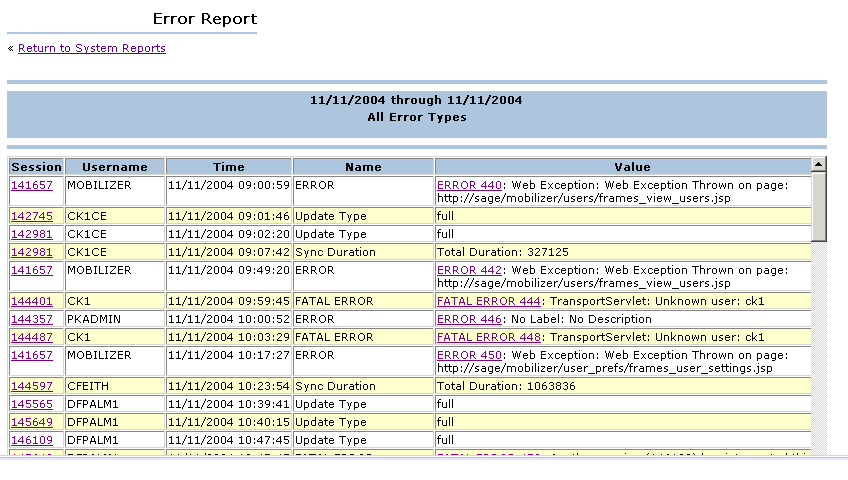
Session Logs
Session Logs show the login time and duration for each user, the type of session (Handheld or Web), and the types of operations that were performed. To view Session Logs within a given time range for Handheld or Web users in specific departments:- Click the Admin tab, and then the Institution tab.
- Level 0/1 users only: Select the View Reports button near the top of the Institution tab.
- From the Report Type drop-down list, select Session Logs.
- In the Select Report Criteria form, select a Date Range.
- Select the Session Type that you would like to view. You can view session logs for the following types of activity:
- All session activity: Displays activity from all session types, including all portal and handheld sessions.
- Web session activity only: Displays activity from Portal Web sessions only.
- Mobile Web session activity only: These types of sessions are no longer used.
- Check the Departments that you want to include in the report.
- Click OK to generate the report. Each session log contains the following information:
- All: Click All to select all logs for downloading. If you want to download only selected logs, check the box next to those logs. This is useful if a particular user appears to be having problems and you want to download the logs for offline review.
- Session Id: Displays the unique identification number assigned to each session. Click on the Session Id header link to sort the column in ascending or descending numeric order. Click on the specific Session Id number to view the details of all operations performed during that session.
- User Name: Displays the user name for each session. Click on the User Name header link to sort the column in ascending or descending alphabetical order. This lets you easily view all sessions for a particular user.
- Name: Displays the full name (last, then first) of the user for each session. This is provided to help identify users that have been assigned user names that cannot easily be identified (such as those that use numeric values).
- Login Time: Displays the time that the user logged into the system. Click on the Login Time link to sort the column in ascending or descending order.
- Duration: Displays the length of the session in seconds.
- # of Charges: Displays the number of charges entered by the user during the session.
- Type: Displays the type of session for each log, such as WEB for a user accessing the system through the web interface.
- Fatal Errors: Displays whether or not a fatal error occurred. If the Errors are NONE, then no errors occurred. If an error did occur, an error code and description appears. By clicking this column heading, administrators can sort all data in this column to identify all active web sessions (those entries that have a Fatal Errors value of “Not Complete”).
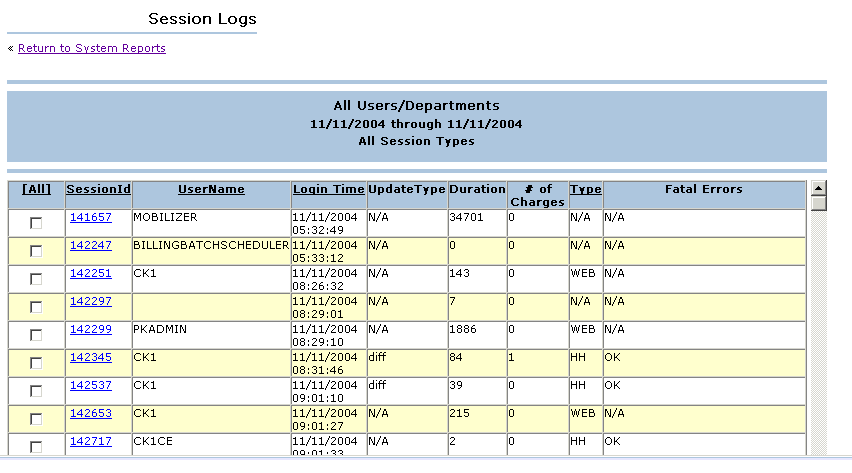
To download a particular session log to a text file and automatically compress it to a ZIP archive (.zip)
- Check each session that you would like to download. If you select multiple logs, each session is saved to a separate log file, and all are compressed into a single ZIP archive.
- Click the Download Selected Logs button at the bottom of the report.
- In the File Download dialog, select whether you would like to Open the generated ZIP file, Save it to your computer, or Cancel the operation.