Each clinical module has its own icon, which you’ll see on the View Modules screen and throughout the app:

Navigating the Commure Pro Application
All navigation starts at the Patient List. Tap a patient name to select it, and a list of all the modules is displayed automatically. Select a module to see that information for the patient. For more detailed instructions, see the topics above. The bottom toolbar is almost always visible on the screen and contains the following buttons:
Basic Navigation on an iPhone
All navigation starts at the Patient List screen.- From the Patient List screen, tap a patient name to select it. The View Modules screen automatically pops up. This screen displays a list of all modules to which you have access. They are listed in alphabetical order by default, with the first six modules shown as large tiles, and the remaining modules listed underneath. However, you can change which modules are shown as tiles, as well as the order in which they are listed. See Changing the Order of the Modules and Module Navigation.
- From the View Modules screen, select a module (like Medications). The Summary screen for the selected module (Medications in our example) is displayed for the selected patient. Summary screens typically display a list of items in a list or table format.
- The actions available from the Summary screen of a given module vary. In most cases, you can select an item (a medication in this case) to see more details about it. The Details screen for the medication appears. Detail screens typically display detailed information for one specific item (one medication, for example).
-
Next steps from either the Summary screen or the Details screen of a particular module:
- To change patients, tap Patients
 in the bottom toolbar, and then choose a different patient from the Patient List. What the system does after selecting a different patient depends on how you have configured your preferences. You can configure the application to either:
 - Alway pop up the View Modules screen so that you can choose the module you want to see for the newly selected patient (the default configuration), or
- Automatically return back to the same module (Medications, in our example) with the newly selected patient. See Changing the Order of the Modules and Module Navigation to configure the navigation in the manner that you prefer.
- To change patients, tap Patients
- To change modules, tap the View Modules pop-up menu (located at the bottom of the screen, just above the bottom toolbar), and then select a different module (Allergies, for example). The Summary screen for the new module opens for the currently selected patient.
- To go back to the previous screen, tap the Back button. The name of the Back button varies, depending on the current location. If you are looking at the Detail screen for a module (like displaying the details of an allergy), the Back button might be called Allergies, and it takes you back to the Summary list for the Allergies module. If you are looking at a Summary list, the Back button is called Patients and it takes you back to the Patient List screen.
Basic Navigation on an iPad
Basic navigation for an iPad is similar to the iPhone, with a few minor differences:- When an iPad is used in portrait mode, navigation is identical to the iPhone, with one exception. When you tap Patients in the bottom toolbar, the patient list slides out from the left, rather than taking up the entire screen as it does on an iPhone. To close the Patient List again, either select a patient, or tap somewhere else on the screen.
- When an iPad is used in landscape mode, the Patient List is displayed on the left side of the screen, while the right side shows either the View Modules screen or the current display of patient data or other information.
Using the Bottom Toolbar and Other Navigational Elements
Each bottom toolbar button is described below: The Patients button displays the Patient List. Select the Patients button to choose a different patient.
 The Pending button displays a centralized list of all pending items, such as documents requiring your signature or unfinished work. A red badge with a number may overlay the icon; this badge indicates the total number of unfinished items, as described below. When you select this button, it displays the following options:
- Inbox (n): This option provides access to notes and orders awaiting your signature or co-signature. For draft notes, you can edit or delete a draft from the Inbox. For other types of notes and for orders, you may be able to sign, decline, edit, or reassign documents as necessary. See Access Draft Notes via the Pending Button for information on working with draft notes. See Electronically Signing Documents and Orders for information on signing clinical documents, and see Accessing the Commure Pro Inbox for an overview of the Inbox and viewing clinical documents.
- Unfinished Orders (n): This option is visible only if you have access to the Commure Pro Mobile CPOE™ application. Select this option to display a list of all your unfinished orders, where the (n) represents the number of new orders that you have created on this mobile device, but that you have not yet signed and submitted. From this option you may submit or discard the unsubmitted orders, or enter new orders. See the Understanding Unsubmitted Orders for more information.
 The Messages button is visible only if your organization has implemented Commure Pro Messaging, and it is enabled in your user profile. Use this option to send and receive text messages from other users of the Commure Pro application, for whom Commure Pro Messaging is also enabled. Messages can include photos and links to patients. A red badge with a number may overlay the button; this badge indicates the number of unread messages. See Sending Commure Pro Messages for more information.
 The Providers button allows you to search for and display contact information for other providers in your organization or your geographic area. See Looking Up Provider Contact Information.
AI Studio takes the toolbar slot directly before Settings for clinicians who are enabled for AI Scribe, and opens in place instead of as a separate full-screen view. A Reload control in the top right refreshes AI Studio after a stale session or a failed load.
While AI Studio holds that slot, the Provider Directory moves to Settings, with an icon that matches the rest of the Settings list in both light and dark modes. Where AI Scribe is not enabled, Providers stays on the toolbar and the Settings menu is unchanged. See AI Studio.
The Providers button allows you to search for and display contact information for other providers in your organization or your geographic area. See Looking Up Provider Contact Information.
AI Studio takes the toolbar slot directly before Settings for clinicians who are enabled for AI Scribe, and opens in place instead of as a separate full-screen view. A Reload control in the top right refreshes AI Studio after a stale session or a failed load.
While AI Studio holds that slot, the Provider Directory moves to Settings, with an icon that matches the rest of the Settings list in both light and dark modes. Where AI Scribe is not enabled, Providers stays on the toolbar and the Settings menu is unchanged. See AI Studio.
AI Studio in the toolbar follows your environment’s AI Scribe configuration and applies to Commure Pro iOS 2026.3.1 and later. Contact Commure to enable it for your organization.
 The Settings button displays options for changing settings, getting help, syncing, or logging out. See Configuring Your Preferences or Reference Guide for Settings.
In addition, the following two items assist you in navigating the application:
The View Modules pop-up menu displays the list of modules such as Allergies, Charges, Clinical Notes, etc, in a pop-up menu. If you are already viewing a module for a patient and want to switch to a different one, select the View Modules pop-up menu.
The Settings button displays options for changing settings, getting help, syncing, or logging out. See Configuring Your Preferences or Reference Guide for Settings.
In addition, the following two items assist you in navigating the application:
The View Modules pop-up menu displays the list of modules such as Allergies, Charges, Clinical Notes, etc, in a pop-up menu. If you are already viewing a module for a patient and want to switch to a different one, select the View Modules pop-up menu.
The modules on the pop-up menu are listed in alphabetical order by default, with the first six modules shown as large tiles, and the remaining modules listed underneath. However, you can change which modules are shown as tiles, as well as the order in which they are listed. See Changing the Order of the Modules and Module Navigation.
Selecting or Changing Patients
You have access to the Patient List from any module. When the Patient List is open, you see the location and name of every patient who is currently in your care. To select a patient, tap the patient’s name. The selected patient is highlighted in purple. If you have a module open (like Medications), you can easily select a different patient:-
On an iPhone: Tap Patients in the bottom toolbar, and once the Patient List is displayed, select a different patient from the list.
-
On an iPad in portrait mode: Tap Patients in the bottom toolbar, and once the Patient List slides out from the left, select a different patient from the list.
-
On an iPad in landscape mode: the Patient List is usually displayed on the left side of the screen—just select a different patient from the list. If it is not displayed (because you are viewing the Settings, Pending, Messages, Providers, or Settings option), tap Patients in the bottom toolbar. Once the Patient List is displayed, select a different patient from the list.
What the system does after selecting a different patient depends on how you have configured your preferences. You can configure the application to either:
- Always pop up the View Modules screen so that you can choose the module you want to see for the newly selected patient (the default configuration), or
- Automatically return back to the same module (Medications, in our example) with the newly selected patient. See Changing the Order of the Modules and Module Navigation to configure the navigation in the manner that you prefer.
Searching for and Adding Patients
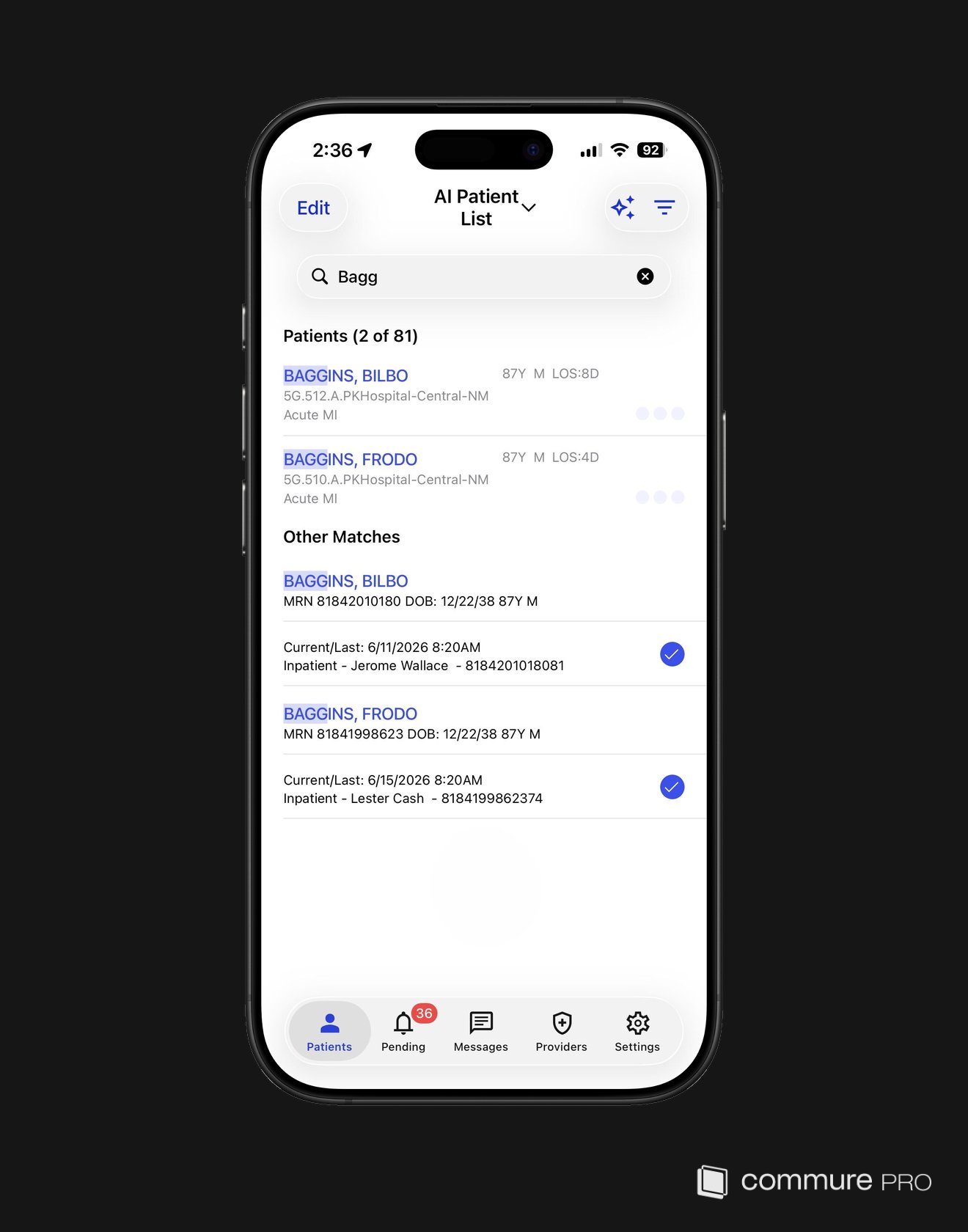
You can search for patients directly from the Patient List, without first opening a separate filter screen. As you type a name or MRN, matches from your current list and from the wider patient directory appear together.- Matches already on your list are filtered in place as you type.
- Patients who are not yet on your list appear under Other Matches.
- To add a patient who already has a visit in the EHR, select them from Other Matches to add them to your Visit list and open their chart.