

How It Works
1
Open Clinical Copilot
Swipe left on a patient in the Patient List and select Clinical Copilot, or select Clinical Copilot from the patient’s module list. The chat opens with the heading “Not sure how to get started?” and a set of suggested prompts.
2
Ask a question
Tap a suggested prompt or type your own question in the chat input. Tapping the input field opens a prompt picker — a searchable list of predefined clinical queries you can filter and select from, or ignore to type a custom question.
3
Review the response
Clinical Copilot returns a formatted answer with rich Markdown rendering. Tap See Sources below the response to view exactly which chart data informed the answer — including the specific lab result, note, or order referenced.
Starting a Conversation
When you open Clinical Copilot for a patient, the chat interface displays prompt suggestions to help you get started. These are pre-configured queries relevant to your clinical specialty — for example:- “Summarize the patient’s past medical history”
- “What are the last 3 blood pressure readings?”
- “Show me a 24-hour timeline for the patient”
- “What are the patient’s acute problems?”
Prompt suggestions are configured by your organization and may vary based on your specialty and site configuration. Contact your Commure Pro representative to customize available prompts.
Understanding Responses
Clinical Copilot responses are rendered with full formatting support including:- Structured text — headings, bullet points, numbered lists, and bold/italic emphasis
- Tables — clinical data presented in tabular format where appropriate (e.g., lab trends, medication lists)
- Inline citations — references to the specific chart data used to generate the response
Viewing Sources
Tap See Sources below any AI response to open the Sources screen. This screen lists every piece of clinical data the AI referenced — organized by category (labs, medications, orders, test results, etc.).- Tap an individual source to navigate directly to its detailed clinical view
- Tap See All in a category header to open the full module for that data type
Summarizing Multiple Patients
AI Summary generates an at-a-glance clinical summary for a patient — and from the Patient List you can run it across several selected patients at once, useful for rounding, sign-out, or getting oriented to a new service.- From the Patient List, select the patients you want to include.
- Tap AI Summary .
- Each selected patient is summarized in parallel. Expand any patient to read their summary, or tap the refresh icon to regenerate it.
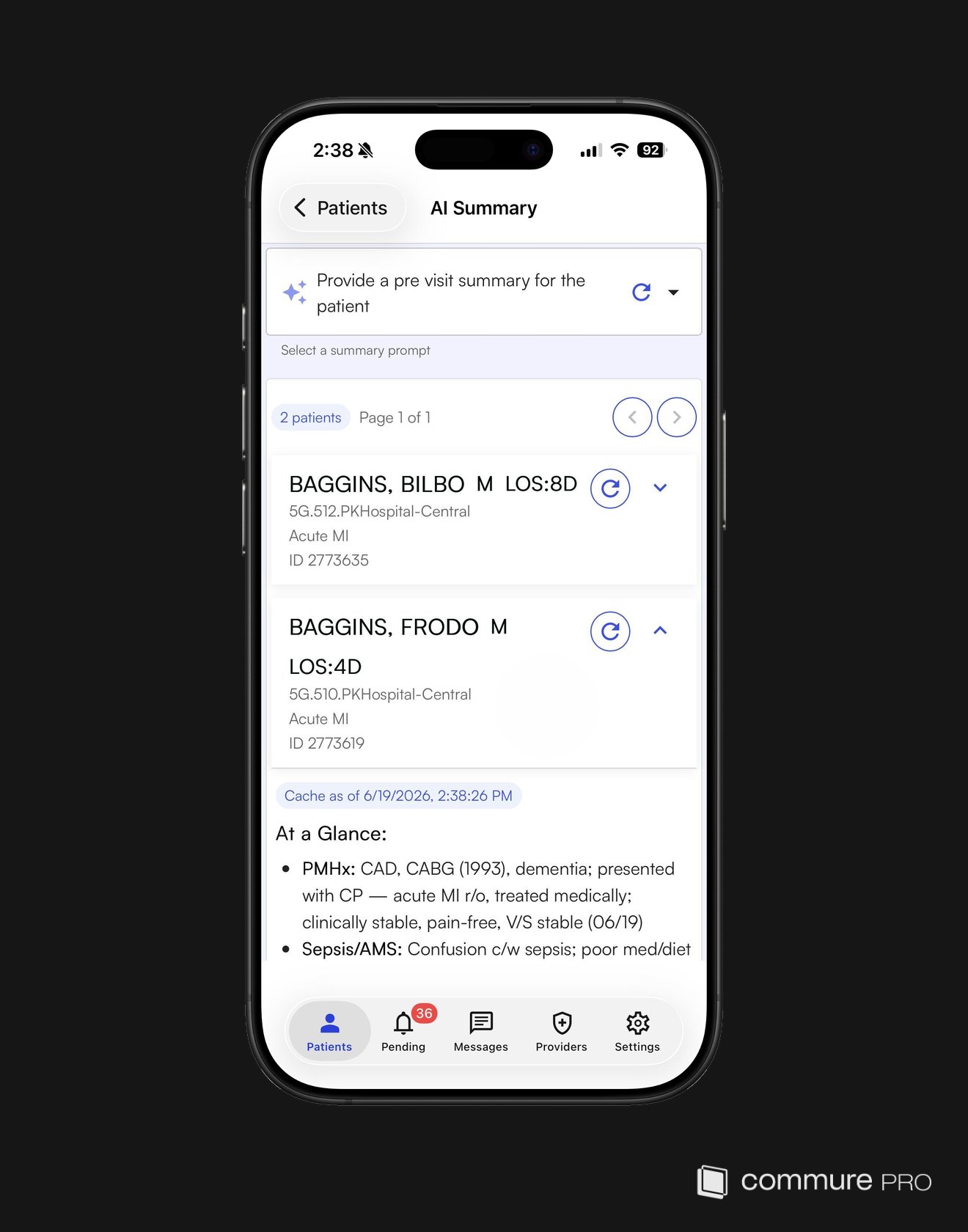
Multi-patient AI Summary is available where the AI Summary preference is enabled. Contact your Commure Pro representative to turn it on for your organization.
Giving Feedback
Tap the Give Feedback button on any Clinical Copilot response to share your assessment. The feedback form supports:- Thumbs up or thumbs down rating
- Optional comment describing what was helpful or what needs improvement
Accessing Clinical Copilot
Clinical Copilot is available on iOS devices and the Commure Pro web portal. There are several ways to open it:- Swipe action — swipe left on a patient in the Patient List and select Clinical Copilot (configurable via Settings > General > Swipe Options)
- Module navigation — select Clinical Copilot from the patient’s module list
- + menu — tap the + button on the patient detail screen and select Open Clinical Copilot
Clinical Copilot is enabled per organization via feature flag. If you do not see Clinical Copilot in your module list or swipe actions, contact your Commure Pro representative to request access.