

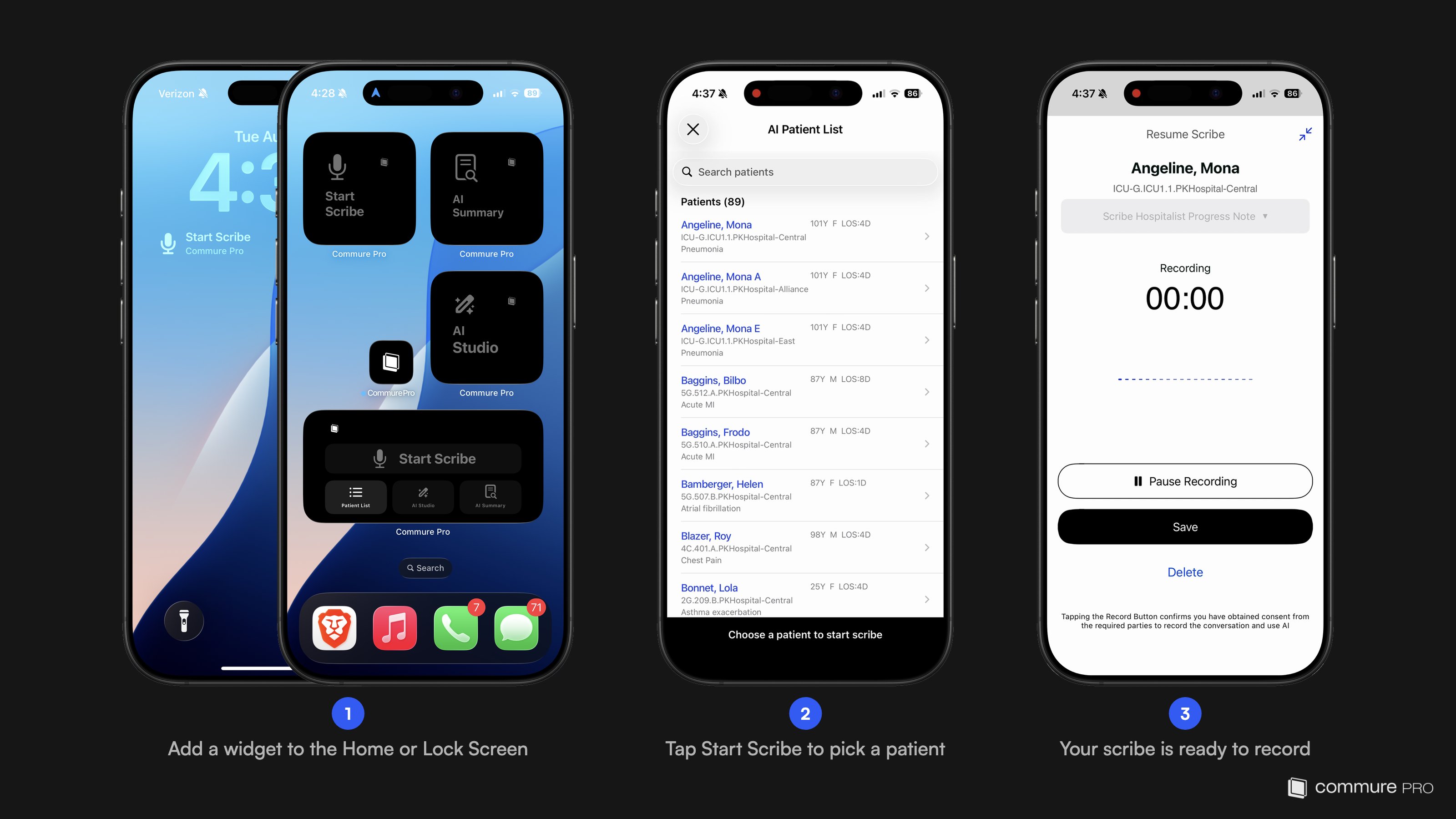
Adding a Home Screen Widget
1
Enter edit mode
Touch and hold an empty area of your Home Screen until the apps begin to jiggle, then tap Edit > Add Widget (on earlier iOS versions, the + button) in the top-left corner.
2
Find Commure Pro
Search for Commure Pro in the widget gallery and tap it to see the available widgets.
3
Add and place it
Choose the widget you want, tap Add Widget, and drag it into position. Tap Done.
Lock Screen Accessory
You can also add a Commure Pro accessory widget to your Lock Screen: touch and hold the Lock Screen, tap Customize, select the Lock Screen, tap the widget area, and choose Commure Pro from the gallery. The Start Scribe accessory comes in a circular icon format and a rectangular format with a label. This gives you a scribe entry point without even unlocking to the Home Screen first.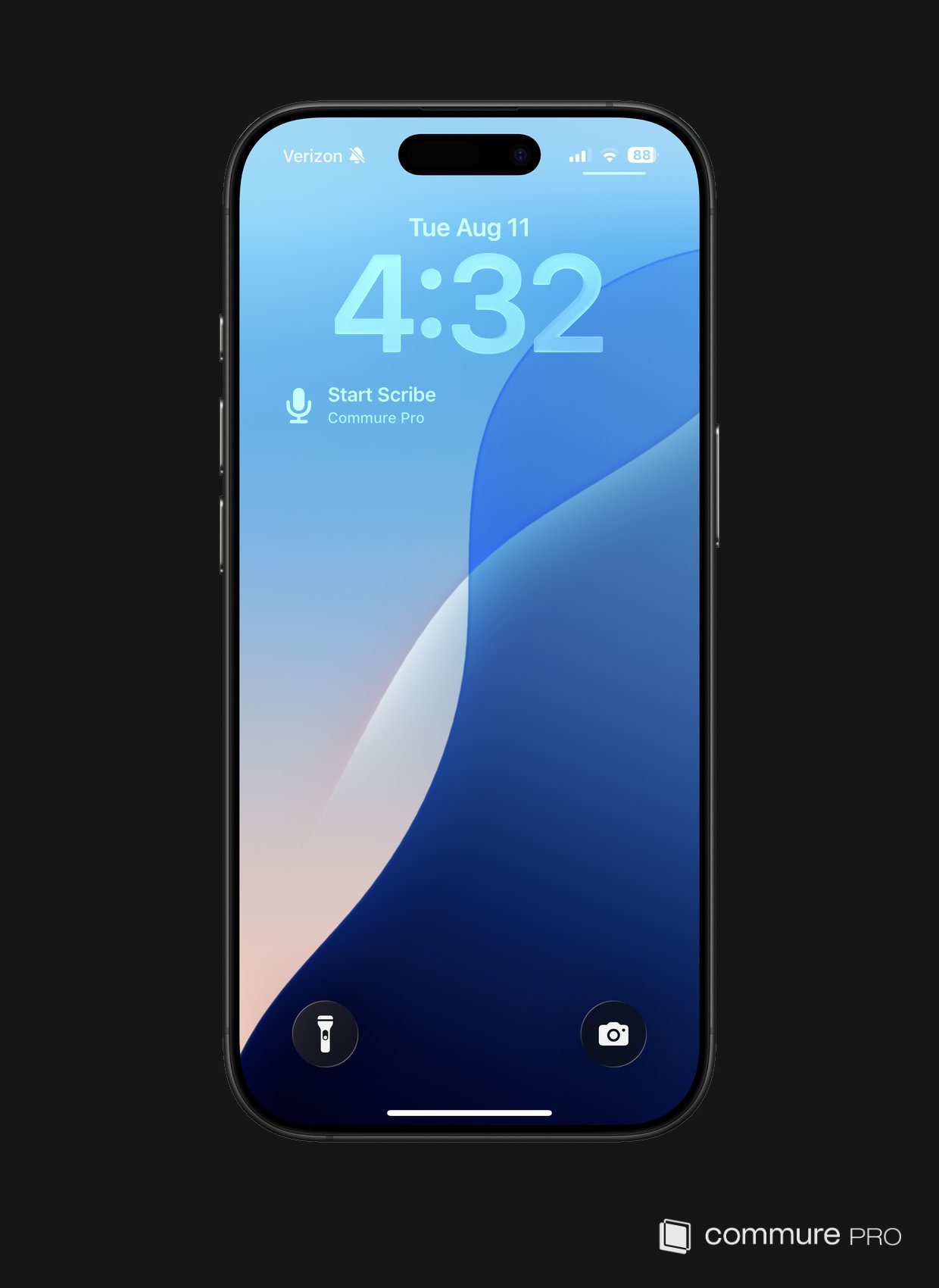
Starting a Scribe from a Widget
1
Tap the widget
Tap Start Scribe from the Home Screen widget or Lock Screen accessory. If the app is locked, complete biometric login as usual — the widget action still runs after login.
2
Pick a patient
The AI Patient List opens with a search bar, so you can find the patient quickly instead of scrolling. Tap the patient for this encounter.
3
Record
The app opens the patient’s detail screen and starts the scribe flow. From here the recording works the same as any other scribe — see Recording an Ambient Note.
A resumed scribe opened from a widget also lands on the patient’s detail screen first. If the patient already has a draft note, a Resume Scribe sheet appears there, letting you resume the draft or choose Start New Scribe Instead.