

Basic Actions
- Copy All — copies the entire note to your clipboard for pasting into your EHR or other systems
- Edit — tap the pen icon to make inline corrections to the note text or patient name
- Rate this Scribe — provide feedback to improve future note quality (see Leaving Feedback below)
- Delete — tap the menu icon and select “Delete this Note” to remove a note
Resume Scribe
Resume Scribe lets you refine an existing note with additional context — such as corrections, addenda, or details discussed after the initial encounter. The AI incorporates the new information into the existing note while preserving the original content. Resume Scribe supports several common documentation workflows:- Patient encounter + post-encounter — Record during the visit, then resume afterward to dictate post-encounter notes such as the assessment and plan.
- Pre-charting + patient encounter + post-encounter — Start with pre-charting context (e.g., reviewing the chart aloud), record the encounter, then resume to add follow-up notes.
- Monologue / self-dictation — Record your own clinical summary without a live patient conversation.
1
Navigate to the patient
From the Patient List, find the patient whose note you want to resume.
2
Swipe or use the + menu
Swipe left on the patient row and tap Resume Scribe, or tap the + button on the patient detail screen and select Resume Scribe. The app shows only draft notes created with a scribe template — non-scribe drafts are excluded from the list. It automatically selects the most recent eligible draft (same provider, draft state, not yet signed). If multiple eligible drafts exist, a dialog lets you choose which one to resume. If no eligible drafts exist, the dialog offers to create a new note instead.
3
Add context and save
The recording session re-opens with the original transcript preserved. Record additional information or corrections. When finished, tap Save and the AI updates the note incorporating both the original and new content.
Resume from Note Details
You can also access Resume Scribe directly from the Note Details screen:- Expanse users: A Resume Scribe button appears alongside the Edit Note button when the note is in In-EHR or Note Ready status
- Non-Expanse users: The Resume Scribe button appears when the note is in Note Ready status
Resume Scribe and Change Template are also available for notes in Pending EHR Sync status, allowing you to refine notes before they sync to the EHR.
Smart Update
When you resume a note, Smart Update lets you choose exactly which parts of the note the AI regenerates instead of rebuilding the whole note. The Sections to Regenerate selector lists the note’s AI-enabled sections — pick a single section, or choose All to regenerate the entire note. When you add your new context and save, only the sections you selected are updated, and the rest of the note is left untouched.1
Resume the note
Start Resume Scribe on an existing draft as described above. The Resume Scribe panel opens with the Sections to Regenerate control.
2
Choose the sections to regenerate
In Sections to Regenerate, select the individual section you want the AI to rebuild, or choose All to regenerate the whole note. Tap the info (ⓘ) icon next to the label for guidance on how section regeneration works.
3
Add context and save
Record your additional context and tap Save. The AI regenerates only the section(s) you selected, preserving the rest of the note.
The sections available in Sections to Regenerate come from the note’s template, so the list reflects the AI-enabled sections defined for that template.
Re-authenticating an expired Expanse sign-in
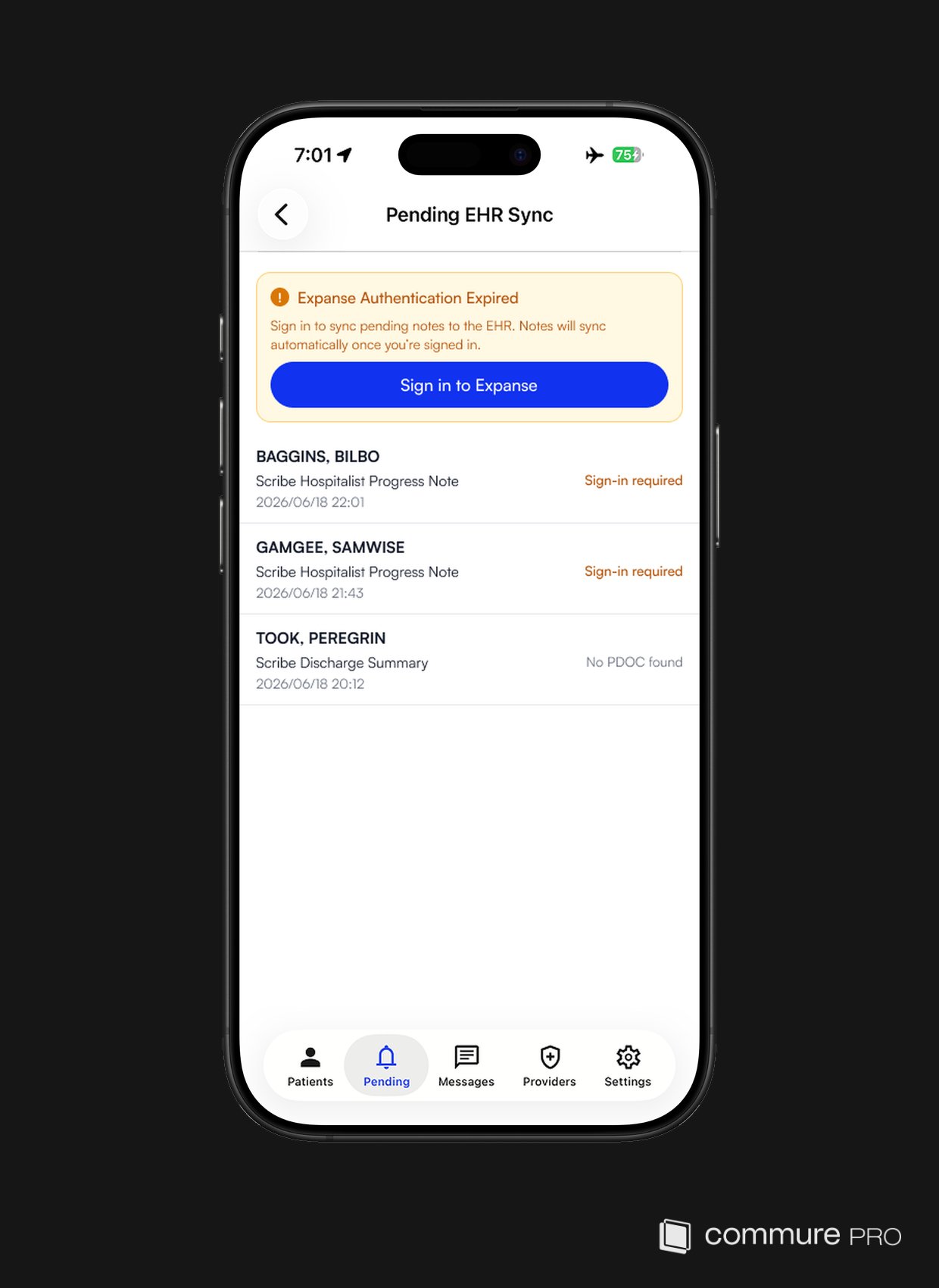
When your Expanse authentication expires, notes waiting to sync to the EHR can’t be delivered. In Pending EHR Sync, these notes are grouped at the top of the list so they’re easy to spot, and each one shows Sign-in Required on the right. Other pending notes continue to show their usual status. A banner appears at the top of Pending EHR Sync whenever one or more notes need you to sign back into Expanse:- Title: “Expanse Authentication Expired”
- Message: explains that signing in will let the pending notes sync automatically
- Action: the Sign in to Expanse button
Re-evaluation
Re-evaluation lets you start a new evaluation recording for an existing note without returning to the Patient List. Within NoteWriter, creating a note, editing it, and adding an addendum open in the editor, and Re-evaluation is available directly from the editor alongside Resume Scribe and Rate Scribe. Selecting Re-evaluation starts a new recording; when you finish, the recording uploads and the note screen refreshes automatically to reflect it. If the cloud editor is unavailable, note creation and editing fall back to the existing flow.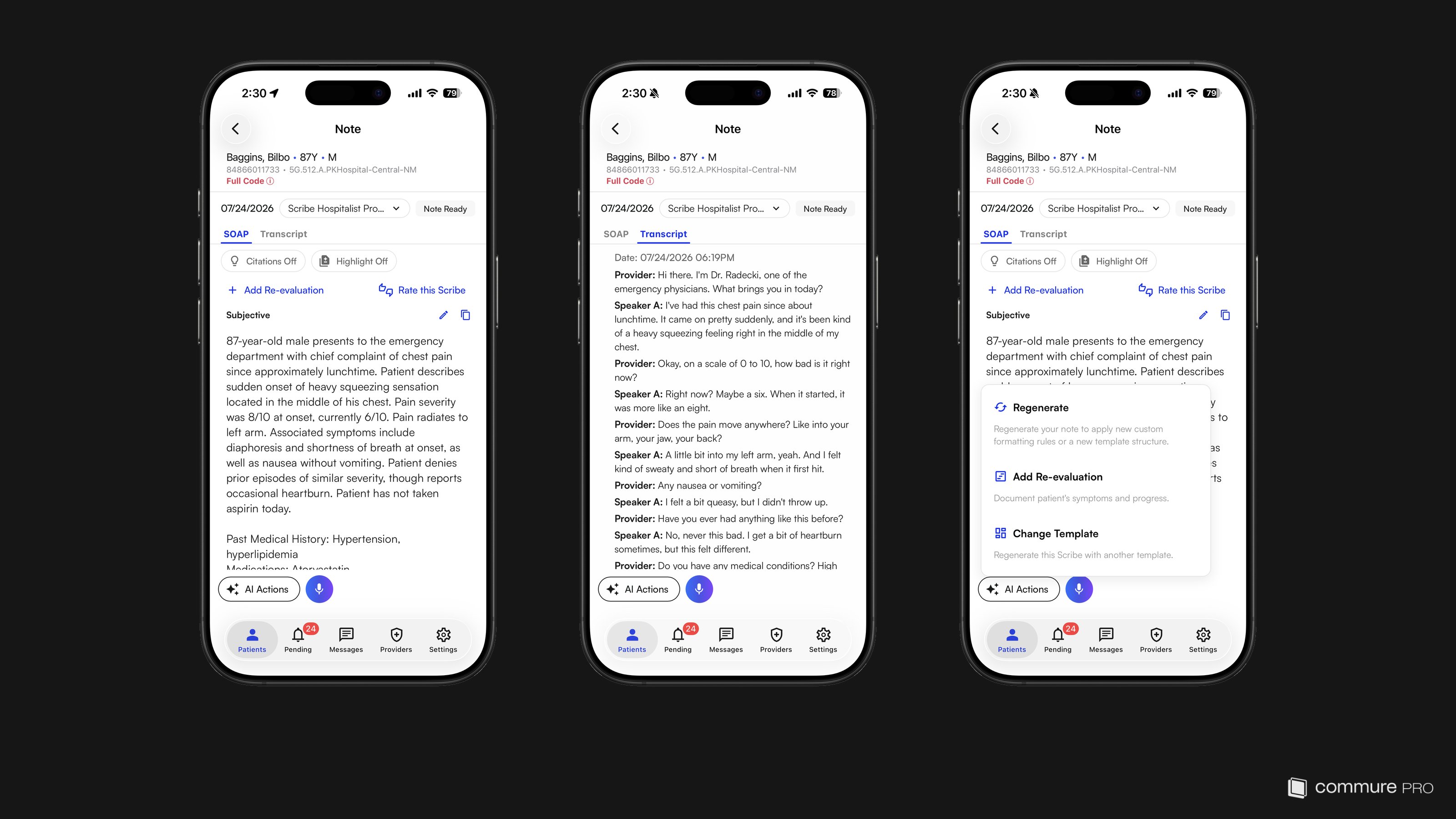
Changing the Note Template
Tapping the template button on a scribed note opens the template picker first, so you choose a template before anything is confirmed. Once you pick one, a prompt names the template you selected, confirms that the recording is saved, and explains that the note is rewritten with the new template and stays editable afterward. Tap Keep current to leave the note as it is, or Switch to rewrite it with the template you picked. This applies to the native note screen. The web-based note detail screen keeps its own template-change flow.Leaving Feedback
Tap Rate this Scribe on any generated note to provide feedback. The feedback form opens as a full-screen panel on both iPhone and iPad. This includes signed notes and notes signed from the backend (EHR-signed), so you can rate a scribe even after it has been signed or crossed over to the EHR.- Select thumbs up or thumbs down. The placeholder text updates dynamically: thumbs up shows “Share what you liked” and thumbs down shows “Share what went wrong.”
- If rating down, select one or more reasons: Missing Key Information, Inaccurate Information, Poor Formatting/Structure, Extraneous or Irrelevant Content, or Other
- Add a comment for more detail (up to 3,000 characters)
- Incorrect formatting (e.g., numbered list where bullets were expected)
- Missing clinical information (e.g., allergy not documented)
- Extraneous content (e.g., small talk included in the note)
- Medication details wrong (e.g., incorrect dosage or frequency)
Feedback is best for one-off corrections (“this note missed the patient’s allergy”). For style and structure preferences that should apply to all notes, use Custom Formatting instead.