

You must have an Active Directory username and password assigned to you. You might also be required to provide a token code from the Microsoft Authenticator application as part of the login process. The application must be installed on your iOS device.
Apple’s Touch ID® and Face ID® are NOT supported when OAuth is enabled.
Logging In
The Commure Pro application supports three modes of logging in, depending on your experience level:- Basic Mode: This is the default method, and also the simplest. Providers typically use this method. See the following topics:
- Advanced Mode: This mode is for advanced users such as administrators who frequently change the values of the Username or Host fields for testing purposes. See the following topics:
- Emulation Mode: This mode is for advanced users who wish to troubleshoot problems experienced by other users, by emulating their user profile. See the following topic:
Logging in the First Time Using Basic Mode (Provisioning the Device)
Once the Commure Pro application has been downloaded and installed on your device, you can log into the application using Basic Mode, which is the default login mode. This is the simplest login mode and it is typically used by providers. The first time you log in, a few extra steps are required to provision the device, which performs the initial download of user and patient information. After the first login, subsequent logins are quicker.- Tap the Commure Pro icon.
If the application has been customized for your organization, the application name and icon might be different. For example, if you work at General Hospital, the application name might be “Commure Pro GH,” and the icon might be the hospital’s logo.
- Complete each of the fields below.
- Host: In some cases, this field will be visible on the screen and already filled in for you. If this is the case, leave it unchanged. However, in most cases, this field is not present during the first login.
- Username: In some cases, this field will already be filled in for you. If so, leave it unchanged. However, in most cases, the field is blank and you must manually enter the provider’s Commure Pro username that was provided by your system administrator.
- Password: Enter the provider’s Commure Pro password. Your password might be one that is configured (and changeable) on the Commure Pro web application, or it might be the same one that you use in your source AD/LDAP system (such as a Windows® password), or it might be the same one that you use in your source ADT/Registration system (such as a MEDITECH® password). A password can consist of any combination of alpha, numeric, or special characters.
If OAuth is enabled on the host machine, the password field is not displayed because your Commure Pro password is not required.
-
Tap Login.
If the Host field was not pre-populated for you, the application now searches the Commure Pro Central Provisioning Server (a master database of all Commure Pro users) for a matching username.
- If only one match is found, the application automatically enters the server address for your organization into the Host field for you (behind the scenes), and then logs you into the application (assuming your password is also valid).
- If more than one match is found for your username (for example, you work at more than one organization that uses Commure Pro, or more than one person has this username), the Select Host screen is shown. The Select Host screen displays a list of list of server names. Select the server that you want. You may notice some servers with similar names. These may be cases of servers in different time zones (for example, “CST” or “EST”); be sure to select the server that matches your own timezone. Once you select a server, the application completes the Host field for you (behind the scenes), and then logs you into the application (assuming your password is also valid for the selected server).
If the server you want is not listed on the Select Host screen, you can tap Other in the upper right corner. The application switches to Advanced login mode, returns to the Login screen, and displays the Host field so that you can enter the host manually. See the next bullet for instructions on using Advanced login mode.
- If no matches are found, the following message is displayed: “User Not Found. We were unable to locate user “[the username you entered]” in our database. If your system administrator has provided you with a host name and you would like to enter it now, select Use Advanced Login.” Check to confirm that you spelled your username correctly and then select one of the options from the dialog box as follows:
- Dismiss: If your username is not spelled correctly, select Dismiss to return to the Login screen, retype your username, and then tap Login again. If your username is spelled correctly, and your administrator did not provide you with a server address, tap Dismiss to close the dialog and contact your system administrator for instructions.
- Use Advanced Login: Select this option if your username is spelled correctly and your administrator did provide you with a server address for the Host field. When the Host field is displayed, enter the server address. The address may use any of the acceptable formats listed below:
- The URL address, such as: generalhospital.commure.com
- The IP address, such as: 172.55.5.555 After you finish typing the address, the application contacts the server to verify that the address is valid. If the address is valid, the value you entered is replaced with a “user friendly” name for the host, such as “General Hospital” followed by a checkmark to indicate that it is valid. Once the address has been verified as valid, tap Login. If OAuth is enabled on the host, you are directed to the Microsoft login screen. Enter the username and password provided by your system administrator. When the Microsoft Authentication server successfully validates your AD username and password, you are re-directed to the Commure Pro application. You might also be required to provide a token code from the Microsoft Authenticator application as part of the login process. The application must be installed on your iOS device.
Apple’s Touch ID® and Face ID® are NOT supported when OAuth is enabled.
Logging in the First Time Using Advanced Mode (Provisioning the Device)
Once the Commure Pro application has been downloaded and installed on your device, administrators or advanced users can log into the application using either Basic Mode (the default mode, which assists the user in selecting a value for the Host field) or Advanced Mode (which allows the user to complete the Host field themselves). If you wish to use Advanced Mode, you must first switch to that mode, and then log into the application. The first time you log in, a few extra steps are required to provision the device, which performs the initial download of user and patient information. After the first login, subsequent logins are quicker.- Tap the Commure Pro icon.
If the application has been customized for your organization, the application name and icon might be different. For example, if you work at General Hospital, the application name might be “Commure Pro GH,” and the icon might be the hospital’s logo.
- Select the Info & Settings option, located just below the Login button.
- On the Settings screen, tap General > Login Mode. The choices for Login Mode are displayed.
- Select “Advanced” for the Login Mode.
- Tap Done in the upper right corner of the Settings screen. The Login screen is displayed.
-
Complete the fields below. All fields are required.
- Host: In some cases, this field will already be filled in for you. If so, leave it unchanged. However, in most cases, the field is blank and you must manually enter the address of the Commure Pro server. The address may use any of the acceptable formats listed below:
- The URL address, such as: generalhospital.commure.com
- The IP address, such as: 172.55.5.555 After you finish typing the address, the application contacts the server to verify that the address is valid. If the address is valid, the value you entered is replaced with a “user friendly” name for the host, such as “General Hospital” followed by a checkmark to indicate that it is valid.
- Username: In some cases, this field will already be filled in for you. If so, leave it unchanged. However, in most cases, the field is blank and you must manually enter the provider’s Commure Pro username that was provided by your system administrator.
- Password: Enter the provider’s Commure Pro password. Your password might be one that is configured (and changeable) on the Commure Pro web application, or it might be the same one that you use in your source AD/LDAP system (such as a Windows® password), or it might be the same one that you use in your source ADT/Registration system (such as a MEDITECH® password). A password can consist of any combination of alpha, numeric, or special characters.
If OAuth is enabled on the host machine, the password field is not displayed because your Commure Pro password is not required.
- Tap Login.
Apple’s Touch ID® and Face ID® are NOT supported when OAuth is enabled.
Logging in a Second/Subsequent Time Using Basic or Advanced Mode
These instructions assume that you have already logged in at least one time using either Basic Mode or Advanced Mode to perform the initial download of user and patient data, as described in:- Logging in the First Time Using Basic Mode (Provisioning the Device)
- Logging in the First Time Using Advanced Mode (Provisioning the Device) Once the initial login has been performed, subsequent logins are quicker. The steps are the same in both Basic and Advanced Mode.
- From the Home or Applications screen, tap the Commure Pro icon. The Login screen is displayed. The Host (the server to which you are connected) and your Commure Pro Username are already filled in. Do not change these fields unless you want to clear the data on the device and reprovision it.
-
Enter your Commure Pro password or use Apple’s Touch ID® or Face ID® feature. The options available to you depend on your device’s capabilities (Touch ID and Face ID are not available if you are using a shared device that is owned by the organization). When entering a password, you have a limited number of tries to enter it correctly. If you exceed the number of attempts, you are locked out of the Commure Pro application. Contact your system administrator for assistance if this occurs.
- Password: If only password authentication is enabled, a Password field is displayed below the Username field. Your password might be one that is configured (and changeable) on the Commure Pro web application, or it might be the same one that you use in your source AD/LDAP system (such as a Windows® password), or it might be the same one that you use in your source ADT/Registration system (such as a MEDITECH® password). A password can consist of any combination of alpha, numeric, or special characters.
If OAuth is enabled on the host machine, the password field is not displayed because your Commure Pro password is not required. -
Tap Login.
- Touch ID/Face ID with Password: If Touch ID or Face ID is supported by your device and is enabled in addition to password authentication (and your Touch ID/Face ID has been established via Establishing a Touch ID or Face ID for Logging In or Signing Orders), then immediately after you tap the Commure Pro icon one of the following dialogs is displayed:
Apple’s Touch ID® and Face ID® are NOT supported when OAuth is enabled.
- For Touch ID: “Touch ID for Commure Pro. Login with Touch ID.” Press your finger lightly on the Home button to register your fingerprint and immediately log in. If your fingerprint is not accepted for any reason, a Login with your password option is automatically displayed. If you select this option, the Password field is then displayed. Enter your password and then tap Login. - For Face ID: The Face ID logo is shown. Show your face to the front camera to register your identity and immediately log in. If your facial image is not accepted for any reason, a Try Face ID Again option is automatically displayed. Select the option and try again. After a second failed attempt, a Login with your password option is automatically displayed. If you select this option, the Password field is then displayed. Enter your password and then tap Login. After you log in successfully, the Patient List screen is displayed. If you have access to only a single patient list, it is automatically selected for you.
MT Expanse User Authentication
For providers at facilities using MT Expanse, Commure Pro supports an additional secure authentication step. After logging in, eligible users are automatically prompted to authenticate with MT Expanse.- Authentication is triggered automatically after login when the Expanse token is expired or missing
- App access is blocked until MT authentication is successfully completed
- The Expanse token is valid for 90 days — after expiration, providers are prompted to re-authenticate
MT Expanse authentication requires Mobilizer .41 or later. All Ambient users at Expanse facilities are required to complete this authentication flow.
Signing In with Microsoft (Managed Deployments)
Organizations that manage devices with Microsoft Intune can have providers sign in to Commure Pro with their Microsoft work or school account. This option is available in the managed enterprise build configured with the Commure Pro team and deployed through your organization’s MDM; the standard App Store build is unaffected.- Sign-in uses Microsoft Entra ID through the system browser, including multi-factor authentication (MFA).
- The app enrolls with Microsoft Intune and applies your organization’s Conditional Access and app-protection policies.
- If a device is unenrolled, a remote wipe removes locally cached clinical data.
Microsoft Intune and Microsoft sign-in are available only in managed enterprise deployments. Contact your Commure Pro representative and your device-management administrator to enable them.
Changing the Username or Host Fields (Reprovisioning the Device)
In some cases, you may want to change the values in the Username or Host fields. This is commonly referred to as reprovisioning the device for a new user or host. When you reprovision a device, it clears all user and patient data (including unsubmitted data such as charges or orders), but does not remove the Commure Pro application itself. It then downloads a fresh set of data for the new user or host. Below are some common cases when you might need reprovision the device by changing the Username or Host fields:- You are a provider who works at more than one organization that uses Commure Pro. You will need to change the Host field, and possibly also the Username field, when you want to switch from one organization to another.
- The institution owns the device and would like to transfer it to a new user because the previous user has left. The Username field will need to be changed.
- You are an administrator who does frequent testing on multiple servers. You will need to change the Host field, and possibly also the Username field, when you want to switch from one server to another. You can reprovision the device for a new user and/or a new host directly on the Login screen, by following the instructions below:
- Changing the Username or Host Fields Using Basic Mode
- Changing the Username or Host Fields Using Advanced Mode Or as an alternate method, you could also use the Clear Data option (see Clearing Data from a Device) and then follow the steps in Logging in the First Time Using Basic Mode (Provisioning the Device) or Logging in the First Time Using Advanced Mode (Provisioning the Device). Or if you are an administrator and you do not have the device in hand, you can clear the data from device remotely, using an option in the Commure Pro web application. See the Commure Pro Administrator help system for instructions on clearing a device remotely. Then the new user can finish provisioning the device on their own by following the instructions in the topics referenced above for logging in the first time.
Changing the Username or Host Fields Using Basic Mode
- Select the Commure Pro icon.
If the application has been customized for your organization, the application name and icon might be different.
- Determine which fields (Host and/or Username) need to change:
- If the current user wants to sync to a different host (and their username is the same for both hosts), then the value in the Host field must be changed.
- Tap the Host field.
- When the Select Host screen appears, select the new host from the list of matches. (Or, if the host you want is not listed, tap Other in the upper right corner to enter the Host manually).
- When the Login screen reappears, enter the user’s password for the new host and then tap Login.
- If the current user wants to sync to a different host (but their username is different for the other host), or if a different user wants to sync to a different host, then the values in both the Host and Username fields must be changed.
- Tap into the Username field and change the value.
- Tap the Host field.
- When the Select Host screen appears, select the new host from the list of matches. (Or, if the host you want is not listed, tap Other in the upper right corner to enter the Host manually).
- When the Login screen reappears, enter the user’s password for the new host, and then tap Login.
- If a different user wants to sync to the current host, then the value in the Username field must be changed.
- Tap into the Username field and change the value.
- Tap into the Password field and enter the new user’s password, and then tap Login. The system authenticates the login information and following messages are displayed: “Provisioning… Logging in… Waiting for data… Downloading… Updating Data… Logging in…”
Changing the Username or Host Fields Using Advanced Mode
- Select the Commure Pro icon.
If the application has been customized for your organization, the application name and icon might be different.
- Tap into the Host and/or Username fields and change the value(s) to reflect the new username and/or host.
- Tap into the Password field and enter the password for the new username and host.
- Tap Login. The application clears all previous data and then authenticates the login information. The following messages are displayed: “Provisioning… Logging in… Waiting for data… Downloading… Updating Data… Logging in…”
Logging In Using Emulation Mode (for Troubleshooting)
Advanced users (such as Commure Pro staff or hospital IT staff who perform testing or troubleshooting) can emulate another user when logging into the Commure Pro application. Once logged in, the application emulates the other user’s permissions, patient lists, and so on. This allows the advanced user to see the same screens and options that the other person would see, which facilitates troubleshooting any issues they are experiencing. Please note that although the Emulation Mode can be enabled via a setting on the device, it will only be functional if it is also enabled in the advanced user’s profile. The following rules apply when in Emulation Mode:- Device settings can be modified during an emulation session, but will apply as follows:
- If the advanced user is using their own device to emulate another user, the changes will apply to their own device.
- If the advanced user is using the emulated user’s device, the changes will apply to the emulated user’s device.
- All actions will be audited just as they are when the advanced user is using the application as him/herself. The Audit Report will note the username of both users, as well as the fact that the advanced user was emulating another user.
- Any push notifications sent to the emulated user will not go to the device of the advanced user that is emulating him or her. Push notifications only go to devices provisioned to a user during a normal session (not an emulation).
- Commure Pro Messaging is not available when emulating another Commure Pro user.
In situations where advanced users (admins) provide assistance that requires changes to another user’s device, the admin cannot log into the user’s device with that user’s credentials, and then attempt to emulate the user. When this type of emulation support is required, the user should have IOS provisioning on a different device.
- Select the Commure Pro icon.
If the application has been customized for your organization, the application name and icon might be different.
- Select the Info & Settings option, located just below the Login button (or below the Login with Touch ID or Login with Face ID button, if Touch ID® or Face ID® is enabled).
- On the Settings screen, tap General > Login Mode. The choices for Login Mode are displayed.
- Select “Emulate” for the Login Mode.
- Tap Done in the upper right corner of the Settings screen. The Login screen is displayed.
- Complete the Host, Username, and Password fields as normal (enter your own username and password).
- In the Emulated Username field, enter the Commure Pro username of the person you wish to emulate.
- Tap the Emulate button (or the Emulate with Touch ID or Emulate with Face ID button, if Touch ID or Face ID is enabled). You are logged into the application in emulation mode and are now viewing all the same options that the emulated user would view. At the top of the screen, an orange banner is displayed indicating the username of the person you are emulating.
- Select the screens or options that you wish to test.
- When you are done, log out of the application (tap Settings > Log Out).
-
The following confirmation message is displayed: “Log Out. You are currently emulating user “[username]” and logging out will not end the emulation. What would you like to do?”
- Log Out: Select Log Out to continue emulating the current user. The Login screen is redisplayed, with the other user’s username still in the Emulated Username field. You can emulate that user again if needed.
- End Emulation: Select End Emulation to log out and also end the emulation process. The Login screen is redisplayed, and the Emulated Username field is no longer shown. The next time the advanced user logs it, it will be as him/herself.
- Cancel: Select Cancel to return to the Commure Pro application as the emulated user.
In-App Feature Announcements
Shortly after you log in, Commure Pro may show a short in-app announcement introducing a newly released capability. The announcement is displayed as a popup over the screen you land on. Tap Continue, or the close button in the corner of the popup, to dismiss it. If more than one announcement is waiting for you, dismissing the current one brings the next queued announcement into view.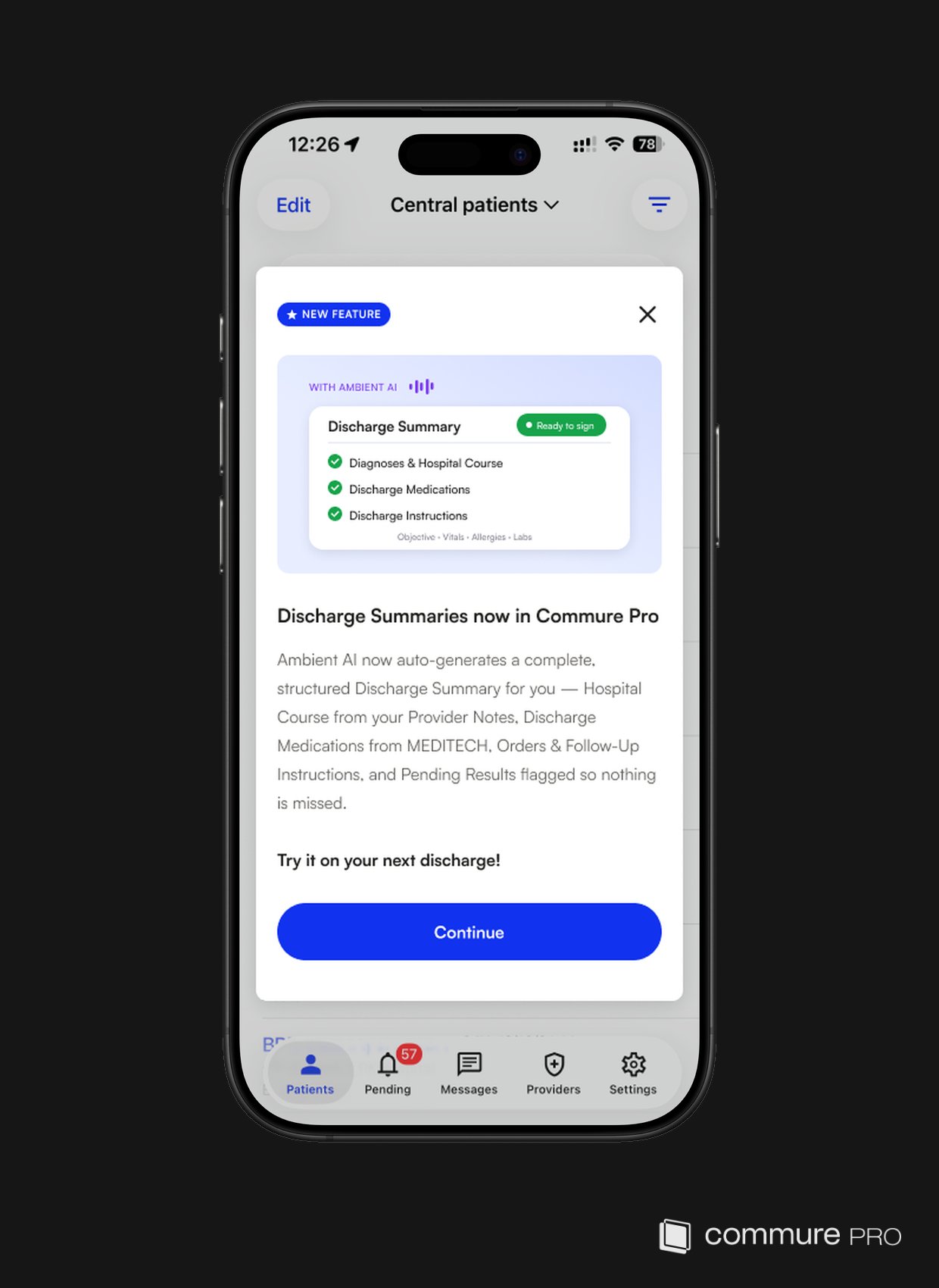
- Note writing
- The Scribe panel
- An active ambient recording
- Order entry
- Medications
- Charges
- Add Charge transactions
In-app feature announcements are controlled by a feature flag and are not enabled in every environment. Contact Commure to enable them for your environment.
Logging Out
If you are using a shared mobile device that is owned by the organization, then when you connect the device to a power source such as a docking station, you may be automatically logged out of the Commure Pro application (based on a setting in your user profile). However, regardless of how your profile is configured, any person using any type of device can also log out manually at any time by following these steps below. Logging out of the application when you are done using it is the best practice for maintaining patient confidentiality.- Tap Settings > Log Out. You are logged out of the application and the Commure Pro Login screen is displayed. In addition, all communication/syncing with the organization’s server is stopped.
Please note that even if you have enabled Touch ID or Face ID, the Touch ID/Face ID dialog is not automatically displayed after you log out. Instead, a Login with Touch ID or Login with Face ID button is displayed. Tap the button to log in using these options.
When the Commure Pro Application Times Out
After a period of inactivity, the Commure Pro application may time out and return to the Login screen. This feature protects patient confidentiality. Your system administrator defines the amount of time required before the timeout takes effect. When the application is timed out, all communication/syncing with the organization’s server is stopped. From the Login screen, you must re-enter your password, or use the Apple Touch ID® or Face ID® feature in order to access Commure Pro again.Please note that even if you have enabled Touch ID or Face ID, the Touch ID/Face ID dialog is not automatically displayed after your device times out. Instead, a Login with Touch ID or Login with Face ID button is displayed. Tap the button to log in using these options.
Launching Other Mobile Applications from the Commure Pro Application, or Vice Versa
Your organization can use inter-app communication to create a direct link from the Commure Pro Apple® application to a third party Apple application, or vice versa, so that providers or nurses can easily navigate between the two. These integrations can be configured in a variety of manners depending on their context and usage. For example, when moving from the Commure Pro application to another application, the integration might use a new left-swipe or menu option from the Patient List module, or a new menu item under the Pending button in the bottom toolbar. Or when moving in the other direction, the integration might consist of a “Commure Pro” button in the other application. When you select the integration option, the target application is a launched and you are automatically logged into that application so that you do not have to enter your username and password. In addition, the patient you were accessing in the starting application can be passed to the target application, so that when it opens, that patient is already selected for you. Below are several examples of common integrations with other applications:- Launching the Commure Pro Application from a Different Application (Link and Launch)
- Launching a Patient Monitoring Application from the Commure Pro Application (via AirStrip ONE)
- Launching a Deficiency Application from the Commure Pro Application
Launching the Commure Pro Application from a Different Application (Link and Launch)
In some organizations, providers or nurses are granted access to the Commure Pro application via a direct link from a different mobile application. This is commonly referred to as the Link and Launch feature. The link is typically configured as a button in the other application. When the user selects the button they are automatically logged into the Commure Pro application. In addition, the patient the user was accessing in the other application may be passed to the Commure Pro application, so that when it opens, that patient is already selected, and a specific screen, such as the View Modules screen (the module list) is displayed. In order to use this integration feature:- The other application must be installed and configured on your device.
- The Commure Pro application must be installed on your device.
- If you are using a personal device and the Commure Pro application was not installed via your organization’s Mobile Device Management (MDM) system, then you must establish a value for the Host field by logging into the Commure Pro application at least one time, as described in:
- Logging in the First Time Using Basic Mode (Provisioning the Device) or
- Logging in the First Time Using Advanced Mode (Provisioning the Device). In order for a patient to open in the Commure Pro app via Link and Launch, the patient must have a visit type that is considered InFacility by the Commure Pro system (specific visit types are defined in Commure Pro as InFacility visits). For example, if PRE ER visit types are not defined in Commure Pro as InFacility, then the patient will not open in the Commure Pro app via Link and Launch until they are registered.
- In the other application (Mobile Heartbeat), select a patient with an InFacility visit.
-
Tap the Commure Pro button or link from within the other application.
The Commure Pro application is launched, you are automatically logged in, and the same patient is automatically selected for you. In order to accomplish this, several processes occur behind the scenes:
- If this is the first time you have accessed the Commure Pro application, or if another user was using the device to access Commure Pro prior to you, then you may need to wait a few moments as the device is provisioned or re-provisioned and a quick sync occurs.
- Once you are logged in, the Commure Pro application automatically switches to a patient list that is designated for use with the Link and Launch feature (and is configured via a setting in your user profile). If the selected patient (with the same MRN and Facility ID) is not already on that patient list, the patient is automatically added to the list at that time. If you receive a message that you are not configured correctly to open a patient, please see your administrator. This could be due to an incorrect setting in your user profile, or patient list permissions or availability. The View Modules screen is then shown for the selected patient, listing all of the available modules (such as Allergies, Clinical Notes, Lab Results, and so on).
- From the View Modules screen, select a module to view the patient’s information. See Navigating the Commure Pro Application for more information on navigating and using the Commure Pro application.
- When you are ready to return to the other application (Mobile Heartbeat in our example):
- Tap the Back to [application name] button, located in the top left corner of the screen. The button name will vary depending on the name of the other mobile application.
- If the Back to [application name] button is not available, you can either press the device’s Home button (on newer model iPhones, swipe up from the bottom center) or log out of Commure Pro by tapping Settings > Logout, and then re-launch the other application by tapping its icon.
- If you are using a shared device that is owned by the organization, then when you are done using the device you will most likely connect it to a power source such as a docking station, located in a work area where other users can later pick it up and use it. To prevent other users from accessing patient data using your credentials, your organization may have enabled the auto-logout feature. When enabled in your user profile, if the Commure Pro app is running when you dock the device, then you are automatically logged out of the Commure Pro application.
If the Commure Pro app is not running when you dock the device, then the next time it is launched (by yourself or another user), the app checks for an increase in battery level to determine whether the device was docked, and therefore whether an auto-logout should occur. There are two cases where the auto-logout does not happen:
- If the Commure Pro app is in the background when you dock the device, and the device is docked and undocked quickly, there is no increase in battery level. When the Commure Pro app is later launched, since there was no increase in battery level, you are not logged out.
- If the Commure Pro app is in the background when you dock the device, and then the device is undocked and sits idle (without launching the Commure Pro app), the battery level may decrease to less than what it was when the device was initially docked. When the Commure Pro app is later launched, since there was a decrease in battery level since the app was last used, you are not logged out. If the auto-logout does not occur as described in the scenarios above, then logout should occur when either the configured app timeout is reached, or when the app is launched by another Link and Launch user. If auto-logout still has not occurred when a user opens the Commure Pro app, then the previous user should be logged out manually. Please note that if you later log into Commure Pro directly from the Commure Pro app icon (rather than through the Link and Launch feature), then the last patient list that you manually selected is displayed. This may be different from the patient list that was automatically selected in Step 2 above.
Launching a Patient Monitoring Application from the Commure Pro Application (via AirStrip ONE)
An optional integration can be implemented to grant provider access a third party patient monitoring application (such as a cardiac or fetal monitoring system), directly from the Commure Pro Apple application, using AirStrip ONE® technology. The actual third-party patient monitoring system that is accessed varies by organization. In order to use the AirStrip ONE integration feature:- The integration feature must be enabled in your user profile.
- The AirStrip ONE application must be installed and configured on your device. When this integration is enabled for you, patients that are being monitored show a Monitoring icon next to their name on the Patient List. You can access the patient monitoring system for these patients by following the steps below.
- In the Commure Pro application, in the Patient List module, identify a patient who has a Monitoring icon
- Swipe right-to-left on the patient’s visit row.
- When the context buttons appear, select More and then choose AirStrip One from the menu. The patient monitoring application is launched, you are automatically logged in, and the same patient is automatically selected for you. Please refer to monitoring application’s help system for information on how to navigate that application.
- When you are ready to return to the Commure Pro application:
- Tap the Back to Commure Pro button , located in the top left corner of the screen.
- If the Back to Commure Pro button is not available, you can press the device’s Home button (on iPhone X, swipe up from the bottom center) or log out of the other application, and then re-launch the Commure Pro application by tapping the Commure Pro icon.
Launching a Deficiency Application from the Commure Pro Application
An optional integration can be implemented to grant provider access to the Allscripts® OneContent™ Mobile Deficiency Completion (MDC) Apple application, directly from a menu option within the Commure Pro Apple application. This integration allows you to access all of your alerts in one place within the Commure Pro Apple application, and to easily launch the Allscripts MDC Apple application so that you can review and sign your deficiencies using that application. Commure Pro can also create integrations to other mobile deficiency applications, using a similar workflow to the one described here for Allscripts MDC. However, not every integration is the same, and there may be slight differences from the workflow described here. In order to use the Allscripts MDC integration feature:- The integration feature must be enabled in your user profile.
- You must configure a PIN for the Allscripts MDC application on your device. See Configuring Settings for Integrations to Other Applications for instructions.
- The Allscripts MDC Apple application must be installed and configured appropriately on your device.
- Commure Pro uses the provider’s domain username dynamically when launching MDC and supports Multi-Factor Authentication (MFA) for secure token validation.
- From any option, tap Pending in the bottom toolbar and then select the Deficiencies (n) > option.
- When you are ready to return to the Commure Pro application:
- Tap the Back to Commure Pro button , located in the top left corner of the screen.
- If the Back to Commure Pro button is not available, you can press the device’s Home button (on iPhone X, swipe up from the bottom center) or log out of the other application, and then re-launch the Commure Pro application by tapping the Commure Pro icon.