

Charge Transaction Screen At a Glance
The Charge Transaction screen is where you enter new charge transactions, or edit existing ones. The Charge Transaction screen contains three sections, listed vertically in this order:- CHARGES: Search for and enter charge codes; enter modifiers and detail fields for specific charges if necessary.
- DIAGNOSES: Search for and enter diagnosis codes.
- DETAILS: Enter additional detail information that applies to the entire charge transaction, such as service date, billing provider, service site, etc. At the top of the screen there are two buttons:
- Cancel: Exit without submitting your work.
- Submit: Submit the charge transaction as complete. At the bottom of the screen there is a toolbar with the following buttons:
- Draft: Submit the charge transaction as a draft. See Submitting a Transaction as a Draft.
- Edits: Check your work for errors. See Checking Your Work for Errors.
-
Macros: The Macros button pops up a menu with two choices:
- Select Macro: Select a Macro to add a predefined group of charges/diagnoses/modifiers to the charge transaction. See Using Charge Macros to Enter Multiple Charges.
- Create Macro: Create a new Charge Macro (a predefined group of charges/diagnoses/modifiers), for future use. See Creating Charge Macros.
- Custom: Use a custom screen to enter the services you rendered. See Selecting Charges Using Custom Screens.
Basic Steps: Entering a New Charge Transaction
New charge transactions can be created from either the Patient List module or the Charges module. You can create a new transaction from scratch, or you can copy an existing one to create a new one. It does not matter which option you use, the resulting Charge Transaction screen is the same in all cases. The basic steps are as follows:- Select a patient from the Patient List and then choose an option for adding or copying a charge transaction.
- Enter charge codes, including modifiers and details for specific charge codes.
- Enter diagnosis codes.
- Enter additional detail information for the entire charge transaction, such as service date, billing provider, billing area, service site, etc.
- (Optional) Enter a comment or associate photos with the charge transaction.
- (Optional) Review the charges and diagnoses you have entered, and possibly make changes to your work.
- (Optional) Check you work for errors.
- Determine the best method for submitting your work.
Methods for Creating a New Charge Transaction
There are several ways that you can start a new charge transaction:- Entering a New Charge Transaction from the Patient List Module
- Entering a New Charge Transaction from the Charges Module
- Copying A Charge Transaction from the Charges Module
Entering a New Charge Transaction from the Patient List Module
All charge transactions are associated with a specific patient visit. In the Patient List module, each patient on your patient list represents a patient visit. In most cases, a patient has only one visit at a time, and is therefore listed on your patient list only once. Occasionally, a patient may be listed more than once, if they have more than one recent visit. To enter a new charge transaction from the Patient List module, simply identify the specific patient visit for which you want to enter the charges and then follow the steps below.- In the Patient List module, identify the specific patient visit for which you want to enter a new charge transaction. Swipe right-to-left on that patient visit row.
- When the context buttons appear, tap the Add Charge button (if available), or tap the More button and then choose Add Charge from the pop-up menu.
- The visit that you swiped on the patient list may now be automatically selected and the Charge Transaction screen automatically opened with an appropriate date of service defaulted for you. If this is the case, skip to Step 5.
- Or, if the patient has more then one billable InFacility visit, the Charges Summary screen is shown instead, so that you can review all of the patient’s visits and choose the specific visit with which to associate the charges yourself. Continue to the next step.
- If the Charges Summary screen is displayed, identify the exact visit, and specific day of that visit, for which you want to enter charges. Then take either of the following actions:
- If the visit day row does not yet have a charge entered, it will say Add New Charge. Just select the visit day row to add a new charge transaction.
- If the visit day row already has a charge entered, select the visit day row to expose the pop-up menu, and then select the New option.
- Depending on how your user profile is configured, the application may now automatically copy the diagnosis codes from a previous charge transaction and/or note to the new transaction, or it may display the Select DXs to Copy screen with a list of the diagnosis codes from a previous transaction/note and allow you to select the ones you want to copy forward. If the Select DXs to Copy screen is displayed, all the diagnoses will show a checkmark to the right to indicate that they are selected by default. If you do not want to copy any of the diagnoses to the new transaction, simply tap on a diagnosis row to remove the checkmark, and then tap Done.
- Follow the steps outlined in Basic Steps: Entering a New Charge Transaction, starting with Step 2, to enter the data for the charge transaction
- After submitting the transaction, the Charges Summary screen is re-displayed, with the patient’s new charge transaction listed.
Entering a New Charge Transaction from the Charges Module
In the Charges module, the Summary screen displays each visit in separate section, and within that, each day of the visit is listed as a separate row.- Visit days that do not yet have any charges entered show the words Add New Charge.
- Visit days that already have charges entered show the details of those charges. You can enter a charge for either type of visit day (those that do not already have charges, and those that do).
- From the Charges Summary screen, identify the exact visit, and specific day of that visit, for which you want to enter charges. Then take either of these actions:
- If the visit day row does not yet have a charge entered, it will say Add New Charge. Just select the visit day row to add a new charge transaction.
- If the visit day row already has a charge entered, and you want to enter another charge for that same date, select the visit day row to expose the pop-up menu. Then select the New option.
- Depending on how your user profile is configured, the application may now automatically copy the diagnosis codes from a previous charge transaction and/or note to the new transaction, or it may display the Select DXs to Copy screen with a list of the diagnosis codes from a previous transaction/note and allow you to select the ones you want to copy forward. When copying or presenting diagnoses for copying, this may or may not include any free text or flagged diagnoses from the source transaction. If the Select DXs to Copy screen is displayed, all the diagnoses will show a checkmark to the right to indicate that they are selected by default. If you do not want to copy any of the diagnoses to the new transaction, simply tap on a diagnosis row to remove the checkmark, and then tap Done.
- Follow the steps outlined in Basic Steps: Entering a New Charge Transaction, starting with Step 2, to enter the data for the charge transaction
- Tap Submit in the upper right corner. The Charges Summary screen is re-displayed, with the patient’s new charge transaction listed.
Copying A Charge Transaction from the Charges Module
The copy function is available when working from the Summary screen of the Charges module. The copy function is a convenient feature if you are repeating a previous routine and want to quickly add the same transaction again with a different service date. You can easily add a new transaction by copying an existing one and modifying it. When you copy the transaction, the charges on the original transaction are copied to a new transaction with a different service date. In addition, your administrator determines which other items are copied forward (modifiers, regular diagnoses, free text diagnoses and charges, flagged diagnoses and charges, or specific charge detail fields). To copy a charge transaction, follow these steps:- From the Charges Summary screen, identify the visit day row that has the transaction you want to copy. Select the row to expose the pop-up menu, and then select the Copy option.
-
Depending on how the system and your user profile are configured, the copy function now does the following:
- It will automatically copy the charges from the source transaction. This may or may not include any free text or flagged charges from the source transaction.
- It may automatically copy the modifiers from the source transaction.
- It may automatically copy the diagnosis codes from the source transaction, or it may display the Select DXs to Copy screen with a list of the diagnosis codes from the source transaction and allow you to select the ones you want to copy. If the Select DXs to Copy screen is displayed, all the diagnoses will show a checkmark to the right to indicate that they are selected by default. If you do not want to copy any of the diagnoses forward, simply tap on a diagnosis row to remove the checkmark, and then tap Done. When copying or presenting diagnoses for copying, this may or may not include any free text or flagged diagnoses from the source transaction.
- It may automatically copy the values for specific charge detail fields from the charge transaction.
- It may automatically copy the provider comments from the source transaction. The main Charge Transaction screen is shown with all of the information described above copied forward. The service date defaults to the most recent billable date for the patient.
-
Review the copied information and modify any of it as appropriate for the current transaction. For example, you might:
- Change the service date or other charge detail information.
- Entering Additional Detail Information for the Entire Charge Transaction
- Add new charges, diagnoses, or modifiers.
- Entering Charge Codes
- Entering Diagnosis Codes
- Entering a Modifier for a Specific Charge Code
- Remove or change the charges, diagnoses, or modifiers that were copied forward from the original transaction.
- Removing a Charge Code from a Transaction
- Entering a Modifier for a Specific Charge Code
- Changing the Quantity or Details for a Specific Charge Code
- Removing a Diagnosis from One Charge on a Transaction
- Removing a Diagnosis from an Entire Transaction.
- Change the sort order of the charges or diagnoses.
- Re-Ordering the Diagnoses or Charges on a Transaction
- Tap Submit in the upper right corner. The Charges Summary screen appears and you can see the new transaction.
Entering Charge Codes
Once you have selected a patient visit for the charges you are about to enter, the Charge Transaction screen appears. There are several ways that you can quickly select the appropriate charge codes (CPT codes):- Select it from one or more lists: You can select charge codes from two list options. Each of these list options contains a different set of codes, such as your personal favorites (Favorite CPTs), or commonly used codes from your Department Pickers. See Selecting Charges from Favorites or Department Pickers Lists.
- Use a Charge Macro: You can use a Charge Macro to enter a predefined set of charges, modifiers, and diagnoses with a single tap, rather than having to select and enter each item individually. Charge macros can be selected from Department Pickers, or they can be selected individually. See Selecting Charges from Favorites or Department Pickers Lists and Using Charge Macros to Enter Multiple Charges.
- Search for it: If you cannot find the code you want using one of the options above, you can search for it from the master charge list. See Selecting Charges Using the Search Option.
- Enter it as free text: If you cannot find the code you want using the options above, you can enter a charge as free text. See Entering Charges as Free Text.
- Answer questions from a Custom Screen: Answer a series of questions about the services you provided, and the appropriate charges are added to the transaction. See Selecting Charges Using Custom Screens.
Selecting Charges from Favorites or Department Pickers Lists
There are two options that allow you to select charge codes or charge macros from a list. The main difference between the options is the type of items that each list contains. The types of items that are included in each list are as follows:- Favorite CPTs: This option displays your personal list of favorite charge codes. For instructions on how to add a code to your favorites list, see Adding or Removing Items to/from your Favorite CPTs List.
- Department Pickers: This option displays a categorized list of charge codes created specifically for your department. Your department or system administrator creates the Department Pickers lists to make it easier for you to find the codes you need. With Department Pickers lists, you progressively drill down through the categories to find the specific charge code that you want. The contents of the Department Pickers may be different depending on the type of visit (inpatient or outpatient) for which you are entering charges. The Department Pickers list contains individual charge codes and can also contain Charge Macros, if you or your department administrator have added them to the Department Pickers. Charge Macros are a time-saving feature that allow you to enter a predefined group of commonly used charge codes, modifiers, and diagnoses with a single tap. You simply choose the charge macro from the Department Pickers list, and all of the charges, modifiers, and diagnoses in that group are automatically added to the Charge Transaction screen. Charge macros are preceded by a gears icon so that you can distinguish them from regular charge codes. See also Using Charge Macros to Enter Multiple Charges and Creating Charge Macros.
-
Tap Add Charges .
The Charge Picker screen appears.
If you had previously used the Keep Open option for a particular category, then that category is automatically displayed as a starting point when you first access the Charge Picker screen. If you want to choose a charge code from a different category, tap Back to go back to the main Charge Picker screen.
-
Select one of the options below:
- Favorite CPTs: Select this option view a flat list of your favorite codes.
- Department Pickers: Scroll down to see all of the picker categories. Select a category to view the charge codes or charge macros within it. Please note that charge codes are updated each year. As a result, a code that was included on your Favorite CPTs or Department Pickers list in the past may be inactive today. If a code is inactive on the service date of the charge transaction, it cannot be used on new charge transactions. Inactive codes are removed from the Department Pickers list, but do remain on your Favorite CPTs list. To distinguish them from active codes, they are shown on the Favorite CPTs list with a Search icon and the text in light gray. To find an active code with a similar description, select the inactive code. The description from the inactive code is placed in the Search field as a starting point, and a search is immediately executed. You can review the results and select a match, or change the search term and execute a new search. See Selecting Charges Using the Search Option for more information on searching.
-
Select each charge that you want. You may select as many items, from as many options or categories, as you wish.
- When you select a charge code, a checkmark appears next to it.
- To select the same charge code twice, see Entering the Same Charge Code Twice on a Transaction.
- If you have opened a particular option to view the codes within it (such as Favorite CPTs), or if you have drilled down through one or more categories in the Department Pickers option, you can tap Back to move back to the main Charge Picker screen, select a different option (Favorite CPTs or Department Pickers category), and then select another charge code.
- Tap Done when you are through selecting charge codes. The main Charge Transaction screen appears, with the codes that you selected displayed on it.
Keeping a Charge Category Open
You may select one category on the Charge Picker screen to keep open (either the Favorite CPTs list or one Department Pickers category), so that when you tap Add Charges , that category is automatically selected and the contents are displayed as a starting point. You can still navigate to another category, but the selected category is always your starting point. You may also deselect the “kept open” category, or select a different category to keep open, at any time. To select a category to keep open:- Start entering a new charge transaction, and then tap Add Charges . The Charge Picker screen is displayed.
- Select the item that you want to keep open: either the Favorite CPTs list, or one of the Department Pickers categories.
- Once you are viewing the contents of the item that you want to keep open, tap Keep Open at the bottom right of the screen.
- Tap Done in the upper right corner of the screen. The category is now the one item that is kept open when you first access the Charge Picker screen.
To change the category that is kept open
- Start entering a new charge transaction, and then tap Add Charges . The Charge Picker screen is displayed. The currently “kept open” category is displayed.
- Navigate to the new category that you want to keep open, either the Favorite CPTs list or a different Department Pickers category.
- Once you are viewing the contents of the item that you want to keep open, tap Keep Open at the bottom right of the screen.
- Tap Done in the upper right corner of the screen. The new item automatically becomes the one category that is kept open (you do not have to “clear” the prior category).
To clear the category that is kept open, so that no category is kept open
- Start entering a new charge transaction, and then tap Add Charges . The Charge Picker screen is displayed. The currently “kept open” category is displayed.
- Tap Keep Closed at the bottom right of the screen.
- Tap Done in the upper right corner of the screen. The category is “cleared” and no category is kept open from this point forward.
Adding or Removing Items to/from your Favorite CPTs List
When looking at the Department Pickers list, or the results of a diagnosis Search, you can add or remove charge codes that you see on these lists to or from your Favorite CPTs list. After you add one or more codes as favorites, you can then quickly select those codes when entering charges for patients. You can add up to one hundred charge codes to the Favorite CPTs list.You cannot add Charge Macros to your Favorite CPTs list from your handheld device. However, you can do so on the Commure Pro web application.
- Start entering a new charge transaction, and then tap Add Charges . The Charge Picker screen is displayed.
-
Select or use either of the options below to locate the desired charge code:
- Search (perform a search for a charge code, so that a list of results is shown)
- Department Pickers list Notice that in both of these options, there is a Favorites icon ( or ) to the left of every charge code. A gray star indicates that the charge code is not yet on your Favorite CPTs list, while a gold star indicates that the code is already on your Favorite CPTs list.
- Identify the charge code that you want to add to your favorites list and then take either of the actions below:
- Swipe right to left on the charge code’s row to expose the Favorite button, and then tap the button.
- Tap the gray Favorites icon to the left of the charge code, or The Favorites icon changes to gold and the charge code is added to your favorites list.
To remove a code from your Favorite CPTs list
- Start entering a new charge transaction, and then tap Add Charges . The Charge Picker screen is displayed.
- Select the Favorite CPTs option. Notice that every charge code has a gold Favorites icon to the left of it, indicating that it is a favorite code.
- Identify the charge code that you want to remove from your favorites list and then take either of the actions below:
- Tap the gold Favorites icon to the left of the charge code, or
- Swipe right to left on the charge code’s row to expose the Unfavorite button, and then tap the button. The Favorites icon changes to gray to indicate that you have chosen to remove it. Once you tap Done to exit the Charge Picker screen, the code is removed from your favorites list.
Selecting Charges Using the Search Option
If you cannot find the code you want in the Favorite CPTs or Department Pickers list options, you can use the Search option to search the entire master list of charge codes. When searching for a charge, you can enter either a CPT code or a charge description into the search field:- Tap Add Charges . The Charge Picker screen is displayed.
- Tap into the Search field at the top of the screen.
- Type a CPT code or phrase in the Search field and select the Search button on the virtual keyboard. A search of the entire master charge list is now performed, and the charges that match the code or phrase that you typed are displayed. Each charge in the master charge list can also have common keywords associated with it. The application also automatically searches the charge keywords for the phrase that you entered.
- Select either the Filter button at the top of the screen, or the Filters applied button in the middle of the screen. The Filter screen opens.
- In the Sort Type field, select either Description or Code.
- In the Sort Direction field, select either Ascending or Descending.
- Tap Done.
- Select the charge(s) that you want from the search results. You can clear the text in the Search field and perform additional searches as necessary (repeat Steps 2 - 3). Or, if you cannot find the charge you want in the search results, see Entering Charges as Free Text.
- Tap Done when you are through selecting charge codes. The main Charge Transaction screen appears, with the codes that you selected displayed on it.
Entering Charges as Free Text
You can add free text charges if your administrator has enabled this feature in your user profile.- Tap Add Charges . The Charge Picker screen appears.
- Tap into the Search field at the top of the screen and type a charge description. As you type each character, a free text entry using that phrase is created and displayed below the Filters applied option, and above the search results, in the format: Free Text: “[your phrase].”
- Review the list of search results. If you do not see the charge that you want, then select the Free Text: “[your phrase]” option. A checkmark appears next to the free text entry.
- Tap Done. The main Charge Transaction screen appears, with the free text charge displayed on it.
Using Charge Macros to Enter Multiple Charges
A Charge Macro is a predefined group of charges, modifiers, and diagnoses that are commonly used together. They enable you to enter an entire set of charges, modifiers, and diagnoses with a single tap, rather than having to select and enter each item individually. This speeds up the charge entry process considerably. Department administrators may have created some commonly used charge macros for all providers in your department. You may also create personal charge macros, if this feature has been enabled in your user profile. See Creating Charge Macros for more information. You might see charge macros in either the Favorite CPTs list, or in the Department Pickers list, if you or your department administrator have defined them and added them to these lists. They are preceded by a gears icon so that you can distinguish them from regular charge codes. In addition, all personal or departmental charge macros are available from the Macros option located at the bottom of the Charge Transaction screen.-
Select a macro using either of these methods:
- Tap Macros located at the bottom of the Charge Transaction screen, and then choose Select Macro from the pop-up menu. When the list of all personal and departmental charge macros is displayed, select the charge macro that you want to use on this charge transaction.
- Tap Add Charges . When the Charge Picker screen appears, look through the Favorite CPTs list or the various Department Picker categories to find the macro that you want, select the macro, and then tap Done. Macros are preceded by the gears icon. All of the charges, modifiers, and diagnoses associated with the charge macro are added to the charge transaction.
- Review the items that were added.
- You can change or remove any of the charges, modifiers, or diagnoses as necessary for this patient. See the following topics for instructions:
Creating Charge Macros
Charge Macros are a time-saving feature that allow you to enter an entire group of related charges codes, modifiers, and diagnoses with a single tap. For example, a cardiac exam charge macro might include the following:- Charge Code: 93000 Electrocardiogram, complete
- Modifier: none
- Diagnosis: R07.9 Chest pain
- Charge Code: 93010 Report on transmitted ECG
- Modifier: 26 Professional component only
- Diagnosis: R07.9 Chest pain
- Charge Code: 83719 Assay of blood lipoproteins
- Modifier: 90 Reference (outside) laboratory
- Diagnosis: R07.9 Chest pain
- Charge Code: 85007 Differential WBC count
- Modifier: 90 Reference (outside) laboratory
- Diagnosis: R07.9 Chest pain If you find that you are frequently adding the same set of charges, modifiers, and diagnoses over and over again, you can combine them into a macro, so that the next time, you can add the entire set with one tap. A charge macro must contain one or more charges, but is not required to contain modifiers or diagnoses. For example, a charge macro might contain just charge codes, or just charge codes and modifiers, if that were more appropriate. You can create personal charge macros only if your administrator has enabled this feature in your user profile.
- Using the Add Charges button and the Add Diagnoses button , select all of the charges, modifiers, and diagnoses that you want to include in the charge macro, as if you were going to enter them for the patient.
- Once the desired codes are displayed in on the main Charge Transaction screen, tap Macros at the bottom of the screen, and then choose Create Macro from the pop-up menu. The Create Macro dialog is displayed.
- Enter a name in the Macro Name field, such as “Cardiac Macro,” and tap OK. The following message is displayed: “Macro Created: The macro was successfully created and will be available for use after the next sync completes.” When the device syncs, the charge macro is added automatically to the list of charge macros seen when you select the Macros > Select Macro option, as well as to your charge Favorite CPTs list, under a category called “My Macros.” Note that it will also be available on the web application.
Selecting Charges Using Custom Screens
If your organization has implemented the Custom Charge Capture Screens feature, you may see a Custom button at the bottom of the Charge Transaction screen. This feature is available only if enabled via a configuration setting (contact your Commure Pro representative to enable this feature). Custom screens are designed to help you enter the appropriate charges for the services that you provided to the patient. Custom screens can be designed for users of specific types (physician, nurse, medical assistant, etc.), for patients in specific locations, or for patients who have specific financial classes on their visit. The Custom button is displayed only if all of these criteria are met. Each custom screen contains a series of user-friendly questions that help you to identify the exact type, level, and quantity of service that you provided. After you answer the questions on one or more of the custom screens, the correct charge codes, modifiers, and quantities are then automatically entered for you on the main Charge Transaction screen. On Apple® devices, the following types of screens are available:- Evaluation & Management (E & M): These screens help to you identify the correct level of E & M charge code for outpatient technical charges.
- List: These screens help you to identify any additional services or procedures that were performed.
- Critical Care: These screens help you to record the amount of time spent with a patient during a critical care incident. In the case of the E & M custom screens, your administrator can configure the screen so that some of the questions are already answered for you, resulting in an E & M charge code already being added to the Charge Transaction screen when you first access it. This is done so that if you do not access the custom screens for any reason, the appropriate default charges (such as a low level hospital evaluation and management code) will be displayed and applied to the transaction.
- Tap Custom, located at the bottom right of the main Charge Transaction screen. The names of the available custom screens are displayed in a pop-up at the bottom of the screen. The custom screens are designed and named by your administrator, so their names are unique to your organization.
- Select the custom screen that you want and it is immediately displayed.
-
Answer the questions on the custom screen.
- On List and E &M screens, the questions are designed by your administrator and can use a variety of formats:
- A simple descriptive field that you can select to indicate that a particular service was provided. Just tap the field to select it, and a checkmark is then displayed on the right side of the field.
- A drop-down field where you can select a value from a list of choices, to indicate for example, the specific type of service that was provided. These fields have a Expand icon on the far right; tap the Expand icon to view the list of choices, and then select an item from the list.
- A numeric field (on List screens only) where you can enter a number, to indicate for example, the number of times the service was provided.
- An age range field where you can indicate the age range of the patient, as might be necessary to when selecting a preventive care visit that is based on age. Tap the field to select it, and the application automatically calculates the patient’s age on the date of service, and selects the correct age range for you (although you can change it, if necessary).
-
On Critical Care screens, the same two questions for Time Spent with Patient and Complexity are always present. Please note that this screen is a cumulative record of the time that all providers spent with the patient. As a result, if you are editing a transaction, there may already be prior entries on this screen when it opens. Each row represents a segment of time that you or another provider spent with the patient (the name of the provider who entered each row is displayed for reference purposes). If there are prior entries from yourself or another provider, do not delete those entries, unless they were entered in error (tap Delete to remove a row that was entered in error). Instead, always enter a new time segment for yourself by completing the blank Time Spent with Patient and Complexity fields at the top of the screen.
- Time Spent with Patient: Record the number of minutes that you spent with the critical care patient during this segment. At a minimum, you must complete the Time Spent with Patient field in order for a critical care charge to be generated (the Complexity field is not required).
- Complexity (optional): Select the complexity of the time that you spent with the patient. If the total time spent by all providers is less than 30 minutes, the Complexity field may be used to calculate an Evaluation & Management code, rather than a Critical Care code. If you need to add more than one time segment, follow these steps to enter additional segments:- a. Tap Add another row . Two new blank fields for Time Spent with Patient and Complexity are added to the top of the screen, and the time segment that you previously added is now displayed as a row below the Add another row button.- b. Complete the newly added (blank) Time Spent with Patient and Complexity fields at the top of the screen, for the second segment.
- (Optional) Repeat steps a and b as many times as necessary, to add additional time segments.
- Tap Done when you are finished adding time segments.
- When you are done entering data on the custom screen, tap Done at the top right to close it. The main Charge Transaction screen is now redisplayed, with the appropriate charge codes and quantities automatically added to it.
Editing or Deleting Information on or from Custom Screens
When you answer one or more questions on the custom screens, charge codes are added to the main Charge Transaction screen. What happens if you now delete the generated charge codes on the Charge Transaction screen, or if you re-open the custom screens and make changes there? Or, what happens if a different user edits the transaction and makes changes at a later date? Some basic rules are listed below.- Critical Care: When a user enters a time segment on a Critical Care custom screen, one or more critical care charge codes are generated and added to the Charge Transaction screen.
- After charges are generated by a Critical Care screen, a Level 3 user (typically this is a physician, nurse, or medical assistant) cannot delete the generated charge codes on the main Charge Transaction screen (only Level 0, 1, or 2 users may do this). The only way a Level 3 user can change or remove the generated codes is by re-opening the custom screen and adding/changing/removing a time segment. When the user closes the screen, the selected items or services are re-evaluated, possibly resulting in changing or removing the charge codes that were originally generated.
- Critical Care screens contain charges for services that are the result of multiple persons (physicians, nurses, medical assistants, etc.) sharing responsibility for the patient. Therefore, these custom screens “remember” the items or services that were selected across all user sessions. So for example, the items that the original provider selected are remembered (and shown as selected) to that same provider if he re-opens the Critical Care screen. They are also remembered (and shown as selected) to the next user who edits the transaction. If the second user makes changes, those changes are remembered (and shown as selected) to the next user, and so on.
- If a Level 0, 1, or 2 user removes a generated charge code on the main Charge Transaction screen, and then re-opens the custom Critical Care screen, the previously selected items or services will still be listed, as described above. If they leave the items as selected and close the custom screen, the same charge codes will be generated and re-added to the charge transaction screen again.
- Evaluation & Management Screens: When a user answers one or more questions on an E & M custom screen, a single E & M charge code is generated and added to the Charge Transaction screen (or in some cases, an E & M screen may have preselected answers, resulting in an E & M charge code being generated as soon as the Charge Transaction screen is accessed by a user).
- After a charge is generated by an E & M screen, any user may delete the generated charge code on the main Charge Transaction screen. If a user deletes the generated charge code on the Charge Transaction screen and then submits the transaction immediately (does not go back to the custom screen), the transaction is submitted without the E & M code. For example, a provider might complete the E & M screen (generating a technical E & M code), and then realize that the visit should have been coded as a preventive visit. The provider could delete the generated E & M code on the Charge Transaction screen, enter a preventive visit code instead, and then submit the transaction.
- E & M screens contain charges for services that are the result of multiple persons (physicians, nurses, medical assistants, etc.) sharing responsibility for the patient. Therefore, these custom screens “remember” the items or services that were selected across all user sessions. So for example, the items that the original provider selected are remembered (and shown as selected) to that same provider if he re-opens the E & M screen. They are also remembered (and shown as selected) to the next user who edits the transaction. If the second user makes changes, those changes are remembered (and shown as selected) to the next user, and so on.
If a user removes a generated charge code on the main Charge Transaction screen, and then re-opens the custom E & M screen, the previously selected items or services will still be listed, as described above. If they leave the items as selected and close the custom screen, the same E & M charge code will be generated and re-added to the charge transaction screen again.
- List Screens: When a user answers one or more questions on a List custom screen, charge codes are generated and added to the Charge Transaction screen. The rules for List screens are as follows:
- After a charge is generated by a List screen, any user may delete the generated charge code on the main Charge Transaction screen. If a user deletes one or more of the generated charge codes on the Charge Transaction screen and then submits the transaction immediately (does not go back to the custom screens), the transaction is submitted with only the remaining codes.
- List screens typically contain charges for services that are provided by individual persons. Therefore, the List screen “remembers” the items that were selected during the current user session only. So for example, the items that the original provider selected are remembered (and shown as selected) to that same provider if he re-opens the List screen during the same user session. However in the next user session (for example, if the original or a different user edits the transaction at a later time), the user starts with a “fresh slate.” The charge codes generated during the previous user session are listed on the Charge Transaction screen, but when the user opens a List screen in the new session, nothing is displayed as selected. If the user selects any response now, new/additional charge codes are generated by those responses and are added to the Charge Transaction screen. In some cases, this may be a second instance of a charge that was generated in a previous session. When a transaction that has charges generated by a custom screen is copied, only the charge codes are copied forward. The responses on the custom screens (the selected items) are not copied forward from the original transaction to the new transaction. All charge codes on the new transaction are editable.
Entering the Same Charge Code Twice on a Transaction
Occasionally, you may need to enter a charge code two times on the same transaction. For example, if you performed the same surgery on both eyes for a patient, you would need to enter the charge code for the surgery twice: once for the left eye with a modifier of Left Side, and once for the right eye with a modifier of Right Side. This is different than increasing the quantity associated with the charge code, as you might do to indicate multiple biopsies (see Changing the Quantity or Details for a Specific Charge Code).- Tap Add Charges. The Charge Picker screen appears.
- Use one of these options to find the charge code you want:Search,Favorite CPTs, or Department Pickers (see Entering Diagnosis Codes).
- Select the charge code that you want to enter multiple times. A checkmark appears to indicate that you have added one instance of the code to the charge transaction.
- To add more instances, swipe right to left on its row to expose the Details button. The Details screen is displayed.
- At the top right of the Details screen, select the Add CPT (2x) button to add a second instance of the charge code to the transaction.
- To add more instances, repeat Step 5 as many times as necessary. The button changes to Add CPT (3x), Add CPT (4x), and so on, to indicate the number of instances that will be added to the transaction when you tap the button.
- When you are done adding instances, tap Back to return to the list of charge selection options. The screen shows a checkmark next to the charge code to indicate that it is selected one or more times. If you made a mistake, you can remove all instances by simply tapping the charge code again (the checkmark is removed to indicate that the charge code is no longer selected).
- Tap Done to return to the main Charge Transaction screen. The charge code is listed multiple times in the CHARGES section of the screen.
- You can now add differing modifiers to each instance, if necessary. See Entering a Modifier for a Specific Charge Code.
Entering the Quantity for a Specific Charge Code
Every charge code in the master list of charge codes has a defined minimum and maximum quantity. When you use a charge code in a charge transaction, the Quantity field defaults to the minimum quantity required for that charge code. If appropriate, you can change the quantity for a particular charge, but you cannot enter less than the minimum or more than the maximum. For some charge codes, such as biopsies, it may make sense to increase the quantity to reflect the number taken.Increasing the quantity is different than entering the same charge code twice on a transaction. If you need to enter the same charge code twice, with different modifiers for each, as might be the case when you perform the same surgery on both the left and right eye for a patient, see Entering the Same Charge Code Twice on a Transaction.
- Select all of the appropriate charges for the visit and return to the main Charge Transaction screen. All of the charges you have entered so far are listed in the CHARGES section.
- Tap on the code or description of the specific charge that you want to change. The Charge Details for that one charge code are displayed.
- Type the correct quantity in the Quantity field.
- Tap Back to close the Charge Details screen.
- Tap Submit to save your changes.
Entering a Modifier for a Specific Charge Code
Modifiers provide additional information about a charge. You can add one or more modifiers to each of the charges on a charge transaction. If you are copying a previous transaction, the modifiers on the original transaction may be copied forward to the new one, based on a setting in your user profile. In addition, the GC modifier for resident/teaching physician services can be configured to behave in a variety of manners. For example:- If you never teach, the application can be configured to never add GC modifiers to your charges.
- If you act as a teaching physician all of the time, the application can be configured to add GC modifiers to all of your charges automatically.
- If you teach only occasionally, a dialog box can be configured to pop-up with every charge that you enter, asking if you want to add a GC modifier to it. Please note that your administrator can also specify a list of CPT codes that should never have a GC modifier added. For example, for evaluation and management services and other services based on time (such as critical care or psychotherapy), your organization may prefer not to use the GC modifier, since the teaching physician must be physically present for the entire period of time billed in order to qualify for the modifier. For any code that your administrator has marked as exempt, you will never be prompted to add a GC modifier, nor will a GC modifier ever be automatically added to the CPT code for you. In addition, the application prevents you from manually adding a GC modifier to one of these CPT codes.
- Select all of the appropriate charges for the visit and return to the main Charge Transaction screen. All of the charges you have entered so far are listed in the CHARGES section.
- Tap on a charge (or swipe left on a charge) for which you wish to add or change modifiers. The Charge Details screen appears. If you previously entered modifiers for a charge, the modifier(s) are listed in the Modifiers field.
- Select the Modifiers field. The Modifiers screen then displays a list of all modifiers. Any modifiers that were previously selected are shown with a checkmark to the right.
-
While viewing the modifier list, make your changes:
- To add a modifier:
- Scroll through the list and select one or more modifiers, or…
- Search for a modifier by typing a few letters of a modifier code or description in the Search field at the top of the screen, and then selecting the modifier from the search results.
- To remove a modifier:
- Select it again (to remove the checkmark).
- Tap Back or Done to return to the Charge Details screen, and then tap Back again to return to the main Charge Transaction screen. The modifiers you selected are listed under the charge code and description, in the same order in which you entered them.
Entering Detail Information for a Specific Charge Code
Your administrator may have created charge detail fields (also known as charge header fields) to capture additional information about the individual charge codes on the transaction. For example, if your organization bills for both professional and technical services on the same charge transaction, two charge detail fields that you might see are the Supervising MD Present and Rendering Provider fields.- Rendering Provider: This field is used to indicate the specific person who provided each service, such as the name of the attending physician, resident, nurse, or medical assistant.
- Supervising MD Present: Select Yes or No to indicate whether a supervising MD was present when the service was provided. In many cases, the charge detail fields are automatically completed for you, and require no further modification. However, if necessary, you may change the defaulted information, or complete missing information.
- Select all of the appropriate charges for the visit and return to the main Charge Transaction screen. All of the charges you have entered so far are listed in the CHARGES section.
- Tap on the charge (or swipe left on the charge) for which you wish to enter detail information. The Charge Details screen appears; the charge detail fields are displayed in the DETAILS section at the bottom of the screen.
- Enter information for each charge detail field. Required fields are indicated by red exclamation mark on the field’s row.
- Tap Back to return to the main Charge Transaction screen.
Entering NDC Codes for a Specific Charge Code
When billing for the administration of drugs such as vaccinations or other injections (such as steroids), Medicare and other insurance providers require organizations to submit the National Drug Codes (commonly referred to as NDC codes) that are associated with those drugs. If your organization provides these types of services, they may have implemented Commure Pro’s NDC Selection feature. When this feature is implemented, each time a user enters a charge code for the administration of a drug on the web application, two additional fields for NDC and Qty (quantity) are listed below the charge code. These fields allow the user to enter the necessary NDC information. On Apple devices, the NDC and Qty (quantity) fields are not available. This means that although you can enter charge codes for the administration of drugs, you cannot enter the associated NDC information. As a result, when you submit a transaction with a drug administration charge code, it is automatically saved as a Draft transaction with a “Missing/invalid NDC code or quantity” error status. You can later edit the transaction on the web application and enter the NDC information.Entering Diagnosis Codes
Once you have selected a patient visit for the charges you are about to enter, the Charge Transaction screen appears. Typically you enter charge codes first, and then diagnosis codes:- Tap Add Diagnoses . The Diagnosis Picker screen displays.
-
There are several ways that you can quickly select the appropriate diagnosis codes:
- Select it from one or more lists: You can select diagnosis codes from a variety of list options. Each of these list options contains a different set of codes, such as your personal favorites (Favorite Diagnoses), commonly used codes from your Department Pickers, or diagnosis codes from the patient’s history (Existing Problems). See Selecting Diagnoses from Lists (Favorites, Existing, Latest Used, or Pickers).
- Use a Diagnosis Macro Group: You can use a Diagnosis Macro Group to enter a group of related diagnoses with a single tap, rather than having to select and enter them individually. For example, a diagnosis macro group might consist of a primary diagnosis along with the secondary diagnoses that usually accompany it. Diagnosis macro groups can be selected from Favorite Diagnoses or Department Pickers. See Selecting Diagnoses from Lists (Favorites, Existing, Latest Used, or Pickers).
- Search for it: If you cannot find the code you want using one of the options above, you can search for it from the master diagnosis list. See Selecting Diagnoses Using the Search Option.
- Enter it as free text: If you cannot find the code you want using the options above, you may be able to enter a diagnosis as free text. See Entering Diagnoses as Free Text.
- Add secondary diagnoses: The application alerts you when one or more secondary diagnoses may be applicable, and provides an easy method for selecting them. See Selecting Secondary Diagnosis Codes.
Selecting Secondary Diagnosis Codes
When you select a diagnosis (from the Favorite Diagnoses list, the Existing Problems list, the Department Pickers list, or by Searching for it), the appropriate diagnosis code is added to the charge transaction. However, in the case of some primary diagnoses, you should also select one or more secondary diagnoses, for full and accurate billing and documentation. The application always alerts you when one or more secondary diagnoses may be applicable. For example, when you select “Obesity, diabetes, and hypertension syndrome” from the IMO vocabulary, that diagnosis is added to the transaction and then any of the following may occur, depending on how your administrator has configured your user profile: you may be warned that secondary diagnosis is appropriate, you may be prompted to select a secondary diagnosis, or the secondary diagnosis may be* automatically added* to the transaction. Keep in mind that you can always manually add or remove secondary diagnoses, regardless of how your user profile is configured. To do so, follow these steps:-
Select a diagnoses from the Favorite Diagnoses list, the Existing Problems list, the Department Pickers list, or by Searching for it.
The diagnosis is added to the main Charge Transaction screen. If it is a primary diagnosis that should be accompanied by one or more secondary diagnoses, then one of the following workflows occurs, based on how the setting above is configured:
- The following message is displayed below the primary diagnosis code: “Please review/select from the associated secondary diagnoses.” You can do nothing, or you can tap anywhere on the primary diagnosis or message description to add a secondary diagnosis. When the Secondary Diagnoses screen opens, select one or more of the PREFERRED CODES listed on this screen, and then tap Back to go back to the main Charge Transaction screen. Or, while viewing the Secondary Diagnoses screen, you can also select the Show Additional DXs option to view and select from even more related diagnosis codes listed in the ADDITIONAL CODES section.
- The Secondary Diagnoses screen opens automatically. Select one or more secondary diagnoses from the screen, or select none, and then tap Back to go back to the main Charge Transaction screen.
- The secondary diagnoses are automatically added to the charge transaction without any user intervention. No warning message is displayed, since all appropriate secondary codes have been added. Please note that only the “preferred” diagnosis codes from the Secondary Diagnoses screen are added. If necessary, you can delete any of the secondary diagnoses that are not appropriate for the patient by tapping the Delete icon next to that diagnosis. You can also tap anywhere on the primary diagnosis to open the Secondary Diagnoses screen and then select the Show Additional DXs option, where you can choose from even more related diagnoses.
- (Optional) If you want to view or go back to the Secondary Diagnosis screen for any reason, you can tap anywhere on the primary diagnosis or message description to display the screen again, and then select a secondary diagnosis.
Viewing Numeric Codes, Charge Guidelines, or HCC Information
Use the features below to help you identify the correct charge or diagnosis code within the various list options:- To view the numeric codes in addition to the text description for each charge or diagnosis, enable the Show Codes option. The codes show up on the Favorite CPTs, Favorite Diagnoses, Existing Problems, and Department Pickers, options. To enable the Show Codes option, see Configuring Settings for the Charges Module.
- To view the full text of the charge code, as well as the guidelines for proper usage of the charge, swipe right to left on a charge code to expose the Details button, and then tap the button.
- To view the HCC description, the HCC category, and the Risk Adjustment Factor for a diagnosis code, swipe right to left on an HCC diagnosis to expose the HCC button, and then tap the button.
Entering Additional Detail Information for the Entire Charge Transaction
Every transaction includes general information about the charge transaction as a whole. The general information is particularly important because it contains departmental information that is used directly for billing. This information is commonly referred to as the charge transaction details or the charge headers.Each individual charge code on the transaction can also have detail information associated with it. See Entering Detail Information for a Specific Charge Code.
- Service Date: The date when the service took place. Your administrator can configure the system to determine the billable date range for the visit (i.e., whether you can enter a service date that is before or after the admission and discharge dates, or before or after the appointment date). They can also configure whether or not a date of service is defaulted for you and how far in the past you can backdate the charge. Even if a service date is defaulted for you, you can change the defaulted date, as long as you stay within the parameters defined by your administrator. Select the field to enter or edit the service date.
- Other date and/or time fields: Your system administrator may define various other date and/or time fields, such as Injury Date, Posting Date, Time of Injury, etc. Depending on your system’s configuration, a default date may be populated in these fields, although you can typically change the default date if necessary. Select the field so to enter or edit the date/time.
- Provider fields, such as Billing Provider, Admitting MD, Referring MD, or Primary Care MD. Select the field so to view and select from a list of providers.
- Miscellaneous details, such as Service Site or Billing Area. Select the field so to view and select from a list of values.
- The visit with which this charge transaction is associated, also commonly referred to as the Account (see Changing the Account (Visit) Associated with the Charge Transaction). To view or change the charge transaction details fields for any transaction:
- On the main Charge Transaction screen, scroll down to the DETAILS section.
- Tap any field to enter or change the data in it.
-
Required fields are indicated by red exclamation mark and the message “You must select a value for [field name].”
- If a field requires that you to select a value from a pre-defined list, an Expand icon is displayed to the far right. Tap the Expand icon to view the values and select one.
-
If a field requires only a Yes/No response, it typically defaults either a Yes or No value. Simply tap the field to change it to the other value.

-
If a field allows you to enter your own text or numbers, instructions are shown below the field name in light gray text. Tap into the text area and start typing.

- To clear the value from a field, tap into the field and then tap Delete . Or in the case of fields where you must select from a list of values, tap into the field and then tap Clear at the top of the screen that shows the list of values.
- Select the Comments option to enter a comment for this transaction. See Entering a Comment on a Charge Transaction for more information.
- Select the Hold for Review option to flag this transaction for review by a supervisory physician or billing administrator. See Holding a Transaction for Review.
Changing the Account (Visit) Associated with the Charge Transaction
The account specifies the encounter, or visit, with which the charges are associated. If the patient has had more than one visit with your healthcare organization, there are account numbers for each of those visits. You can change the account number for a charge transaction. However, keep in mind that the defaulted values in some of the charge transaction detail fields, as well as the charge codes that are available, are often dependent on the type of visit. As a result, when you change visits, all of the data on the charge transaction will be cleared and you will have to re-enter it.- On the main Charge Transaction screen, scroll down to the DETAILS section.
- Tap on the Account field. The Accounts screen is displayed. If the patient has only one visit with which you have a relationship (this one), then only one visit is listed. If the patient has more than one visit with which you have a relationship, those additional visits are listed as well.
- Select a different account number from the list. The following message is displayed: “Changing the account will cause all data to be cleared. Are you sure you want to change accounts?”
- Tap Change to change accounts and clear the data (or tap No to keep the same account).
Associating a Photo with a Charge Transaction
You can attach one or more photos to a charge transaction in cases where this additional documentation is necessary or helpful to your workflow. For example, you might attach a photo of a wound, a rash, or a fracture as a means of communicating with other providers for purposes of monitoring or assessment. Or you might attach a photo as a means of communicating with billers to validate the coding of the charge transaction. You can take a new photo, or use an existing photo, and associate it with the charge transaction. You can also remove a photo from a charge transaction if it was associated in error.-
Tap Add Photos located at the bottom of the Charge Transaction screen.
The Photos module opens. The Photos Summary screen displays all of the existing photos for the patient. Each photo shows a radio button on the left side of the photo’s row. Take either or both actions below:
- Select one or more existing photos:
- Tap the radio button to the left of an existing photo to select it for association with the charge transaction. You may select as many existing photos as desired.
- Take one or more new photos:
- Tap Add at the top right corner of the Photos Summary screen. If this is the first time you have attempted to take a photo using the Commure Pro application, the following message is displayed: “Commure Pro would like to access the camera. This application requires access to the camera in order to allow you to take photos to be used when registering patients or sending chat messages.” Tap OK to allow access to the camera.- b. Take a photograph. You can tap the Retake button to re-shoot the photo as many times as necessary until you have the desired image.
- Once you have the image you want, tap the Use Photo button. A dialog box with a Title field is displayed.- d. Tap into the Title field and enter a title for the photo, or leave the field blank, and then tap Save. If you enter a title, that title will be shown on the Summary screen of the Photos module as the title of the photo. If you leave the field blank, the date/time the photo was taken will be used as the title instead, in the format of YYYYMMDDHHMMSS. On the Photos summary screen, the new photo is listed, and the radio button next to it is automatically selected, to indicate that it is now selected for association with the charge transaction.Additionally, the photo is immediately submitted to the server so that it can be viewed on the Commure Pro web application or a mobile device as part of the patient’s record, by any user with permission to view it. Please note that the photo will not be available on the device’s camera roll.- e. If necessary, repeat Steps a through d to take additional photos for this charge transaction.
- When you are done selecting existing photos and/or taking new photos, tap Back to return to the Charge Transaction screen. A separate row for each photo that you selected is listed under the Add Photos button. Each row contains a thumbnail image, the name of the photo, the name of the person who took the photo, and the date/time it was created.
- The photo(s) are associated with the charge transaction once you Submit the transaction.
Entering a Comment on a Charge Transaction
You can use the Comments field to enter notations about the transaction or to communicate billing questions to supervisory physicians or billing administrators. When you enter a comment and Submit, the transaction may also be automatically held for review, or you may be presented with a prompt asking if you want to hold the transaction for review (based on your user profile). If held automatically, or if you respond Yes to the prompt, the charge transaction is held with a reason of Comment Review, so that an administrator can review the question. To enter a comment, follow these steps:- Scroll down to the bottom of the main Charge Transaction screen and then select the Comments field. The Charge Comments screen is displayed.
- Enter your comment in the text box and then tap Save. The main Charge Transaction screen is redisplayed.
-
Finish entering the charges, diagnoses, and detail information, and then tap Submit to submit your transaction.
- If your user profile is configured to automatically hold the charge for review when you enter a comment, then the transaction is automatically held for review with a Comment Review reason.
- If your user profile is instead configured to prompt you, you are now prompted with the following message: “You have entered a comment. Hold charge for review?”
- Tap Yes to submit and hold the transaction for review with a Comment Review reason.
- Tap No to submit without holding the transaction for review.
- Tap Continue Editing to return to the charge transaction screen without submitting.
Reviewing the Charge Transaction
Once you have entered your charges and diagnoses, you might want to review them for accuracy. For example, you might decide to remove a charge or diagnosis that you entered in error, or change the order in which they are listed. If you copied a previous transaction, you might want to remove some of the copied charges or diagnoses if they do not apply to today’s services. To review and possibly change the charges, modifiers, diagnoses, or detail information on a transaction, scroll up or down on the main Charge Transaction screen to see all of the information. This screen is broken into three sections:CHARGES, DIAGNOSES, and DETAILS. From main Charge Transaction screen, you can then do any of the following:- Remove a charge code from the transaction. See Removing a Charge Code from a Transaction.
- Adjust the quantity for a charge code. See Changing the Quantity or Details for a Specific Charge Code.
- Remove a diagnosis from one charge on the transaction. See Removing a Diagnosis from One Charge on a Transaction.
- Remove a diagnosis from the entire transaction. See Removing a Diagnosis from an Entire Transaction.
- Change the order in which either the charges or the diagnoses are listed. See Re-Ordering the Diagnoses or Charges on a Transaction.
- Add or remove modifiers. See Entering a Modifier for a Specific Charge Code.
Checking Your Work for Errors
Every transaction is automatically checked for billing errors when you tap Submit. However, you also have the option of checking for errors at any point in the charge entry process. You might do this if you think there is a potential problem with the data you entered. To check your work for errors:-
Tap Edits at the bottom of the screen.
The application immediately checks for coding errors on the data you entered.
- If no errors are found, the message says: “No Code Edits Found. No code edits were found for this charge transaction.” Tap OK to acknowledge the message and then tap Submit or Draft when you are ready to save your work.
- If certain types of errors are found, you might see a message such as: “Code Edits Found. There are charge errors on your charge transaction. Please select your next step.” Then you might see options to Correct Errors, Save, Ignore Errors, or Save as Draft.
- If other types of errors are found, you might see an error message displayed in red text next to the charge, diagnosis, or charge detail field that is causing the problem. You can correct the error and then tap Submit or Draft when you are ready to save your work.
Methods for Submitting Transactions
Once you have entered as much information as possible for the charge transaction, you must submit it. There are three possible ways that you can submit the transaction. The method you choose depends upon whether the transaction is ready to be billed to the patient.- Submit the transaction as complete. You have entered complete information and the transaction is ready for billing. For a full explanation of submitting completed charges, see Submitting a Transaction as Complete.
- Submit the transaction as a draft. You have entered partial charge information, but the transaction is still incomplete. You would like to complete the transaction at a later time, and you are not ready to submit the transaction for billing. For a full explanation of submitting charges as drafts, see Submitting a Transaction as a Draft.
- Hold the transaction for review. You have completed the transaction to the best of your ability, but it is either missing information, or has coding issues. You want to send the transaction to the Holding Bin where a billing administrator or supervisory physician can review your work and make any necessary corrections before final billing. For a full explanation of holding charges for review, see Holding a Transaction for Review. Your ability to submit a transaction as complete or as a draft also depends on whether your device is connected to the Commure Pro Application Server at the time you attempt to submit it. See Submitting Transactions when Connected or Disconnected from the Server for more information.
Submitting Transactions when Connected or Disconnected from the Server
In most cases, you are at your workplace when you are entering charges, and your device is connected to the Commure Pro server. However, there may be instances when you want to submit a charge transaction and your device is not connected to the server. Commure Pro allows you to submit charges in both a connected and a disconnected state.- Submitting Charges When Connected. When you submit a charge in a connected state, it is submitted to the server immediately. You can submit a charge as complete, or as a draft. Any appropriate code edit error messages are immediately displayed on your device, and you can address them or not, as described in Submitting a Transaction as Complete and Correcting Errors in a Charge Transaction.
- Submitting Charges When Disconnected. When your device is not connected, you can still submit the charge, but it is not immediately submitted to the server. A setting in your user profile determines whether you are allowed to save the transaction on your device as complete, or only as a draft. In either case, the completed or draft transaction is held in the Submission Queue on your device, and is not submitted to the server until the device is connected again. In the case of a completed charge, the checks for code edit errors are not run until the transaction is submitted to the server. If errors are found at that time, it is sent to the Holding Bin for review and correction by an administrator.
Submitting a Transaction as Complete
If you have entered all of the necessary information for the charge transaction, you can submit the transaction as completed. At a minimum, in order to submit a transaction as completed, you must enter a Service Date, Billing Provider, Billing Area, Service Site, and at least one charge code. In addition, you may also be required to enter at least one diagnosis code, depending on how your administrator has configured the system. Follow the steps below to submit a completed charge:- Enter all of the necessary data on the Charge Transaction screen.
- Tap Submit at the top of the screen.
- The system automatically checks the transaction for errors. Depending on the results, you may have to take some action.
- If the transaction has no errors, it is submitted as completed and is sent it to the server.
- If the transaction has errors, a warning message describing the error is displayed. You can correct the issue and Submit again. Or, if you are not able to correct it, then depending several factors, you may be able to Save, Ignore Errors or Save as Draft. See Correcting Errors in a Charge Transaction.
If you do not have connectivity to your organization’s network at the moment that you attempt to submit the transaction as complete, you may be required to submit it as a draft instead. See Submitting Transactions when Connected or Disconnected from the Server.
- If you were able to submit the transaction as complete, and PQRS is enabled at your organization, the application now checks the transaction to see if it qualifies for quality reporting. If it does, the Commure Pro Clinical Metrics screen is displayed so that you can submit quality measure information. See Answering the Clinical Metrics Questions.
Correcting Errors in a Charge Transaction
The Commure Pro application checks for the following types of errors when you attempt to submit a transaction:- All fields have the appropriate type of information and all required fields contain information.
- The transaction date makes sense with respect to the patient’s admission and discharge dates, as well as in relation to the day of the charge.
- Data fields for charges adhere to the code edit rules that your organization has chosen to implement. For example, a code edit error message might be shown if you forgot to enter a referring MD with a consultation charge, or if you entered a charge code normally only used for female patients on a male patient. If the transaction is missing information, does not pass the validity checks, or does not pass your organization’s code edit rules, you are prompted with one or more options. The possible options you might see include:
-
A dialog box with the following message is displayed: “Code Edits Found. There are charge errors on your charge transaction. Please select your next step.” The dialog box has two or three of the following buttons:
- Correct Errors: Go back to the Charge Transaction screen to immediately correct the issue, and then try to Submit again. A description of the problem is displayed in red text next to the charge, diagnosis, or detail field that is causing the error. If you are unable to correct the error, you can tap Cancel to exit and discard the transaction.
- Save, Ignore Errors: Submit the transaction as complete, even though it has errors. The transaction is sent to the Holding Bin with an error status, where an administrator can make the necessary corrections.
- Save As Draf t: Submit the transaction as a draft (with errors). It is not submitted to billing until you edit it, correct the issue, and then try to Submit it again.
- You simply remain on the Charge Transaction screen with an error message displayed in red text next to the charge, diagnosis, or charge detail field that is causing the problem. You can correct the error and then try to Submit again, or if you are unable to correct the error, you can tap Cancel to exit and discard the transaction. Which of the options above that are available to you depend upon the type of error and how your user profile is configured. The specific cases in which you would see each of the options above are as follows:
-
Non-Forced Code Edit:
- You are presented with the following options:
- Correct Errors
- Save, Ignore Errors
- Save as Draft
-
Forced Code Edit:
- If your administrator allows you to save transactions with forced code edits as drafts, then you are presented with the following options:
- Correct Errors
- Save as Draft
- If your administrator does not allow you to save transactions with forced code edits as drafts, then:
- A description of the problem is displayed in red text next to the charge, diagnosis, or charge detail field that is causing the code edit error. Correct the problem and then try to Submit again. Otherwise, you must Cancel to exit and discard the transaction.
-
Does not pass validity check:
- A description of the problem is displayed in red text next to the charge, diagnosis, or charge detail field that is causing the validity error. Correct the problem and then try to Submit again. Otherwise, you must Cancel to exit and discard the transaction.
Submitting a Transaction as a Draft
You may submit a transaction as a draft, if this feature enabled in your user profile. When enabled, you can create a draft transaction any time you are unable to completely enter all of the details of a particular charge transaction. You might do this if you do not have all of the necessary information at the moment, or if you do not have time to complete the charge. In addition, there are some situations in which you must submit the transaction as a draft:- If a charge does not pass the standard validity checks for completeness or accuracy, the system does not allow you to submit it as a completed transaction. You can either correct it immediately, or submit it as a draft (so that you can correct it later).
- If a charge does not pass the forced code edits implemented by your organization, the system does not allow you to submit it as a completed transaction. You can either correct it immediately, or you may be allowed to submit it as a draft (so that you can correct it later).
- If you do not have connectivity to your organization’s network at the moment that you attempt to submit a charge, you may be required to submit the transaction as a draft. See Submitting Transactions when Connected or Disconnected from the Server. Draft transactions are transactions that are not yet complete, and therefore are not submitted for billing processing. Since they are not complete, draft transactions are not eligible for quality reporting, and the Commure Pro Clinical Metrics screen never appears for them (see Answering the Clinical Metrics Questions).
- Enter as much charge data as possible on the Charge Transaction screen. At a minimum, even for a draft charge, you must enter a Service Date, Billing Provider, Billing Area, and Service Site.
- If desired, enter a comment describing the information that is needed to complete the charge, as a reminder to yourself.
- Tap Draft in the bottom toolbar. The Charges Summary screen appears with the draft transaction listed. The draft transaction has a Draft icon to indicate its draft status.
To complete a draft transaction
- From the Charges Summary screen, identify the visit day row that has the draft transaction that you want to complete. Select the row to open the pop-up menu, and then select the Edit option. The Charge Transaction screen opens in edit mode.
- Enter the missing information.
-
Tap Submit at the top of the screen.
The transaction is automatically checked for errors.
- If the transaction has no errors, it is submitted as completed.
- If the transaction has errors, a warning message describing the error is displayed. You can correct the issue and Submit again. Or, if you are not able to correct it, then depending several factors, you may be able to Save, Ignore Errors or Save as Draft. See Correcting Errors in a Charge Transaction.
- If you were able to submit the transaction as complete, and PQRS is enabled at your organization, the application now checks the transaction to see if it qualifies for quality reporting. If it does, the Commure Pro Clinical Metrics screen is displayed so that you can submit quality measure information. See Answering the Clinical Metrics Questions.
Holding a Transaction for Review
Once the details of a charge transaction have been entered, you may be able to hold the charge transaction for review. You might hold a transaction for a variety of Hold Reasons, such as Review Requested (you want the designated reviewer in your department to review the charges for accuracy) or Biller Review (you want a billing administrator to confirm whether you have used the proper codes for billing). Your administrator determines whether you are allowed to hold a transaction for review using the Review Requested reason, or for any other custom reason (such as Biller Review or Hold Until Discharged).See also Entering a Comment on a Charge Transaction for information about holding a charge for review using the Comment Review reason when you enter a comment on the charge transaction.
- Enter as much data as possible on the Charge Transaction screen.
- (Optional) Enter a comment in the Comment field describing the problem or question with the transaction. This comment will be visible to the person who reviews the transaction.
- Hold the charge for review using one of the options below. Note that the way the Hold for Review option looks and behaves depends upon how many Hold Reasons you are authorized to use, based on your user profile.
- If you are authorized for only one Hold Reason, then a Hold for Review field is displayed, with a default value of either Yes or No. To hold the transaction for review, tap the field to set it to Yes (or leave it unchanged if is already set to Yes) and then tap Submit. The transaction is held for whatever Hold Reason you are authorized to use, which could be Review Requested, or some other custom reason.
- If you are authorized for more than one Hold Reason, a Hold for Review field is displayed, with specific Hold Reasons as choices. The Hold for Review field may already have one or more Hold Reasons selected for you by default. When you first start using the system, you should tap the field at least once to familiarize yourself with the Hold Reasons that are available to you, as well as which ones are selected by default. From that point forward, you can then take any of the following actions:
- Tap the Hold for Review field to display the list of reasons and then select or unselect various reasons, so that only the ones that apply to this transaction are chosen. (If you do not want to hold the transaction for review, then make sure to unselect all of the reasons.) Then tap Submit.
- If the Hold for Review field already has one or more reasons selected by default, and they are correct for this transaction, then just tap Submit to hold the transaction for review based those reasons.
- If PQRS is enabled at your organization, the application now checks the transaction to see if it qualifies for quality reporting. If it does, the Commure Pro Clinical Metrics screen is displayed so that you can submit quality measure information. See Answering the Clinical Metrics Questions. The charge is now sent to the Holding Bin with a Held for Review charge status.
Entering Charge Transactions for Multiple Service Dates (on a Single Patient)
There may be instances when you would like to enter the same charge, or set of charges, for multiple service dates, for a given patient. For example:- For an inpatient visit, you might want to bill the same evaluation and management code for several days at a once.
- You might prefer to bill at the end of the week, for all of the days in the week that just completed. The Charge Transaction screen allows you to enter the details for a patient’s charge transaction, and apply it to multiple service dates, as long as those dates are all for the same visit. The service dates can be consecutive, or not, as appropriate for the charges you are entering. Keep in mind that you cannot select a date or date range that falls outside of the billable window for the visit. For more information on this topic, see the Service Date field, in the section entitled Entering Additional Detail Information for the Entire Charge Transaction.
- Scroll down to the DETAILS section, and select the Additional Service Dates field, located directly below the “main” Service Date field. The Service Dates screen is displayed. In the VISIT INFORMATION section it shows you the Start date for the visit, and in the SELECT MULTIPLE DATES section it contains an Add Date option .
- Tap Add Date . The Add Date screen is displayed. This screen allows you to enter a single date, or a date range, by toggling the Date Range field ON or OFF.
-
Enter the appropriate date or date range.
- To add a single additional service date: Set the Date Range field to OFF. Select the date you want from the calendar selector. Then tap Done.
- To add a date range: Set the Date Range field to ON. Select the Start Date field and choose a beginning date for the date range using the calendar selector. Then select the End Date field and choose an end date from the calendar selector. Then tap Done. The Service Dates screen is redisplayed, showing the date or date range that you just entered.
-
You can now do any of the following:
- Tap the Add Date option again, to enter another date or date range.
- Tap the Delete icon to the left of the date or date range, to remove a date or date range that was entered in error.
- Tap Done if you are finished entering additional service dates.
- Enter the remaining information for the charge transaction, such as additional charge detail fields, diagnosis codes, charges codes, modifiers, and comments. See the following topics for more information:
- Submit the transaction a completed transaction by tapping Submit at the top right, or as a draft by tapping Draft in the bottom toolbar. See Methods for Submitting Transactions for more information. If you select the Draft button, a series of draft transactions are created and you are done (tap Done on the subsequent Confirmation screen). If you select the Submit button, the transaction for the “main” Service Date is checked for errors:
- If any errors are found for the “main” Service Date, the following message is displayed: “There are charge errors on your charge transaction. Please select your next step,” along with the standard choices for addressing the errors. For example, you may see choices to Correct Errors, Save as Draft (without fixing the problem), Save, Ignore Code Edits (without fixing the problem), or Cancel (exit without submitting the transaction). See Correcting Errors in a Charge Transaction for more information. We recommend that you immediately edit the transaction to correct the errors nows. Any changes or corrections you make will be applied to all of the transactions for all of the service dates that you entered. When you are done making corrections, tap Submit.(NOTE: If you do not correct the errors and instead tap either Save, Ignore Code Edits or Save as Draft, the main transaction is submitted and the errors for that service date are not shown again.)
- If no errors are found for the “main” Service Date, (or if you fixed the errors as described in the bullet above), a series of charge transactions for the additional service dates are now created.
-
If there are no errors on any of the transactions for the additional service dates, you are presented with a Confirmation screen that summarizes the number of charge transactions that were created and their successful submission. Each successful transaction has a green checkmark next to it. Tap Done to exit (or you can tap on the row for any service date to see the details of that transaction and possibly make changes to it).
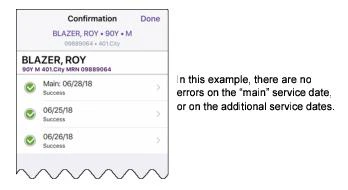
-
If there are errors on any of the transactions for the additional service dates, they are listed with a red exclamation mark. You could tap Done now, to exit without making any corrections. However, we recommend that you select the first transaction that has an error, so that you can correct it immediately. The Charge Transaction screen for that service date opens, with the details of the error displayed in red. Correct the error and then tap Submit. When the Confirmation screen is redisplayed, select the next transaction with an error, correct it, Submit it, and so on. When all transactions are corrected and submitted, tap Done at the top of the Confirmation screen.
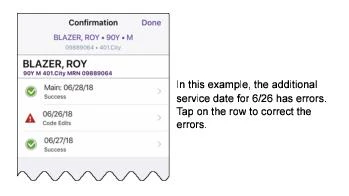
Answering PQRS/MIPS Clinical Metrics Questions
Commure Pro makes it easy for physicians to participate in the Merit-based Incentive Payment System (MIPS) sponsored by the Centers for Medicare and Medicaid Services (CMS). If Commure Pro PQRS (Physician Quality Reporting System) is implemented at your organization, each time you enter a charge transaction, it is evaluated to determine if it fits the quality reporting criteria. Patient information such as age and gender, and the charges and the diagnoses that you enter, are all taken into account. The reporting frequency for the each measure determines how often you are prompted to answer the Commure Pro Clinical Metrics form (each time a provider uses a particular charge code, once per visit, once per calendar month, or once per reporting period). When appropriate, you are prompted to answer a series of clear and concise quality measure questions. Your answers to the quality measure questions are then conveyed to CMS using either of the methods below:- Registry method: After you answer the quality measure questions, the answers are recorded by the Commure Pro application. You can then monitor your performance throughout the year using the Charges > PQRS Report option. At the end of the reporting period, Commure Pro reports the information to the CMS.
- Claims Billing method: After you answer the quality measure questions, those answers are translated into one or more CPT II codes and modifiers which are automatically added to the charge transaction. The codes are then submitted along with the original charges to your billing system, and are then reported to the CMS when the claim is submitted for payment.
Answering the Clinical Metrics Questions
Every time you enter a charge transaction and submit it as a completed charge transaction, it is evaluated to determine if it fits the criteria for one or more quality measures. If it does, you are presented with the Clinical Metrics screen, which guides you through the question or questions for each qualifying measure. All, some, or none of the questions on the screen may be required, as determined by your system administrator:- If all of the questions are required, or if there is a mix of required and non-required questions:
- At a minimum, you must answer all of the required questions and then Submit your responses. You cannot Cancel out of the Clinical Metrics screen.
- If you leave any of the non-required questions unanswered when you Submit your responses, it means that you have chosen to report nothing for those questions, resulting in a possible loss of the incentive revenue or a penalty. You will not be prompted to answer that measure’s questions again for that patient during the measure’s reporting time frame. For example, if a measure’s reporting frequency is once per calendar month, and you submit answers for only one out of the three questions for Joe Smith in January, then that one answer is your total submission for that measure for Joe Smith in January.
- If none of the questions are required, you have two options:
- You can answer some or all of the questions, and then Submit your responses. Again, if you leave any of the non-required questions unanswered, this means that you have chosen to report nothing for that question for that specific patient, and this could possibly result in a loss of the incentive revenue or a penalty. You will not be prompted to answer that measure’s questions again in the same reporting time frame.
- You can Cancel out of the Clinical Metrics screen entirely, without answering any questions. If in the same reporting time frame you later edit the same qualifying charge transaction, or enter a new qualifying charge transaction, you will be prompted to answer the same measure’s questions again. As a general rule, in order to maximize your quality incentive revenue and/or decrease penalties, it is best practice to answer all of the questions when they are presented to you.
-
Enter the charges, diagnoses, and detail information for your charge transaction as normal, and then tap Submit.
If the charge transaction qualifies for quality reporting, the Commure Pro Clinical Metrics screen is displayed.
If you instead submit the charge as a draft, the Commure Pro Clinical Metrics screen is not displayed; quality data is not collected for draft charges.
-
Answer each question as it is presented to you. As soon as you answer a question, the application automatically proceeds to the next question. Here are some tips for navigating through the clinical metrics questions:
- Tap the Details button to toggle between showing or not showing the full description of the question. When Details are on, they are on for all questions; when Details are off, they are off for all questions.
- The bottom of the screen displays “Question n of n” to indicate your overall progress through the questions. Use the Next and Previous arrows to move forward and backward sequentially through the questions.
- Required questions are indicated by the word “Required” at the top of the screen.
- If there are any required questions, the Cancel button is disabled, and you must answer all of the required questions before the Submit button is enabled.
- If none of the questions are required, the Cancel button is enabled (so you may Cancel without responding). You must answer at least one question before the Submit button is enabled.
- Tap Submit to submit the charge transaction with your answers to the clinical metrics questions.
- If your organization is using the Registry method, your answers are recorded by the system and will be reported to the CMS at the end of the reporting period.
- If your organization is using the Claims Billing method, the appropriate CPT II codes and modifiers are now automatically added to the charge transaction and the entire transaction is submitted to the server. The Charges Summary screen is now displayed. If the ability to view auto-added CPT II charges is enabled in your user profile, you can immediately see the CPT II codes that were automatically added to the transaction. Each auto-added code has “(P)” for PQRS listed after the charge code. If this feature is not enabled, you can see only the original charges for services that you entered.
Making Changes to Charge Transactions with PQRS/MIPS Data
When a new completed transaction is submitted, the PQRS feature automatically records quality data in the registry (Registry method) or adds CPT II codes to the charge transaction (Claims Billing method). With the Claims Billing method, the auto-added CPT II codes are added after the transaction is submitted on the web or mobile application; the user does not see them being added. If a user views or edits the transaction after it has been submitted, they can see the auto-added CPT II charges only if the ability to view these type of charges has been enabled in their user profile. There may be occasions when a provider, biller, or administrator needs to make changes to either the original charges for services that the provider entered, or to the quality data. A user can only make changes if the charge transaction is still in an editable state, as described in Restrictions to Editing Charge Data. When a user edits a charge transaction that has charges with associated quality data, it may affect the auto-added CPT II codes on the transaction, or it may trigger an error status. The table below lists some common scenarios in which a user might need to make corrections to quality data, along with the effect that each change will have.- This first set of scenarios might be encountered by a provider when entering their charges for service. They include cases where the provider made a mistake while entering charges or answering the questions on the Commure Pro Clinical Metrics screen. These cases apply to both the Registry method and the Claims Billing method.
- Scenario: Oops! You accidentally tapped Cancel on the Clinical Metrics screen (this is possible only if all of the questions are non-required). Now you want to try again to answer the questions. Solution: When you tap Cancel, no quality data is recorded by the system (Registry method) or no CPT II codes are added to the charge transaction (Claims Billing method). If you want to try to answer the Clinical Metrics form again, you can open the charge transaction for editing and then tap Submit. The Clinical Metrics screen now displays. Answer the questions and tap Submit.
- Scenario: You tapped Submit on a Clinical Metrics screen, but you think that you answered one or more questions incorrectly, and now you want to correct those answers. Or, you left some or all of the non-required questions unanswered, and now you want to answer the questions that you skipped.
Solution: Once you tap the Submit button on the Clinical Metrics screen, you cannot access it again to make changes. If you answered a question incorrectly, the wrong answer was recorded by the system (Registry method) or the wrong CPT II code was added to the transaction (Claims Billing method). Or if you left some questions unanswered, those were recorded by the system as unanswered (Registry method) or the additional CPT II codes that should have been added were not added to the charge transaction (Claims Billing method). To fix this, you can either:- *Delete the entire charge transaction and re-enter your original charges for services. The transaction will be re-evaluated, and the Clinical Metrics screen will display again if appropriate.
- Or, only for users of the Claims Billing method who have permission to view auto-added CPT II codes: Edit the charge transaction, remove the incorrect CPT II code, and/or manually add the missing CPT II code.
- Scenario: You entered your charges for services, answered all the questions on the Clinical Metrics screen, and then tapped Submit. Now you want to delete some of the charges/diagnoses on the original charges for services. Solution: Based on your original charges for services, you answered questions for a specific measure or measures, which were either recorded by the system (Registry method) or added as CPT II codes to the transaction (Claims Billing method). If you remove an original charge or diagnosis, some of those measures (and their associated answers or CPT II codes) may no longer apply. If you edit the charge transaction and remove the original charges or diagnoses, the system will not automatically remove the associated answers or CPT II codes. To fix this, you can either:- *Delete the entire charge transaction and re-enter it, entering only the correct charges for services. The transaction will be re-evaluated, and the Clinical Metrics screen will display only if appropriate.
- Or, only for users of the Claims Billing method who have permission to view auto-added CPT II charges: Edit the transaction and remove both the original (incorrect) charge/diagnosis codes, as well as their associated (incorrect) CPT II codes. The CPT II codes will have a “(P)” next to them.
- Scenario: You entered your charges for services, answered all the questions on the Clinical Metrics screen, and then tapped Submit. Now you realize that you forgot to include a related charge or a supporting diagnosis in your original charges for services, and you want to add it to the transaction. Solution: Based on your original charges for services, you answered questions for a specific measure or measures, and those answers were recorded by the system (Registry method), or the appropriate CPT II codes were automatically added to the transaction (Claims Billing method). Depending on the additions that you make to your original charges and diagnoses, some new measures may now apply. Edit the charge transaction, make your additions to the original services, and then tap Submit (do not modify the existing CPT II codes on the transaction). The charge transaction is re-evaluated to see if it qualifies for any new quality measures, and if so, the Clinical Metrics screen is displayed. Answer the new questions and tap Submit.- *The remaining scenarios below concern edits made to manually entered charges or auto-added CPT II charges. These scenarios apply only to clients using the Claims Billing method, and can be disregarded for clients using the Registry method. All of these scenarios start with a provider entering their charges for services, answering all the questions on the Clinical Metrics screen, and then tapping Submit. Later, the same or a different user edits the transaction and takes one of the actions below. *
- Scenario: A user deletes an auto-added CPT II code. Solution: For a user who does not have permission to see auto-added CPT II charges, this action is impossible. For a user who does have permission to see auto-added CPT II charges, a PQRS Measures Mismatch error status is triggered, but the auto-added CPT II code is deleted and not reinstated.
- Or, only for users of the Claims Billing method who have permission to view auto-added CPT II codes: Edit the charge transaction, remove the incorrect CPT II code, and/or manually add the missing CPT II code.
- Scenario: A user deletes a diagnosis code at the transaction level (a diagnosis that was associated with all of the charges on the transaction, including auto-added CPT II charges). Solution: The diagnosis is removed from all of the charge codes on the transaction (whether visible or not) and is not reinstated.
- Scenario: A user checks or unchecks the box for a specific diagnosis code on a specific manually entered charge code, to associate or disassociate that diagnosis to/from that one charge code. Solution: For all users, the diagnosis is associated/disassociated to/from only the specific manually entered charge code that they changed. Any auto-added CPT II codes (whether visible or not) are not changed in any way.
- Scenario: A user checks or unchecks the box for a specific diagnosis code on a specific auto-added CPT II code, to associate or disassociate that diagnosis to/from that one charge code. Solution: For a user who does not have permission to see auto-added CPT II charges, this action is impossible. For a user who does have permission to see auto-added CPT II charges, the diagnosis is associated/disassociated to/from only the specific auto-added CPT II code that they changed.
Copying Transactions That Have PQRS/MIPS Data
Users may copy charge transactions for which they have completed a Commure Pro Clinical Metrics form. When copying such a transaction, only the original charges for service are copied (along with their modifiers, diagnoses, and charge detail information). The responses to the questions on the Commure Pro Clinical Metrics form, or the CPT II charges that were auto-added, are not copied to the new transaction. Prior to submitting the copied transaction, the user may change the charge detail information, remove some of the copied charges/diagnoses, or add new charges/diagnoses. Once the user submits the new transaction, the entire transaction is evaluated to see if it meets quality reporting criteria, and if so, the Commure Pro Clinical Metrics screen is displayed so that the user can fill it out.Editing Charge Transactions
Making corrections to charge transactions is easy in Commure Pro. You can quickly change the charge codes, diagnosis codes, or charge detail information for a transaction. You can also remove individual charges or diagnoses from a transaction, or even delete an entire charge transaction, if necessary.Restrictions to Editing Charge Data
A charge can be edited or deleted in the Charges module if it meets all of the criteria below. These rules apply to providers (who are typically Level 3 users).- You entered the transaction yourself, or you are the billing provider on the transaction.
In addition, you may also be able to edit the transactions that were entered by other providers in your assigned departments, but only if those transactions are available on your device and you have permission to edit them.
- The transaction has a status of Draft, Draft (HH), or Holding Bin.
In addition, you may also be able to edit transactions that have a status of Outbox, but only if this ability is enabled in your user profile.
- The transaction is still within the editable date range defined in your user profile.
The visit’s end date is based on the date range defined for the Commure Pro visit type.
Opening a Charge Transaction for Editing
Follow these steps to open a charge transaction for editing:- From the Charges Summary, identify the visit day row that has the transaction that you want to edit.
-
Select the row open the pop-up menu, and then select the Edit option.
The Charge Transaction screen opens in edit mode.
If the transaction opens in view-only mode, it means that it cannot be edited because it does not meet the criteria for allowing edits (described the introduction to this chapter, Entering Charges).
-
You may now perform the desired action:
- Make changes to the charge codes (including their associated quantity, modifiers, or detail fields).
- Editing Charge Codes
- Make changes to the diagnoses.
- Editing Diagnosis Information
- Make changes to the charge transaction detail information or to the associated photos.
- Editing Details for the Entire Charge Transaction
- Changing or Removing the Photos Associated with a Charge Transaction
- Delete the entire charge transaction.
- Deleting an Entire Charge Transaction
Editing Charge Codes
When you create a new charge transaction, you must select one or more charge codes. If you copied the transaction from a previous one, all of the charge codes on the previous transaction are copied to the new one. If you make a mistake when entering new charge codes, or if you want to remove a copied charge code, you can do so. Every charge on the transaction also has a quantity, and possibly one or more modifiers or charge detail fields. The quantity, modifiers, and detail fields can be changed as well. To edit the details of a specific charge code on a transaction, open the transaction for editing and then do one of the following:- Add a new charge code using any one of several methods to find the specific code.
- Remove a charge code.
- Change the quantity, modifiers, or detail fields associated with a specific charge code.
- Change the order in which the charge codes are listed.
Removing a Charge Code from a Transaction
You can easily remove one or more charges from a charge transaction. Keep in mind that the transaction itself still remains - you are only removing a one item from it. To remove the entire charge transaction, see Deleting an Entire Charge Transaction.- From the main Charge Transaction screen, tap the Delete icon to the left of the charge code that you want to remove.
- Tap Delete.
- Tap Submit to save your changes.
Changing the Quantity or Details for a Specific Charge Code
Every charge code in the master list of charge codes (also known as the Nomenclature Vocabulary) has a defined minimum and maximum quantity. When you use a charge code in a charge transaction, the Quantity field defaults to the minimum quantity required for that charge code. If appropriate, you can change the quantity for a particular charge, but you cannot enter less than the minimum or more than the maximum. For some charge codes, such as biopsies, it may make sense to increase the quantity to reflect the number taken.Increasing the quantity is different than entering the same charge code twice on a transaction. If you need to enter the same charge code twice, with different modifiers for each, as might be the case when you perform the same surgery on both the left and right eye for a patient, see Entering the Same Charge Code Twice on a Transaction.
- From the main Charge Transaction screen, tap on the code or description of the specific charge that you want to change. The Charge Details for that one charge code are displayed.
- Type the correct quantity in the Quantity field.
- In the DETAILS section, change the value in any charge detail field.
- Tap Back to close the Charge Details screen.
- Tap Submit to save your changes.
Adding or Changing Modifiers for a Specific Charge Code
Modifiers provide additional information about a charge. When you enter a charge code on a transaction, you may be prompted to add a GC modifier (resident/teaching physician service) to that charge. You can choose to add the GC modifier, or not. You can always edit the charge later, to either add a modifier, or change one that you previously selected. For instructions on adding or changing modifiers on a charge, see Entering a Modifier for a Specific Charge Code.Editing Diagnosis Information
Depending on how your user profile is configured, when you enter a new transaction, or copy a previous transaction, the diagnoses used on the patient’s previous transaction may be copied automatically to the new transaction. Or, those diagnoses may be displayed so that you can select the ones you want to copy to the new transaction (if any). This feature speeds up the charge entry process and can be enabled or disabled per user. In general, a transaction must have one or more diagnoses to be valid. If a transaction does not have any diagnoses, you are only allowed to submit it as a draft. Commure Pro recommends that you the enter diagnosis information at all times, if possible, so as to maintain complete transactions that can be submitted to billing immediately. Please note that in some organizations, your administrator may have defined certain charge codes that do not require a diagnosis. In these instances, you are not required to submit the transaction as a draft, and can in fact submit it to billing without a diagnosis. To edit the details of a diagnosis, open the transaction for editing and then do one of the following.- Add a new diagnosis code using any one of several methods to find the specific code.
- Remove a diagnosis.
- Change the order in which the diagnoses are listed.
Removing a Diagnosis from One Charge on a Transaction
When a new diagnosis is added to a transaction, it is automatically associated with all the charges. And conversely, when a new charge is added to a transaction, all diagnoses on the transaction are automatically associated with the charge. If you do not want a particular diagnosis to be associated with all of the charges on the transaction, you must manually remove the diagnosis association.- From the main Charge Transaction screen, tap on the code or description of the specific charge for which you want to remove a diagnosis. The Charge Details screen opens. In the DIAGNOSES section of the screen, all of the diagnoses included on the transaction are listed.
- Uncheck the box next to any diagnoses that you want to remove from this specific charge.
- Tap Back to close the Charge Detail screen. The diagnoses are no longer associated with the charge.
- Tap Submit to save your changes.
Removing a Diagnosis from an Entire Transaction
After creating a transaction by adding a charge, you may notice that the system defaults one or more of the patient’s previous diagnoses onto the transaction for you. Similarly, if you have created a transaction by copying an existing one, the diagnoses from the original charge may be copied forward to the new charge. If appropriate, you can remove one or more of these defaulted diagnoses from all of the charges in the transaction. To remove a diagnosis from all of the charges in the transaction, follow these steps:- From the main Charge Transaction screen, tap the Delete icon to the left of the diagnosis code that you want to remove.
-
Tap Delete .
The diagnosis is removed from the transaction.
Some diagnosis codes may not be appropriate for use as a primary diagnosis. If deleting a diagnosis code results in a non-primary diagnosis moving up to the primary position, the following message is displayed below the diagnosis in red text: “This diagnosis is not valid as a primary diagnosis for [visit type]. Please re-order your diagnoses or select an alternate primary diagnosis code.” You may want to enter a new primary diagnosis and/or move the non-primary one out of the first position.
- Tap Submit to save your changes.
Re-Ordering the Diagnoses or Charges on a Transaction
In many cases, the order in which the diagnoses or the charge codes are listed is important to billing. You can re-order the diagnoses or charges in a transaction to indicate which is primary, secondary, and so on.- From the main Charge Transaction screen, review the list of charges or diagnoses. Note that there is a Sort icon to the right of each charge or diagnosis.
-
Grab the Sort icon next to the charge or diagnosis that you want to move, drag the item to the desired position on the list, and drop it.
Some diagnosis codes may not be appropriate for use as a primary diagnosis. If you try to drag such a code into the primary position, the following message is displayed below the diagnosis in red text: “This diagnosis is not valid as a primary diagnosis for [visit type]. Please re-order your diagnoses or select an alternate primary diagnosis code.” You may want to enter a new primary diagnosis and/or move the non-primary one out of the first position.
- Tap Submit to save your changes. Please note that you cannot change the order of the diagnosis codes for a specific charge code, such that the order of diagnoses is different for one charge code versus another.
Editing Details for the Entire Charge Transaction
If you need to change the charge transaction details that are associated with the entire transaction, just scroll down to the DETAILS section and make your changes. See Entering Additional Detail Information for the Entire Charge Transaction for more information on the charge detail fields.Changing or Removing the Photos Associated with a Charge Transaction
You can add new photos to a transaction, or remove a photo from a charge transaction if it was added in error or no longer applies.- Scroll to the bottom of the Charge Transaction screen and review the photos that are listed under the Add Photos button.
- To associate a new photo to the transaction, see Associating a Photo with a Charge Transaction.
- To remove a photo from the transaction:
- Identify the photo that you want to remove from the transaction.
- Tap the Delete icon to the left of the photo that you want to remove.
- Tap Remove from Charge. The photo is removed from the charge transaction, but it remains on the patient’s record in the Photos module.
If you want to delete it entirely from the patient’s record, you must do so in the Photos module. You could either tap the Add Photos button now to access the Photos module and immediately delete it, or you could go the Photos module after submitting your changes to the current charge transaction and then delete it. See Deleting a Photo for instructions.
- Tap Submit to save your changes.
Deleting an Entire Charge Transaction
If you find that an entire charge transaction was entered in error, you can delete it, as long as it meets the requirements for editing (see Restrictions to Editing Charge Data). You can delete the transaction directly from the Charges Summary screen.- From the Charges Summary screen, identify the visit day row that has the transaction that you want to delete.
- Select the visit day row to expose the pop-up menu, and then select the Delete option.
If the Delete option is not listed in the pop-up menu, it means that the transaction cannot be edited or deleted because it does not meet the criteria for allowing edits/deletions (described the introduction to this chapter, Entering Charges).
- Tap Delete to delete the transaction. The transaction is permanently deleted.