

Types of Synchronization
Synchronizing (syncing) your handheld device transfers patient data from the server to your device. During a sync, the most current patient information is downloaded to your handheld device. There are several different kinds of syncs:- Automatic Syncs: All devices are configured to sync automatically, on a regular schedule (typically every 30 to 60 minutes). When an Automatic Sync occurs, all or most of the patient information on the device is updated with the most recent data from the server. The type and amount of data that is retrieved depends on your server version and configuration. See Understanding Automatic Synchronization.
- Manual Syncs: A Manual Sync does the exact same thing as an Automatic Sync, except that it is performed on demand, when you request it. You can initiate a Manual Sync at any time. See Performing a Manual Sync.
- Automatic Refreshes: For a specific set of modules (Allergies, Clinical Notes, I/Os, Lab Results, Medications, Orders or CPOE Orders, Photos, Sign-Out, Test Results, and Vital Signs), instead of sending the data during an Automatic or Manual Sync, the data may be automatically retrieved for one specific patient in one specific module, whenever you access one of those modules for a given patient. Whether or not Automatic Refreshes occur depend on your server version and configuration. See Understanding Automatic Refreshes.
- Manual Refreshes: A Manual Refresh does the exact same thing as an Automatic Refresh, except that it is performed on demand, when you request it. This quickly retrieves any new information since the last Automatic or Manual Sync, or since the last Automatic Refresh, for the current patient, in the current module. See Performing a Manual Refresh.
- Load More Data: With Automatic or Manual Syncs, as well as with Automatic or Manual Refreshes, the patient information described above is updated on the device with the most recent information available on the server, along with a maximum of six months of historical data, per patient (depending on how your administrator has configured the system). To quickly retrieves additional historical data for the current patient, in the current module, you can tap Load more at any time. See Loading More Data. Your device must have an active connection to your network in order to sync or submit data. See Connecting your Device to a Network.
Understanding Automatic Synchronization
Mobile devices running the Commure Pro application sync with the Commure Pro Application Server™ to refresh patient data on the device. All devices are configured to automatically sync on a regular schedule, usually every 30 to 60 minutes. The types of data that are sent to the device during an automatic sync depend on the version of the Commure Pro Application Server™ to which you are syncing:- When syncing to server version 9.2.0 or later:
- All patient demographic, visit, charge, and problem list information are sent to the device.
- When syncing to server versions prior to 9.2.0:
- All patient demographic, visit, charge, and problem list information are sent to the device.
- Data from the additional following clinical modules may also be sent to the device during a sync, if configured to be sent: Allergies, Clinical Notes, I/Os, Lab Results, Medications, Orders or CPOE Orders, Test Results, and Vital Signs. See also Understanding Automatic Refreshes for more information. When the device syncs, the patient information described above is updated on the device with the most recent information available on the server, along with a maximum of six months of historical data, per patient, depending on how your administrator has configured the system (see Loading More Data for more information).
- Scheduled Sync. Your administrator sets a sync interval for each user (we recommend every 30 to 60 minutes). The device automatically initiates a sync at each interval.
- Select a different Patient List. When you select a different Patient List, a sync starts immediately, so that it can download the information for the patients in the list that you selected. When the sync completes, the Patient List is refreshed to show the new list of patients.
- Add a Patient. When you add a patient to a Patient List, a sync starts immediately, so that it can download the patient’s information to your handheld device. Automatic synchronization does not occur during these times:
- After you log out of the Commure Pro application. Once you choose to log out, the application stops syncing.
- After a period of inactivity, the Commure Pro application may time out and return to the Login screen. If this happens, the application stops syncing.
- During a Sync Exclusion Period. To reduce unnecessary database activity, your administrator may set a period of time during which automatic syncs do not occur, such as during the evening hours when you are not working. However, if you need updated patient data during the exclusion period (for example, a midnight emergency call), you can perform a Manual Sync or a Manual Refresh. Once you perform a Manual Sync, the device continues to sync automatically for the rest of the night/day, and does not stop until the next exclusion period.
- If you switch to a different application, the Commure Pro application is suspended and the device stops syncing.
Performing a Manual Sync
Since all devices are configured to sync automatically on a regular schedule, the patient information on your device is usually up to date. However, if you want to update the information on your device now (without having to wait until the next Automatic Sync), you can perform a Manual Sync. A Manual Sync does the exact same thing as an Automatic Sync (see Understanding Automatic Synchronization), except that it is performed on demand, when you request it.One minor difference between a Manual Sync and an Automatic sync is that data for the Photos module is sent to the device during a Manual Sync (but not during an Automatic Sync).
- Tap Settings > Sync Now. Just below the Sync Now button, a message tells you when the last sync occurred. For example: “Last synced: 7 minutes ago.” When you tap Sync Now, a new sync is initiated. During this process, the Settings icon spins to indicate that the app is syncing, and the label displays “Synchronizing.” When it is complete, the message is updated to “Last synced: less then a minute ago.”
Understanding Automatic Refreshes
An Automatic Refresh updates the data in a single module (for a single patient), only when you access the module for that patient. Automatic Refreshes significantly reduce sync times, and still allow access to a patient’s current clinical data when you need it.Whether or not an Automatic Refresh occurs depends on the version of the Commure Pro Application Server™ to which you are syncing:- When syncing to server version 9.2.0 or later:
- An Automatic Refresh always occurs when you first access one of these modules for a given patient: Allergies, Clinical Notes, I/Os, Lab Results, Medications, Orders or CPOE Orders, Photos, Sign-Out, Test Results, and Vital Signs.
- When syncing to server versions prior to 9.2.0:
- An Automatic Refresh always occurs when you first access the Sign-Out or Photos module for a given patient.
- An Automatic Refresh occurs in the following clinical modules only if your device is configured to not send this data during a sync: Allergies, Clinical Notes, I/Os, Lab Results, Medications, Orders or CPOE Orders, Test Results, and Vital Signs. See also Understanding Automatic Synchronization for more information. For example, when you access the Lab Results module for a given patient, an Automatic Refresh is initiated and that patient’s lab results are retrieved and displayed. Since it is a small amount of data (the lab results for just one patient), the data retrieval is very quick. Once the data is retrieved for a given patient/module, it not updated again for 60 minutes. After 60 minutes have passed, if you access the same module for the same patient, a fresh set of data is retrieved. When the next Automatic or Manual Sync occurs, all data in these modules is cleared, and it is only retrieved again when you access a module for a patient. At that time, a new 60 minute timer starts.
Performing a Manual Refresh
If you think some new information might have come in recently for a particular patient, and you do not want to wait for the next Automatic Sync or Automatic Refresh to see it, you can do a Manual Refresh to retrieve it. A Manual Refresh retrieves the most recent information for the currently selected patient, in the current module. A Manual Refresh is quicker than a Manual Sync, because it retrieves information for only one patient in one module, while a Manual Sync retrieves information for all of your patients in multiple modules.-
Go to the Summary screen for any of these clinical modules: Allergies, Clinical Notes, I/Os, Lab Results, Medications, Orders, Photos, Problem List, Test Results, or Vital Signs.
Manual refreshes are not available in the Charges, Communication, CPOE Orders, Patient Details, or Sign-Out modules.
- Touch the screen anywhere below the patient banner area, pull down until you see the message “Updating data…” and then release. The latest information for this patient in this module is quickly retrieved and displayed. In addition, the “Last Updated” message that is seen when you first pull down is updated, so that you know the last time the data was retrieved for that patient, in that module.
Loading More Data
There are various Institution-level settings for each module that limit the amount of historical clinical data that is sent to your handheld device during an Automatic or Manual Sync, or during an Automatic or Manual Refresh. The settings are configured to send a useful amount of clinical data, but not all of the data, in order to keep sync times manageable. Each clinical module can be configured independently, so you might see more days worth of data in one module as opposed to another. The maximum amounts of data that your administrator can choose to show are:- Clinical Notes, Lab Results, Test Results: 180 days
- Orders or CPOE Orders, Medications: 30 days
- Medication Administration Records (MAR): 7 days
- Vitals, I/Os: 7 days However, there are occasions when you might need to see additional historical data for a particular patient. If this is the case, you can use the Load more feature in a given module, to retrieve additional clinical results for the currently selected patient. The Load more feature is available, for the following modules: Clinical Notes, I/Os, Lab Results, Medications, Orders, Photos, Test Results, and Vital Signs. Please note that this feature is not available for the Communication, CPOE Orders, Patient Details, Sign-Out, Allergies, or Problem List modules (the Allergies and Problem List modules always show all historical allergies and problems for a patient).
- For the Clinical Notes, Lab Results, Medications, Orders, Photos, and Test Results modules, the number of elements that are sent to the device initially, as well as each time you tap Load more, is defined by your administrator.
- For the Vital Signs and I/Os modules, the application sends another 24 hour’s worth of data each time you use the Load more feature. If an Automatic or Manual Refresh occurs after using Load more, your device shows both the historical data and the most recent data. However, it is important to note that the next time an Automatic or Manual Sync occurs, the historical data is removed and your device is set back to the standard amounts of data in each module (which always includes the most recent data at that point in time).
- Go to the Summary screen for any of these clinical modules: Clinical Notes, I/Os, Lab Results, Medications, Orders, Photos, Test Results, or Vital Signs.
- Scroll to the bottom of the Summary list, and then tap Load more. Additional historical data for the current patient in the current module is quickly retrieved and displayed on your device. If you want to see even older historical data, tap Load more again. You can do this as many times as necessary, until the information you want is displayed.
Checking the Date of the Last Sync or Refresh
On occasion, you may want to know when the last sync occurred, or when was the last time that the data in a particular module was updated. This tells you how fresh or stale the data is. To find out when the last Automatic Sync or Manual Sync occurred:- Tap Settings > Sync Now. Just below the Sync Now button, a message tells you when the last sync occurred. For example: “Last synced: 7 minutes ago.”
- Go to one of these modules: Allergies, Clinical Notes, I/Os, Lab Results, Medications, Orders (non-CPOE), Photos, Problem List, Test Results, or Vital Signs.
- On the Summary screen, tap just below the patient banner and pull down slightly to see the “Last Updated” message. This particular message gets updated every time an Automatic Sync or Manual Sync occurs, and also every time an Automatic Refresh or Manual Refresh occurs in that module, for the currently selected patient. As a result, you can always tell the last time the data was retrieved for that patient, in that module.
Understanding Data Submissions
The information that you enter on your device is submitted to the server as soon as you save it. The following items are submitted immediately, as long as you are connected to the server:- New manually registered patients, or changed patient or visit data
- New or changed charge transactions, or new draft charge transactions
- New or changed problems
- New or changed orders
- New or changed clinical notes
- New photos
-
Commure Pro messages
If your device loses its connection to the server, you can still enter data on it, with some caveats (see Connecting your Device to a Network). Once the device reconnects, the data is submitted. The Submission Queue shows you the items that are waiting for submission to the server. To view the Submission Queue:
- Tap Settings > System Information > Submission Queue.
Connecting your Device to a Network
You need a network connection to synchronize or submit data from a handheld device. Your institution provides one or more connection options, such as wireless access points or cellular phone network access. Ask your system administrator which options are available for you. If the device cannot connect to the server, check for the following problems:- WiFi/Wireless on the device is turned off.
- The device is out of range of the wireless access points.
- You are not logged into your organization’s WiFi network.
- The device does not have good cellular signal.
- The server is down.
- Patient List
- You can view the patients on the current patient list. You can also manually register a new patient and visit using either regular manual registration or photo registration. Once your device is reconnected to the server, the new patient, visit, and photo are automatically submitted.
- You cannot switch patient lists or search for an existing patient and add them to the patient list.
- Allergies, Clinical Notes, I/Os, Lab Results, Medications, Orders, Test Results, Vital Signs:
- When syncing to server version 9.2.0 or later: You cannot view the Summary and Detail screens in these modules for any patient on the current patient list.
- When syncing to server versions prior to 9.2.0: If the device is configured to send clinical data during a sync, you can view the Summary and Detail screens in these modules for any patient on the current patient list. Otherwise, you cannot view this information.
- Charges
- You can view the Summary and Detail screens in this module for any patient on the current patient list. You can also add a new charge transaction for a patient with all pertinent data including charges, diagnoses, and charge headers. When selecting charge or diagnosis codes, you have access to charge and diagnosis Pickers and Favorites. When completing charge header fields, you have access to recent or short pick lists. You can also take new photos to associate with the charge transaction. Once your device is reconnected to the server, the charge transaction and any new photos are automatically submitted.
- You cannot search for a charge code, a diagnosis, or additional values for a charge header when entering charges. You also cannot use Custom Charge Capture Screens.
- Communication
- You cannot use the Communication module.
- CPOE Orders (the Orders module with CPOE enabled)
- You cannot enter new orders, modify an existing order, or order again.
- When syncing to server version 9.2.0 or later: You cannot view the Summary and Detail screens in this module for any patient on the current patient list
- When syncing to server versions prior to 9.2.0:
- If the device is configured to send both clinical data and CPOE order details during sync, you can view the Summary and Detail screens in this module for any patient on the current patient list. Otherwise, you cannot view this data.
- Or, if the device is configured to send only clinical data during sync, you can view the Summary screen, but not the Detail screen. Otherwise, you cannot view this data.
- NoteWriter (optional add-on for the Clinical Notes module)
- You cannot use the NoteWriter module to write new clinical notes.
- Patient Details
- You can view the main Patient Details screen and the Visits screen for any patient on the current patient list. You can also manually add a new visit to a patient. Once your device is reconnected to the server, the new visit is automatically submitted.
- Photos
- You can take new photos (and view them) for any patient on the current patient list. Once your device is reconnected to the server, the photos are automatically submitted.
- You cannot view any previously taken photos on the Summary or Details screen for any patient.
- Commure Pro Mail (the Inbox option under the Pending button )
- You cannot compose a new e-mail or view any e-mails currently in your Inbox.
- Commure Pro Messaging
- You cannot use the Commure Pro Messaging module.
- Problem List (typically enabled only if the CPOE Orders or Charges module is also enabled)
- You can view the Summary and Detail screens in this module for any patient on the current patient list. You can add a new problem to a patient in the Problem List module. When doing so, you have access to diagnosis Pickers and Favorites lists. Once your device is reconnected to the server, the new problem is automatically submitted.
- When entering a new problem, you cannot search for a diagnosis.
- Provider Directory
- You cannot use the Provider Directory.
- Sign-Out (optional module)
- You cannot use the Sign-Out module.
Using a Cellular Phone Network
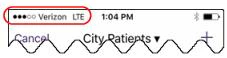
If your handheld device is a smartphone, and your organization has cellular phone access, your device can submit data or perform any type data retrieval (including Automatic Syncs, Manual Syncs, Automatic Refreshes, Manual Refreshes, and Loading More Data) from almost any location, at any time. At the time of the data retrieval or submission, the handheld device must have a good cellular network signal and data coverage. When performing any of the above actions using a cellular connection, follow these steps:- Check for signal strength and data coverage by viewing your carrier’s status in the upper left corner of the device’s screen. Signal strength and data coverage are usually indicated by bars or dots, as well as letters such as 3G, 4G, LTE, and so on. Each carrier is different, so check with your carrier.
- Perform any of the actions below:
- Initiate a Manual Sync (see Performing a Manual Sync).
- Initiate a Manual Refresh (see Performing a Manual Refresh).
- Load More Data (see Loading More Data).
- Submit new data (see Understanding Data Submissions). The data retrieval or submission begins immediately.
Using WiFi
Wireless 802.11 access points (commonly referred to as “WiFi”) are a long-range communication standard that allows your handheld device to connect to the institution’s information systems whenever your device is physically within range of the organization’s wireless access points. Your administrator will let you know in which areas (buildings, floors, wings) wireless access is available. They will also will tell you how to configure your device to connect to the wireless network initially, or they may configure the device for you. Once the initial configuration is done, your device may connect automatically whenever you are within range of the network, or you may be required to enter a username and password each time the device is brought within range of the network. Your device is able to submit data or perform any type data retrieval (including Automatic Syncs, Manual Syncs, Automatic Refreshes, Manual Refreshes, and Loading More Data) whenever you have wireless connectivity to your organization’s network. When performing any of the above actions using wireless access points, follow these steps:- Be sure you are within range of the wireless access points.
- If necessary, log into the wireless network. The method used varies by organization; consult your system administrator for instructions.
- Check the WiFi icon in the upper left of the device’s screen, to ensure that you have good connectivity to the organization’s network. When most or all of the bands in the icon are solid (as in this example: ), you have good connectivity.
- Perform any of the actions below:
- Initiate a Manual Sync (see Performing a Manual Sync).
- Initiate a Manual Refresh (see Performing a Manual Refresh).
- Load More Data (see Loading More Data).
- Submit new data (see Understanding Data Submissions). The data retrieval or submission begins immediately.