

Starting a New Recording
1
Tap the microphone next to a patient
From the Patient List, tap the microphone icon on the patient row. The recording screen opens with the patient’s name and identifiers already populated from the EHR. The panel also displays the patient’s location and account number below the patient name, allowing you to verify patient context without leaving the recording screen.The microphone icon opens a single Scribe option that lands you in the right place: when draft notes are waiting for the patient, the draft notes screen opens so you can resume a draft or start a new scribe; when there are none, you go straight to the New Scribe recording screen. The + button on the patient detail screen follows the same flow.
The microphone icon appears for providers who have the AI Scribe preference enabled.As of Commure Pro iOS 2026.3.1, the separate New Scribe and Resume Scribe swipe actions are retired and no longer appear under Settings > General > Swipe Options. Swiping left on a patient row still reveals two configurable action buttons plus a More button — see Configuring Swipe Options for the Patient List.
2
Choose a note template
Select a template from the dropdown (e.g., “Hospitalist Progress Note”). The template determines how the AI structures the sections of your generated note. You can change templates later if needed — see Note Actions.If no Provider Documents (PDocs) are available for the current date, the app displays the full list of Commure Pro templates so you can select one manually. When a single PDoc is available, it is selected automatically and cannot be changed.If you need a different template once recording has started, the Change Template picker in the Scribe Panel lists only the note templates assigned to you that are valid for the active EHR mode, so you switch from a short, relevant list instead of scanning templates that do not apply. Template names appear exactly as they are configured. This scoping applies to the Scribe Panel — the Change Template action on the Clinical Note Details screen and the Resume Scribe flow work as before.
3
Start Recording
Tap the Start Recording button. The timer begins and the app captures your conversation with the patient using your device’s microphone.
Tapping the Record button confirms you have obtained consent from the required parties to record the conversation and use AI. If your organization has enabled the consent pop-up, you will be prompted to confirm before recording begins.
4
Save the recording
When the encounter is finished, tap Save. The recording is uploaded and the AI generates your note. After saving, the audio uploads in the background — you can navigate away from the app or lock your device and the upload will continue. A confirmation appears when the upload completes. You can track the progress on the Accessing Your Notes screen.
Alternative: Using the + Button
You can also start a recording from the patient detail screen:- Tap a patient in the Patient List to open their detail screen.
- Tap the blue + button in the bottom-right corner and select the Scribe option.
- Choose a note template and tap Start Recording.
Alternative: Using a Widget or the Lock Screen
You can start a new Scribe, or resume one already in progress, straight from a Home Screen widget or the Lock Screen accessory, without opening the app and navigating to a patient first. The patient picker opens with a search bar, and taps land correctly whether the app is closed, in the background, or already open, including after a cold start and biometric login. See Widgets for the full setup and flow.Resuming a Paused Recording
If you need to step away during a recording, you can pause and resume later.- Return to the patient in the Patient List and tap the microphone icon on the patient row — or tap the patient to open their detail screen and tap the blue + button, then select the Scribe option.
- Confirm the session you want to resume in the draft notes screen.
If the patient has no draft notes, you go straight to the Scribe recording screen and can start recording immediately instead of passing through an empty list. Resuming an existing draft is unchanged.
Live Activity
While a recording is in progress, an iOS Live Activity appears on the Lock Screen with an MM:SS elapsed timer and Pause, Resume, and Finish controls. On Dynamic Island-capable iPhones, the same status and controls also appear in the Dynamic Island. Tap the Live Activity to return to the active recording in the app.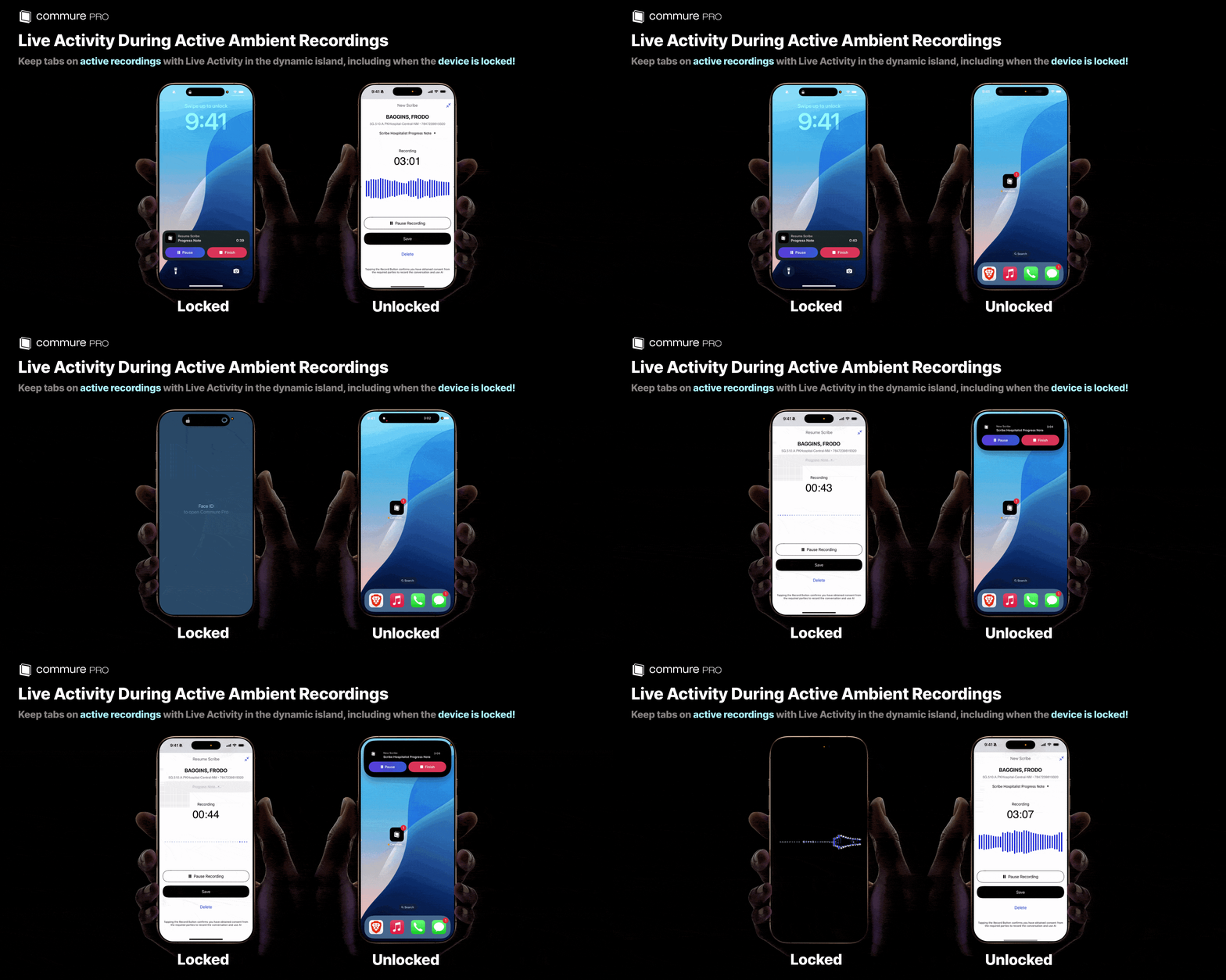
Tips for Best Results
- Position your device so the microphone can clearly capture both you and the patient. Avoid placing it in a pocket or face-down.
- Check the volume meter — if it is not moving, verify that Commure Pro has microphone permission in your device’s Settings > Privacy > Microphone.
- Use multi-syllable trigger words if you have configured Dot Phrases or Macros, as these are recognized more reliably than short words.
- Answering an incoming call pauses the recording on both iOS and Android — tap Resume after the call ends to continue. A call that rings but is not answered does not interrupt recording on iOS (in any ringer mode). See Troubleshooting for the full platform breakdown.