Adding the Widget
1
Open the widget picker
Touch and hold an empty area of your home screen, then tap Widgets.
2
Find Commure Pro
Browse or search for Commure PRO in the widget list and tap it to expand. You’ll see the Start Scribe widget (2 × 1).
3
Place it
Touch and hold the Start Scribe widget and drag it to your home screen.
Starting a Scribe from the Widget
1
Tap the widget
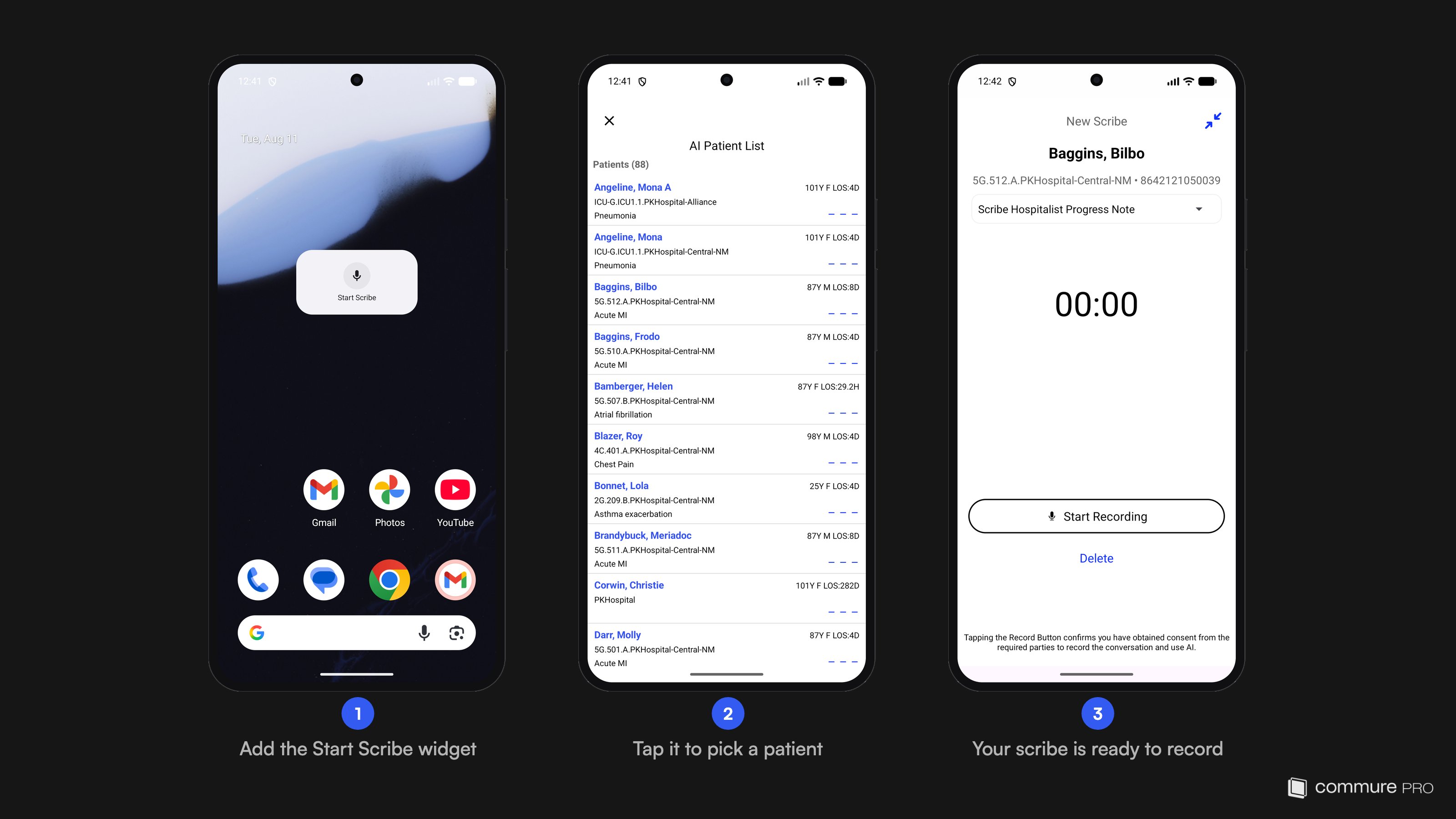
Tap Start Scribe on your home screen. A patient list picker opens directly — the app presents a single scribe entry point rather than separate resume and new-scribe paths.
2
Pick a patient
Tap the patient for this encounter. If the patient has no scribe in progress, the New Scribe screen opens immediately with the patient’s identifiers populated.
3
Start recording
Choose a note template if needed and tap Start Recording. From here the flow is the same as any other recording — see Recording an Ambient Note.
If the patient you select already has a draft note, a Resume Scribe sheet appears instead, letting you resume the existing draft or choose Start New Scribe Instead.
App Shortcut Alternative
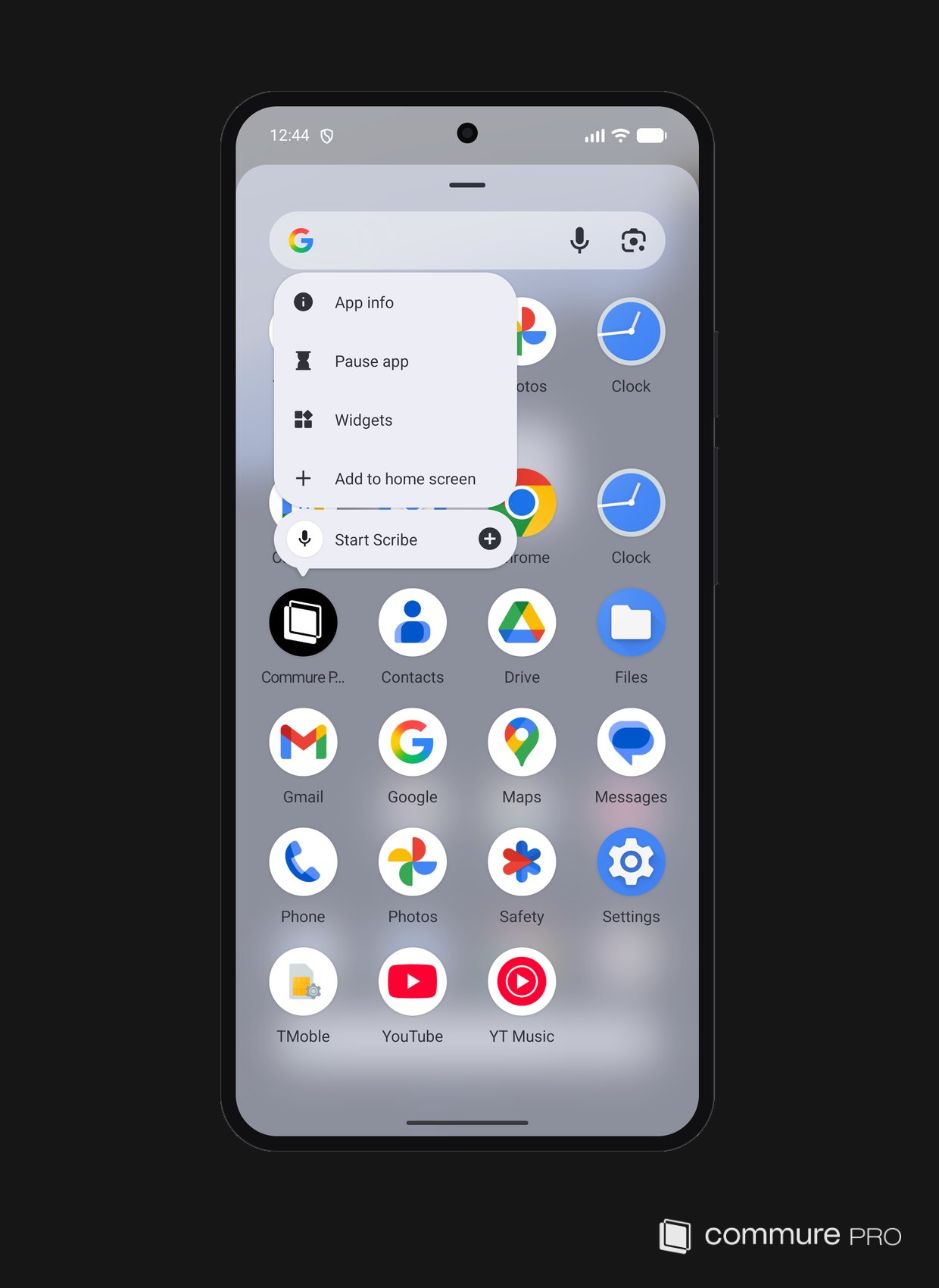
The same entry point is available as an app shortcut: touch and hold the Commure PRO app icon (in your app drawer or on the home screen) and tap Start Scribe. This opens the same patient list picker as the widget.