> ## Documentation Index
> Fetch the complete documentation index at: https://docs.pro.commure.com/llms.txt
> Use this file to discover all available pages before exploring further.
# Entering Orders
> Order entry workflows and features in the Commure Pro iOS app.
## Understanding Order Alerts
When entering orders for patients, the application may display one or more alerts to notify you of possible issues with the order, or to recommend additional action by you. These alerts could occur during any workflow where you are entering orders, such as:
* When reconciling medications for admission
* When reconciling medications for discharge
* When entering orders from the Orders module
* When re-ordering from one of the following modules:
* Medications
* Lab Results
* Test Results
* When entering orders while writing a note in the **Clinical Notes** module
Alerts can be broken into two broad categories:
* **Clinical Decision Support (CDS) Alerts**: These alerts are based on a combination of the patient's demographic data (such as age or smoking status) and/or clinical data (such as lab results or vital signs), in conjunction with the orders you are placing. The alert could be any of these types: it might be purely informational, it might suggest alternative or additional orders, it might require you to enter an override reason before proceeding with a specific new order, or it might prevent you entirely from entering a specific new order. These alerts are displayed *before* you click **Sign/Submit**.
See *[Reviewing Clinical Decision Support (CDS) Alerts](#reviewing-clinical-decision-support-cds-alerts)*.
* **Interaction and Duplicate Alerts**: These alerts compare the new orders you are about to enter with the patient's allergies and all other new and existing orders for the patient. If a new order would cause a drug-drug interaction, a drug-allergy interaction, a drug-disease interaction, or if it is a duplicate of an existing order, you will receive an alert. Depending on the severity of the alert, you might be presented with a variety of options to resolve the alert. These alerts are displayed *after* you click **Sign/Submit**.
For more information, see *[Reviewing Interaction and Duplicate Order Alerts](#reviewing-interaction-and-duplicate-order-alerts)*.
### Reviewing Clinical Decision Support (CDS) Alerts
Clinical Decision Support alerts use clinical data and other patient information to evaluate orders and generate an alert. CDS alerts can display during any of the following workflows:
* When entering orders from the **Orders** module
* When re-ordering from one of the following modules:
* Medications
* Lab Results
* Test Results
* During medication reconciliation, including:
* Continuing home medication
* Admission
* Discharge (session type alerts only)
* When entering orders while writing a note in the **Clinical Notes** module
Your administrator has configured CDS alerts for your facility based on rules that define the type of alert to be shown, and when to show them. The alert you see might be informational for your reference, or it might require you to take specific actions so that you can continue the workflow. A CDS rule might also prevent you from submitting an order based on criteria used by that rule.
CDS alerts display with text and buttons contained in a yellow banner at the top of the Order Details screen and/or at the top of the Orders Summary. When an alert is first displayed, the box containing the alert is fully expanded to ensure that you read it. Once you read it, you can collapse it. If you exit and return to the same screen, the alert may be presented again, in the same state that you left it (expanded or collapsed).
The topics above describe each type of CDS alert and provide an example of each. Many of the alert types can also include a **View Source** link (also described above), which when tapped, displays additional reference information related to the alert.
## Message Alerts
CDS message alerts are simple informational alerts, as in this example:
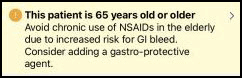 These alerts display on the Order Details screen and remain visible each time you access the Order Details screen for the order, up until you sign and submit the order.
Some dose range checking alerts also display as message alerts. However, these alerts behave somewhat differently than described above. See *[Dose Range Checking Alerts](#dose-range-checking-alerts)*.
## Alerts with Clinical Data
Some CDS alerts contain clinical data about the patient. The clinical data might be incorporated into the text of a message, as in this example where the patient's INR value is part of the message:
These alerts display on the Order Details screen and remain visible each time you access the Order Details screen for the order, up until you sign and submit the order.
Some dose range checking alerts also display as message alerts. However, these alerts behave somewhat differently than described above. See *[Dose Range Checking Alerts](#dose-range-checking-alerts)*.
## Alerts with Clinical Data
Some CDS alerts contain clinical data about the patient. The clinical data might be incorporated into the text of a message, as in this example where the patient's INR value is part of the message:
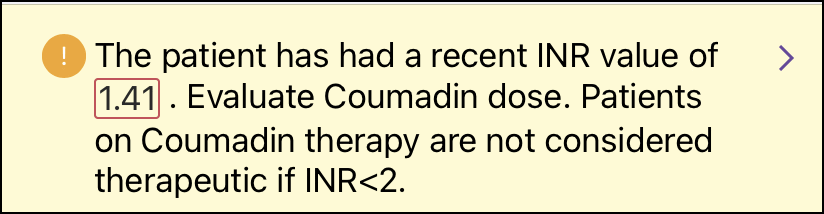 In other cases, the patient's clinical data (for example, lab results, test results, or active medications) might be displayed as a list of clinical data items, without any message. Depending on configuration settings for your facility, you might see several instances of clinical data for a specific time period.
These alerts display on the Order Details screen and remain visible each time you access the Order Details screen for the order, up until you sign and submit the order.
## Alerts with Suggestions for Additional Orders
CDS alerts might sometimes suggest that you enter additional orders for the patient. These alerts include buttons so that you can easily add those orders.
* In some cases, there are the button(s) to enter an individual order or an order set. After reading the message, you can click the button to add the order or order set to the New Orders list.
In other cases, the patient's clinical data (for example, lab results, test results, or active medications) might be displayed as a list of clinical data items, without any message. Depending on configuration settings for your facility, you might see several instances of clinical data for a specific time period.
These alerts display on the Order Details screen and remain visible each time you access the Order Details screen for the order, up until you sign and submit the order.
## Alerts with Suggestions for Additional Orders
CDS alerts might sometimes suggest that you enter additional orders for the patient. These alerts include buttons so that you can easily add those orders.
* In some cases, there are the button(s) to enter an individual order or an order set. After reading the message, you can click the button to add the order or order set to the New Orders list.
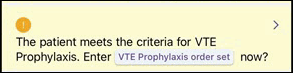 * In other cases, there are button(s) that launch an Order Search window. The button in the message displays keywords that are used to generate a list of search results in the Order Search window, from which you can select a new order.
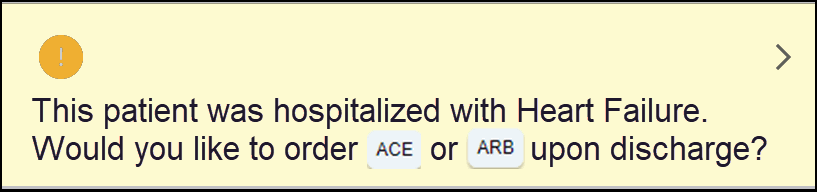 These alerts display on the Orders Summary and disappear if you enter the recommended item. Otherwise they remain visible for the entire order session. You may proceed with placing other orders even if you do not enter the suggested order(s).
## Alerts Requiring an Override Reason
These CDS alerts display a warning message and also contain a button to select an **Override Reason**, as in this example:
These alerts display on the Orders Summary and disappear if you enter the recommended item. Otherwise they remain visible for the entire order session. You may proceed with placing other orders even if you do not enter the suggested order(s).
## Alerts Requiring an Override Reason
These CDS alerts display a warning message and also contain a button to select an **Override Reason**, as in this example:
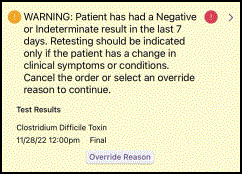 This type of alert displays on the Order Details screen and remains visible each time you access the Order Details screen for the order, up until you sign and submit the order. You cannot place the order unless you select an **Override Reason**. Once you do so, that reason is shown as selected.
Some dose range checking alerts also display as alerts requiring an override reason. However, these alerts behave somewhat differently than described above. See *[Dose Range Checking Alerts](#dose-range-checking-alerts)*.
## Alerts Requiring Mandatory Discard
These CDS alerts display a warning message indicating that you cannot continue and that you *must* discard the new order. Your only option is to tap the **Discard Order** button.
This type of alert displays on the Order Details screen and remains visible each time you access the Order Details screen for the order, up until you sign and submit the order. You cannot place the order unless you select an **Override Reason**. Once you do so, that reason is shown as selected.
Some dose range checking alerts also display as alerts requiring an override reason. However, these alerts behave somewhat differently than described above. See *[Dose Range Checking Alerts](#dose-range-checking-alerts)*.
## Alerts Requiring Mandatory Discard
These CDS alerts display a warning message indicating that you cannot continue and that you *must* discard the new order. Your only option is to tap the **Discard Order** button.
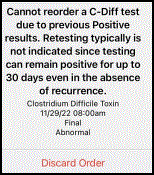 This alert displays on the Order Details screen. However, once you discard the order, the alert no longer displays.
## Dose Range Checking Alerts
Dose range checking alerts display information pertaining to the dosing of the medication, such as information about the maximum single or daily dosage, or whether renal function should be considered. Factors such as the patient's age or weight are taken into consideration when appropriate.
For parent/child medications such as IV medications with additives or diluents, dose range checking is performed only on the parent medication.
Dose range checking alerts might be presented as a message or as a message requiring an override reason.
* **Message Alerts for Dose Range Checking**: These alerts display a warning message pertaining to the dosing of the medication and/or might indicate that renal function should be considered.
This alert displays on the Order Details screen. However, once you discard the order, the alert no longer displays.
## Dose Range Checking Alerts
Dose range checking alerts display information pertaining to the dosing of the medication, such as information about the maximum single or daily dosage, or whether renal function should be considered. Factors such as the patient's age or weight are taken into consideration when appropriate.
For parent/child medications such as IV medications with additives or diluents, dose range checking is performed only on the parent medication.
Dose range checking alerts might be presented as a message or as a message requiring an override reason.
* **Message Alerts for Dose Range Checking**: These alerts display a warning message pertaining to the dosing of the medication and/or might indicate that renal function should be considered.
 These alerts display on the Order Details screen. You can take one of the following actions:
* **Leave the order unchanged**: If you close the Order Details screen without making any changes, you can then sign and submit the order. Note that the alert will remain visible each time you access the Order Details screen for that order, up until the point that you sign and submit it.
* **Choose a different dose, frequency, or route**: If you enter a different dose, frequency, or route and tap **Save**, the order is checked again for issues, and if the new dose/route/frequency would still trigger an alert, then the new alert is displayed. Review the new alert and then either modify the order again, or tap **Save** to go back to the Orders list and sign and submit the order in its current state. Note that the alert will remain visible each time you access the Order Details screen for that order, up until the point that you sign and submit it.
* **Message Alerts Requiring an Override Reason for Dose Range Checking**: These alerts display a warning message pertaining to the dosing of the medication or renal function, and include a button to select an **Override Reason**.
These alerts display on the Order Details screen. You can take one of the following actions:
* **Leave the order unchanged**: If you close the Order Details screen without making any changes, you can then sign and submit the order. Note that the alert will remain visible each time you access the Order Details screen for that order, up until the point that you sign and submit it.
* **Choose a different dose, frequency, or route**: If you enter a different dose, frequency, or route and tap **Save**, the order is checked again for issues, and if the new dose/route/frequency would still trigger an alert, then the new alert is displayed. Review the new alert and then either modify the order again, or tap **Save** to go back to the Orders list and sign and submit the order in its current state. Note that the alert will remain visible each time you access the Order Details screen for that order, up until the point that you sign and submit it.
* **Message Alerts Requiring an Override Reason for Dose Range Checking**: These alerts display a warning message pertaining to the dosing of the medication or renal function, and include a button to select an **Override Reason**.
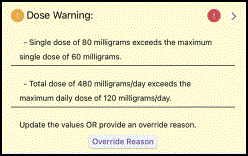 These alerts display on the Order Details screen. You must take one of the following actions to proceed with the order:
* **Select an override reason to submit the order as is**: If you want to leave the order unchanged and submit it despite the warning message, then you must first select an **Override Reason**. After selecting a reason, and tapping **Save**, you can then go back to the Orders list and sign and submit the order. Note that the alert will remain visible each time you access the Order Details screen for that order, up until the point that you sign and submit it.
* **Choose a different dose, frequency, or route**: If you enter a different dose, frequency, or route and tap **Save**, the order is checked again for issues. If the order doesn't doesn't have any issues, the alert is removed from the Order Details screen (without requiring you to enter an **Override Reason**). If the new dose/route/frequency has issues, a new alert is displayed. Review the new alert and then either modify the order again, or select an **Override Reason** to submit the order in its current state.
## Viewing Source Information from a CDS Alert
Your organization may include a **View Source** link in some CDS alerts to provide additional information about the alerts.
These alerts display on the Order Details screen. You must take one of the following actions to proceed with the order:
* **Select an override reason to submit the order as is**: If you want to leave the order unchanged and submit it despite the warning message, then you must first select an **Override Reason**. After selecting a reason, and tapping **Save**, you can then go back to the Orders list and sign and submit the order. Note that the alert will remain visible each time you access the Order Details screen for that order, up until the point that you sign and submit it.
* **Choose a different dose, frequency, or route**: If you enter a different dose, frequency, or route and tap **Save**, the order is checked again for issues. If the order doesn't doesn't have any issues, the alert is removed from the Order Details screen (without requiring you to enter an **Override Reason**). If the new dose/route/frequency has issues, a new alert is displayed. Review the new alert and then either modify the order again, or select an **Override Reason** to submit the order in its current state.
## Viewing Source Information from a CDS Alert
Your organization may include a **View Source** link in some CDS alerts to provide additional information about the alerts.
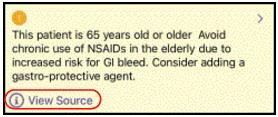 Tapping the **View Source** link opens a pop-up screen that can include reference text added by your administrator and/or links to web pages that provide additional reference information. There may be more than one web page link included in the View Source dialog.
To view source information:
1. Review the CDS alert and then tap the **View Source** link, located at the bottom of the alert.
Tapping the **View Source** link opens a pop-up screen that can include reference text added by your administrator and/or links to web pages that provide additional reference information. There may be more than one web page link included in the View Source dialog.
To view source information:
1. Review the CDS alert and then tap the **View Source** link, located at the bottom of the alert.
 The View Source screen opens and displays reference text and/or links to web pages.
* If the screen includes reference text, review the text.
* If the screen includes web page links, tap each link to review its content.
When you tap a link, a web page opens in the Commure Pro application. Review the content, and then tap **Back** to return to the View Source screen and view more information, or if you are done viewing all source information, tap **Done** to close both the web page and View Source screen and return to the order or Orders Summary. While you are viewing source information on a web page, if you click any links within the page, the subsequent web pages open a separate browser window in your default browser. To return to the initial web page in the Commure Pro application, tap **Commure Pro** in the upper left corner.
2. When you are done reviewing the information on the View Source screen, if you have not already done so, tap **Done** to close the View Source screen and return to the order or Orders Summary.
### Reviewing Interaction and Duplicate Order Alerts
Mobile CPOE checks for the following types of issues after you tap the **Sign/Submit** button to submit your new order(s):
* Drug-drug interactions: Whether a new medication order interacts with another new or existing medication order for the patient.
* Drug-allergy interactions: Whether a new medication order interacts with an allergy that the patient has on record in the Allergies module.
* Drug-disease interactions: Whether a new medication order interacts with an active disease on the patient's Problem List.
* Duplicate orders: Whether a new order is a duplicate of another new or existing order.
If an order would cause an interaction or would represent a duplicate order, a warning or alert is displayed after you attempt to sign and submit the order. Typically, the warning or alert describes the problem and indicates whether further action is necessary. Your administrator determines the level of alert (critical or non-critical) that should be displayed, depending on the severity or type of the interaction or duplication. You must resolve any critical alerts when they occur, while non-critical alerts should be reviewed for possible further action. The types of orders that are considered to be duplicates, as well as the options are available to you when a duplicate or interaction is found, depend upon your system configuration. See *[Resolving Critical and Non-Critical Warnings or Alerts](#resolving-critical-and-non-critical-warnings-or-alerts)* for more information and instructions.
## Resolving Critical and Non-Critical Warnings or Alerts
After you tap the **Sign & Submit** button, any new orders that would cause an interaction or duplication are displayed on the Alerts screen. Each new medication order is listed with a critical or non-critical alert icon, or in some cases, both icons. None of your new orders will be submitted until after you resolve or review these alerts and tap the **Resubmit** button.
* Critical warnings or alerts, indicated by a red exclamation mark , *require* you to take some action before you are allowed to resubmit the new order.
* Non-critical warnings or alerts, indicated by a yellow exclamation mark , do *not* require you to take any action: you can review the alert if desired, or you can just resubmit the new order.
To resolve or review interaction or duplicate alerts displayed on the Alerts screen:
1. Review the alerts for each new medication order and take appropriate action on each of them.
* You can immediately delete/discard a new order that is causing an alert. Tap the **Remove** icon to the left of the new order's name to expose the **Delete** button. Tap **Delete** , and then select **Delete Order** from the pop-up menu that displays at the bottom of the screen. The new order is removed from the Alerts screen.
* You can tap on the alert listed under a specific new order to review the details of that alert, and possibly take an action to resolve it, as described in [Step 2](#resolving-critical-and-non-critical-warnings-or-alerts) .
* If *only* non-critical alerts are displayed , you can immediately resubmit the new order(s) without taking any further action. Select the **Resubmit** button at the top right of the screen and you are done (skip the remaining steps below). However, it is best practice to review the details of all alerts first, as described in [Step 2](#resolving-critical-and-non-critical-warnings-or-alerts) .
2. If you tapped on an alert for a specific new order, the Alert Details screen is displayed. The new order is listed at the top, followed by all the items that are causing an interaction or duplication with that order. This can include items such as other new orders (from the current order session), existing orders, patient allergies, or patient problems. After reviewing the details, you can take any of the actions below:
* Delete/discard the current new order (the one listed at the top of the screen). Tap the **Remove** icon to the left of the new order's name to expose the **Delete** button. Tap **Delete** , and then select **Delete Order** from the pop-up menu that displays at the bottom of the screen.
* For any type of interaction, you might be able to enter an override reason to explain why the new order should be processed despite the alert. Tap the **Override** button and then choose a reason.
The View Source screen opens and displays reference text and/or links to web pages.
* If the screen includes reference text, review the text.
* If the screen includes web page links, tap each link to review its content.
When you tap a link, a web page opens in the Commure Pro application. Review the content, and then tap **Back** to return to the View Source screen and view more information, or if you are done viewing all source information, tap **Done** to close both the web page and View Source screen and return to the order or Orders Summary. While you are viewing source information on a web page, if you click any links within the page, the subsequent web pages open a separate browser window in your default browser. To return to the initial web page in the Commure Pro application, tap **Commure Pro** in the upper left corner.
2. When you are done reviewing the information on the View Source screen, if you have not already done so, tap **Done** to close the View Source screen and return to the order or Orders Summary.
### Reviewing Interaction and Duplicate Order Alerts
Mobile CPOE checks for the following types of issues after you tap the **Sign/Submit** button to submit your new order(s):
* Drug-drug interactions: Whether a new medication order interacts with another new or existing medication order for the patient.
* Drug-allergy interactions: Whether a new medication order interacts with an allergy that the patient has on record in the Allergies module.
* Drug-disease interactions: Whether a new medication order interacts with an active disease on the patient's Problem List.
* Duplicate orders: Whether a new order is a duplicate of another new or existing order.
If an order would cause an interaction or would represent a duplicate order, a warning or alert is displayed after you attempt to sign and submit the order. Typically, the warning or alert describes the problem and indicates whether further action is necessary. Your administrator determines the level of alert (critical or non-critical) that should be displayed, depending on the severity or type of the interaction or duplication. You must resolve any critical alerts when they occur, while non-critical alerts should be reviewed for possible further action. The types of orders that are considered to be duplicates, as well as the options are available to you when a duplicate or interaction is found, depend upon your system configuration. See *[Resolving Critical and Non-Critical Warnings or Alerts](#resolving-critical-and-non-critical-warnings-or-alerts)* for more information and instructions.
## Resolving Critical and Non-Critical Warnings or Alerts
After you tap the **Sign & Submit** button, any new orders that would cause an interaction or duplication are displayed on the Alerts screen. Each new medication order is listed with a critical or non-critical alert icon, or in some cases, both icons. None of your new orders will be submitted until after you resolve or review these alerts and tap the **Resubmit** button.
* Critical warnings or alerts, indicated by a red exclamation mark , *require* you to take some action before you are allowed to resubmit the new order.
* Non-critical warnings or alerts, indicated by a yellow exclamation mark , do *not* require you to take any action: you can review the alert if desired, or you can just resubmit the new order.
To resolve or review interaction or duplicate alerts displayed on the Alerts screen:
1. Review the alerts for each new medication order and take appropriate action on each of them.
* You can immediately delete/discard a new order that is causing an alert. Tap the **Remove** icon to the left of the new order's name to expose the **Delete** button. Tap **Delete** , and then select **Delete Order** from the pop-up menu that displays at the bottom of the screen. The new order is removed from the Alerts screen.
* You can tap on the alert listed under a specific new order to review the details of that alert, and possibly take an action to resolve it, as described in [Step 2](#resolving-critical-and-non-critical-warnings-or-alerts) .
* If *only* non-critical alerts are displayed , you can immediately resubmit the new order(s) without taking any further action. Select the **Resubmit** button at the top right of the screen and you are done (skip the remaining steps below). However, it is best practice to review the details of all alerts first, as described in [Step 2](#resolving-critical-and-non-critical-warnings-or-alerts) .
2. If you tapped on an alert for a specific new order, the Alert Details screen is displayed. The new order is listed at the top, followed by all the items that are causing an interaction or duplication with that order. This can include items such as other new orders (from the current order session), existing orders, patient allergies, or patient problems. After reviewing the details, you can take any of the actions below:
* Delete/discard the current new order (the one listed at the top of the screen). Tap the **Remove** icon to the left of the new order's name to expose the **Delete** button. Tap **Delete** , and then select **Delete Order** from the pop-up menu that displays at the bottom of the screen.
* For any type of interaction, you might be able to enter an override reason to explain why the new order should be processed despite the alert. Tap the **Override** button and then choose a reason.
 The option to provide an override reason is available if configured by your organization.
* For drug-drug interactions, you can:
* Delete the other new order (from the current order session) that is causing an interaction or duplication. Tap the **Remove** icon to the left of that new order's name to expose the **Delete** button. Tap **Delete** , and then select **Delete Order** from the pop-up menu that displays at the bottom of the screen.
* Discontinue the existing order that is causing an interaction or duplication. Tap the **Remove** icon to the left of the existing order's name to expose the **Discontinue** button. Tap **DC**, and then select **Discontinue Order** from the pop-up menu that displays at the bottom of the screen.
The option to provide an override reason is available if configured by your organization.
* For drug-drug interactions, you can:
* Delete the other new order (from the current order session) that is causing an interaction or duplication. Tap the **Remove** icon to the left of that new order's name to expose the **Delete** button. Tap **Delete** , and then select **Delete Order** from the pop-up menu that displays at the bottom of the screen.
* Discontinue the existing order that is causing an interaction or duplication. Tap the **Remove** icon to the left of the existing order's name to expose the **Discontinue** button. Tap **DC**, and then select **Discontinue Order** from the pop-up menu that displays at the bottom of the screen.
 * For drug-disease interactions, you can:
* Resolve the patient's disease/problem that is causing the interaction. Marking a problem as resolved indicates that the patient had the problem in the past, but it is no longer an active problem today. Tap the **Resolve Problem** button under the disease's name, and then select **Resolve** from the pop-up menu. The problem is immediately marked as resolved with a **Resolved Date** equal to today's date.
* For drug-disease interactions, you can:
* Resolve the patient's disease/problem that is causing the interaction. Marking a problem as resolved indicates that the patient had the problem in the past, but it is no longer an active problem today. Tap the **Resolve Problem** button under the disease's name, and then select **Resolve** from the pop-up menu. The problem is immediately marked as resolved with a **Resolved Date** equal to today's date.
 * Delete the patient's disease/problem that is causing the interaction. You should only delete a problem if the patient never had the problem, either now or in the past. Tap the **Remove** icon to the left of the problem name to expose the **Delete** button, tap **Delete** , and then select **Delete** from the pop-up menu. The problem is immediately deleted from the patient's Problem List.
* When viewing the details of a non-critical alert, if you determine that none of the actions described in the bullets above are necessary, you can simply tap to return to the main Alerts screen.
After you review or resolve all of the alerts for a given new medication order, you are returned to the main Alerts screen. On this screen, you will note that the new medication order is either removed entirely from the screen (if you deleted the new order), or it is shown with a purple check mark (to indicate that you resolved the order's alert in some other manner), or it remains unchanged (if you did not take any action on a non-critical alert).
* Delete the patient's disease/problem that is causing the interaction. You should only delete a problem if the patient never had the problem, either now or in the past. Tap the **Remove** icon to the left of the problem name to expose the **Delete** button, tap **Delete** , and then select **Delete** from the pop-up menu. The problem is immediately deleted from the patient's Problem List.
* When viewing the details of a non-critical alert, if you determine that none of the actions described in the bullets above are necessary, you can simply tap to return to the main Alerts screen.
After you review or resolve all of the alerts for a given new medication order, you are returned to the main Alerts screen. On this screen, you will note that the new medication order is either removed entirely from the screen (if you deleted the new order), or it is shown with a purple check mark (to indicate that you resolved the order's alert in some other manner), or it remains unchanged (if you did not take any action on a non-critical alert).
 3. Continue reviewing alerts until you have addressed all of them.
If, during the process of reviewing alerts, you delete all of the new orders from the current session, you are returned to the Orders Summary screen.
4. Tap **Resubmit** at the top right of the main Alerts screen.
All of the remaining new orders from your order session (including those that did not cause any interactions or duplication), as well as any existing orders that you discontinued, are now submitted.
## Basic Steps: Entering a New Order
Providers can enter orders for their patients from anywhere in their workflow; making order entry easy, convenient, and flexible. They need only follow these simple steps to quickly add orders:
1. Choose an option for adding a new order. You can select orders from various lists, search for an order, select orders from a predefined order set, repeat a patient's existing (previous) order, or repeat a patient's completed medication, lab result, or test result.
See *[Adding an Order](#adding-an-order)* for more information.
2. Review any CDS alerts that are displayed.
See *[Reviewing Clinical Decision Support (CDS) Alerts](#reviewing-clinical-decision-support-cds-alerts)* for more information.
3. (Optional) Request a notification when results are available for the patient's lab or test order(s).
See *[Requesting Notifications when Results are Available](#requesting-notifications-when-results-are-available)* for more information.
4. (Optional) Specify that the first dose for a medication order be given "now."
See *[Specifying "Now" as the First Dose Time for a Medication Order](#specifying-"now"-as-the-first-dose-time-for-a-medication-order)* for more information.
5. Sign and submit the order.
See *[Signing and Submitting an Order](#signing-and-submitting-an-order)* for more information.
6. Review warnings or alerts for interactions or duplicate orders.
See *[Reviewing Interaction and Duplicate Order Alerts](#reviewing-interaction-and-duplicate-order-alerts)* for more information.
## Adding an Order
The order entry process can be started from the Patient List, Orders, Medications, Lab Results, or Test Results module, although most of the most common workflow is to start from the Orders module.
During the order entry process, you might see clinical decision support (CDS) alerts (see *[Reviewing Clinical Decision Support (CDS) Alerts](#reviewing-clinical-decision-support-cds-alerts)*). After submitting an order, you might see alerts about drug, disease, or allergy interactions or duplicate orders (see *[Reviewing Interaction and Duplicate Order Alerts](#reviewing-interaction-and-duplicate-order-alerts)*). Alerts can provide clinical data or inform you of issues related to an order.
When starting from the Medications, Lab Results, or Test Results modules, you are typically viewing an existing medication order, or a completed lab result or test result, and then choosing to re-order that same item again. See *[Repeating a Completed Medication, Lab Result, or Test Result](#repeating-a-completed-medication-lab-result-or-test-result)* for instructions on this workflow.
When starting from the Patient List module, you can navigate to the Orders module using either of these methods:
* Select a patient and then select the Orders module:
1. From the Patient List module, select the patient for whom you want to enter new orders.
2. When the Modules screen is displayed, select the **Orders** module.
The Orders Summary is displayed in the Orders module.- c. Tap **Add** to enter a new order.
* Use the right-to-left swipe on the Patient List:
1. From the Patient List module, identify the patient for whom you want to enter new orders. Swipe right-to-left on that patient's row.
2. When the context buttons appear, tap **Add Order** (if available), or tap **More** and then select **Add Order** from the menu.
3. Continue reviewing alerts until you have addressed all of them.
If, during the process of reviewing alerts, you delete all of the new orders from the current session, you are returned to the Orders Summary screen.
4. Tap **Resubmit** at the top right of the main Alerts screen.
All of the remaining new orders from your order session (including those that did not cause any interactions or duplication), as well as any existing orders that you discontinued, are now submitted.
## Basic Steps: Entering a New Order
Providers can enter orders for their patients from anywhere in their workflow; making order entry easy, convenient, and flexible. They need only follow these simple steps to quickly add orders:
1. Choose an option for adding a new order. You can select orders from various lists, search for an order, select orders from a predefined order set, repeat a patient's existing (previous) order, or repeat a patient's completed medication, lab result, or test result.
See *[Adding an Order](#adding-an-order)* for more information.
2. Review any CDS alerts that are displayed.
See *[Reviewing Clinical Decision Support (CDS) Alerts](#reviewing-clinical-decision-support-cds-alerts)* for more information.
3. (Optional) Request a notification when results are available for the patient's lab or test order(s).
See *[Requesting Notifications when Results are Available](#requesting-notifications-when-results-are-available)* for more information.
4. (Optional) Specify that the first dose for a medication order be given "now."
See *[Specifying "Now" as the First Dose Time for a Medication Order](#specifying-"now"-as-the-first-dose-time-for-a-medication-order)* for more information.
5. Sign and submit the order.
See *[Signing and Submitting an Order](#signing-and-submitting-an-order)* for more information.
6. Review warnings or alerts for interactions or duplicate orders.
See *[Reviewing Interaction and Duplicate Order Alerts](#reviewing-interaction-and-duplicate-order-alerts)* for more information.
## Adding an Order
The order entry process can be started from the Patient List, Orders, Medications, Lab Results, or Test Results module, although most of the most common workflow is to start from the Orders module.
During the order entry process, you might see clinical decision support (CDS) alerts (see *[Reviewing Clinical Decision Support (CDS) Alerts](#reviewing-clinical-decision-support-cds-alerts)*). After submitting an order, you might see alerts about drug, disease, or allergy interactions or duplicate orders (see *[Reviewing Interaction and Duplicate Order Alerts](#reviewing-interaction-and-duplicate-order-alerts)*). Alerts can provide clinical data or inform you of issues related to an order.
When starting from the Medications, Lab Results, or Test Results modules, you are typically viewing an existing medication order, or a completed lab result or test result, and then choosing to re-order that same item again. See *[Repeating a Completed Medication, Lab Result, or Test Result](#repeating-a-completed-medication-lab-result-or-test-result)* for instructions on this workflow.
When starting from the Patient List module, you can navigate to the Orders module using either of these methods:
* Select a patient and then select the Orders module:
1. From the Patient List module, select the patient for whom you want to enter new orders.
2. When the Modules screen is displayed, select the **Orders** module.
The Orders Summary is displayed in the Orders module.- c. Tap **Add** to enter a new order.
* Use the right-to-left swipe on the Patient List:
1. From the Patient List module, identify the patient for whom you want to enter new orders. Swipe right-to-left on that patient's row.
2. When the context buttons appear, tap **Add Order** (if available), or tap **More** and then select **Add Order** from the menu.
 The Orders Summary is displayed in the Orders module.- c. Tap **Add** to enter a new order.
Whether you are working from the Orders module, or from the Medications, Lab Results, or Test Results module, each method accommodates the typical workflows encountered by providers. The various workflows are summarized below:
* Add a new order from your **Favorites** list.
**When to use**: After reviewing the patient's orders, you decide to enter a new one. The item you want to order is something that you order frequently, so most likely it will be on your **Favorites** list. Your **Favorites** list contains the orders that are commonly used within your department(s), the orders that you have used frequently in the past, and any orders that you have personally added to your **Favorites** list.
**Basic steps**:**Orders** module > **Add** > select from the **Favorites** list.
**For more info**: *[Adding an Order from the Favorites List](#adding-an-order-from-the-favorites-list)*
* Search for an order to add.
**When to use**: After reviewing the patient's orders, you decide to enter a new one. The item you want to order is not something that you order frequently, so you know it will not be on your Favorites list. Instead, you can search for it from the master order list.
**Basic steps**:**Orders** module > **Add** > search for the order.
**For more info**: *[Searching for an Order to Add](#searching-for-an-order-to-add)*
* Add a free-text order.
**When to use**: After reviewing the patient's orders, you decide to enter a new one. The item you want is not something that you order frequently, so you cannot find it on your **Favorites** list, nor can you find it when you search for it. As a last resort, you can enter a free-text order.
**Basic steps**:**Orders** module > **Add** > Search for the order. If the order cannot be found, select the free text item.
**For more info**: *[Adding a Free-Text Order](#adding-a-free-text-order)*
* Add orders from an order set.
**When to use**: Based on the patient's diagnosis or needed procedures, you decide to review a predefined "order set" so that you can select some or all of the orders from it.
**Basic steps**:**Orders** module > **Add** > Select the order set from the **Favorites** list or search for the order set.
**For more info**: *[Adding Orders from an Order Set](#adding-orders-from-an-order-set)*
* Repeat an existing (previous) order.
**When to use**: After reviewing the patient's existing orders, you decide that you want to reorder (repeat) one of the items on that list. You can just select the item and order it again.
**Basic steps**:**Orders** module > **Existing Orders** section > Select an order to view Details screen > **Order Again**
The Orders Summary is displayed in the Orders module.- c. Tap **Add** to enter a new order.
Whether you are working from the Orders module, or from the Medications, Lab Results, or Test Results module, each method accommodates the typical workflows encountered by providers. The various workflows are summarized below:
* Add a new order from your **Favorites** list.
**When to use**: After reviewing the patient's orders, you decide to enter a new one. The item you want to order is something that you order frequently, so most likely it will be on your **Favorites** list. Your **Favorites** list contains the orders that are commonly used within your department(s), the orders that you have used frequently in the past, and any orders that you have personally added to your **Favorites** list.
**Basic steps**:**Orders** module > **Add** > select from the **Favorites** list.
**For more info**: *[Adding an Order from the Favorites List](#adding-an-order-from-the-favorites-list)*
* Search for an order to add.
**When to use**: After reviewing the patient's orders, you decide to enter a new one. The item you want to order is not something that you order frequently, so you know it will not be on your Favorites list. Instead, you can search for it from the master order list.
**Basic steps**:**Orders** module > **Add** > search for the order.
**For more info**: *[Searching for an Order to Add](#searching-for-an-order-to-add)*
* Add a free-text order.
**When to use**: After reviewing the patient's orders, you decide to enter a new one. The item you want is not something that you order frequently, so you cannot find it on your **Favorites** list, nor can you find it when you search for it. As a last resort, you can enter a free-text order.
**Basic steps**:**Orders** module > **Add** > Search for the order. If the order cannot be found, select the free text item.
**For more info**: *[Adding a Free-Text Order](#adding-a-free-text-order)*
* Add orders from an order set.
**When to use**: Based on the patient's diagnosis or needed procedures, you decide to review a predefined "order set" so that you can select some or all of the orders from it.
**Basic steps**:**Orders** module > **Add** > Select the order set from the **Favorites** list or search for the order set.
**For more info**: *[Adding Orders from an Order Set](#adding-orders-from-an-order-set)*
* Repeat an existing (previous) order.
**When to use**: After reviewing the patient's existing orders, you decide that you want to reorder (repeat) one of the items on that list. You can just select the item and order it again.
**Basic steps**:**Orders** module > **Existing Orders** section > Select an order to view Details screen > **Order Again**  **For more info**: *[Repeating an Existing Order](#repeating-an-existing-order)*
* Repeat a completed medication, lab result, or test result.
**When to use**: After reviewing the patient's completed medications, lab results, or test results (in the Medications, Lab Results, or Test Results module), you decide that you want to reorder (repeat) an item from one of those lists. You can just select the item and order it again.
**Basic steps**: Medications, Test Results, or Lab Results module > Select a medication, lab result, or test result to view the Details screen > select **Order Again**.
**For more info**: *[Repeating a Completed Medication, Lab Result, or Test Result](#repeating-a-completed-medication-lab-result-or-test-result)*
### Adding an Order from the Favorites List
The **Favorites** list is a list of those items that you or members of your department order frequently. Favorites allow you to quickly find commonly used orders for your patients. The favorite orders are typically grouped into categories, although there may be a few orders at the top of the Favorites list that are not included in any category.
During the order entry process, you might see clinical decision support (CDS) alerts (see *[Reviewing Clinical Decision Support (CDS) Alerts](#reviewing-clinical-decision-support-cds-alerts)*). After submitting an order, you might see alerts about drug, disease, or allergy interactions or duplicate orders (see *[Reviewing Interaction and Duplicate Order Alerts](#reviewing-interaction-and-duplicate-order-alerts)*). Alerts can provide clinical data or inform you of issues related to an order.
You can add or remove items to/from your **Favorites** list at any time.
1. From the Orders Summary screen, tap **Add** .
The Add Orders screen is displayed.
2. Select the order that you want. You can either:
* Select an order from the list of uncategorized favorites, or
* Select an order from one of the favorites categories (below the uncategorized favorites). You may have to scroll down to see the categories. Select a category to view the orders within it, and then select an item from the list. If you drill down through one or more categories, and don't see the order you want, you can use the **Back** button to move back to the top of the **Favorites** list and then select a different category.
If you are working on an Apple® device with a screen that is 4 inches or larger, you may see order sets, in addition to individual orders, on your **Favorites** list.
3. If necessary, review any CDS alerts and complete any additional fields needed to place the order:
* If the new order has CDS alerts or required fields that need to be completed, or if your administrator has configured the order to always display the Order Details screen for review purposes, the Order Details screen is now automatically displayed. Required fields are preceded with an exclamation mark in red . Review CDS alerts, complete any required fields, and select **Save**.
* If the Order Details screen has a **Reason** or **Problem** field, see *[Adding a Reason (Diagnosis) to a New Order](#adding-a-reason-diagnosis-to-a-new-order)* for instructions on how to complete it.
* For lab or test orders, see also *[Requesting Notifications when Results are Available](#requesting-notifications-when-results-are-available)*.
* For medication orders, see also *[Specifying "Now" as the First Dose Time for a Medication Order](#specifying-"now"-as-the-first-dose-time-for-a-medication-order)*.
* Medication orders that have an associated protocol have an **Information** button next to the **Per Protocol** field; you can tap **Information** to see the protocol information.
* If the new order does *not* have CDS alerts or fields that need to be completed, and your administrator has not configured it to always display for review, the Order Details screen is not displayed. However, if you want to modify the order by changing some of the detail fields, you can still do so before you sign and submit it. See *[Modifying the Details of a New Order](#modifying-the-details-of-a-new-order)*.
After you finish reviewing any CDS alerts and filling out the Order Details screen, or if there were no alerts or details to fill out, the last screen you were viewing is redisplayed. For example, if you selected an order from the uncategorized **Favorites** list on the Add Orders screen, the Add Orders screen is redisplayed. If you selected an order from a **Favorites** category, that **Favorites** category screen is redisplayed. In both cases, the order you just selected has a checkmark next to it to indicate that it is selected.
4. Take any of the actions below.
* Select another order from the same **Favorites** category.
* Tap **Add Orders** to go back to the Add Orders screen. From this screen you can select another order from a different **Favorites** category, search for another order to add, or add a free-text order.
* Tap **Review** if you are finished selecting orders.
The Orders Summary is displayed with the new order(s) listed in the New Orders section.
### Searching for an Order to Add
If you cannot find the order you want on your **Favorites** list, you can use the **Search** option to search the **Favorites** list and also the entire master list of orders.
If you are working on an Apple® device with a screen that is 4 inches or larger, you may see order sets, in addition to individual orders, in the search results.
During the order entry process, you might see clinical decision support (CDS) alerts (see *[Reviewing Clinical Decision Support (CDS) Alerts](#reviewing-clinical-decision-support-cds-alerts)*). After submitting an order, you might see alerts about drug, disease, or allergy interactions or duplicate orders (see *[Reviewing Interaction and Duplicate Order Alerts](#reviewing-interaction-and-duplicate-order-alerts)*). Alerts can provide clinical data or inform you of issues related to an order.
1. From the Orders Summary screen, tap **Add** .
The Add Order screen is displayed.
2. Tap into the **Search** field.
3. Type a word or phrase in the **Search** field and then select **Search** from the virtual keyboard.
All orders that are a potential match, excluding non-formulary medications, are displayed.
4. If there are too many matches to look through, or if you want to see non-formulary medications, tap **Filter** (below the **Search** field).
The Search Options filter screen is displayed. It contains the **Include Order Sets** filter, affording you another opportunity to turn it ON or OFF in order to show or hide order sets in the search results (the toggle is "sticky" and will remain as you set it for future searches). In addition, a series of categories are listed, each indicating the number of matching orders in that category. You can select a category to view only the matches in that category, and then select an order from the shorter list. Tap **Done** in the top-right corner of the screen to return to the Add Orders screen.
5. Select an order from the list of matches.
6. If necessary, review CDS alerts and complete any additional fields needed to place the order:
* If the new order has CDS alerts or required fields that need to be completed, or if your administrator has configured the order to always display the Order Details screen for review purposes, the Order Details screen is now automatically displayed. Required fields are preceded with an exclamation mark in red . Review any CDS alerts, complete any required fields, and select **Save**.
* If the Order Details screen has a **Reason** or **Problem** field, see *[Adding a Reason (Diagnosis) to a New Order](#adding-a-reason-diagnosis-to-a-new-order)* for instructions on how to complete it.
* For lab or test orders, see also *[Requesting Notifications when Results are Available](#requesting-notifications-when-results-are-available)*.
* For medication orders, see also *[Specifying "Now" as the First Dose Time for a Medication Order](#specifying-"now"-as-the-first-dose-time-for-a-medication-order)*.
* Medication orders that have an associated protocol have an **Information** button next to the **Per Protocol** field; you can tap **Information** to see the protocol information.
* If the new order does *not* have CDS alerts or fields that need to be completed, and your administrator has not configured it to always display for review, the Order Details screen is not displayed. However, if you want to modify the order by changing some of the detail fields, you can still do so before you sign and submit it. See *[Modifying the Details of a New Order](#modifying-the-details-of-a-new-order)*.
After you finish reviewing any CDS alerts and filling out the Order Details screen, or if there were no alerts or details to fill out, the Add Orders search screen with the list of potential matches is redisplayed. The order you just selected has a checkmark next to it to indicate that it is selected.
7. Take any of the actions below:
* Select another order from the list of matches.
* Search for a different order by selecting the "**X**" in the **Search** field and then repeating steps 2-6.
* Clear the search criteria by selecting the **Cancel** button. All of the options on the Add Orders screen are redisplayed. From the Add Orders screen you can now select another order from your **Favorites** list.
* Tap **Review** if you are finished selecting orders.
The Orders Summary is displayed with the new order(s) listed in the New Orders section.
### Adding a Free-Text Order
If you cannot find the order you want on your **Favorites** list, and you cannot find it using the **Search** option either, then you may be able to enter it as a free-text order. Depending on your system's configuration, free text orders may be allowed for only certain types of orders. In addition, you can enter free-text orders only if your administrator has enabled this feature for you. Even if enabled, you should use free text orders only as a last resort, in those cases where you cannot find the order you need using the **Favorites** or **Search** option.
During the order entry process, you might see clinical decision support (CDS) alerts (see *[Reviewing Clinical Decision Support (CDS) Alerts](#reviewing-clinical-decision-support-cds-alerts)*). Alerts can provide clinical data or inform you of issues related to an order.
8. From the Orders Summary screen, tap **Add** .
The Add Order screen is displayed.
9. Type a word or phrase in the **Search** field and then select **Search** from the virtual keyboard.
All orders that are a potential match, excluding non-formulary medications, are displayed first.
At the very bottom of the results list there is a free text entry called: "\[Your Search Phrase]: Free Text."
* If you do not see the item you want in the results, you can scroll down and select the "\[Your Search Phrase]: Free Text" entry now. Please note that the search phrase you entered will be used as the description of the order. Therefore, if it is not descriptive enough to be used as the free text order, you can re-type a more complete order description in the **Search** field, and then select the new resulting free text entry from the results (see also [Step 12](#adding-a-free-text-order). Once you select your free text entry, you are then required to select the type of order that you are entering, such as Lab, Medication, or Radiology (only order types that allow free text orders are shown as a choice). An order of the type that you selected is then created.
If there are too many matches to look through, or if you want to see non-formulary medications, tap either the **Filter** (below the **Search** field), then select an order type to view only the results of that type, and then tap **Done** in the top-right corner of the screen to return to the Add Orders screen.
* For those order types that allow free text orders, an entry called "\[Your Search Phrase]: Free Text" is included at the bottom of the list. If you do not see the item you want in the shorter results list, select the free text entry, and then select the type of order that you want to enter, such as Lab, Medication, or Radiology.
10. If necessary, complete any additional fields needed to place the order:
* If the order type for your free text entry contains specific fields that need to be completed, the Order Details screen is automatically displayed. Required fields are preceded with an exclamation mark in red . Complete any required fields and tap **Save**.
* If the Order Details screen has a **Reason** or **Problem** field, see *[Adding a Reason (Diagnosis) to a New Order](#adding-a-reason-diagnosis-to-a-new-order)* for instructions on how to complete it.
* For lab or test orders, see also *[Requesting Notifications when Results are Available](#requesting-notifications-when-results-are-available)*.
* For medication orders, see also *[Specifying "Now" as the First Dose Time for a Medication Order](#specifying-"now"-as-the-first-dose-time-for-a-medication-order)*.
* If the order type for your free text entry does *not* contain specific fields that need to be completed, the Order Details screen is not displayed. However, if you want to modify the free text order by changing some of the detail fields or by entering a more descriptive name, you can still do so before you sign and submit it. See *[Modifying the Details of a New Order](#modifying-the-details-of-a-new-order)*.
After you finish filling out the Order Details screen, or if there were no details to fill out, the Add Orders search screen with the list of potential matches is redisplayed. The free text order you just created has a checkmark next to it to indicate that it is selected.
11. Take any of the actions below:
* Select another order from the list of matches.
* Search for a different order by selecting the "**X**" in the search field and then repeating steps 2-3.
* Clear the search criteria by selecting the **Cancel** button. All of the options on the Add Orders screen are redisplayed. From the Add Orders screen you can now select another order from your **Favorites** list.
* Select **Review** if you are finished selecting orders.
The Orders Summary is displayed with the new order(s) listed in the New Orders section.
12. (Optional) If the name of the free text order is not descriptive enough, select the order to open the Order Details screen. Most free text orders contain text fields for a **Description** and/or **Instructions** that you can use to enter more information. Enter the necessary information and then tap **Save**.
The Orders Summary is displayed with the modified free text order listed in the New Orders section.
### Adding Orders from an Order Set
Your organization may have created order sets for your use. An order set is a list of suggested orders for a particular procedure or diagnosis. You can quickly select some or all of the orders from the order set and enter them all at once. Only those order sets that your administrator has designated for use on handheld devices can be viewed in the on your mobile device.
There are two types of order sets:
* **Full Order Sets (or just "Order Sets")**: These are large order sets that contain many orders. Full order sets are commonly used when an entire suite of suggested lab, radiology, medication, nursing, or other orders is necessary for a particular procedure or diagnosis. Some of the orders may be selected by default, but you can also review and select additional orders from the order set. Full order sets require more screen real estate in order to display all of the suggested orders, and can therefore be used only on Apple® devices with a screen that is 4 inches or larger.
* **Mini Order Sets**: These are small order sets that contain a limited number of orders (usually less than 10). Mini order sets are commonly used when there are multiple orders that make up a single treatment and the organization wants all of the orders within the order set to be automatically selected by default when the user chooses the order set. When a user chooses a mini order set, the order set screen is not displayed; instead, all of the orders within the mini order set are automatically selected for the user.
Mini order sets can be selected in several ways:
* Mini order sets can be selected from the **Favorites** list, or after performing an **Order Search** for one. When selected in this manner, all of the orders from the mini order set are automatically added to the **New Orders** list on the Orders Summary. Mini order sets can be used in this manner on any Apple device.
* Mini order sets can also be selected from within a full order set. If the full order set contains an Order Search item, the user can select that item and then perform a search for a mini order set. When selected in this manner, all of the orders from the mini order set are automatically added to the larger order set. Mini order sets can be used in this manner only on Apple devices with a screen that is 4 inches or larger.
Your **Favorites** list or **Order Search** results will show mini order sets on any Apple device, while full order sets will show only on Apple devices with a screen that is 4 inches or larger.
During the order entry process, you might see clinical decision support (CDS) alerts (see *[Reviewing Clinical Decision Support (CDS) Alerts](#reviewing-clinical-decision-support-cds-alerts)*). After submitting an order, you might see alerts about drug, disease, or allergy interactions or duplicate orders (see *[Reviewing Interaction and Duplicate Order Alerts](#reviewing-interaction-and-duplicate-order-alerts)*). Alerts can provide clinical data or inform you of issues related to an order.
To use a full or mini order set:
1. From the Orders Summary screen, tap **Add** .
The Add Orders screen is displayed.
2. Select the order set using either method below:
* Select it from the Favorites list (see *[Adding an Order from the Favorites List](#adding-an-order-from-the-favorites-list)*).
* Search for it (see *[Searching for an Order to Add](#searching-for-an-order-to-add)*).
Your next steps depend on whether you selected a full or mini order set:
* If you selected a mini order set, you are done. The individual orders in that set are added to the **New Orders** section of the Order Summary. Tap **Review** to view them and select **Sign & Submit**.
* If you selected a full order set, the Order Set screen displays. This screen lists all of the orders in the set, with a radio button next to each. Proceed to the next step.
3. Select some or all the orders listed in the order set.
* Scroll up or down to see all of the orders in the order set.
* Select the *radio button* to the left of the order name to quickly select an order in the order set. The Order Details screen for that order displays automatically\* only if\* there are CDS alerts, the order has any required fields that need to be completed, or if your administrator has configured the order to always display the Order Details screen for review purposes. Review any CDS alerts, fill in the required information, and then tap **Save** to return to the order set screen.
* Select the order \*name \*to select an order and also view the Order Details screen, so that you can modify the details of the order. When the Order Details screen is displayed, make your changes and then select **Save** to return to the order set screen.
* One or more orders may already be pre-selected for you. Do not remove these orders as they are required to complete the order set. If any of the pre-selected orders have an exclamation mark in red on the far right corner of the order , it means that the order has required fields that you need to complete. Select the order name to open the Order Details screen, fill in the required information, and then select **Save** to return to the order set screen.
* In some cases, when you select a particular order in the order set, one or more *additional* orders in the set are then also automatically selected for you. For example, there might be two or three items are always ordered together at your organization. If so, your administrator might set them up so that when you order one of the items (known as the "parent" order), the orders for the additional items (known as the "child" orders) are automatically selected for you. If you unselect a parent order, all of the child orders are unselected as well. Regardless of this automated selection/unselection feature, you can always select or unselect any child order individually.
* Some orders are *repeating* orders (repeating orders display the **Repeating** icon on the far right). Each time you select a repeating order, another new row for the same order is added to the order set screen, allowing you to enter the same type of order multiple times. For example, if a Physician Consult were set up as a repeating order, it would be listed once on the order set screen. As soon as you select it and enter an order for a consult with a particular physician, another (unselected) order for a Physician Consult is added to the order set screen. Now you can enter a second order for a Physician Consult with a different physician. In fact, you can enter as many Physician Consult orders as you need.
* Some items in the order set allow you to search for an order (search items display a **Search** icon on the far right). For example, you might see an item called "Other Orders" or "Other Labs." When you select the item, a **Search** field is displayed. The field might be empty, allowing you to enter your own search term, or a search term might be automatically entered for you. Just search for the desired order (or mini order set) and select it. The Order Set screen is then redisplayed with the new order(s) listed.
* Use the **Expand/Collapse** icon next to any heading to expand or collapse sections of the order set. Some order sets are made up of combinations of other smaller order sets. For example, many admission order sets might contain a smaller "nested" order set for standard admission lab tests. These "nested" order sets look similar to any other section in the order set, except that they display the **Nested** icon on the far right side of the heading. If you select items from a nested order set, and then you collapse it, you are asked whether you want to keep or discard those items.
**For more info**: *[Repeating an Existing Order](#repeating-an-existing-order)*
* Repeat a completed medication, lab result, or test result.
**When to use**: After reviewing the patient's completed medications, lab results, or test results (in the Medications, Lab Results, or Test Results module), you decide that you want to reorder (repeat) an item from one of those lists. You can just select the item and order it again.
**Basic steps**: Medications, Test Results, or Lab Results module > Select a medication, lab result, or test result to view the Details screen > select **Order Again**.
**For more info**: *[Repeating a Completed Medication, Lab Result, or Test Result](#repeating-a-completed-medication-lab-result-or-test-result)*
### Adding an Order from the Favorites List
The **Favorites** list is a list of those items that you or members of your department order frequently. Favorites allow you to quickly find commonly used orders for your patients. The favorite orders are typically grouped into categories, although there may be a few orders at the top of the Favorites list that are not included in any category.
During the order entry process, you might see clinical decision support (CDS) alerts (see *[Reviewing Clinical Decision Support (CDS) Alerts](#reviewing-clinical-decision-support-cds-alerts)*). After submitting an order, you might see alerts about drug, disease, or allergy interactions or duplicate orders (see *[Reviewing Interaction and Duplicate Order Alerts](#reviewing-interaction-and-duplicate-order-alerts)*). Alerts can provide clinical data or inform you of issues related to an order.
You can add or remove items to/from your **Favorites** list at any time.
1. From the Orders Summary screen, tap **Add** .
The Add Orders screen is displayed.
2. Select the order that you want. You can either:
* Select an order from the list of uncategorized favorites, or
* Select an order from one of the favorites categories (below the uncategorized favorites). You may have to scroll down to see the categories. Select a category to view the orders within it, and then select an item from the list. If you drill down through one or more categories, and don't see the order you want, you can use the **Back** button to move back to the top of the **Favorites** list and then select a different category.
If you are working on an Apple® device with a screen that is 4 inches or larger, you may see order sets, in addition to individual orders, on your **Favorites** list.
3. If necessary, review any CDS alerts and complete any additional fields needed to place the order:
* If the new order has CDS alerts or required fields that need to be completed, or if your administrator has configured the order to always display the Order Details screen for review purposes, the Order Details screen is now automatically displayed. Required fields are preceded with an exclamation mark in red . Review CDS alerts, complete any required fields, and select **Save**.
* If the Order Details screen has a **Reason** or **Problem** field, see *[Adding a Reason (Diagnosis) to a New Order](#adding-a-reason-diagnosis-to-a-new-order)* for instructions on how to complete it.
* For lab or test orders, see also *[Requesting Notifications when Results are Available](#requesting-notifications-when-results-are-available)*.
* For medication orders, see also *[Specifying "Now" as the First Dose Time for a Medication Order](#specifying-"now"-as-the-first-dose-time-for-a-medication-order)*.
* Medication orders that have an associated protocol have an **Information** button next to the **Per Protocol** field; you can tap **Information** to see the protocol information.
* If the new order does *not* have CDS alerts or fields that need to be completed, and your administrator has not configured it to always display for review, the Order Details screen is not displayed. However, if you want to modify the order by changing some of the detail fields, you can still do so before you sign and submit it. See *[Modifying the Details of a New Order](#modifying-the-details-of-a-new-order)*.
After you finish reviewing any CDS alerts and filling out the Order Details screen, or if there were no alerts or details to fill out, the last screen you were viewing is redisplayed. For example, if you selected an order from the uncategorized **Favorites** list on the Add Orders screen, the Add Orders screen is redisplayed. If you selected an order from a **Favorites** category, that **Favorites** category screen is redisplayed. In both cases, the order you just selected has a checkmark next to it to indicate that it is selected.
4. Take any of the actions below.
* Select another order from the same **Favorites** category.
* Tap **Add Orders** to go back to the Add Orders screen. From this screen you can select another order from a different **Favorites** category, search for another order to add, or add a free-text order.
* Tap **Review** if you are finished selecting orders.
The Orders Summary is displayed with the new order(s) listed in the New Orders section.
### Searching for an Order to Add
If you cannot find the order you want on your **Favorites** list, you can use the **Search** option to search the **Favorites** list and also the entire master list of orders.
If you are working on an Apple® device with a screen that is 4 inches or larger, you may see order sets, in addition to individual orders, in the search results.
During the order entry process, you might see clinical decision support (CDS) alerts (see *[Reviewing Clinical Decision Support (CDS) Alerts](#reviewing-clinical-decision-support-cds-alerts)*). After submitting an order, you might see alerts about drug, disease, or allergy interactions or duplicate orders (see *[Reviewing Interaction and Duplicate Order Alerts](#reviewing-interaction-and-duplicate-order-alerts)*). Alerts can provide clinical data or inform you of issues related to an order.
1. From the Orders Summary screen, tap **Add** .
The Add Order screen is displayed.
2. Tap into the **Search** field.
3. Type a word or phrase in the **Search** field and then select **Search** from the virtual keyboard.
All orders that are a potential match, excluding non-formulary medications, are displayed.
4. If there are too many matches to look through, or if you want to see non-formulary medications, tap **Filter** (below the **Search** field).
The Search Options filter screen is displayed. It contains the **Include Order Sets** filter, affording you another opportunity to turn it ON or OFF in order to show or hide order sets in the search results (the toggle is "sticky" and will remain as you set it for future searches). In addition, a series of categories are listed, each indicating the number of matching orders in that category. You can select a category to view only the matches in that category, and then select an order from the shorter list. Tap **Done** in the top-right corner of the screen to return to the Add Orders screen.
5. Select an order from the list of matches.
6. If necessary, review CDS alerts and complete any additional fields needed to place the order:
* If the new order has CDS alerts or required fields that need to be completed, or if your administrator has configured the order to always display the Order Details screen for review purposes, the Order Details screen is now automatically displayed. Required fields are preceded with an exclamation mark in red . Review any CDS alerts, complete any required fields, and select **Save**.
* If the Order Details screen has a **Reason** or **Problem** field, see *[Adding a Reason (Diagnosis) to a New Order](#adding-a-reason-diagnosis-to-a-new-order)* for instructions on how to complete it.
* For lab or test orders, see also *[Requesting Notifications when Results are Available](#requesting-notifications-when-results-are-available)*.
* For medication orders, see also *[Specifying "Now" as the First Dose Time for a Medication Order](#specifying-"now"-as-the-first-dose-time-for-a-medication-order)*.
* Medication orders that have an associated protocol have an **Information** button next to the **Per Protocol** field; you can tap **Information** to see the protocol information.
* If the new order does *not* have CDS alerts or fields that need to be completed, and your administrator has not configured it to always display for review, the Order Details screen is not displayed. However, if you want to modify the order by changing some of the detail fields, you can still do so before you sign and submit it. See *[Modifying the Details of a New Order](#modifying-the-details-of-a-new-order)*.
After you finish reviewing any CDS alerts and filling out the Order Details screen, or if there were no alerts or details to fill out, the Add Orders search screen with the list of potential matches is redisplayed. The order you just selected has a checkmark next to it to indicate that it is selected.
7. Take any of the actions below:
* Select another order from the list of matches.
* Search for a different order by selecting the "**X**" in the **Search** field and then repeating steps 2-6.
* Clear the search criteria by selecting the **Cancel** button. All of the options on the Add Orders screen are redisplayed. From the Add Orders screen you can now select another order from your **Favorites** list.
* Tap **Review** if you are finished selecting orders.
The Orders Summary is displayed with the new order(s) listed in the New Orders section.
### Adding a Free-Text Order
If you cannot find the order you want on your **Favorites** list, and you cannot find it using the **Search** option either, then you may be able to enter it as a free-text order. Depending on your system's configuration, free text orders may be allowed for only certain types of orders. In addition, you can enter free-text orders only if your administrator has enabled this feature for you. Even if enabled, you should use free text orders only as a last resort, in those cases where you cannot find the order you need using the **Favorites** or **Search** option.
During the order entry process, you might see clinical decision support (CDS) alerts (see *[Reviewing Clinical Decision Support (CDS) Alerts](#reviewing-clinical-decision-support-cds-alerts)*). Alerts can provide clinical data or inform you of issues related to an order.
8. From the Orders Summary screen, tap **Add** .
The Add Order screen is displayed.
9. Type a word or phrase in the **Search** field and then select **Search** from the virtual keyboard.
All orders that are a potential match, excluding non-formulary medications, are displayed first.
At the very bottom of the results list there is a free text entry called: "\[Your Search Phrase]: Free Text."
* If you do not see the item you want in the results, you can scroll down and select the "\[Your Search Phrase]: Free Text" entry now. Please note that the search phrase you entered will be used as the description of the order. Therefore, if it is not descriptive enough to be used as the free text order, you can re-type a more complete order description in the **Search** field, and then select the new resulting free text entry from the results (see also [Step 12](#adding-a-free-text-order). Once you select your free text entry, you are then required to select the type of order that you are entering, such as Lab, Medication, or Radiology (only order types that allow free text orders are shown as a choice). An order of the type that you selected is then created.
If there are too many matches to look through, or if you want to see non-formulary medications, tap either the **Filter** (below the **Search** field), then select an order type to view only the results of that type, and then tap **Done** in the top-right corner of the screen to return to the Add Orders screen.
* For those order types that allow free text orders, an entry called "\[Your Search Phrase]: Free Text" is included at the bottom of the list. If you do not see the item you want in the shorter results list, select the free text entry, and then select the type of order that you want to enter, such as Lab, Medication, or Radiology.
10. If necessary, complete any additional fields needed to place the order:
* If the order type for your free text entry contains specific fields that need to be completed, the Order Details screen is automatically displayed. Required fields are preceded with an exclamation mark in red . Complete any required fields and tap **Save**.
* If the Order Details screen has a **Reason** or **Problem** field, see *[Adding a Reason (Diagnosis) to a New Order](#adding-a-reason-diagnosis-to-a-new-order)* for instructions on how to complete it.
* For lab or test orders, see also *[Requesting Notifications when Results are Available](#requesting-notifications-when-results-are-available)*.
* For medication orders, see also *[Specifying "Now" as the First Dose Time for a Medication Order](#specifying-"now"-as-the-first-dose-time-for-a-medication-order)*.
* If the order type for your free text entry does *not* contain specific fields that need to be completed, the Order Details screen is not displayed. However, if you want to modify the free text order by changing some of the detail fields or by entering a more descriptive name, you can still do so before you sign and submit it. See *[Modifying the Details of a New Order](#modifying-the-details-of-a-new-order)*.
After you finish filling out the Order Details screen, or if there were no details to fill out, the Add Orders search screen with the list of potential matches is redisplayed. The free text order you just created has a checkmark next to it to indicate that it is selected.
11. Take any of the actions below:
* Select another order from the list of matches.
* Search for a different order by selecting the "**X**" in the search field and then repeating steps 2-3.
* Clear the search criteria by selecting the **Cancel** button. All of the options on the Add Orders screen are redisplayed. From the Add Orders screen you can now select another order from your **Favorites** list.
* Select **Review** if you are finished selecting orders.
The Orders Summary is displayed with the new order(s) listed in the New Orders section.
12. (Optional) If the name of the free text order is not descriptive enough, select the order to open the Order Details screen. Most free text orders contain text fields for a **Description** and/or **Instructions** that you can use to enter more information. Enter the necessary information and then tap **Save**.
The Orders Summary is displayed with the modified free text order listed in the New Orders section.
### Adding Orders from an Order Set
Your organization may have created order sets for your use. An order set is a list of suggested orders for a particular procedure or diagnosis. You can quickly select some or all of the orders from the order set and enter them all at once. Only those order sets that your administrator has designated for use on handheld devices can be viewed in the on your mobile device.
There are two types of order sets:
* **Full Order Sets (or just "Order Sets")**: These are large order sets that contain many orders. Full order sets are commonly used when an entire suite of suggested lab, radiology, medication, nursing, or other orders is necessary for a particular procedure or diagnosis. Some of the orders may be selected by default, but you can also review and select additional orders from the order set. Full order sets require more screen real estate in order to display all of the suggested orders, and can therefore be used only on Apple® devices with a screen that is 4 inches or larger.
* **Mini Order Sets**: These are small order sets that contain a limited number of orders (usually less than 10). Mini order sets are commonly used when there are multiple orders that make up a single treatment and the organization wants all of the orders within the order set to be automatically selected by default when the user chooses the order set. When a user chooses a mini order set, the order set screen is not displayed; instead, all of the orders within the mini order set are automatically selected for the user.
Mini order sets can be selected in several ways:
* Mini order sets can be selected from the **Favorites** list, or after performing an **Order Search** for one. When selected in this manner, all of the orders from the mini order set are automatically added to the **New Orders** list on the Orders Summary. Mini order sets can be used in this manner on any Apple device.
* Mini order sets can also be selected from within a full order set. If the full order set contains an Order Search item, the user can select that item and then perform a search for a mini order set. When selected in this manner, all of the orders from the mini order set are automatically added to the larger order set. Mini order sets can be used in this manner only on Apple devices with a screen that is 4 inches or larger.
Your **Favorites** list or **Order Search** results will show mini order sets on any Apple device, while full order sets will show only on Apple devices with a screen that is 4 inches or larger.
During the order entry process, you might see clinical decision support (CDS) alerts (see *[Reviewing Clinical Decision Support (CDS) Alerts](#reviewing-clinical-decision-support-cds-alerts)*). After submitting an order, you might see alerts about drug, disease, or allergy interactions or duplicate orders (see *[Reviewing Interaction and Duplicate Order Alerts](#reviewing-interaction-and-duplicate-order-alerts)*). Alerts can provide clinical data or inform you of issues related to an order.
To use a full or mini order set:
1. From the Orders Summary screen, tap **Add** .
The Add Orders screen is displayed.
2. Select the order set using either method below:
* Select it from the Favorites list (see *[Adding an Order from the Favorites List](#adding-an-order-from-the-favorites-list)*).
* Search for it (see *[Searching for an Order to Add](#searching-for-an-order-to-add)*).
Your next steps depend on whether you selected a full or mini order set:
* If you selected a mini order set, you are done. The individual orders in that set are added to the **New Orders** section of the Order Summary. Tap **Review** to view them and select **Sign & Submit**.
* If you selected a full order set, the Order Set screen displays. This screen lists all of the orders in the set, with a radio button next to each. Proceed to the next step.
3. Select some or all the orders listed in the order set.
* Scroll up or down to see all of the orders in the order set.
* Select the *radio button* to the left of the order name to quickly select an order in the order set. The Order Details screen for that order displays automatically\* only if\* there are CDS alerts, the order has any required fields that need to be completed, or if your administrator has configured the order to always display the Order Details screen for review purposes. Review any CDS alerts, fill in the required information, and then tap **Save** to return to the order set screen.
* Select the order \*name \*to select an order and also view the Order Details screen, so that you can modify the details of the order. When the Order Details screen is displayed, make your changes and then select **Save** to return to the order set screen.
* One or more orders may already be pre-selected for you. Do not remove these orders as they are required to complete the order set. If any of the pre-selected orders have an exclamation mark in red on the far right corner of the order , it means that the order has required fields that you need to complete. Select the order name to open the Order Details screen, fill in the required information, and then select **Save** to return to the order set screen.
* In some cases, when you select a particular order in the order set, one or more *additional* orders in the set are then also automatically selected for you. For example, there might be two or three items are always ordered together at your organization. If so, your administrator might set them up so that when you order one of the items (known as the "parent" order), the orders for the additional items (known as the "child" orders) are automatically selected for you. If you unselect a parent order, all of the child orders are unselected as well. Regardless of this automated selection/unselection feature, you can always select or unselect any child order individually.
* Some orders are *repeating* orders (repeating orders display the **Repeating** icon on the far right). Each time you select a repeating order, another new row for the same order is added to the order set screen, allowing you to enter the same type of order multiple times. For example, if a Physician Consult were set up as a repeating order, it would be listed once on the order set screen. As soon as you select it and enter an order for a consult with a particular physician, another (unselected) order for a Physician Consult is added to the order set screen. Now you can enter a second order for a Physician Consult with a different physician. In fact, you can enter as many Physician Consult orders as you need.
* Some items in the order set allow you to search for an order (search items display a **Search** icon on the far right). For example, you might see an item called "Other Orders" or "Other Labs." When you select the item, a **Search** field is displayed. The field might be empty, allowing you to enter your own search term, or a search term might be automatically entered for you. Just search for the desired order (or mini order set) and select it. The Order Set screen is then redisplayed with the new order(s) listed.
* Use the **Expand/Collapse** icon next to any heading to expand or collapse sections of the order set. Some order sets are made up of combinations of other smaller order sets. For example, many admission order sets might contain a smaller "nested" order set for standard admission lab tests. These "nested" order sets look similar to any other section in the order set, except that they display the **Nested** icon on the far right side of the heading. If you select items from a nested order set, and then you collapse it, you are asked whether you want to keep or discard those items.
 4. (Optional) During the process of selecting orders from the Order Set screen, you can review the patient's other clinical results, to help you decide whether or not certain orders in the set are needed. Just tap **View Modules** at the bottom of the screen to access the module list, select the desired module (such as **Lab Results** or **Test Results**), and view the necessary data. You can go to several different modules if necessary, and you can even enter charges in the **Charges** module, add new problems in the **Problem List** module, or enter comments in the **Sign-Out** module. When you are ready to continue with the order set, select **View Modules** again and choose the **Orders** module. You are returned to the Order Set screen right where you left off, with your previous order selections still chosen. Finish selecting the necessary orders and then proceed to the next step.
While in the middle of an order set, you cannot enter a new note in the **Clinical Notes** module (via Mobile NoteWriter), nor can you change patients. If you need to perform either of these actions, you must first return to the **Orders** module, and either finish selecting orders from the Order Set for the current patient (Step 4 below), or **Cancel** out of the Order Set screen entirely.
5. After you complete your selections, tap **Done** at the top right corner of the order set screen.
The screen from which you selected the Order Set is redisplayed. For example, if you selected it from a category in your **Favorites** list, that category is redisplayed. If you selected it by searching for it, the Add Orders search screen with the list of potential matches is redisplayed.
An **Incomplete Order Set** message may display if an order that was supposed to be pre-selected in the order set was not loaded completely. To complete pre-selected orders, save those orders that did not load. For more information, see *[Loading Incomplete Order Sets](#loading-incomplete-order-sets)*.
6. Take any of the actions below.
* Tap **Back** to go back to the main Orders screen, where you can select another order from the **Favorites** list, search for another order to add, or add a free-text order.
* Tap **Review** when you are finished selecting orders.
The Orders Summary is displayed. All of the orders you selected from the order set (as well as any others) are listed in the New Orders section. Each order is listed individually and now behaves as an individual order.
Any orders have an exclamation mark in red on the far right corner ( are pre-selected orders from the order set that have CDS alerts that you did not view or required fields that you did not complete. You cannot submit these until you review the alerts or complete the required fields. To do so, select each order to open the Order Details screen, review the alerts and/or complete the required fields, and then tap **Save**.
## Loading Incomplete Order Sets
An order set may have one or more orders already pre-selected. In some cases, pre-selected orders may not load completely in the Order Set screen. Before completing the selections in the Order Set screen, all default pre-selections must be loaded completely.
If any incomplete orders exist in the Order Set screen, an **Incomplete Order Set** message displays and an **Incomplete** icon displays next to each order that needs your attention.
During the order entry process, you might see clinical decision support (CDS) alerts (see *[Reviewing Clinical Decision Support (CDS) Alerts](#reviewing-clinical-decision-support-cds-alerts)*). After submitting an order, you might see alerts about drug, disease, or allergy interactions or duplicate orders (see *[Reviewing Interaction and Duplicate Order Alerts](#reviewing-interaction-and-duplicate-order-alerts)*). Alerts can provide clinical data or inform you of issues related to an order.
To load incomplete pre-selections in an order set:
1. Select the incomplete order to open the Order Details screen for that order.
Incomplete orders appear with an **Incomplete** icon in the radio button next to their name.
2. Review the order details to confirm that they are accurate and make any edits, if needed.
3. Tap **Save**.
Orders that have been loaded completely appear with a checkmark next to their name.
Repeat these steps for any other orders that did not load completely in the order set.
4. On the Order Set screen, tap **Done**.
To complete adding orders, see *[Adding Orders from an Order Set](#adding-orders-from-an-order-set)*.
### Repeating an Existing Order
While reviewing a patient's list of Existing Orders in the Orders module, you may decide that you want to repeat an order from that list. The easiest way to do this is to use the Order Again function.
Your system administrator determines which types of existing orders can be reordered. In most cases, all types of orders can be reordered, but your administrator may disallow reordering for some types (such as diet). If reordering is allowed for medication orders, then it also includes medications with additives/diluents.
During the order entry process, you might see clinical decision support (CDS) alerts (see *[Reviewing Clinical Decision Support (CDS) Alerts](#reviewing-clinical-decision-support-cds-alerts)*). After submitting an order, you might see alerts about drug, disease, or allergy interactions or duplicate orders (see *[Reviewing Interaction and Duplicate Order Alerts](#reviewing-interaction-and-duplicate-order-alerts)*). Alerts can provide clinical data or inform you of issues related to an order.
1. From the Orders Summary screen, under the Existing Orders section, identify the item that you want to repeat and then take either of the actions below:
* Select the order to open the Order Details screen, and then tap **Order Again**
* Swipe right-to-left on the order's row. When the context buttons appear, tap **More** and then select **Order Again** from the menu.
2. If necessary, review CDS alerts and complete any additional fields needed to place the order:
* If the new order has CDS alerts or required fields that need to be completed, or if your administrator has configured the order to always display the Order Details screen for review purposes, the Order Details screen is now automatically displayed. Required fields are preceded with an exclamation mark in red . Review any CDS alerts, complete any required fields, and select **Save**.
* If the Order Details screen has a **Reason** or **Problem** field, see *[Adding a Reason (Diagnosis) to a New Order](#adding-a-reason-diagnosis-to-a-new-order)* for instructions on how to complete it.
* For lab or test orders, see also *[Requesting Notifications when Results are Available](#requesting-notifications-when-results-are-available)*.
* For medication orders, see also *[Specifying "Now" as the First Dose Time for a Medication Order](#specifying-"now"-as-the-first-dose-time-for-a-medication-order)*.
* Medication orders that have an associated protocol have an **Information** button next to the **Per Protocol** field; you can tap **Information** to see the protocol information.
* If the new order does *not* have CDS alerts or required fields, and your administrator has not configured it to always display for review, the Order Details screen is not displayed. However, if you want to modify the order by changing some of the detail fields, you can still do so before you sign and submit it. See *[Modifying the Details of a New Order](#modifying-the-details-of-a-new-order)*.
After you finish reviewing any CDS alerts and filling out the Order Details screen, or if there were no alerts or details to fill out, the Orders Summary is displayed with the new (repeated) order listed in the New Orders section.
### Repeating a Completed Medication, Lab Result, or Test Result
While reviewing a patient's clinical results in the Medications, Lab Results, or Test Results module, you may decide that you want to repeat an item. You can easily place an order directly from the Medication, Lab Results, or Test Results module.
Your system administrator determines which types of medications, labs, or tests can be ordered again. In most cases, all types can be reordered, but your administrator may disallow reordering for some types. For medications, the medication order must be completed (processed by your source system) or discontinued, before it can be ordered again.
If an order set is currently open in the CPOE Orders module while you're attempting to repeat a test, lab, or medication order, then you are prompted to **Resume Workflow** (leave current module and return to order set in CPOE Orders), **Stop Workflow & Order Again** (discard the open order set in CPOE Orders and proceed with re-ordering), or **Cancel** (close the prompt and return to the current module screen). If you cancel out of the prompt and then navigate to the patient list, you will be unable to select another patient until you either resume or stop the CPOE Orders workflow.
During the order entry process, you might see clinical decision support (CDS) alerts (see *[Reviewing Clinical Decision Support (CDS) Alerts](#reviewing-clinical-decision-support-cds-alerts)*). After submitting an order, you might see alerts about drug, disease, or allergy interactions or duplicate orders (see *[Reviewing Interaction and Duplicate Order Alerts](#reviewing-interaction-and-duplicate-order-alerts)*). Alerts can provide clinical data or inform you of issues related to an order.
1. From the Summary screen of the Medications, Lab Results, or Test Results module, select the medication, lab result, or test result that you want to repeat.
The Details screen for that item is displayed.
In the Lab Results module, you can repeat an entire panel, or just an individual component from a panel. To repeat an entire panel, perform Step 2 while viewing the Panel Details screen. To repeat a single component from a panel, perform Step 2 while you are viewing that component's Details or Graph screen.
2. Tap **Order Again** button or
4. (Optional) During the process of selecting orders from the Order Set screen, you can review the patient's other clinical results, to help you decide whether or not certain orders in the set are needed. Just tap **View Modules** at the bottom of the screen to access the module list, select the desired module (such as **Lab Results** or **Test Results**), and view the necessary data. You can go to several different modules if necessary, and you can even enter charges in the **Charges** module, add new problems in the **Problem List** module, or enter comments in the **Sign-Out** module. When you are ready to continue with the order set, select **View Modules** again and choose the **Orders** module. You are returned to the Order Set screen right where you left off, with your previous order selections still chosen. Finish selecting the necessary orders and then proceed to the next step.
While in the middle of an order set, you cannot enter a new note in the **Clinical Notes** module (via Mobile NoteWriter), nor can you change patients. If you need to perform either of these actions, you must first return to the **Orders** module, and either finish selecting orders from the Order Set for the current patient (Step 4 below), or **Cancel** out of the Order Set screen entirely.
5. After you complete your selections, tap **Done** at the top right corner of the order set screen.
The screen from which you selected the Order Set is redisplayed. For example, if you selected it from a category in your **Favorites** list, that category is redisplayed. If you selected it by searching for it, the Add Orders search screen with the list of potential matches is redisplayed.
An **Incomplete Order Set** message may display if an order that was supposed to be pre-selected in the order set was not loaded completely. To complete pre-selected orders, save those orders that did not load. For more information, see *[Loading Incomplete Order Sets](#loading-incomplete-order-sets)*.
6. Take any of the actions below.
* Tap **Back** to go back to the main Orders screen, where you can select another order from the **Favorites** list, search for another order to add, or add a free-text order.
* Tap **Review** when you are finished selecting orders.
The Orders Summary is displayed. All of the orders you selected from the order set (as well as any others) are listed in the New Orders section. Each order is listed individually and now behaves as an individual order.
Any orders have an exclamation mark in red on the far right corner ( are pre-selected orders from the order set that have CDS alerts that you did not view or required fields that you did not complete. You cannot submit these until you review the alerts or complete the required fields. To do so, select each order to open the Order Details screen, review the alerts and/or complete the required fields, and then tap **Save**.
## Loading Incomplete Order Sets
An order set may have one or more orders already pre-selected. In some cases, pre-selected orders may not load completely in the Order Set screen. Before completing the selections in the Order Set screen, all default pre-selections must be loaded completely.
If any incomplete orders exist in the Order Set screen, an **Incomplete Order Set** message displays and an **Incomplete** icon displays next to each order that needs your attention.
During the order entry process, you might see clinical decision support (CDS) alerts (see *[Reviewing Clinical Decision Support (CDS) Alerts](#reviewing-clinical-decision-support-cds-alerts)*). After submitting an order, you might see alerts about drug, disease, or allergy interactions or duplicate orders (see *[Reviewing Interaction and Duplicate Order Alerts](#reviewing-interaction-and-duplicate-order-alerts)*). Alerts can provide clinical data or inform you of issues related to an order.
To load incomplete pre-selections in an order set:
1. Select the incomplete order to open the Order Details screen for that order.
Incomplete orders appear with an **Incomplete** icon in the radio button next to their name.
2. Review the order details to confirm that they are accurate and make any edits, if needed.
3. Tap **Save**.
Orders that have been loaded completely appear with a checkmark next to their name.
Repeat these steps for any other orders that did not load completely in the order set.
4. On the Order Set screen, tap **Done**.
To complete adding orders, see *[Adding Orders from an Order Set](#adding-orders-from-an-order-set)*.
### Repeating an Existing Order
While reviewing a patient's list of Existing Orders in the Orders module, you may decide that you want to repeat an order from that list. The easiest way to do this is to use the Order Again function.
Your system administrator determines which types of existing orders can be reordered. In most cases, all types of orders can be reordered, but your administrator may disallow reordering for some types (such as diet). If reordering is allowed for medication orders, then it also includes medications with additives/diluents.
During the order entry process, you might see clinical decision support (CDS) alerts (see *[Reviewing Clinical Decision Support (CDS) Alerts](#reviewing-clinical-decision-support-cds-alerts)*). After submitting an order, you might see alerts about drug, disease, or allergy interactions or duplicate orders (see *[Reviewing Interaction and Duplicate Order Alerts](#reviewing-interaction-and-duplicate-order-alerts)*). Alerts can provide clinical data or inform you of issues related to an order.
1. From the Orders Summary screen, under the Existing Orders section, identify the item that you want to repeat and then take either of the actions below:
* Select the order to open the Order Details screen, and then tap **Order Again**
* Swipe right-to-left on the order's row. When the context buttons appear, tap **More** and then select **Order Again** from the menu.
2. If necessary, review CDS alerts and complete any additional fields needed to place the order:
* If the new order has CDS alerts or required fields that need to be completed, or if your administrator has configured the order to always display the Order Details screen for review purposes, the Order Details screen is now automatically displayed. Required fields are preceded with an exclamation mark in red . Review any CDS alerts, complete any required fields, and select **Save**.
* If the Order Details screen has a **Reason** or **Problem** field, see *[Adding a Reason (Diagnosis) to a New Order](#adding-a-reason-diagnosis-to-a-new-order)* for instructions on how to complete it.
* For lab or test orders, see also *[Requesting Notifications when Results are Available](#requesting-notifications-when-results-are-available)*.
* For medication orders, see also *[Specifying "Now" as the First Dose Time for a Medication Order](#specifying-"now"-as-the-first-dose-time-for-a-medication-order)*.
* Medication orders that have an associated protocol have an **Information** button next to the **Per Protocol** field; you can tap **Information** to see the protocol information.
* If the new order does *not* have CDS alerts or required fields, and your administrator has not configured it to always display for review, the Order Details screen is not displayed. However, if you want to modify the order by changing some of the detail fields, you can still do so before you sign and submit it. See *[Modifying the Details of a New Order](#modifying-the-details-of-a-new-order)*.
After you finish reviewing any CDS alerts and filling out the Order Details screen, or if there were no alerts or details to fill out, the Orders Summary is displayed with the new (repeated) order listed in the New Orders section.
### Repeating a Completed Medication, Lab Result, or Test Result
While reviewing a patient's clinical results in the Medications, Lab Results, or Test Results module, you may decide that you want to repeat an item. You can easily place an order directly from the Medication, Lab Results, or Test Results module.
Your system administrator determines which types of medications, labs, or tests can be ordered again. In most cases, all types can be reordered, but your administrator may disallow reordering for some types. For medications, the medication order must be completed (processed by your source system) or discontinued, before it can be ordered again.
If an order set is currently open in the CPOE Orders module while you're attempting to repeat a test, lab, or medication order, then you are prompted to **Resume Workflow** (leave current module and return to order set in CPOE Orders), **Stop Workflow & Order Again** (discard the open order set in CPOE Orders and proceed with re-ordering), or **Cancel** (close the prompt and return to the current module screen). If you cancel out of the prompt and then navigate to the patient list, you will be unable to select another patient until you either resume or stop the CPOE Orders workflow.
During the order entry process, you might see clinical decision support (CDS) alerts (see *[Reviewing Clinical Decision Support (CDS) Alerts](#reviewing-clinical-decision-support-cds-alerts)*). After submitting an order, you might see alerts about drug, disease, or allergy interactions or duplicate orders (see *[Reviewing Interaction and Duplicate Order Alerts](#reviewing-interaction-and-duplicate-order-alerts)*). Alerts can provide clinical data or inform you of issues related to an order.
1. From the Summary screen of the Medications, Lab Results, or Test Results module, select the medication, lab result, or test result that you want to repeat.
The Details screen for that item is displayed.
In the Lab Results module, you can repeat an entire panel, or just an individual component from a panel. To repeat an entire panel, perform Step 2 while viewing the Panel Details screen. To repeat a single component from a panel, perform Step 2 while you are viewing that component's Details or Graph screen.
2. Tap **Order Again** button or  The Orders module is launched and the following message is displayed: "*Searching for Order*."
* If an exact match is found for the item, it is automatically selected.
* If an exact match is not found, all the potential matches are displayed as a list on the Order Again Results screen.
* If no matches are found, a message to that effect is displayed.
3. If an order is not automatically selected for you, select an order from the list of potential matches.
4. If necessary, review CDS alerts and complete any additional fields needed to place the order:
* If the new (repeated) order has CDS alerts or required fields that need to be completed, or if your administrator has configured the order to always display the Order Details screen for review purposes, the Order Details screen is automatically displayed. Required fields are preceded with an exclamation mark in red . Review any CDS alerts, complete any required fields and tap **Save**.
* If the Order Details screen has a **Reason** or **Problem** field, see *[Adding a Reason (Diagnosis) to a New Order](#adding-a-reason-diagnosis-to-a-new-order)* for instructions on how to complete it.
* For lab or test orders, see also *[Requesting Notifications when Results are Available](#requesting-notifications-when-results-are-available)*.
* For medication orders, see also *[Specifying "Now" as the First Dose Time for a Medication Order](#specifying-"now"-as-the-first-dose-time-for-a-medication-order)*.
* Medication orders that have an associated protocol have an **Information** button next to the **Per Protocol** field; you can tap **Information** to see the protocol information.
* If the new (repeated) order does *not* have CDS alerts or fields that need to be completed, and your administrator has not configured it to always display for review, the Order Details screen is not displayed. However, if you want to modify the order by changing some of the detail fields, you can still do so before you sign and submit it.
After you finish reviewing any CDS alerts and filling out the Order Details screen, or if there were no alerts or details to fill out, the Order Again Results screen is redisplayed so that you can select another order from the list of potential matches. The order you just selected has a checkmark next to it to indicate that it is selected (you can tap the order to unselect it if you no longer want to repeat it).
5. Take any of the following actions:
* Select another order from the list of potential matches on the Order Again Results screen.
* If you are done, tap **Back** or tap **Review**. The Orders Summary is displayed with the new (repeated) order listed in the New Orders section.
### Adding a Reason (Diagnosis) to a New Order
On the Order Details screen for some orders (such as radiology orders), you may be required to indicate the reason, or diagnosis, that supports why the patient needs the order. Depending on how the order has been defined by your administrator, as well how your user profile is configured, you may have access to some or all of the options described below for selecting diagnoses.
To add a reason (diagnosis) to a new order:
1. While in the process of entering a new order, select the **Exam Diagnosis**, **Reason**, or **Problem** field (the label for the field may vary).
A diagnosis selection screen is displayed.
2. Select the problem that you want to use for the order using any of the methods below:
* **Select it from one or more lists**: You can select diagnosis codes from a variety of list options. Each of these list options contains a different set of codes, such as your personal favorites (**Favorite Diagnoses**), diagnosis codes from the patient's history (**EXISTING PROBLEMS**), diagnosis codes that you used recently on orders for this patient (**LATEST USED PROBLEMS)**, or commonly used codes from your department (**PICKERS**).
See *[Selecting Diagnoses from Lists (Favorites, Existing, Latest Used, or Pickers)](/apple/enter_patient_data/enter-problems#selecting-diagnoses-from-lists-favorites-existing-latest-used-or-pickers)*.
* **Search for it**: If you cannot find the code you want using one of the options above, you can search for it from the master diagnosis list.
See *[Selecting Diagnoses Using the Search Option](/apple/enter_patient_data/enter-problems#selecting-diagnoses-using-the-search-option)*.
* **Enter it as free text**: If you cannot find the code you want using the options above, you may be able to enter a diagnosis as free text.
See *[Entering Diagnoses as Free Text](/apple/enter_patient_data/enter-problems#entering-diagnoses-as-free-text)*.
3. After selecting a problem, you may be presented with one or both of the pop-up options below:
* **Rule Out**: Select this option to indicate that the problem should be used for this order only. The words "Rule Out" will precede the problem description in all displays and print-outs for this order.
* **Add to Problem List**: Select this option to use the problem for this order, and also automatically add it to the patient's problem list.
The problem is added to the **Order Details** window. When you **Save** the order, and then select **Sign & Submit**, the problem is saved for the order, and is also added to the patient's problem list, if appropriate.
## Specifying "Now" as the First Dose Time
### Specifying "Now" as the First Dose Time for a Medication Order
Medication orders have several fields that determine the schedule for a patient's medication:
* **Priority** (for example: Routine, STAT, Now)
* **Frequency** (for example: Daily, QAM, QPM, Q4H, etc.)
* **Start First Dose** (for example: In AM, Today, In (mins), etc.)
The values you select for these fields determine the medication start time, based on the organization's scheduled administration times for the selected **Frequency**. In some cases, if the number of hours to the patient's first scheduled dose is more than half the total number of hours between doses for the selected **Frequency**, you may see a warning message in red, as in this example: "*Next scheduled dose in 18 hours 15 mins (04/12 09:00 AM).*" For example, if medications with a **Frequency** of "Daily" are administered at 9:00 AM (24 hours between doses, 12 hours is half), and the current time is 3:00 PM, then it will be 18 hours until the patient's first scheduled dose. Since 18 is more than 12, you would see the warning message.
In this case, if you prefer that the first dose be given *now*, then you can easily change the **Priority** to "Now," either on the Order Details screen, or right on the Orders Summary screen.
During the order entry process, you might see clinical decision support (CDS) alerts (see *[Reviewing Clinical Decision Support (CDS) Alerts](#reviewing-clinical-decision-support-cds-alerts)*). After submitting an order, you might see alerts about drug, disease, or allergy interactions or duplicate orders (see *[Reviewing Interaction and Duplicate Order Alerts](#reviewing-interaction-and-duplicate-order-alerts)*). Alerts can provide clinical data or inform you of issues related to an order.
1. Enter a new order for the patient using any of the standard methods:
* *[Adding an Order from the Favorites List](#adding-an-order-from-the-favorites-list)*
* *[Searching for an Order to Add](#searching-for-an-order-to-add)*
* *[Adding a Free-Text Order](#adding-a-free-text-order)*
* *[Adding Orders from an Order Set](#adding-orders-from-an-order-set)*
* *[Repeating an Existing Order](#repeating-an-existing-order)*
* *[Repeating a Completed Medication, Lab Result, or Test Result](#repeating-a-completed-medication-lab-result-or-test-result)*
2. After selecting the order using any of the above methods, the Order Details screen may be displayed:
* If the Order Details screen is displayed after you select the order:
1. Review any CDS alerts that are displayed.
2. Review the **Priority**, **Start First Dose**, and **Frequency** fields, and make any changes as necessary.
3. If the number of hours to the patient's first scheduled dose is more than half the total number of hours between doses (based on the **Frequency** you selected), you may see the following message is displayed in the **Priority** field: "*Next scheduled dose in nn hours nn mins (mm/dd hh:mm AM/PM).*"
4. If you want the first dose to be given now, tap the **Priority** field and select **Now**.
5. Tap **Save** to save the Order Details, and then tap **Review** to return to the Orders Summary screen.
6. Sign and submit the order as normal (see *[Signing and Submitting an Order](#signing-and-submitting-an-order)*).
* If the Order Details screen is *not* displayed after you select the order:
1. On the Orders Summary screen, locate the order on the New Orders list. If the number of hours to the patient's first scheduled dose is more than half the total number of hours between doses (based on the **Frequency** you selected), you may see the following message displayed below the order name: "*Next scheduled dose in nn hours nn mins (mm/dd hh:mm AM/PM). Give First Dose Now?*" A **Now** button is also shown to the right of the red message.
2. If you want the first dose to be given now, tap **Now**.
3. Sign and submit the order as normal (see *[Signing and Submitting an Order](#signing-and-submitting-an-order)*).
The order is submitted with a **Priority** of "Now."
### Requesting Notifications when Results are Available
You can request a notification when the results are available for a specific lab or test that you ordered for a specific patient. This feature is available only if implemented by your organization, and only for certain types of orders, as configured by your system administrator. When you place the patient's order, simply indicate that you want to be notified when the results are available.
During the order entry process, you might see clinical decision support (CDS) alerts (see *[Reviewing Clinical Decision Support (CDS) Alerts](#reviewing-clinical-decision-support-cds-alerts)*). After submitting an order, you might see alerts about drug, disease, or allergy interactions or duplicate orders (see *[Reviewing Interaction and Duplicate Order Alerts](#reviewing-interaction-and-duplicate-order-alerts)*). Alerts can provide clinical data or inform you of issues related to an order.
1. Enter a new order for the patient using any of the standard methods:
* *[Adding an Order from the Favorites List](#adding-an-order-from-the-favorites-list)*
* *[Searching for an Order to Add](#searching-for-an-order-to-add)*
* *[Adding a Free-Text Order](#adding-a-free-text-order)*
* *[Adding Orders from an Order Set](#adding-orders-from-an-order-set)*
* *[Repeating an Existing Order](#repeating-an-existing-order)*
* *[Repeating a Completed Medication, Lab Result, or Test Result](#repeating-a-completed-medication-lab-result-or-test-result)*
2. After selecting the order using any of the above methods, the Order Details screen may be displayed:
* If the Order Details screen is displayed after you select the order:
1. Review any CDS alerts that are displayed.
2. At the bottom of the Order Details screen, select **Notify when order resulted**.
3. Tap **Save** to save the Order Details, and then tap **Review** to return to the Orders Summary screen.
4. Sign and submit the order as normal (see *[Signing and Submitting an Order](#signing-and-submitting-an-order)*).
* If the Order Details screen is *not* displayed after you select the order:
1. On the Orders Summary screen, select the order from the New Orders list to open the Order Details screen.
2. Review any CDS alerts that are displayed.
3. At the bottom of the Order Details screen, select **Notify when order resulted**.
4. Tap **Review** to return to the Orders Summary screen.
5. Sign and submit the order as normal (see *[Signing and Submitting an Order](#signing-and-submitting-an-order)*).
When the lab or test results are ready, a New Results notification is sent to your device. You can tap the notification to open the Commure Pro Messaging module and view the result. See *[Viewing and Responding to Unread Messages or New Result Notifications](/apple/communicate/commure-pro-messaging#viewing-and-responding-to-unread-messages-or-new-result-notifications)* for more information.
## Signing and Submitting an Order
As you select new orders or make other changes (such as renewing, holding, resuming, ordering again, or discontinuing), they are added to the patient's list of new orders, which are displayed at the top of the Orders Summary screen, in the New Orders section. The patient's new orders continue to accumulate on this list and are not submitted to the server until you tap the **Sign & Submit** button. (See also *[Understanding Unsubmitted Orders](#understanding-unsubmitted-orders)*.) Once you tap **Sign & Submit**, all of the patient's new orders are submitted at once.
The **SIGN/SUBMIT** button is disabled if there are any orders in the New Orders section that have a red exclamation mark . This icon indicates that the new order either has required fields that are not completed, or clinical decision support (CDS) alerts that are not yet viewed. Tap on the new order to open the Order Details screen and complete the required fields or view the alerts. When you return to the Orders summary, the red exclamation icon is removed and the **SIGN/SUBMIT** button becomes enabled again. See *[Reviewing Clinical Decision Support (CDS) Alerts](#reviewing-clinical-decision-support-cds-alerts)* for more information.
After you tap the **Sign & Submit** button, you may be required to enter your Commure Pro password or a numeric PIN (Personal Identification Number). Or, if Apple's Touch ID® or Face ID® feature has been set up on your device (see *[Establishing a Touch ID or Face ID for Logging In or Signing Orders](/apple/get_started/configure-preferences#establishing-a-touch-id-or-face-id-for-logging-in-or-signing-orders)*), and has also been enabled by your administrator, you can use your fingerprint or facial image to sign your orders instead of a manually entering a password o PIN.
Depending on how your administrator has configured the system, any one of the following scenarios may apply:
* You are *never* required to enter a password or PIN (or to use Touch ID/Face ID) after you tap the **Sign & Submit** button.
* You *are* required to enter a password or PIN the first and every time that you tap the **Sign & Submit** button. If Apple's Touch ID or Face ID feature is enabled on your device, after you enter your password or PIN the first time, you are then prompted to use the Touch ID/Face ID feature (instead of password or PIN) each time you tap the **Sign & Submit** button.
* You *are* required to enter a password or PIN the first time you tap the **Sign & Submit** button, and then the application "remembers" your this information for subsequent submissions in the same session. You are not required to enter it again unless you have a period of inactivity (no new order submissions) that is longer than a specific period of time defined by your administrator. Again, if Apple's Touch ID or Face ID feature is enabled on your device, after you enter your password or PIN the first time, you are then prompted to use the Touch ID/Face ID feature (instead of password or PIN) whenever you have a period of inactivity that is longer than the defined time.
You are not required to re-enter your password or PIN (or to use Touch ID/Face ID) when resubmitting after viewing or resolving an alert about an interaction or duplicate order.
* In addition, your administrator may require you to enter the name of a provider who can co-sign the orders for you. This feature can be enabled for all orders, or just certain types.
To sign and submit all your new orders for a given patient, follow the steps below.
1. On the Orders Summary screen, if any orders in the New Orders list have a red exclamation mark , tap on the new order to open the Order Details screen, and then complete any required fields or review any CDS alerts. Then tap **Back** to return to the Orders Summary.
The red exclamation icon is removed and the **SIGN/SUBMIT** button becomes enabled.
2. On the Orders Summary screen, at the bottom of the New Orders section, tap **Sign & Submit **.
3. If an additional password, PIN, or co-signing provider are required, the Signature screen is displayed, containing one or more of the dialogs below is displayed. Complete each screen as follows, depending on what it requires:
* **Manual Entry of Password or PIN**: Manually enter your password or PIN, and then tap Done.
* **Manual Entry of Password or PIN, plus Co-Signing Provider**: Manually enter your password or PIN, and then enter the name of the co-signing provider (using the Search field or the **Recently Selected** list), and then tap Done. If only one provider can co-sign for you, that name is defaulted into the field for you.
* **Touch ID or Face ID in place of Password or PIN**: If Touch ID or Face ID is enabled (and your Touch ID/Face ID has been established via *[Establishing a Touch ID or Face ID for Logging In or Signing Orders](/apple/get_started/configure-preferences#establishing-a-touch-id-or-face-id-for-logging-in-or-signing-orders)*), then immediately after you tap **Sign & Submit** one of the following dialogs is displayed:
* For Touch ID: "*Touch ID for Commure Pro. Sign using your fingerprint.*" Press your finger lightly on the **Home** button to register your fingerprint and immediately sign your orders.
If your fingerprint is not accepted for any reason, a **Sign using pin/password** option is automatically displayed. If you select this option, the **Password** or **PIN** field is shown. Enter your password or PIN and then tap Done. - For Face ID: The Face ID logo is shown. Show your face to the front camera to register your identity and immediately submit your orders.
If your facial image is not accepted for any reason, a **Try Face ID Again** option is automatically displayed. Select the option and try again. Or tap **Cancel**, tap into the **Password** or **PIN** field, enter your password or PIN, and then tap **Done**.
If you change your password or PIN, the next time you attempt to use Touch ID/Face ID to sign your orders it will fail. In that case, you are prompted to manually enter your new password or PIN on the Signature screen one time. After that, Touch ID/Face ID can be used successfully again.
* **Co-Signing Provider**: If a password or PIN are not required, or if you used Touch ID/Face ID in place of manually entering the password or PIN, you may next see a dialog asking for the name of the co-signing provider. Enter their name using the Search field or the **Recently Selected** list, and then select Done. If only one provider can co-sign for you, that name is defaulted into the field for you.
Each of the patient's new orders are now checked for interactions or duplicates.
* If none are found, the order is submitted to the server and moves to the Existing Orders section. If you were required to enter a co-signing provider, the orders are then routed to the co-signing provider for signature, and they are also added to the patient's Existing Orders list.
When orders are routed to a co-signing provider, they are routed as either a printed order sheet or made available in whatever system your facility uses for managing order deficiencies, depending on how your system is configured. In some cases, the order deficiency system may then route the order to Commure Pro's eSignature application for the co-signing provider. Contact your Commure Pro representative to implement the eSignature workflow, as this requires work by the Commure Pro Integrations team.
* If the order has errors, an alert or warning describing the error is displayed. You can correct the issue and submit again, or you can discard the order. See *[Reviewing Interaction and Duplicate Order Alerts](#reviewing-interaction-and-duplicate-order-alerts)*.
If your device does not have connectivity at the time you tap the **Sign & Submit** button, the orders are not submitted and remain on your device in the New Orders section. See *[Understanding Unsubmitted Orders](#understanding-unsubmitted-orders)*.
### Understanding Unsubmitted Orders
A patient's new and changed orders accumulate in the New Orders section until you sign and submit them. If your device is not connected to the server at the time that you tap the **Sign & Submit** button, or if you exit the CPOE Orders module without tapping the **Sign & Submit** button, the new orders are not submitted. The orders remain on your device as long as you do not discard them. There are multiple safeguards in place to ensure that you do not forget to submit these orders. Please note that in all cases below, the application notifies you about only those new unsubmitted orders that you created on *this* mobile device. Unsubmitted orders that you created on a different mobile device or on the desktop CPOE application are not included.
* **Yellow Caution Symbol**: For each patient that has new unsubmitted orders, a yellow exclamation mark is displayed next to the patient's name on the Patient List, to highlight that fact. You can submit the orders when you are ready, by going to the CPOE Orders module for that patient and tapping the **Sign & Submit** button. Or, if you decide you do not want to submit the orders after all, you can tap the **Discard All** button to discard all the new unsubmitted orders.
* **Numeric Red Badge on the Pending Button**: If you have one or more unsubmitted orders for any of your patients, the **Pending** button (located in the bottom tool bar of the application) will have a red badge with a number: . This number indicates the total number of your unsubmitted orders, draft notes, and unsigned documents. Tap the **Pending** button to view the Notifications screen. If the **Unfinished Orders** item has a number after it, such as **Unfinished Orders 3**, this indicates the number of unfinished orders. Select the **Unfinished Orders** option to view the Unfinished Orders screen, which displays a list of all your unsubmitted orders, sorted by patient. Under each patient's group of orders, there are two options:
* **
The Orders module is launched and the following message is displayed: "*Searching for Order*."
* If an exact match is found for the item, it is automatically selected.
* If an exact match is not found, all the potential matches are displayed as a list on the Order Again Results screen.
* If no matches are found, a message to that effect is displayed.
3. If an order is not automatically selected for you, select an order from the list of potential matches.
4. If necessary, review CDS alerts and complete any additional fields needed to place the order:
* If the new (repeated) order has CDS alerts or required fields that need to be completed, or if your administrator has configured the order to always display the Order Details screen for review purposes, the Order Details screen is automatically displayed. Required fields are preceded with an exclamation mark in red . Review any CDS alerts, complete any required fields and tap **Save**.
* If the Order Details screen has a **Reason** or **Problem** field, see *[Adding a Reason (Diagnosis) to a New Order](#adding-a-reason-diagnosis-to-a-new-order)* for instructions on how to complete it.
* For lab or test orders, see also *[Requesting Notifications when Results are Available](#requesting-notifications-when-results-are-available)*.
* For medication orders, see also *[Specifying "Now" as the First Dose Time for a Medication Order](#specifying-"now"-as-the-first-dose-time-for-a-medication-order)*.
* Medication orders that have an associated protocol have an **Information** button next to the **Per Protocol** field; you can tap **Information** to see the protocol information.
* If the new (repeated) order does *not* have CDS alerts or fields that need to be completed, and your administrator has not configured it to always display for review, the Order Details screen is not displayed. However, if you want to modify the order by changing some of the detail fields, you can still do so before you sign and submit it.
After you finish reviewing any CDS alerts and filling out the Order Details screen, or if there were no alerts or details to fill out, the Order Again Results screen is redisplayed so that you can select another order from the list of potential matches. The order you just selected has a checkmark next to it to indicate that it is selected (you can tap the order to unselect it if you no longer want to repeat it).
5. Take any of the following actions:
* Select another order from the list of potential matches on the Order Again Results screen.
* If you are done, tap **Back** or tap **Review**. The Orders Summary is displayed with the new (repeated) order listed in the New Orders section.
### Adding a Reason (Diagnosis) to a New Order
On the Order Details screen for some orders (such as radiology orders), you may be required to indicate the reason, or diagnosis, that supports why the patient needs the order. Depending on how the order has been defined by your administrator, as well how your user profile is configured, you may have access to some or all of the options described below for selecting diagnoses.
To add a reason (diagnosis) to a new order:
1. While in the process of entering a new order, select the **Exam Diagnosis**, **Reason**, or **Problem** field (the label for the field may vary).
A diagnosis selection screen is displayed.
2. Select the problem that you want to use for the order using any of the methods below:
* **Select it from one or more lists**: You can select diagnosis codes from a variety of list options. Each of these list options contains a different set of codes, such as your personal favorites (**Favorite Diagnoses**), diagnosis codes from the patient's history (**EXISTING PROBLEMS**), diagnosis codes that you used recently on orders for this patient (**LATEST USED PROBLEMS)**, or commonly used codes from your department (**PICKERS**).
See *[Selecting Diagnoses from Lists (Favorites, Existing, Latest Used, or Pickers)](/apple/enter_patient_data/enter-problems#selecting-diagnoses-from-lists-favorites-existing-latest-used-or-pickers)*.
* **Search for it**: If you cannot find the code you want using one of the options above, you can search for it from the master diagnosis list.
See *[Selecting Diagnoses Using the Search Option](/apple/enter_patient_data/enter-problems#selecting-diagnoses-using-the-search-option)*.
* **Enter it as free text**: If you cannot find the code you want using the options above, you may be able to enter a diagnosis as free text.
See *[Entering Diagnoses as Free Text](/apple/enter_patient_data/enter-problems#entering-diagnoses-as-free-text)*.
3. After selecting a problem, you may be presented with one or both of the pop-up options below:
* **Rule Out**: Select this option to indicate that the problem should be used for this order only. The words "Rule Out" will precede the problem description in all displays and print-outs for this order.
* **Add to Problem List**: Select this option to use the problem for this order, and also automatically add it to the patient's problem list.
The problem is added to the **Order Details** window. When you **Save** the order, and then select **Sign & Submit**, the problem is saved for the order, and is also added to the patient's problem list, if appropriate.
## Specifying "Now" as the First Dose Time
### Specifying "Now" as the First Dose Time for a Medication Order
Medication orders have several fields that determine the schedule for a patient's medication:
* **Priority** (for example: Routine, STAT, Now)
* **Frequency** (for example: Daily, QAM, QPM, Q4H, etc.)
* **Start First Dose** (for example: In AM, Today, In (mins), etc.)
The values you select for these fields determine the medication start time, based on the organization's scheduled administration times for the selected **Frequency**. In some cases, if the number of hours to the patient's first scheduled dose is more than half the total number of hours between doses for the selected **Frequency**, you may see a warning message in red, as in this example: "*Next scheduled dose in 18 hours 15 mins (04/12 09:00 AM).*" For example, if medications with a **Frequency** of "Daily" are administered at 9:00 AM (24 hours between doses, 12 hours is half), and the current time is 3:00 PM, then it will be 18 hours until the patient's first scheduled dose. Since 18 is more than 12, you would see the warning message.
In this case, if you prefer that the first dose be given *now*, then you can easily change the **Priority** to "Now," either on the Order Details screen, or right on the Orders Summary screen.
During the order entry process, you might see clinical decision support (CDS) alerts (see *[Reviewing Clinical Decision Support (CDS) Alerts](#reviewing-clinical-decision-support-cds-alerts)*). After submitting an order, you might see alerts about drug, disease, or allergy interactions or duplicate orders (see *[Reviewing Interaction and Duplicate Order Alerts](#reviewing-interaction-and-duplicate-order-alerts)*). Alerts can provide clinical data or inform you of issues related to an order.
1. Enter a new order for the patient using any of the standard methods:
* *[Adding an Order from the Favorites List](#adding-an-order-from-the-favorites-list)*
* *[Searching for an Order to Add](#searching-for-an-order-to-add)*
* *[Adding a Free-Text Order](#adding-a-free-text-order)*
* *[Adding Orders from an Order Set](#adding-orders-from-an-order-set)*
* *[Repeating an Existing Order](#repeating-an-existing-order)*
* *[Repeating a Completed Medication, Lab Result, or Test Result](#repeating-a-completed-medication-lab-result-or-test-result)*
2. After selecting the order using any of the above methods, the Order Details screen may be displayed:
* If the Order Details screen is displayed after you select the order:
1. Review any CDS alerts that are displayed.
2. Review the **Priority**, **Start First Dose**, and **Frequency** fields, and make any changes as necessary.
3. If the number of hours to the patient's first scheduled dose is more than half the total number of hours between doses (based on the **Frequency** you selected), you may see the following message is displayed in the **Priority** field: "*Next scheduled dose in nn hours nn mins (mm/dd hh:mm AM/PM).*"
4. If you want the first dose to be given now, tap the **Priority** field and select **Now**.
5. Tap **Save** to save the Order Details, and then tap **Review** to return to the Orders Summary screen.
6. Sign and submit the order as normal (see *[Signing and Submitting an Order](#signing-and-submitting-an-order)*).
* If the Order Details screen is *not* displayed after you select the order:
1. On the Orders Summary screen, locate the order on the New Orders list. If the number of hours to the patient's first scheduled dose is more than half the total number of hours between doses (based on the **Frequency** you selected), you may see the following message displayed below the order name: "*Next scheduled dose in nn hours nn mins (mm/dd hh:mm AM/PM). Give First Dose Now?*" A **Now** button is also shown to the right of the red message.
2. If you want the first dose to be given now, tap **Now**.
3. Sign and submit the order as normal (see *[Signing and Submitting an Order](#signing-and-submitting-an-order)*).
The order is submitted with a **Priority** of "Now."
### Requesting Notifications when Results are Available
You can request a notification when the results are available for a specific lab or test that you ordered for a specific patient. This feature is available only if implemented by your organization, and only for certain types of orders, as configured by your system administrator. When you place the patient's order, simply indicate that you want to be notified when the results are available.
During the order entry process, you might see clinical decision support (CDS) alerts (see *[Reviewing Clinical Decision Support (CDS) Alerts](#reviewing-clinical-decision-support-cds-alerts)*). After submitting an order, you might see alerts about drug, disease, or allergy interactions or duplicate orders (see *[Reviewing Interaction and Duplicate Order Alerts](#reviewing-interaction-and-duplicate-order-alerts)*). Alerts can provide clinical data or inform you of issues related to an order.
1. Enter a new order for the patient using any of the standard methods:
* *[Adding an Order from the Favorites List](#adding-an-order-from-the-favorites-list)*
* *[Searching for an Order to Add](#searching-for-an-order-to-add)*
* *[Adding a Free-Text Order](#adding-a-free-text-order)*
* *[Adding Orders from an Order Set](#adding-orders-from-an-order-set)*
* *[Repeating an Existing Order](#repeating-an-existing-order)*
* *[Repeating a Completed Medication, Lab Result, or Test Result](#repeating-a-completed-medication-lab-result-or-test-result)*
2. After selecting the order using any of the above methods, the Order Details screen may be displayed:
* If the Order Details screen is displayed after you select the order:
1. Review any CDS alerts that are displayed.
2. At the bottom of the Order Details screen, select **Notify when order resulted**.
3. Tap **Save** to save the Order Details, and then tap **Review** to return to the Orders Summary screen.
4. Sign and submit the order as normal (see *[Signing and Submitting an Order](#signing-and-submitting-an-order)*).
* If the Order Details screen is *not* displayed after you select the order:
1. On the Orders Summary screen, select the order from the New Orders list to open the Order Details screen.
2. Review any CDS alerts that are displayed.
3. At the bottom of the Order Details screen, select **Notify when order resulted**.
4. Tap **Review** to return to the Orders Summary screen.
5. Sign and submit the order as normal (see *[Signing and Submitting an Order](#signing-and-submitting-an-order)*).
When the lab or test results are ready, a New Results notification is sent to your device. You can tap the notification to open the Commure Pro Messaging module and view the result. See *[Viewing and Responding to Unread Messages or New Result Notifications](/apple/communicate/commure-pro-messaging#viewing-and-responding-to-unread-messages-or-new-result-notifications)* for more information.
## Signing and Submitting an Order
As you select new orders or make other changes (such as renewing, holding, resuming, ordering again, or discontinuing), they are added to the patient's list of new orders, which are displayed at the top of the Orders Summary screen, in the New Orders section. The patient's new orders continue to accumulate on this list and are not submitted to the server until you tap the **Sign & Submit** button. (See also *[Understanding Unsubmitted Orders](#understanding-unsubmitted-orders)*.) Once you tap **Sign & Submit**, all of the patient's new orders are submitted at once.
The **SIGN/SUBMIT** button is disabled if there are any orders in the New Orders section that have a red exclamation mark . This icon indicates that the new order either has required fields that are not completed, or clinical decision support (CDS) alerts that are not yet viewed. Tap on the new order to open the Order Details screen and complete the required fields or view the alerts. When you return to the Orders summary, the red exclamation icon is removed and the **SIGN/SUBMIT** button becomes enabled again. See *[Reviewing Clinical Decision Support (CDS) Alerts](#reviewing-clinical-decision-support-cds-alerts)* for more information.
After you tap the **Sign & Submit** button, you may be required to enter your Commure Pro password or a numeric PIN (Personal Identification Number). Or, if Apple's Touch ID® or Face ID® feature has been set up on your device (see *[Establishing a Touch ID or Face ID for Logging In or Signing Orders](/apple/get_started/configure-preferences#establishing-a-touch-id-or-face-id-for-logging-in-or-signing-orders)*), and has also been enabled by your administrator, you can use your fingerprint or facial image to sign your orders instead of a manually entering a password o PIN.
Depending on how your administrator has configured the system, any one of the following scenarios may apply:
* You are *never* required to enter a password or PIN (or to use Touch ID/Face ID) after you tap the **Sign & Submit** button.
* You *are* required to enter a password or PIN the first and every time that you tap the **Sign & Submit** button. If Apple's Touch ID or Face ID feature is enabled on your device, after you enter your password or PIN the first time, you are then prompted to use the Touch ID/Face ID feature (instead of password or PIN) each time you tap the **Sign & Submit** button.
* You *are* required to enter a password or PIN the first time you tap the **Sign & Submit** button, and then the application "remembers" your this information for subsequent submissions in the same session. You are not required to enter it again unless you have a period of inactivity (no new order submissions) that is longer than a specific period of time defined by your administrator. Again, if Apple's Touch ID or Face ID feature is enabled on your device, after you enter your password or PIN the first time, you are then prompted to use the Touch ID/Face ID feature (instead of password or PIN) whenever you have a period of inactivity that is longer than the defined time.
You are not required to re-enter your password or PIN (or to use Touch ID/Face ID) when resubmitting after viewing or resolving an alert about an interaction or duplicate order.
* In addition, your administrator may require you to enter the name of a provider who can co-sign the orders for you. This feature can be enabled for all orders, or just certain types.
To sign and submit all your new orders for a given patient, follow the steps below.
1. On the Orders Summary screen, if any orders in the New Orders list have a red exclamation mark , tap on the new order to open the Order Details screen, and then complete any required fields or review any CDS alerts. Then tap **Back** to return to the Orders Summary.
The red exclamation icon is removed and the **SIGN/SUBMIT** button becomes enabled.
2. On the Orders Summary screen, at the bottom of the New Orders section, tap **Sign & Submit **.
3. If an additional password, PIN, or co-signing provider are required, the Signature screen is displayed, containing one or more of the dialogs below is displayed. Complete each screen as follows, depending on what it requires:
* **Manual Entry of Password or PIN**: Manually enter your password or PIN, and then tap Done.
* **Manual Entry of Password or PIN, plus Co-Signing Provider**: Manually enter your password or PIN, and then enter the name of the co-signing provider (using the Search field or the **Recently Selected** list), and then tap Done. If only one provider can co-sign for you, that name is defaulted into the field for you.
* **Touch ID or Face ID in place of Password or PIN**: If Touch ID or Face ID is enabled (and your Touch ID/Face ID has been established via *[Establishing a Touch ID or Face ID for Logging In or Signing Orders](/apple/get_started/configure-preferences#establishing-a-touch-id-or-face-id-for-logging-in-or-signing-orders)*), then immediately after you tap **Sign & Submit** one of the following dialogs is displayed:
* For Touch ID: "*Touch ID for Commure Pro. Sign using your fingerprint.*" Press your finger lightly on the **Home** button to register your fingerprint and immediately sign your orders.
If your fingerprint is not accepted for any reason, a **Sign using pin/password** option is automatically displayed. If you select this option, the **Password** or **PIN** field is shown. Enter your password or PIN and then tap Done. - For Face ID: The Face ID logo is shown. Show your face to the front camera to register your identity and immediately submit your orders.
If your facial image is not accepted for any reason, a **Try Face ID Again** option is automatically displayed. Select the option and try again. Or tap **Cancel**, tap into the **Password** or **PIN** field, enter your password or PIN, and then tap **Done**.
If you change your password or PIN, the next time you attempt to use Touch ID/Face ID to sign your orders it will fail. In that case, you are prompted to manually enter your new password or PIN on the Signature screen one time. After that, Touch ID/Face ID can be used successfully again.
* **Co-Signing Provider**: If a password or PIN are not required, or if you used Touch ID/Face ID in place of manually entering the password or PIN, you may next see a dialog asking for the name of the co-signing provider. Enter their name using the Search field or the **Recently Selected** list, and then select Done. If only one provider can co-sign for you, that name is defaulted into the field for you.
Each of the patient's new orders are now checked for interactions or duplicates.
* If none are found, the order is submitted to the server and moves to the Existing Orders section. If you were required to enter a co-signing provider, the orders are then routed to the co-signing provider for signature, and they are also added to the patient's Existing Orders list.
When orders are routed to a co-signing provider, they are routed as either a printed order sheet or made available in whatever system your facility uses for managing order deficiencies, depending on how your system is configured. In some cases, the order deficiency system may then route the order to Commure Pro's eSignature application for the co-signing provider. Contact your Commure Pro representative to implement the eSignature workflow, as this requires work by the Commure Pro Integrations team.
* If the order has errors, an alert or warning describing the error is displayed. You can correct the issue and submit again, or you can discard the order. See *[Reviewing Interaction and Duplicate Order Alerts](#reviewing-interaction-and-duplicate-order-alerts)*.
If your device does not have connectivity at the time you tap the **Sign & Submit** button, the orders are not submitted and remain on your device in the New Orders section. See *[Understanding Unsubmitted Orders](#understanding-unsubmitted-orders)*.
### Understanding Unsubmitted Orders
A patient's new and changed orders accumulate in the New Orders section until you sign and submit them. If your device is not connected to the server at the time that you tap the **Sign & Submit** button, or if you exit the CPOE Orders module without tapping the **Sign & Submit** button, the new orders are not submitted. The orders remain on your device as long as you do not discard them. There are multiple safeguards in place to ensure that you do not forget to submit these orders. Please note that in all cases below, the application notifies you about only those new unsubmitted orders that you created on *this* mobile device. Unsubmitted orders that you created on a different mobile device or on the desktop CPOE application are not included.
* **Yellow Caution Symbol**: For each patient that has new unsubmitted orders, a yellow exclamation mark is displayed next to the patient's name on the Patient List, to highlight that fact. You can submit the orders when you are ready, by going to the CPOE Orders module for that patient and tapping the **Sign & Submit** button. Or, if you decide you do not want to submit the orders after all, you can tap the **Discard All** button to discard all the new unsubmitted orders.
* **Numeric Red Badge on the Pending Button**: If you have one or more unsubmitted orders for any of your patients, the **Pending** button (located in the bottom tool bar of the application) will have a red badge with a number: . This number indicates the total number of your unsubmitted orders, draft notes, and unsigned documents. Tap the **Pending** button to view the Notifications screen. If the **Unfinished Orders** item has a number after it, such as **Unfinished Orders 3**, this indicates the number of unfinished orders. Select the **Unfinished Orders** option to view the Unfinished Orders screen, which displays a list of all your unsubmitted orders, sorted by patient. Under each patient's group of orders, there are two options:
* ** **: Tap **Go to Orders** to go to the CPOE Orders module for this particular patient, where you will see the unsubmitted orders listed in the New Orders section. You can then modify, sign and submit, or discard the orders.
* **
**: Tap **Go to Orders** to go to the CPOE Orders module for this particular patient, where you will see the unsubmitted orders listed in the New Orders section. You can then modify, sign and submit, or discard the orders.
* ** **: Tap **Discard All** to discard all of the unsubmitted orders for this patient.
* **Text Alert when Logging Out**: If you log out of Commure Pro while you still have unsubmitted orders, the following warning message is displayed: "*You have \[n] unfinished orders. Are you sure you want to log out?*" You are then presented with options to keep the orders and log out, discard the orders and log out, or cancel logging out. If you keep the orders and log out, you will not receive any text notifications about them. However, the unsubmitted orders will remain on the device (flagged with the yellow icon until you log back in again and either submit or discard them.
* **Text Alert when the Device Times Out**: If the Commure Pro application times out while you have unsubmitted orders, a single text notification is displayed after five minutes to remind you that you have unfinished orders. Launch the Commure Pro application, and as described above, the patients with unsubmitted orders will be flagged with the yellow icon so that you can quickly identify them and address their orders. Or you can ignore the message; the unfinished orders will remain on the device (flagged with the yellow icon until you log back in again and either submit or discard them.
## Managing New and Existing Orders
From the Order Summary screen, you can take a variety of actions to manage a patient's orders. The actions that are allowed for a given order are based on its status (new or existing) as well as the actions that your administrator has enabled for each type of order. Allowed actions include:
* *[Changing the Visit for a New Order](#changing-the-visit-for-a-new-order)*
* *[Modifying the Details of a New Order](#modifying-the-details-of-a-new-order)*
* *[Discarding or Deleting New Orders](#discarding-or-deleting-new-orders)*
* *[Modifying the Details of an Existing Medication Order](#modifying-the-details-of-an-existing-medication-order)*
* *[Renewing an Expiring Medication Order](#renewing-an-expiring-medication-order)*
* *[Reordering an Existing Order](#reordering-an-existing-order)*
* *[Discontinuing an Existing Order](#discontinuing-an-existing-order)*
* *[Holding an Existing Active Medication Order](#holding-an-existing-active-medication-order)*
* *[Changing or Canceling a Future Hold on a Medication](#changing-or-canceling-a-future-hold-on-a-medication)*
* *[Resuming a Held Medication Order](#resuming-a-held-medication-order)*
* *[Undoing Changes to Orders](#undoing-changes-to-orders)*
The Order Again, Hold, Resume, Renew, and Discontinue functions may only be used with existing orders having the same set of order definitions from the same facility group. A facility group, which can consist of one or more facilities such as a hospital, has its own distinct set of order definitions that are only shared by its facilities. An order from one facility group (Facility Group A) will not match an order in a different facility group (Facility Group B). However, facilities within a Facility Group can share a set of order definitions.
For example, if your organization has multiple hospitals and designates each hospital as a facility group with its own distinct set of order definitions and you have privileges to more than one hospital, you cannot use the Order Again, Hold, Resume, Renew, or Discontinue functions for an order that your patient had during a visit at a Hospital A (part of Facility Group A with its own set of order definitions) for your patient's visit in Hospital B (part of Facility Group B with a different set of order definitions).
### Changing the Visit for a New Order
When you first access the Orders module, the patient's current visit is automatically selected to be associated with any new orders that you enter. In most cases, you never need to change the visit that is automatically selected. However, you can change the visit if necessary, such as might be the case when placing orders against a future visit, or when a patient is transitioning from the emergency room to an inpatient status. When changing the visit, take note of the following:
* You are not allowed to enter new orders against a past visit, one that is discharged, or one that is in a facility that is not enabled for CPOE.
* If your device has not synced in a while, and you select a visit that appears active, but in fact has since become inactive, any new orders that you submit against the visit will be rejected with the following error message: "S*ubmission Failed. This patient does not have any recent visits for CPOE enabled locations or visit is too stale. Please sync and try again.*" A sync is then immediately initiated and, once complete, the visit displays with the appropriate status (discharged or in a facility that is not enabled for CPOE).
* If you change the visit after you have already entered some new orders (but before signing and submitting them), a warning message alerts you to the fact that the new orders will be deleted and must be re-entered.
Please note that if two visits have the same account number (also known as the financial number), they are treated as a single visit in the Orders module. For example, if a patient were transitioning from the emergency room to an inpatient status, both an emergency room visit and an inpatient visit might exist for the patient. In this example, the inpatient visit would be considered as the "current visit," since it has the most recent admission date.
* If both visits have the *same* account number, then only the "current visit" (the inpatient visit in this example) will be available when the user selects the **Visits** button at the top of the Orders Summary. In addition, all orders from both the emergency room visit and the inpatient visit will be listed under the expandable/collapsible section **Current Visit**.
* If the two visits have *different* account numbers, then both of the visits will be available when the user selects the **Visits** button at the top of the Orders Summary. In addition, the orders for each visit will be listed separately under the expandable/collapsible sections **Current Visit** and **Other Visits** (depending on which visit is currently selected).
To change the visit for new orders, follow the steps below.
1. On the Order Summary screen, at the top of the screen, select the **Visit** button that shows the visit date and type of visit.
The Select Visit screen is displayed, showing a list of the patient's active visits. The currently selected visit has a checkmark next to it.
2. Select the visit with which you want to associate your new orders.
The Order Summary is redisplayed, with the visit you selected shown at the top of the screen. In the Existing Orders section, the orders associated with that visit are shown under the **Current Visit** section. If the patient has orders associated with any other visits, they are listed under the **Other Visits** section.
### Modifying the Details of a New Order
You can modify any of the details on a newly entered order, as long you have not yet signed and submitted it.
When modifying orders, you might see clinical decision support (CDS) alerts (see *[Reviewing Clinical Decision Support (CDS) Alerts](#reviewing-clinical-decision-support-cds-alerts)*). After submitting an order, you might see alerts about drug, disease, or allergy interactions or duplicate orders (see *[Reviewing Interaction and Duplicate Order Alerts](#reviewing-interaction-and-duplicate-order-alerts)*). Alerts can provide clinical data or inform you of issues related to an order.
1. On the Order Summary screen, under the New Orders section, select the order that you want to modify.
The Order Details screen is displayed.
2. Change the value for any of the details fields for the selected order.
* For a free text order, you might want to enter a more descriptive name in the **Description** field.
* For medication orders, if you change the **Priority**, **Frequency**, or **Start First Dose** fields such that the number of hours to the patient's first scheduled dose is more than half the total number of hours between doses (based on the **Frequency** that you selected), you may see the following message displayed in the **Priority** field: "*Next scheduled dose in nn hours nn mins (mm/dd hh:mm AM/PM).*" If you want the first dose to be given now, tap the **Priority** field and select **Now**.
* For lab or test orders, if you wish to be notified when the results are ready, select the Notify when order resulted checkbox at the bottom of the Order Details screen. See *[Viewing and Responding to Unread Messages or New Result Notifications](/apple/communicate/commure-pro-messaging#viewing-and-responding-to-unread-messages-or-new-result-notifications)*.
* If any CDS alerts are applicable, they are listed at the top of the screen in yellow.
* Required fields are preceded with an exclamation mark in red .
* Medication orders that have an associated protocol have an **Information** button next to the **Per Protocol** field; you can tap **Information** to see the protocol information.
3. Tap **Save** to save your changes (or the **Cancel** button to close the Order Details without saving your changes).
The order is saved and is re-displayed on the Order Summary.
4. Tap **Sign & Submit**.
**: Tap **Discard All** to discard all of the unsubmitted orders for this patient.
* **Text Alert when Logging Out**: If you log out of Commure Pro while you still have unsubmitted orders, the following warning message is displayed: "*You have \[n] unfinished orders. Are you sure you want to log out?*" You are then presented with options to keep the orders and log out, discard the orders and log out, or cancel logging out. If you keep the orders and log out, you will not receive any text notifications about them. However, the unsubmitted orders will remain on the device (flagged with the yellow icon until you log back in again and either submit or discard them.
* **Text Alert when the Device Times Out**: If the Commure Pro application times out while you have unsubmitted orders, a single text notification is displayed after five minutes to remind you that you have unfinished orders. Launch the Commure Pro application, and as described above, the patients with unsubmitted orders will be flagged with the yellow icon so that you can quickly identify them and address their orders. Or you can ignore the message; the unfinished orders will remain on the device (flagged with the yellow icon until you log back in again and either submit or discard them.
## Managing New and Existing Orders
From the Order Summary screen, you can take a variety of actions to manage a patient's orders. The actions that are allowed for a given order are based on its status (new or existing) as well as the actions that your administrator has enabled for each type of order. Allowed actions include:
* *[Changing the Visit for a New Order](#changing-the-visit-for-a-new-order)*
* *[Modifying the Details of a New Order](#modifying-the-details-of-a-new-order)*
* *[Discarding or Deleting New Orders](#discarding-or-deleting-new-orders)*
* *[Modifying the Details of an Existing Medication Order](#modifying-the-details-of-an-existing-medication-order)*
* *[Renewing an Expiring Medication Order](#renewing-an-expiring-medication-order)*
* *[Reordering an Existing Order](#reordering-an-existing-order)*
* *[Discontinuing an Existing Order](#discontinuing-an-existing-order)*
* *[Holding an Existing Active Medication Order](#holding-an-existing-active-medication-order)*
* *[Changing or Canceling a Future Hold on a Medication](#changing-or-canceling-a-future-hold-on-a-medication)*
* *[Resuming a Held Medication Order](#resuming-a-held-medication-order)*
* *[Undoing Changes to Orders](#undoing-changes-to-orders)*
The Order Again, Hold, Resume, Renew, and Discontinue functions may only be used with existing orders having the same set of order definitions from the same facility group. A facility group, which can consist of one or more facilities such as a hospital, has its own distinct set of order definitions that are only shared by its facilities. An order from one facility group (Facility Group A) will not match an order in a different facility group (Facility Group B). However, facilities within a Facility Group can share a set of order definitions.
For example, if your organization has multiple hospitals and designates each hospital as a facility group with its own distinct set of order definitions and you have privileges to more than one hospital, you cannot use the Order Again, Hold, Resume, Renew, or Discontinue functions for an order that your patient had during a visit at a Hospital A (part of Facility Group A with its own set of order definitions) for your patient's visit in Hospital B (part of Facility Group B with a different set of order definitions).
### Changing the Visit for a New Order
When you first access the Orders module, the patient's current visit is automatically selected to be associated with any new orders that you enter. In most cases, you never need to change the visit that is automatically selected. However, you can change the visit if necessary, such as might be the case when placing orders against a future visit, or when a patient is transitioning from the emergency room to an inpatient status. When changing the visit, take note of the following:
* You are not allowed to enter new orders against a past visit, one that is discharged, or one that is in a facility that is not enabled for CPOE.
* If your device has not synced in a while, and you select a visit that appears active, but in fact has since become inactive, any new orders that you submit against the visit will be rejected with the following error message: "S*ubmission Failed. This patient does not have any recent visits for CPOE enabled locations or visit is too stale. Please sync and try again.*" A sync is then immediately initiated and, once complete, the visit displays with the appropriate status (discharged or in a facility that is not enabled for CPOE).
* If you change the visit after you have already entered some new orders (but before signing and submitting them), a warning message alerts you to the fact that the new orders will be deleted and must be re-entered.
Please note that if two visits have the same account number (also known as the financial number), they are treated as a single visit in the Orders module. For example, if a patient were transitioning from the emergency room to an inpatient status, both an emergency room visit and an inpatient visit might exist for the patient. In this example, the inpatient visit would be considered as the "current visit," since it has the most recent admission date.
* If both visits have the *same* account number, then only the "current visit" (the inpatient visit in this example) will be available when the user selects the **Visits** button at the top of the Orders Summary. In addition, all orders from both the emergency room visit and the inpatient visit will be listed under the expandable/collapsible section **Current Visit**.
* If the two visits have *different* account numbers, then both of the visits will be available when the user selects the **Visits** button at the top of the Orders Summary. In addition, the orders for each visit will be listed separately under the expandable/collapsible sections **Current Visit** and **Other Visits** (depending on which visit is currently selected).
To change the visit for new orders, follow the steps below.
1. On the Order Summary screen, at the top of the screen, select the **Visit** button that shows the visit date and type of visit.
The Select Visit screen is displayed, showing a list of the patient's active visits. The currently selected visit has a checkmark next to it.
2. Select the visit with which you want to associate your new orders.
The Order Summary is redisplayed, with the visit you selected shown at the top of the screen. In the Existing Orders section, the orders associated with that visit are shown under the **Current Visit** section. If the patient has orders associated with any other visits, they are listed under the **Other Visits** section.
### Modifying the Details of a New Order
You can modify any of the details on a newly entered order, as long you have not yet signed and submitted it.
When modifying orders, you might see clinical decision support (CDS) alerts (see *[Reviewing Clinical Decision Support (CDS) Alerts](#reviewing-clinical-decision-support-cds-alerts)*). After submitting an order, you might see alerts about drug, disease, or allergy interactions or duplicate orders (see *[Reviewing Interaction and Duplicate Order Alerts](#reviewing-interaction-and-duplicate-order-alerts)*). Alerts can provide clinical data or inform you of issues related to an order.
1. On the Order Summary screen, under the New Orders section, select the order that you want to modify.
The Order Details screen is displayed.
2. Change the value for any of the details fields for the selected order.
* For a free text order, you might want to enter a more descriptive name in the **Description** field.
* For medication orders, if you change the **Priority**, **Frequency**, or **Start First Dose** fields such that the number of hours to the patient's first scheduled dose is more than half the total number of hours between doses (based on the **Frequency** that you selected), you may see the following message displayed in the **Priority** field: "*Next scheduled dose in nn hours nn mins (mm/dd hh:mm AM/PM).*" If you want the first dose to be given now, tap the **Priority** field and select **Now**.
* For lab or test orders, if you wish to be notified when the results are ready, select the Notify when order resulted checkbox at the bottom of the Order Details screen. See *[Viewing and Responding to Unread Messages or New Result Notifications](/apple/communicate/commure-pro-messaging#viewing-and-responding-to-unread-messages-or-new-result-notifications)*.
* If any CDS alerts are applicable, they are listed at the top of the screen in yellow.
* Required fields are preceded with an exclamation mark in red .
* Medication orders that have an associated protocol have an **Information** button next to the **Per Protocol** field; you can tap **Information** to see the protocol information.
3. Tap **Save** to save your changes (or the **Cancel** button to close the Order Details without saving your changes).
The order is saved and is re-displayed on the Order Summary.
4. Tap **Sign & Submit**.
 The new order with its changes is submitted to the server.
### Discarding or Deleting New Orders
If you enter one or more new orders in error, you can delete them, as long as you have not yet signed and submitted them. You can open the Order Details to review an order before deleting it, or just delete it directly from the Orders Summary. You can delete new orders individually, or you can delete all of your new orders at once. Instructions for all workflows are listed below.
Once you have signed and submitted an order, it can no longer be deleted. Instead, you must discontinue it. See *[Discontinuing an Existing Order](#discontinuing-an-existing-order)*.
When deleting orders, you might see clinical decision support (CDS) alerts (see *[Reviewing Clinical Decision Support (CDS) Alerts](#reviewing-clinical-decision-support-cds-alerts)*). Alerts can provide clinical data or inform you of issues related to an order.
**To delete an individual new order:**
1. On the Order Summary screen, under the New Orders section, identify the order that you want to delete, and then take either of the actions below:
* Select the new order that you want to delete. When the Order Details screen opens, review the details. If you still want to delete the order, tap **Delete** located at the top of the screen, then select **Delete** in the pop-up that displays at the bottom of the screen.
* Swipe right-to-left on that order's row. When the context buttons appear, select **Delete** .
The order is deleted and no longer displays in the New Orders section.
**To delete (discard) all new orders:**
1. On the Order Summary screen, under the New Orders section, tap **Discard All**, and then select **Discard All** in the confirmation message that displays.
All of the new orders are discarded and no longer display in the New Orders section.
### Modifying the Details of an Existing Medication Order
Once an order has been signed and submitted, and has moved to the Existing Orders section, you cannot make modifications to it. The only possible exception to this rule is medication orders. You can modify an existing medication order if:
* Your system administrator has enabled the Modify workflow for medication orders. The Modify function is not available for any other type of order (such as Labs or Radiology). If modifications are allowed for medication orders, then it also includes orders with additives/diluents.
* The medication order is still active (you cannot modify a medication order that is complete, or no longer active).
* The medication order is not currently in a "*Held for Routing*" status with the label *"New Upon Transfer*." This is a new medication order placed in Transfer Order Reconciliation that is waiting to be executed once the patient has transferred to a new location.
In contrast, if an existing medication order is discontinued in Transfer Order Reconciliation, and the discontinue is to be executed upon transfer to the new location, the order will continue to have an "*Active*" status, but also a "*Stop upon Transfer*" label, to indicate that it will not be discontinued until the patient actually transfers. In this case, a provider *can* modify the original existing order immediately (prior to the patient being transferred), if necessary.
You can modify an existing medication order from either the Orders module or the Medications module. Instructions for both are listed below.
When modifying orders, you might see clinical decision support (CDS) alerts (see *[Reviewing Clinical Decision Support (CDS) Alerts](#reviewing-clinical-decision-support-cds-alerts)*). After submitting an order, you might see alerts about drug, disease, or allergy interactions or duplicate orders (see *[Reviewing Interaction and Duplicate Order Alerts](#reviewing-interaction-and-duplicate-order-alerts)*). Alerts can provide clinical data or inform you of issues related to an order.
**To modify an existing medication order from the Orders module:**
1. On the Order Summary screen, identify the order you want modify under the Existing Orders section, and then take either of the actions below:
* Select the medication order to open the Order Details screen, and then tap **Modify** to get into edit mode.
* Swipe right-to-left on the medication order's row. When the context buttons appear, select **More** and then select **Modify** from the menu.
The Modify Order screen is displayed.
2. Change the value for any of the detail fields for the selected order.
* If any CDS alerts are applicable, they are listed at the top of the screen in yellow.
* Required fields are preceded with n exclamation mark in red .
* If you change the **Priority**, **Frequency**, or **Start First Dose** fields such that the number of hours to the patient's first or next scheduled dose is more than half the total number of hours between doses (based on the **Frequency** that you selected), you may see the following message displayed in the **Priority** field: "*Next scheduled dose in nn hours nn mins (mm/dd hh:mm AM/PM).*" If you want the first or next dose to be given now, tap the **Priority** field and select **Now**.
If a patient receives a dose of the medication between the time you choose "Now" and actually submit the order, you are warned of this fact and given an opportunity to modify the order so that you can change the Priority.
* Medication orders that have an associated protocol have an **Information** button next to the **Per Protocol** field; you can tap **Information** to see the protocol information.
3. Tap **Save** to save your changes (or **Cancel** to discard your changes).
Your changes are saved and the Orders Summary screen is displayed with two items listed under the New Orders section: a discontinue for the original order (shown with a line struck through the order description), and a new order containing your modifications.
4. Tap **Sign & Submit **.
Both items are submitted to the server.
### To modify an existing medication order from the Medications module
1. On the Medication Summary screen, select the medication order that you want to modify.
The Medication Details screen is displayed.
2. Select the **Details** tab, if it is not already selected, so that you can review the details for the medication before making any changes.
3. Tap **Modify**
The Orders module is launched and the Modify Order screen for the medication order is displayed.
4. Review any CDS alerts and change the value for any of the detail fields for the selected order.
* Required fields are preceded with n exclamation mark in red .
* If you change the **Priority**, **Frequency**, or **Start First Dose** fields such that the number of hours to the patient's first or next scheduled dose is more than half the total number of hours between doses (based on the **Frequency** that you selected), you may see the following message displayed in the **Priority** field: "*Next scheduled dose in nn hours nn mins (mm/dd hh:mm AM/PM).*" If you want the first or next dose to be given now, tap the **Priority** field and select **Now**.
If a patient receives a dose of the medication between the time you choose "Now" and actually submit the order, you are warned of this fact and given an opportunity to modify the order so that you can change the Priority.
* Medication orders that have an associated protocol have an **Information** button next to the **Per Protocol** field; you can tap **Information** to see the protocol information.
5. Tap **Save** to save your changes (or **Cancel** to discard your changes).
Your changes are saved and the Orders Summary screen is displayed with two items listed under the New Orders section: a discontinue for the original order (shown with a line struck through the order description), and a new order containing your modifications.
6. Tap **Sign & Submit**.
Both items are submitted to the server.
### Renewing an Expiring Medication Order
If a patient has expiring medication orders that need to be renewed, they are displayed at the top of the Existing Orders section on the Orders Summary. Each expiring medication order has a comment in red text that states the date that the order is expiring (for example: "Expires tomorrow at 11:00 AM"). The amount of time in advance that you are notified of the expiring orders is based on your system's configuration.
You can **Renew** an expiring medication order if your system has been configured to allow this. Check with your system administrator to see if this functionality is enabled. The Renew function is not available for any other type of order (such as Labs or Radiology).
Expiring medications can be renewed only from the Orders module; this function is not available from the Medications module.
When modifying orders, you might see clinical decision support (CDS) alerts (see *[Reviewing Clinical Decision Support (CDS) Alerts](#reviewing-clinical-decision-support-cds-alerts)*). After submitting an order, you might see alerts about drug, disease, or allergy interactions or duplicate orders (see *[Reviewing Interaction and Duplicate Order Alerts](#reviewing-interaction-and-duplicate-order-alerts)*). Alerts can provide clinical data or inform you of issues related to an order.
**To renew an expiring medication order from the Orders module:**
1. Under the Existing Orders section, identify the expiring medication that you want to renew and then take either of the actions below:
* Select the medication order to open the Order Details screen, and then tap **Renew**
* Swipe right-to-left on the medication order's row. When the context buttons appear, tap **More** and then select **Renew** from the menu.
The Order Details screen is displayed.
2. Review any CDS alerts and enter the number of days to renew the medication in the **Renew for** field, and then tap **Save**.
The Order Summary is re-displayed and the renewal order is listed in the New Orders section. The words "**RENEW for n days:**" precedes the order description, where "n" is the number of days for which the order is to be renewed.
3. Tap **Sign & Submit **.
The renewal is submitted to the server. The order is moved from the New Orders section to the Existing Orders section.
### Reordering an Existing Order
While reviewing a patient's list of Existing Orders on the Order Summary, you may decide that you want to repeat (reorder) an item from that list. For instructions, see *[Repeating an Existing Order](#repeating-an-existing-order)*.
### Discontinuing an Existing Order
After reviewing a patient's list of Existing Orders on the Orders Summary, you may decide that you want to discontinue one or more of them. You can discontinue an order if:
* Your system administrator has allowed the Discontinue workflow for the type of order that you want to discontinue. In most cases, your administrator will allow discontinues for all types of existing orders. However, they can disable discontinues for certain types of existing orders, if your organization's workflow requires it. If discontinues are allowed for medication orders, then it also includes orders with additives/diluents.
* The existing order that you want to discontinue is for the same visit that is currently selected for the order session.
* The existing order is not currently in a "*Held for Routing*" status with the label "*New Upon Transfer*." This is a new medication order placed in Transfer Order Reconciliation that is waiting to be executed once the patient has transferred to a new location.
In contrast, if an existing medication order is discontinued in Transfer Order Reconciliation, and the discontinue is to be executed upon transfer to the new location, the order will continue to have an "*Active*" status, but also a "*Stop upon Transfer*" label, to indicate that it will not be discontinued until the patient actually transfers. In this case, a provider *can* discontinue the original existing order immediately (prior to the patient being transferred), if necessary.
Additionally, all active orders can be *automatically* discontinued for patients upon their discharge, if enabled by your organization. If the discharge is canceled, all orders that were automatically discontinued upon discharge will be automatically re-activated.
When discontinuing IV medication orders, both the base medication and any additives or diluents are discontinued.
There is no discontinue function for new unsubmitted orders. Instead, you can cancel a new order that has not yet been signed and submitted, by simply deleting it. See *[Discarding or Deleting New Orders](#discarding-or-deleting-new-orders)*.
You can discontinue an existing order from either the Orders module or the Medications module. Instructions for both workflows are listed below.
When discontinuing orders, you might see clinical decision support (CDS) alerts (see *[Reviewing Clinical Decision Support (CDS) Alerts](#reviewing-clinical-decision-support-cds-alerts)*). Alerts can provide clinical data or inform you of issues related to an order.
**To discontinue an existing order from the Orders module:**
1. Under the Existing Orders section, identify the order that you want to discontinue, and then take either of the actions below:
* Select the existing order to open the Order Details screen, and then tap **DC**
The new order with its changes is submitted to the server.
### Discarding or Deleting New Orders
If you enter one or more new orders in error, you can delete them, as long as you have not yet signed and submitted them. You can open the Order Details to review an order before deleting it, or just delete it directly from the Orders Summary. You can delete new orders individually, or you can delete all of your new orders at once. Instructions for all workflows are listed below.
Once you have signed and submitted an order, it can no longer be deleted. Instead, you must discontinue it. See *[Discontinuing an Existing Order](#discontinuing-an-existing-order)*.
When deleting orders, you might see clinical decision support (CDS) alerts (see *[Reviewing Clinical Decision Support (CDS) Alerts](#reviewing-clinical-decision-support-cds-alerts)*). Alerts can provide clinical data or inform you of issues related to an order.
**To delete an individual new order:**
1. On the Order Summary screen, under the New Orders section, identify the order that you want to delete, and then take either of the actions below:
* Select the new order that you want to delete. When the Order Details screen opens, review the details. If you still want to delete the order, tap **Delete** located at the top of the screen, then select **Delete** in the pop-up that displays at the bottom of the screen.
* Swipe right-to-left on that order's row. When the context buttons appear, select **Delete** .
The order is deleted and no longer displays in the New Orders section.
**To delete (discard) all new orders:**
1. On the Order Summary screen, under the New Orders section, tap **Discard All**, and then select **Discard All** in the confirmation message that displays.
All of the new orders are discarded and no longer display in the New Orders section.
### Modifying the Details of an Existing Medication Order
Once an order has been signed and submitted, and has moved to the Existing Orders section, you cannot make modifications to it. The only possible exception to this rule is medication orders. You can modify an existing medication order if:
* Your system administrator has enabled the Modify workflow for medication orders. The Modify function is not available for any other type of order (such as Labs or Radiology). If modifications are allowed for medication orders, then it also includes orders with additives/diluents.
* The medication order is still active (you cannot modify a medication order that is complete, or no longer active).
* The medication order is not currently in a "*Held for Routing*" status with the label *"New Upon Transfer*." This is a new medication order placed in Transfer Order Reconciliation that is waiting to be executed once the patient has transferred to a new location.
In contrast, if an existing medication order is discontinued in Transfer Order Reconciliation, and the discontinue is to be executed upon transfer to the new location, the order will continue to have an "*Active*" status, but also a "*Stop upon Transfer*" label, to indicate that it will not be discontinued until the patient actually transfers. In this case, a provider *can* modify the original existing order immediately (prior to the patient being transferred), if necessary.
You can modify an existing medication order from either the Orders module or the Medications module. Instructions for both are listed below.
When modifying orders, you might see clinical decision support (CDS) alerts (see *[Reviewing Clinical Decision Support (CDS) Alerts](#reviewing-clinical-decision-support-cds-alerts)*). After submitting an order, you might see alerts about drug, disease, or allergy interactions or duplicate orders (see *[Reviewing Interaction and Duplicate Order Alerts](#reviewing-interaction-and-duplicate-order-alerts)*). Alerts can provide clinical data or inform you of issues related to an order.
**To modify an existing medication order from the Orders module:**
1. On the Order Summary screen, identify the order you want modify under the Existing Orders section, and then take either of the actions below:
* Select the medication order to open the Order Details screen, and then tap **Modify** to get into edit mode.
* Swipe right-to-left on the medication order's row. When the context buttons appear, select **More** and then select **Modify** from the menu.
The Modify Order screen is displayed.
2. Change the value for any of the detail fields for the selected order.
* If any CDS alerts are applicable, they are listed at the top of the screen in yellow.
* Required fields are preceded with n exclamation mark in red .
* If you change the **Priority**, **Frequency**, or **Start First Dose** fields such that the number of hours to the patient's first or next scheduled dose is more than half the total number of hours between doses (based on the **Frequency** that you selected), you may see the following message displayed in the **Priority** field: "*Next scheduled dose in nn hours nn mins (mm/dd hh:mm AM/PM).*" If you want the first or next dose to be given now, tap the **Priority** field and select **Now**.
If a patient receives a dose of the medication between the time you choose "Now" and actually submit the order, you are warned of this fact and given an opportunity to modify the order so that you can change the Priority.
* Medication orders that have an associated protocol have an **Information** button next to the **Per Protocol** field; you can tap **Information** to see the protocol information.
3. Tap **Save** to save your changes (or **Cancel** to discard your changes).
Your changes are saved and the Orders Summary screen is displayed with two items listed under the New Orders section: a discontinue for the original order (shown with a line struck through the order description), and a new order containing your modifications.
4. Tap **Sign & Submit **.
Both items are submitted to the server.
### To modify an existing medication order from the Medications module
1. On the Medication Summary screen, select the medication order that you want to modify.
The Medication Details screen is displayed.
2. Select the **Details** tab, if it is not already selected, so that you can review the details for the medication before making any changes.
3. Tap **Modify**
The Orders module is launched and the Modify Order screen for the medication order is displayed.
4. Review any CDS alerts and change the value for any of the detail fields for the selected order.
* Required fields are preceded with n exclamation mark in red .
* If you change the **Priority**, **Frequency**, or **Start First Dose** fields such that the number of hours to the patient's first or next scheduled dose is more than half the total number of hours between doses (based on the **Frequency** that you selected), you may see the following message displayed in the **Priority** field: "*Next scheduled dose in nn hours nn mins (mm/dd hh:mm AM/PM).*" If you want the first or next dose to be given now, tap the **Priority** field and select **Now**.
If a patient receives a dose of the medication between the time you choose "Now" and actually submit the order, you are warned of this fact and given an opportunity to modify the order so that you can change the Priority.
* Medication orders that have an associated protocol have an **Information** button next to the **Per Protocol** field; you can tap **Information** to see the protocol information.
5. Tap **Save** to save your changes (or **Cancel** to discard your changes).
Your changes are saved and the Orders Summary screen is displayed with two items listed under the New Orders section: a discontinue for the original order (shown with a line struck through the order description), and a new order containing your modifications.
6. Tap **Sign & Submit**.
Both items are submitted to the server.
### Renewing an Expiring Medication Order
If a patient has expiring medication orders that need to be renewed, they are displayed at the top of the Existing Orders section on the Orders Summary. Each expiring medication order has a comment in red text that states the date that the order is expiring (for example: "Expires tomorrow at 11:00 AM"). The amount of time in advance that you are notified of the expiring orders is based on your system's configuration.
You can **Renew** an expiring medication order if your system has been configured to allow this. Check with your system administrator to see if this functionality is enabled. The Renew function is not available for any other type of order (such as Labs or Radiology).
Expiring medications can be renewed only from the Orders module; this function is not available from the Medications module.
When modifying orders, you might see clinical decision support (CDS) alerts (see *[Reviewing Clinical Decision Support (CDS) Alerts](#reviewing-clinical-decision-support-cds-alerts)*). After submitting an order, you might see alerts about drug, disease, or allergy interactions or duplicate orders (see *[Reviewing Interaction and Duplicate Order Alerts](#reviewing-interaction-and-duplicate-order-alerts)*). Alerts can provide clinical data or inform you of issues related to an order.
**To renew an expiring medication order from the Orders module:**
1. Under the Existing Orders section, identify the expiring medication that you want to renew and then take either of the actions below:
* Select the medication order to open the Order Details screen, and then tap **Renew**
* Swipe right-to-left on the medication order's row. When the context buttons appear, tap **More** and then select **Renew** from the menu.
The Order Details screen is displayed.
2. Review any CDS alerts and enter the number of days to renew the medication in the **Renew for** field, and then tap **Save**.
The Order Summary is re-displayed and the renewal order is listed in the New Orders section. The words "**RENEW for n days:**" precedes the order description, where "n" is the number of days for which the order is to be renewed.
3. Tap **Sign & Submit **.
The renewal is submitted to the server. The order is moved from the New Orders section to the Existing Orders section.
### Reordering an Existing Order
While reviewing a patient's list of Existing Orders on the Order Summary, you may decide that you want to repeat (reorder) an item from that list. For instructions, see *[Repeating an Existing Order](#repeating-an-existing-order)*.
### Discontinuing an Existing Order
After reviewing a patient's list of Existing Orders on the Orders Summary, you may decide that you want to discontinue one or more of them. You can discontinue an order if:
* Your system administrator has allowed the Discontinue workflow for the type of order that you want to discontinue. In most cases, your administrator will allow discontinues for all types of existing orders. However, they can disable discontinues for certain types of existing orders, if your organization's workflow requires it. If discontinues are allowed for medication orders, then it also includes orders with additives/diluents.
* The existing order that you want to discontinue is for the same visit that is currently selected for the order session.
* The existing order is not currently in a "*Held for Routing*" status with the label "*New Upon Transfer*." This is a new medication order placed in Transfer Order Reconciliation that is waiting to be executed once the patient has transferred to a new location.
In contrast, if an existing medication order is discontinued in Transfer Order Reconciliation, and the discontinue is to be executed upon transfer to the new location, the order will continue to have an "*Active*" status, but also a "*Stop upon Transfer*" label, to indicate that it will not be discontinued until the patient actually transfers. In this case, a provider *can* discontinue the original existing order immediately (prior to the patient being transferred), if necessary.
Additionally, all active orders can be *automatically* discontinued for patients upon their discharge, if enabled by your organization. If the discharge is canceled, all orders that were automatically discontinued upon discharge will be automatically re-activated.
When discontinuing IV medication orders, both the base medication and any additives or diluents are discontinued.
There is no discontinue function for new unsubmitted orders. Instead, you can cancel a new order that has not yet been signed and submitted, by simply deleting it. See *[Discarding or Deleting New Orders](#discarding-or-deleting-new-orders)*.
You can discontinue an existing order from either the Orders module or the Medications module. Instructions for both workflows are listed below.
When discontinuing orders, you might see clinical decision support (CDS) alerts (see *[Reviewing Clinical Decision Support (CDS) Alerts](#reviewing-clinical-decision-support-cds-alerts)*). Alerts can provide clinical data or inform you of issues related to an order.
**To discontinue an existing order from the Orders module:**
1. Under the Existing Orders section, identify the order that you want to discontinue, and then take either of the actions below:
* Select the existing order to open the Order Details screen, and then tap **DC**  * Swipe right-to-left on the existing order's row. When the context buttons appear, select **DC**
The Orders Summary is redisplayed and the discontinued order is listed under the New Orders section. It is shown with a line struck through the order description.
2. (Optional) Enter a reason for discontinuing the order, if necessary:
1. On the Orders Summary, select the discontinued medication order listed in the New Orders section.
The Order Details screen opens.- b. Enter a reason in the **Reason for Discontinue** field, and then tap **Save**.
The Order Summary is redisplayed, showing the discontinued medication order in the New Orders section, with the **DC Reason** listed at the end of the description.
3. Tap **Sign & Submit **.
The discontinue is submitted to the server. The order is moved from the New Orders section to the Existing Orders section, and is now displayed with a line struck through the order description.
### To discontinue an existing medication order from the Medications module
1. In the Medications module, select the medication that you want to discontinue.
The Medication Details screen is displayed.
2. Tap the **Detail** tab, if it is not already selected, so that you can review the details for the medication before discontinuing it.
* Swipe right-to-left on the existing order's row. When the context buttons appear, select **DC**
The Orders Summary is redisplayed and the discontinued order is listed under the New Orders section. It is shown with a line struck through the order description.
2. (Optional) Enter a reason for discontinuing the order, if necessary:
1. On the Orders Summary, select the discontinued medication order listed in the New Orders section.
The Order Details screen opens.- b. Enter a reason in the **Reason for Discontinue** field, and then tap **Save**.
The Order Summary is redisplayed, showing the discontinued medication order in the New Orders section, with the **DC Reason** listed at the end of the description.
3. Tap **Sign & Submit **.
The discontinue is submitted to the server. The order is moved from the New Orders section to the Existing Orders section, and is now displayed with a line struck through the order description.
### To discontinue an existing medication order from the Medications module
1. In the Medications module, select the medication that you want to discontinue.
The Medication Details screen is displayed.
2. Tap the **Detail** tab, if it is not already selected, so that you can review the details for the medication before discontinuing it.
 3\. Tap **DC** (listed above the details).
The Orders Summary in the Orders module is displayed. The discontinued medication order is listed under the New Orders section. It is shown with a line struck through the order description.
4. (Optional) Enter a reason for discontinuing the order, if necessary:
1. On the Orders Summary, select the discontinued medication order listed in the New Orders section.
The Order Details screen opens.- b. Enter a reason in the **Reason for Discontinue** field, and then select **Save**.
The Order Summary is redisplayed, showing the discontinued medication order in the New Orders section, with the **DC Reason** listed at the end of the description.
5. Tap **Sign & Submit **.
The discontinue is submitted to the server. The order is moved from the New Orders section to the Existing Orders section, and is now displayed with a line struck through the order description.
### Holding an Existing Active Medication Order
You may be able to **Hold** (and **Resume**) existing active Medication orders, if your system administrator has enabled this feature. The Hold and Resume functions are not available for any other type of order (such as Labs or Radiology). When holding an order, the fields that are required are controlled by your administrator.
You can hold a medication order from either the Orders module or the Medications module. Instructions for both are listed below.
When holding orders, you might see clinical decision support (CDS) alerts (see *[Reviewing Clinical Decision Support (CDS) Alerts](#reviewing-clinical-decision-support-cds-alerts)*). Alerts can provide clinical data or inform you of issues related to an order.
**To hold an existing active medication order from the Orders module:**
1. In the Orders module, under the Existing Orders section of the Orders Summary, identify the medication order that you want to hold and then take either of the actions below:
* Select the existing medication order to open the Order Details screen, and then tap **Hold**
* Swipe right-to-left on the existing medication order's row. When the context buttons appear, tap **More** and then select **Hold** from the menu.
The **Hold Order** screen is displayed.
2. Complete the following fields:
Required fields are marked with an exclamation mark in red
* **Hold Reason**: Enter the reason for holding the medication.
* **Hold Date/Time**: If the hold should happen immediately, tap the **Hold Date/Time** field area and choose the current date and time. If the hold is for a future date, choose the date and time that the hold should begin.
* **Resume Date/Time**: Add the date that the medication administration should resume.
3. Tap **Save**.
The Order Summary is re-displayed and the held order is listed in the New Orders section. The words "**HOLD:**" or "**FUTURE HOLD:**" precedes the order description. The next line displays the **Future hold Date/Time** (if applicable) and the **Hold Reason** and **Resume Date/Time** (if any). If there is no **Future hold Date/Time**, the order will be placed on hold when you submit it.
4. Enter the reason for holding the medication in the **Hold Reason** field, as well as the **Resume Date/Time**,if known. Then tap **Save**.
The Order Summary is re-displayed and the held order is listed in the New Orders section. The word "**Hold:**" precedes the order description and the **Hold Reason** and **Resume Date/Time** (if any) are added to the end.
5. Tap **Sign & Submit **.
The hold is submitted to the server. The order is moved from the New Orders section to the Existing Orders section.
### To hold an existing active medication order from the Medications module
1. In the Medications module, select the medication that you want to hold.
The Medication Details screen is displayed.
2. Tap the **Detail** tab, if it is not already selected, so that you can review the details for the medication before holding it.
3\. Tap **Hold** (listed just above the details).
The Hold Order screen is displayed.
4. Complete the following fields:
Required fields are marked with an exclamation mark in red
* **Hold Reason**: Enter the reason for holding the medication.
* **Hold Date/Time**: If the hold should happen immediately, tap the **Hold Date/Time** field area and choose the current date and time. If the hold is for a future date, choose the date and time that the hold should begin.
* **Resume Date/Time**: Add the date that the medication administration should resume.
5. Tap **Save**.
The Order Summary is re-displayed and the held order is listed in the New Orders section.
If the hold is immediate, the word "**Hold:**" precedes the order description. The next line displays the **Hold Reason** and **Resume Date/Time** (if any). The order will be placed on hold when you submit it.
If the hold is in the future, the words "**Future Hold:**" precede the order description. The next line displays the **Future hold Date/Time** and the **Hold Reason** and **Resume Date/Time** (if any).
6. Enter the reason for holding the medication in the **Hold Reason** field, as well as the **Resume Date/Time**,if known. Then select **Save**.
The Orders Summary in the Orders module is displayed. The held order is listed in the New Orders section. The word "**Hold:**" precedes the order description and the **Hold Reason** and **Resume Date/Time** (if any) are added to the end.
7. Tap **Sign & Submit **.
The hold is submitted to the server. The order is moved from the New Orders section to the Existing Orders section.
### Changing or Canceling a Future Hold on a Medication
If a future hold for an order has not begun, you can change the future hold date and time or cancel the future hold.
When changing or canceling a future hold or after doing so, you might see clinical decision support (CDS) alerts (see *[Reviewing Clinical Decision Support (CDS) Alerts](#reviewing-clinical-decision-support-cds-alerts)*). Alerts can provide clinical data or inform you of issues related to an order.
**To change or cancel a future hold medication order from the Orders module:**
1. In the Orders module, under the Existing Orders section of the Orders Summary, identify the medication order that is on future hold and then take either of the actions below:
* Select the existing medication order to open the Order Details screen, and then tap **Hold**
* Swipe right-to-left on the existing medication order's row. When the context buttons appear, tap **More** and then select **Hold** from the menu.
3\. Tap **DC** (listed above the details).
The Orders Summary in the Orders module is displayed. The discontinued medication order is listed under the New Orders section. It is shown with a line struck through the order description.
4. (Optional) Enter a reason for discontinuing the order, if necessary:
1. On the Orders Summary, select the discontinued medication order listed in the New Orders section.
The Order Details screen opens.- b. Enter a reason in the **Reason for Discontinue** field, and then select **Save**.
The Order Summary is redisplayed, showing the discontinued medication order in the New Orders section, with the **DC Reason** listed at the end of the description.
5. Tap **Sign & Submit **.
The discontinue is submitted to the server. The order is moved from the New Orders section to the Existing Orders section, and is now displayed with a line struck through the order description.
### Holding an Existing Active Medication Order
You may be able to **Hold** (and **Resume**) existing active Medication orders, if your system administrator has enabled this feature. The Hold and Resume functions are not available for any other type of order (such as Labs or Radiology). When holding an order, the fields that are required are controlled by your administrator.
You can hold a medication order from either the Orders module or the Medications module. Instructions for both are listed below.
When holding orders, you might see clinical decision support (CDS) alerts (see *[Reviewing Clinical Decision Support (CDS) Alerts](#reviewing-clinical-decision-support-cds-alerts)*). Alerts can provide clinical data or inform you of issues related to an order.
**To hold an existing active medication order from the Orders module:**
1. In the Orders module, under the Existing Orders section of the Orders Summary, identify the medication order that you want to hold and then take either of the actions below:
* Select the existing medication order to open the Order Details screen, and then tap **Hold**
* Swipe right-to-left on the existing medication order's row. When the context buttons appear, tap **More** and then select **Hold** from the menu.
The **Hold Order** screen is displayed.
2. Complete the following fields:
Required fields are marked with an exclamation mark in red
* **Hold Reason**: Enter the reason for holding the medication.
* **Hold Date/Time**: If the hold should happen immediately, tap the **Hold Date/Time** field area and choose the current date and time. If the hold is for a future date, choose the date and time that the hold should begin.
* **Resume Date/Time**: Add the date that the medication administration should resume.
3. Tap **Save**.
The Order Summary is re-displayed and the held order is listed in the New Orders section. The words "**HOLD:**" or "**FUTURE HOLD:**" precedes the order description. The next line displays the **Future hold Date/Time** (if applicable) and the **Hold Reason** and **Resume Date/Time** (if any). If there is no **Future hold Date/Time**, the order will be placed on hold when you submit it.
4. Enter the reason for holding the medication in the **Hold Reason** field, as well as the **Resume Date/Time**,if known. Then tap **Save**.
The Order Summary is re-displayed and the held order is listed in the New Orders section. The word "**Hold:**" precedes the order description and the **Hold Reason** and **Resume Date/Time** (if any) are added to the end.
5. Tap **Sign & Submit **.
The hold is submitted to the server. The order is moved from the New Orders section to the Existing Orders section.
### To hold an existing active medication order from the Medications module
1. In the Medications module, select the medication that you want to hold.
The Medication Details screen is displayed.
2. Tap the **Detail** tab, if it is not already selected, so that you can review the details for the medication before holding it.
3\. Tap **Hold** (listed just above the details).
The Hold Order screen is displayed.
4. Complete the following fields:
Required fields are marked with an exclamation mark in red
* **Hold Reason**: Enter the reason for holding the medication.
* **Hold Date/Time**: If the hold should happen immediately, tap the **Hold Date/Time** field area and choose the current date and time. If the hold is for a future date, choose the date and time that the hold should begin.
* **Resume Date/Time**: Add the date that the medication administration should resume.
5. Tap **Save**.
The Order Summary is re-displayed and the held order is listed in the New Orders section.
If the hold is immediate, the word "**Hold:**" precedes the order description. The next line displays the **Hold Reason** and **Resume Date/Time** (if any). The order will be placed on hold when you submit it.
If the hold is in the future, the words "**Future Hold:**" precede the order description. The next line displays the **Future hold Date/Time** and the **Hold Reason** and **Resume Date/Time** (if any).
6. Enter the reason for holding the medication in the **Hold Reason** field, as well as the **Resume Date/Time**,if known. Then select **Save**.
The Orders Summary in the Orders module is displayed. The held order is listed in the New Orders section. The word "**Hold:**" precedes the order description and the **Hold Reason** and **Resume Date/Time** (if any) are added to the end.
7. Tap **Sign & Submit **.
The hold is submitted to the server. The order is moved from the New Orders section to the Existing Orders section.
### Changing or Canceling a Future Hold on a Medication
If a future hold for an order has not begun, you can change the future hold date and time or cancel the future hold.
When changing or canceling a future hold or after doing so, you might see clinical decision support (CDS) alerts (see *[Reviewing Clinical Decision Support (CDS) Alerts](#reviewing-clinical-decision-support-cds-alerts)*). Alerts can provide clinical data or inform you of issues related to an order.
**To change or cancel a future hold medication order from the Orders module:**
1. In the Orders module, under the Existing Orders section of the Orders Summary, identify the medication order that is on future hold and then take either of the actions below:
* Select the existing medication order to open the Order Details screen, and then tap **Hold**
* Swipe right-to-left on the existing medication order's row. When the context buttons appear, tap **More** and then select **Hold** from the menu.
 The **Hold Order** screen is displayed.
2. Take one of the following steps:
* To change the date/time that the future hold should begin, modify the **Hold Date/Time** fields as needed.
* To cancel the future hold entirely, enter the same date and time in the **Hold Date/Time** fields and the **Resume Date/Time** fields.
3. Tap **Save**.
Your changes are saved. The order the Orders Summary screen is displayed with two items listed under the New Orders section: a discontinue for the original order (shown with a line struck through the order description), and a new order containing your modifications.
4. Tap **Sign & Submit **.
The hold is submitted to the server.
### To change or cancel a future hold medication order from the Medications module
1. In the Medications module, select the medication that you want to hold.
The Medication Details screen is displayed.
2. Tap the **Detail** tab, if it is not already selected, so that you can review the details for the medication before holding it.
The **Hold Order** screen is displayed.
2. Take one of the following steps:
* To change the date/time that the future hold should begin, modify the **Hold Date/Time** fields as needed.
* To cancel the future hold entirely, enter the same date and time in the **Hold Date/Time** fields and the **Resume Date/Time** fields.
3. Tap **Save**.
Your changes are saved. The order the Orders Summary screen is displayed with two items listed under the New Orders section: a discontinue for the original order (shown with a line struck through the order description), and a new order containing your modifications.
4. Tap **Sign & Submit **.
The hold is submitted to the server.
### To change or cancel a future hold medication order from the Medications module
1. In the Medications module, select the medication that you want to hold.
The Medication Details screen is displayed.
2. Tap the **Detail** tab, if it is not already selected, so that you can review the details for the medication before holding it.
 3\. Tap **Hold** (listed just above the details).
The Hold Order screen is displayed.
4. Take one of the following steps:
* To change the order's future hold date/time, modify the **Hold Date/Time** fields as needed.
* To cancel the order's future hold date/time, enter the same date and time in the **Hold Date/Time** fields and the **Resume Date/Time** fields.
5. Tap **Save**.
Your changes are saved and the Orders Summary screen is displayed with two items listed under the New Orders section: a discontinue for the original order (shown with a line struck through the order description), and a new order containing your modifications.
6. Tap **Sign & Submit **.
The hold is submitted to the server.
After changing or canceling holds you might see clinical decision support (CDS) alerts (see *[Reviewing Clinical Decision Support (CDS) Alerts](#reviewing-clinical-decision-support-cds-alerts)*). Alerts can provide clinical data or inform you of issues related to an order.
### Resuming a Held Medication Order
You may be able to Resume a Medication order that is currently on **Hold**, if your system administrator has enabled this feature. The Resume function is not available for any other type of order (such as Labs or Radiology).
You can resume an order from either the Orders module or the Medications module. Instructions for both are listed below.
When resuming held orders, you might see clinical decision support (CDS) alerts (see *[Reviewing Clinical Decision Support (CDS) Alerts](#reviewing-clinical-decision-support-cds-alerts)*). After submitting an order, you might see alerts about drug, disease, or allergy interactions or duplicate orders (see *[Reviewing Interaction and Duplicate Order Alerts](#reviewing-interaction-and-duplicate-order-alerts)*). Alerts can provide clinical data or inform you of issues related to an order.
**To resume a held medication order from the Orders module:**
1. In the Orders module, under the Existing Orders section of the Orders Summary, identify the held medication order that you want to resume and then take either of the actions below. (Medication orders that are on hold are preceded by this icon:.)
3\. Tap **Hold** (listed just above the details).
The Hold Order screen is displayed.
4. Take one of the following steps:
* To change the order's future hold date/time, modify the **Hold Date/Time** fields as needed.
* To cancel the order's future hold date/time, enter the same date and time in the **Hold Date/Time** fields and the **Resume Date/Time** fields.
5. Tap **Save**.
Your changes are saved and the Orders Summary screen is displayed with two items listed under the New Orders section: a discontinue for the original order (shown with a line struck through the order description), and a new order containing your modifications.
6. Tap **Sign & Submit **.
The hold is submitted to the server.
After changing or canceling holds you might see clinical decision support (CDS) alerts (see *[Reviewing Clinical Decision Support (CDS) Alerts](#reviewing-clinical-decision-support-cds-alerts)*). Alerts can provide clinical data or inform you of issues related to an order.
### Resuming a Held Medication Order
You may be able to Resume a Medication order that is currently on **Hold**, if your system administrator has enabled this feature. The Resume function is not available for any other type of order (such as Labs or Radiology).
You can resume an order from either the Orders module or the Medications module. Instructions for both are listed below.
When resuming held orders, you might see clinical decision support (CDS) alerts (see *[Reviewing Clinical Decision Support (CDS) Alerts](#reviewing-clinical-decision-support-cds-alerts)*). After submitting an order, you might see alerts about drug, disease, or allergy interactions or duplicate orders (see *[Reviewing Interaction and Duplicate Order Alerts](#reviewing-interaction-and-duplicate-order-alerts)*). Alerts can provide clinical data or inform you of issues related to an order.
**To resume a held medication order from the Orders module:**
1. In the Orders module, under the Existing Orders section of the Orders Summary, identify the held medication order that you want to resume and then take either of the actions below. (Medication orders that are on hold are preceded by this icon:.)
 * Select the held medication order to open the Order Details screen, and then tap **Resume**
* Swipe right-to-left on the held medication order's row. When the context buttons appear, select **More** and then select **Resume** from the menu.
The **Resume Order screen** displays.
2. Enter the reason for resuming the medication in the **Resume Reason** field, as well as the **Resume Date/Time**,and then tap **Save**.
The Order Summary is re-displayed and the resumed order is listed in the New Orders section. The word "**Resume:**" precedes the order description and the **Resume Reason** and **Resume Date/Time** are added to the end.
3. Tap **Sign & Submit **.
The resume is submitted to the server. The order is moved from the New Orders section to the Existing Orders section.
### To resume a held medication order from the Medications module
1. In the Medications module, select the held medication that you want to resume.
The Medication Details screen is displayed.
2. Tap the **Detail** tab, if it is not already selected, so that you can review the details for the medication before resuming it.
3\. Tap **Resume** (listed just above the details).
The **Resume Order screen** displays.
4. Enter the reason for resuming the medication in the **Resume Reason** field, as well as the **Resume Date/Time**,and then tap **Save**.
The Orders Summary in the Orders module is displayed. The word "**Resume:**" precedes the order description and the **Resume Reason** and **Resume Date/Time** are added to the end.
5. Tap **Sign & Submit **.
The resume is submitted to the server. The order is moved from the New Orders section to the Existing Orders section.
### Undoing Changes to Orders
You can undo any modify, discontinue, hold, resume, or renew action that you applied to an active order, as long as you have not yet signed and submitted it.
When undoing order changes, you might see clinical decision support (CDS) alerts (see *[Reviewing Clinical Decision Support (CDS) Alerts](#reviewing-clinical-decision-support-cds-alerts)*). Alerts can provide clinical data or inform you of issues related to an order.
* On the Order Summary screen, under the New Orders section, locate the order that you accidentally discontinued, held, resumed, renewed, or modified. Discontinues are listed with a line struck through the order description. Holds and Resumes are listed with the word "**Hold:**" or "**Resume:**" preceding the order description. Renewals are listed with the words "**Renew for n days:**" preceding the order description. Modifications show two items: a discontinue for the original order (with a line struck through it), and a new order for the modification.
* If you want to undo *all* of the items listed in the New Orders section: Tap **Discard All**.
* If you want to undo only *some* of items listed in the New Orders section, you must undo each item individually. You can use either of these methods:
* On the New Orders list, swipe from right to left on the specific order that you want to undo. When the **Delete** button is exposed, tap to select it.
* On the New Orders list, select the specific order that you want to undo. When the Order Details screen is displayed, tap **Delete**
In the case of modifications, you can use the methods above on *either* the discontinue *or* the new order (it does not matter which one you choose). When you delete one item, *both items* are then automatically deleted (the discontinue *and* the new order).
The discontinue, hold, resume, renewal or modification is "undone" and the original order remains unchanged. When the Order Summary is re-displayed, the discontinued, held, resumed, renewed, or modified order is no longer listed in the New Orders section.
## Managing Your Favorites List
The **Favorites** list is a list of those items that you or members of your department order frequently. Favorites allow you to quickly find commonly used orders or order sets for your patients. The favorite orders are typically grouped into categories, although there may be a few orders at the top or bottom of the Favorites list that are not included in any category.
*How do orders get added to your Favorites list?* First, administrators can create a list of orders or order sets that are commonly used within each department. Next, at initial implementation your administrator can automatically add all of the orders that you have used frequently in the past to your **Favorites** list (using the **Auto-Create Favorites** option). And finally, when working in the CPOE web application or the Mobile CPOE application, you can personally add items to your **Favorites** list at any time.
The following restrictions affect the **Favorites** list:
* In the Mobile CPOE application, any handheld user can add or manipulate *individual* orders within their **Favorites** list. However, a handheld user can only add order *sets* if they are using an iPad™ device.
* You cannot add, edit, delete, or move any departmental category, order, or order set in your Favorites list. All departmental categories, orders, and order sets are locked and may only be edited by the department administrator. When editing your favorites list, departmental favorites show the word "dept." next to them so that they are clearly distinguished from personal favorites.
* Select the held medication order to open the Order Details screen, and then tap **Resume**
* Swipe right-to-left on the held medication order's row. When the context buttons appear, select **More** and then select **Resume** from the menu.
The **Resume Order screen** displays.
2. Enter the reason for resuming the medication in the **Resume Reason** field, as well as the **Resume Date/Time**,and then tap **Save**.
The Order Summary is re-displayed and the resumed order is listed in the New Orders section. The word "**Resume:**" precedes the order description and the **Resume Reason** and **Resume Date/Time** are added to the end.
3. Tap **Sign & Submit **.
The resume is submitted to the server. The order is moved from the New Orders section to the Existing Orders section.
### To resume a held medication order from the Medications module
1. In the Medications module, select the held medication that you want to resume.
The Medication Details screen is displayed.
2. Tap the **Detail** tab, if it is not already selected, so that you can review the details for the medication before resuming it.
3\. Tap **Resume** (listed just above the details).
The **Resume Order screen** displays.
4. Enter the reason for resuming the medication in the **Resume Reason** field, as well as the **Resume Date/Time**,and then tap **Save**.
The Orders Summary in the Orders module is displayed. The word "**Resume:**" precedes the order description and the **Resume Reason** and **Resume Date/Time** are added to the end.
5. Tap **Sign & Submit **.
The resume is submitted to the server. The order is moved from the New Orders section to the Existing Orders section.
### Undoing Changes to Orders
You can undo any modify, discontinue, hold, resume, or renew action that you applied to an active order, as long as you have not yet signed and submitted it.
When undoing order changes, you might see clinical decision support (CDS) alerts (see *[Reviewing Clinical Decision Support (CDS) Alerts](#reviewing-clinical-decision-support-cds-alerts)*). Alerts can provide clinical data or inform you of issues related to an order.
* On the Order Summary screen, under the New Orders section, locate the order that you accidentally discontinued, held, resumed, renewed, or modified. Discontinues are listed with a line struck through the order description. Holds and Resumes are listed with the word "**Hold:**" or "**Resume:**" preceding the order description. Renewals are listed with the words "**Renew for n days:**" preceding the order description. Modifications show two items: a discontinue for the original order (with a line struck through it), and a new order for the modification.
* If you want to undo *all* of the items listed in the New Orders section: Tap **Discard All**.
* If you want to undo only *some* of items listed in the New Orders section, you must undo each item individually. You can use either of these methods:
* On the New Orders list, swipe from right to left on the specific order that you want to undo. When the **Delete** button is exposed, tap to select it.
* On the New Orders list, select the specific order that you want to undo. When the Order Details screen is displayed, tap **Delete**
In the case of modifications, you can use the methods above on *either* the discontinue *or* the new order (it does not matter which one you choose). When you delete one item, *both items* are then automatically deleted (the discontinue *and* the new order).
The discontinue, hold, resume, renewal or modification is "undone" and the original order remains unchanged. When the Order Summary is re-displayed, the discontinued, held, resumed, renewed, or modified order is no longer listed in the New Orders section.
## Managing Your Favorites List
The **Favorites** list is a list of those items that you or members of your department order frequently. Favorites allow you to quickly find commonly used orders or order sets for your patients. The favorite orders are typically grouped into categories, although there may be a few orders at the top or bottom of the Favorites list that are not included in any category.
*How do orders get added to your Favorites list?* First, administrators can create a list of orders or order sets that are commonly used within each department. Next, at initial implementation your administrator can automatically add all of the orders that you have used frequently in the past to your **Favorites** list (using the **Auto-Create Favorites** option). And finally, when working in the CPOE web application or the Mobile CPOE application, you can personally add items to your **Favorites** list at any time.
The following restrictions affect the **Favorites** list:
* In the Mobile CPOE application, any handheld user can add or manipulate *individual* orders within their **Favorites** list. However, a handheld user can only add order *sets* if they are using an iPad™ device.
* You cannot add, edit, delete, or move any departmental category, order, or order set in your Favorites list. All departmental categories, orders, and order sets are locked and may only be edited by the department administrator. When editing your favorites list, departmental favorites show the word "dept." next to them so that they are clearly distinguished from personal favorites.
 * If you have access to multiple facilities, you cannot save any site specific fields to a Favorite order.
This chapter describes the following procedures that allow you to manage your personal favorites so they are current and useful:
* *[Adding Orders to Your Favorites List](#adding-orders-to-your-favorites-list)*
* *[Managing Orders in Your Favorites List](#managing-orders-in-your-favorites-list)*
### Adding Orders to Your Favorites List
There are several points at which you can add an order or order set to your **Favorites** list. Below is a list of the scenarios in which they can be added, along with links to the instructions for each.
* You can add new orders or order sets to your Favorites while in the middle of entering them for a patient.
See *[Adding a New Order to the Favorites List While Entering It](#adding-a-new-order-to-the-favorites-list-while-entering-it)* or *[Adding a New Order Set to the Favorites List While Entering It](#adding-a-new-order-set-to-the-favorites-list-while-entering-it)*.
* You can select new or existing orders from a patient's Orders Summary screen and add them to your Favorites list.
See *[Adding a New Order from the Orders Summary to the Favorites List](#adding-a-new-order-from-the-orders-summary-to-the-favorites-list)* or *[Adding an Existing Order from the Orders Summary to Your Favorites List](#adding-an-existing-order-from-the-orders-summary-to-your-favorites-list)*.
* You can add new orders or order sets to your **Favorites** list while using the **Manage Favorites** option.
See *[Adding an Order to the Favorites List via the Manage Button](#adding-an-order-to-the-favorites-list-via-the-manage-button)* or *[Adding an Order Set to the Favorites List via the Manage Button](#adding-an-order-set-to-the-favorites-list-via-the-manage-button)*.
## Adding a New Order to the Favorites List While Entering It
To add an individual order to the **Favorites** list while in the process of entering a new order for a patient, follow the steps below. You can even modify the details of the order prior to adding it to your **Favorites** list.
During the order entry process, you might see clinical decision support (CDS) alerts (see *[Reviewing Clinical Decision Support (CDS) Alerts](#reviewing-clinical-decision-support-cds-alerts)*). After submitting an order, you might see alerts about drug, disease, or allergy interactions or duplicate orders (see *[Reviewing Interaction and Duplicate Order Alerts](#reviewing-interaction-and-duplicate-order-alerts)*). Alerts can provide clinical data or inform you of issues related to an order.
1. From the Orders Summary screen tap **Add** .
The Add Orders screen is displayed.
2. Search for an order to add or select an order from an order set (see *[Searching for an Order to Add](#searching-for-an-order-to-add)*, or *[Adding Orders from an Order Set](#adding-orders-from-an-order-set)* for instructions).
The Order Details screen is automatically displayed if there are CDS alerts or if the new order contains specific fields that need to be completed.
* If the Order Details screen is displayed, continue to Step 3.
* If the Order Details screen is not displayed, continue entering the order for the patient as you normally would, and save it. Then follow the steps in *[Adding a New Order from the Orders Summary to the Favorites List](#adding-a-new-order-from-the-orders-summary-to-the-favorites-list)*.
3. Review any CDS alerts and determine what characteristics the order should have for your **Favorites** list:
* To add the order to your **Favorites** list "as is," tap **Favorites** now.
* If you have access to multiple facilities, you cannot save any site specific fields to a Favorite order.
This chapter describes the following procedures that allow you to manage your personal favorites so they are current and useful:
* *[Adding Orders to Your Favorites List](#adding-orders-to-your-favorites-list)*
* *[Managing Orders in Your Favorites List](#managing-orders-in-your-favorites-list)*
### Adding Orders to Your Favorites List
There are several points at which you can add an order or order set to your **Favorites** list. Below is a list of the scenarios in which they can be added, along with links to the instructions for each.
* You can add new orders or order sets to your Favorites while in the middle of entering them for a patient.
See *[Adding a New Order to the Favorites List While Entering It](#adding-a-new-order-to-the-favorites-list-while-entering-it)* or *[Adding a New Order Set to the Favorites List While Entering It](#adding-a-new-order-set-to-the-favorites-list-while-entering-it)*.
* You can select new or existing orders from a patient's Orders Summary screen and add them to your Favorites list.
See *[Adding a New Order from the Orders Summary to the Favorites List](#adding-a-new-order-from-the-orders-summary-to-the-favorites-list)* or *[Adding an Existing Order from the Orders Summary to Your Favorites List](#adding-an-existing-order-from-the-orders-summary-to-your-favorites-list)*.
* You can add new orders or order sets to your **Favorites** list while using the **Manage Favorites** option.
See *[Adding an Order to the Favorites List via the Manage Button](#adding-an-order-to-the-favorites-list-via-the-manage-button)* or *[Adding an Order Set to the Favorites List via the Manage Button](#adding-an-order-set-to-the-favorites-list-via-the-manage-button)*.
## Adding a New Order to the Favorites List While Entering It
To add an individual order to the **Favorites** list while in the process of entering a new order for a patient, follow the steps below. You can even modify the details of the order prior to adding it to your **Favorites** list.
During the order entry process, you might see clinical decision support (CDS) alerts (see *[Reviewing Clinical Decision Support (CDS) Alerts](#reviewing-clinical-decision-support-cds-alerts)*). After submitting an order, you might see alerts about drug, disease, or allergy interactions or duplicate orders (see *[Reviewing Interaction and Duplicate Order Alerts](#reviewing-interaction-and-duplicate-order-alerts)*). Alerts can provide clinical data or inform you of issues related to an order.
1. From the Orders Summary screen tap **Add** .
The Add Orders screen is displayed.
2. Search for an order to add or select an order from an order set (see *[Searching for an Order to Add](#searching-for-an-order-to-add)*, or *[Adding Orders from an Order Set](#adding-orders-from-an-order-set)* for instructions).
The Order Details screen is automatically displayed if there are CDS alerts or if the new order contains specific fields that need to be completed.
* If the Order Details screen is displayed, continue to Step 3.
* If the Order Details screen is not displayed, continue entering the order for the patient as you normally would, and save it. Then follow the steps in *[Adding a New Order from the Orders Summary to the Favorites List](#adding-a-new-order-from-the-orders-summary-to-the-favorites-list)*.
3. Review any CDS alerts and determine what characteristics the order should have for your **Favorites** list:
* To add the order to your **Favorites** list "as is," tap **Favorites** now.
 * To personalize the order for your **Favorites** list, complete the detail fields so that it has the characteristics that you want, and then tap **Favorites**
If an order you are favoriting has a **Stop Date/Time** value, the following message is displayed: "*Warning: Stop date will not be saved when creating this favorite. Select and edit the Favorite within Manage Favorites to add a relative stop date such as "Stop In 2 Days.*" Tap **OK** to acknowledge the message. After you finish adding the order to your **Favorites** list (by completing the steps below), see *[Editing a Favorite Order](#editing-a-favorite-order)* if you want to add a relative stop date to the new favorite order.
The **Categories** window displays.
4. Select the **favorites** category or subcategory where you want to the order to be listed. If you do not want to add it to a specific category or subcategory, you can select **Favorites** at the top of the list of categories. This will add the order to your Favorites list below all of your categories.
If your organization is composed of multiple facility groups, you may have different favorites in different facility groups. The heading area displays the currently selected facility group, to which the new favorite order will be added.
5. Tap **Save** to save the order as a favorite. (Or, tap **Cancel** if you do not want to save the favorite.)
The order is added to your **Favorites** list and the Order Details screen is redisplayed.
6. (Optional) Enter or modify any of the detail fields as necessary so that the order is appropriate for the currently selected patient.
7. Tap **Save** to save the order for the selected patient. (Or, tap **Cancel** if you do not want to save the order.)
The Add Orders screen is redisplayed.
8. You can now select more orders for the patient, or tap **Review** if you are done.
The Orders Summary screen is displayed. The order you just entered for the patient is listed under the New Orders section.
## Adding a New Order Set to the Favorites List While Entering It
To add an order set to the **Favorites** list while in the process of using that order set for a patient, follow the steps below. You cannot modify the order set when adding it to your **Favorites** list. You can only add the order set as it is currently defined.
During the order entry process, you might see clinical decision support (CDS) alerts (see *[Reviewing Clinical Decision Support (CDS) Alerts](#reviewing-clinical-decision-support-cds-alerts)*). After submitting an order, you might see alerts about drug, disease, or allergy interactions or duplicate orders (see *[Reviewing Interaction and Duplicate Order Alerts](#reviewing-interaction-and-duplicate-order-alerts)*). Alerts can provide clinical data or inform you of issues related to an order. You cannot sign and submit orders until you address any alerts that require you to take action.
1. From the Orders Summary screen tap **Add** .
The Add Orders screen is displayed.
2. Search for and select an order set (see *[Searching for an Order to Add](#searching-for-an-order-to-add)* for instructions.)
The Order Set screen is displayed.
3. Tap **Favorites** at the top of the Order Set screen.
The **Categories** window is displayed.
4. Select the **favorites** category or subcategory where you want to the order set to be listed. If you do not want to add it to a specific category or subcategory, you can select **Favorites** at the top of the list of categories. This will add the order to your Favorites list below all of your categories.
If your organization is composed of multiple facility groups, you may have different favorites in different facility groups. The heading area displays the currently selected facility group, to which the new favorite order set will be added.
5. Tap **Save** to save the order set as a favorite. (Or, tap **Cancel** if you do not want to save the favorite.)
The order set is added to your **Favorites** list and the Order Details screen is redisplayed.
6. Select one or more orders from the order set as appropriate for the currently selected patient, review any CDS alerts, and then tap **Done** to close the order set screen.
The Add Orders screen is redisplayed.
7. You can now select more orders for the patient, or tap **Review** if you are done.
The Orders Summary is displayed. All of the orders you selected from the order set (as well as any others) are listed in the New Orders section.
## Adding a New Order from the Orders Summary to the Favorites List
You can add any order that is listed in the New Orders section of a patient's Orders Summary to the **Favorites** list, by following the steps below.
During the order entry process, you might see clinical decision support (CDS) alerts (see *[Reviewing Clinical Decision Support (CDS) Alerts](#reviewing-clinical-decision-support-cds-alerts)*). After submitting an order, you might see alerts about drug, disease, or allergy interactions or duplicate orders (see *[Reviewing Interaction and Duplicate Order Alerts](#reviewing-interaction-and-duplicate-order-alerts)*). Alerts can provide clinical data or inform you of issues related to an order.
1. On the Order Summary screen, under the New Orders section, identify the order that you want to add to your **Favorites** list, and then take either of the actions below:
* **If you want to add the order "as-is" to the Favorites list**: Swipe right-to-left on that order's row. When the context buttons appear, tap **More** and then select **Add to Favorites** from the menu.
* **If you want to make changes to the order's details before adding it to the Favorites list**: Select the new order that you want to add to the **Favorites** list. When the New Order screen opens, make any changes to the detail fields as desired, so that it has the characteristics that you want for the **Favorites** list. Then tap **Favorites**, located at the top of the screen.
If an order you are favoriting has a **Stop Date/Time** value, the following message is displayed: "*Warning: Stop date will not be saved when creating this favorite. Select and edit the Favorite within Manage Favorites to add a relative stop date such as "Stop In 2 Days.*" Tap **OK** to acknowledge the message. After you finish adding the order to your **Favorites** list (by completing the steps below), see *[Editing a Favorite Order](#editing-a-favorite-order)* if you want to add a relative stop date to the new favorite order.
The **Categories** window displays.
2. Select the **favorites** category or subcategory where you want to the order to be listed (to view and select a subcategory, tap **Expand/Collapse** next to any category). If you do not want to add it to a specific category or subcategory, you can select **Favorites** at the top of the list of categories. This will add the order to your Favorites list below all of your categories.
If your organization is composed of multiple facility groups, you may have different favorites in different facility groups. The heading area displays the currently selected facility group, to which the new favorite order will be added.
3. Tap **Save** to save the order as a favorite. (Or, tap **Cancel** if you do not want to save the favorite.)
If favoriting the order as-is, the order is added to your **Favorites** list and the Order Summary screen is redisplayed.
If making changes to the order and then favoriting, the Order Details screen is redisplayed. If you want to save the changes you made for this particular order for this patient, tap **Save**. If you only want to favorite the order without making changes to the patient's current order, tap **Cancel** and then select **Discard** so the changes are not applied to the order. Note that the order is still saved as a favorite.
The order is added to the **Favorites** list (even if it is not saved for the patient), and the Order Summary screen is displayed.
## Adding an Existing Order from the Orders Summary to Your Favorites List
You can add an order that is listed in the Existing Orders section of a patient's Orders Summary to the **Favorites** list, by following the steps below.
During the order entry process, you might see clinical decision support (CDS) alerts (see *[Reviewing Clinical Decision Support (CDS) Alerts](#reviewing-clinical-decision-support-cds-alerts)*). After submitting an order, you might see alerts about drug, disease, or allergy interactions or duplicate orders (see *[Reviewing Interaction and Duplicate Order Alerts](#reviewing-interaction-and-duplicate-order-alerts)*). Alerts can provide clinical data or inform you of issues related to an order.
1. On the Order Summary screen, under the Existing Orders section, identify the order that you want to add to your **Favorites** list, and then take either of the actions below:
* **If you want to add the order "as-is" to the Favorites list**: Swipe right-to-left on the existing order's row. When the context buttons appear, tap **More** and then select **Add to Favorites** from the menu.
* **If you want to make changes to the order's details before adding it to the Favorites list (for active medication orders only)**: Select the existing order that you want to add to the **Favorites** list. When the Order Details screen opens, tap **Modify** to get into edit mode. Review any CDS alerts and make any changes to the detail fields as desired, so that the order has the characteristics that you want for your **Favorites** list. Then tap **Favorites**, located at the top of the screen.
If an order you are favoriting has a **Stop Date/Time** value, the following message is displayed: "*Warning: Stop date will not be saved when creating this favorite. Select and edit the Favorite within Manage Favorites to add a relative stop date such as "Stop In 2 Days.*" Tap **OK** to acknowledge the message. After you finish adding the order to your **Favorites** list (by completing the steps below), see *[Editing a Favorite Order](#editing-a-favorite-order)* if you want to add a relative stop date to the new favorite order.
The **Categories** window displays.
2. Select the **favorites** category or subcategory where you want to the order to be listed (to view and select a subcategory, tap **Expand/Collapse** next to any category). If you do not want to add it to a specific category or subcategory, you can select **Favorites** at the top of the list of categories. This will add the order to your Favorites list below all of your categories.
If your organization is composed of multiple facility groups, you may have different favorites in different facility groups. The heading area displays the currently selected facility group, to which the new favorite order will be added.
3. Tap **Save** to save the order as a favorite. (Or, tap **Cancel** if you do not want to save the favorite.)
If favoriting the order as-is, the order is added to your **Favorites** list and the Order Summary screen is redisplayed.
If making changes to the order and then favoriting, the Order Details screen is redisplayed. If you want to save the changes you made for this particular order for this patient, tap **Save**. If you only want to favorite the order without making changes to the patient's current order, tap **Cancel** and then select **Discard** so the changes are not applied to the order. Note that the order is still saved as a favorite.
The order is added to the **Favorites** list (even if it is not saved for the patient), and the Order Summary screen is displayed.
### Managing Orders in Your Favorites List
Use the **Manage** button to access the **Manage Favorites** option, where you can make changes to your Favorites list, such as adding new items to the **Favorites** list, removing items from the **Favorites** list, modifying the details of favorite items, renaming favorite categories, or moving items within the **Favorites** list. The **Manage** button is available during the process of adding a new order.
1. From the Orders Summary for any patient, tap **Add** .
The Add Order screen is displayed.
2. Tap **Manage**, located on the right side of the Favorites heading.
The Manage Favorites screen is displayed.
From this screen, you can do the following to manage the contents of your **Favorites** list:
* *[Adding an Order to the Favorites List via the Manage Button](#adding-an-order-to-the-favorites-list-via-the-manage-button)*
* *[Adding an Order Set to the Favorites List via the Manage Button](#adding-an-order-set-to-the-favorites-list-via-the-manage-button)*
* *[Editing a Favorite Order](#editing-a-favorite-order)*
* *[Deleting a Favorite Order, Order Set, or Category](#deleting-a-favorite-order-order-set-or-category)*
* *[Creating a Category or Subcategory in the Favorites List](#creating-a-category-or-subcategory-in-the-favorites-list)*
* *[Renaming a Category or Subcategory in the Favorites List](#renaming-a-category-or-subcategory-in-the-favorites-list)*
* *[Moving Orders, Order Sets, and Categories in the Favorites List](#moving-orders-order-sets-and-categories-in-the-favorites-list)*
## Adding an Order to the Favorites List via the Manage Button
In the **Manage Favorites** option, you can add an individual order to your **Favorites** list. In the process of adding it, you can personalize the order to suit your needs, by modifying the Order Details.
1. From the Patient List, select any patient, and then select the Orders module.
When the Orders Summary is displayed, you might see clinical decision support (CDS) alerts (see *[Reviewing Clinical Decision Support (CDS) Alerts](#reviewing-clinical-decision-support-cds-alerts)*) for the selected patient. Alerts should be reviewed as they can provide useful information about the patient, but they will not impact your ability to make changes to your order favorites.
2. On Orders Summary, tap **Add** .
The Add Order screen is displayed.
3. Tap **Manage**, located on the right side of the Favorites heading.
The Manage Favorites screen is displayed.
4. If your organization is composed of multiple facility groups, you may have different favorites in different facility groups. In this case, the heading area contains a **Facility Group** drop-down list. Select the facility group to which you want to add the new favorite order.
5. Review your current list of favorite categories, and decide under which category or subcategory you want to place the new favorite that you are about to create (note that all categories and subcategories are shared across all facility groups and will always show on all **Favorites** lists). For example, if it is a medication, you might want to place it in the Medications category. Or, if you want the new favorite order to be located at the very top or bottom of the list, above or below all of the categories, you could place it in the "main" Favorites category.
6. To add a favorite to the main Favorites category, tap **Add Favorite**, located in the bottom-right corner of the screen. To add a favorite to a category or subcategory, select the category and then tap the **Add Favorite** button.
* To personalize the order for your **Favorites** list, complete the detail fields so that it has the characteristics that you want, and then tap **Favorites**
If an order you are favoriting has a **Stop Date/Time** value, the following message is displayed: "*Warning: Stop date will not be saved when creating this favorite. Select and edit the Favorite within Manage Favorites to add a relative stop date such as "Stop In 2 Days.*" Tap **OK** to acknowledge the message. After you finish adding the order to your **Favorites** list (by completing the steps below), see *[Editing a Favorite Order](#editing-a-favorite-order)* if you want to add a relative stop date to the new favorite order.
The **Categories** window displays.
4. Select the **favorites** category or subcategory where you want to the order to be listed. If you do not want to add it to a specific category or subcategory, you can select **Favorites** at the top of the list of categories. This will add the order to your Favorites list below all of your categories.
If your organization is composed of multiple facility groups, you may have different favorites in different facility groups. The heading area displays the currently selected facility group, to which the new favorite order will be added.
5. Tap **Save** to save the order as a favorite. (Or, tap **Cancel** if you do not want to save the favorite.)
The order is added to your **Favorites** list and the Order Details screen is redisplayed.
6. (Optional) Enter or modify any of the detail fields as necessary so that the order is appropriate for the currently selected patient.
7. Tap **Save** to save the order for the selected patient. (Or, tap **Cancel** if you do not want to save the order.)
The Add Orders screen is redisplayed.
8. You can now select more orders for the patient, or tap **Review** if you are done.
The Orders Summary screen is displayed. The order you just entered for the patient is listed under the New Orders section.
## Adding a New Order Set to the Favorites List While Entering It
To add an order set to the **Favorites** list while in the process of using that order set for a patient, follow the steps below. You cannot modify the order set when adding it to your **Favorites** list. You can only add the order set as it is currently defined.
During the order entry process, you might see clinical decision support (CDS) alerts (see *[Reviewing Clinical Decision Support (CDS) Alerts](#reviewing-clinical-decision-support-cds-alerts)*). After submitting an order, you might see alerts about drug, disease, or allergy interactions or duplicate orders (see *[Reviewing Interaction and Duplicate Order Alerts](#reviewing-interaction-and-duplicate-order-alerts)*). Alerts can provide clinical data or inform you of issues related to an order. You cannot sign and submit orders until you address any alerts that require you to take action.
1. From the Orders Summary screen tap **Add** .
The Add Orders screen is displayed.
2. Search for and select an order set (see *[Searching for an Order to Add](#searching-for-an-order-to-add)* for instructions.)
The Order Set screen is displayed.
3. Tap **Favorites** at the top of the Order Set screen.
The **Categories** window is displayed.
4. Select the **favorites** category or subcategory where you want to the order set to be listed. If you do not want to add it to a specific category or subcategory, you can select **Favorites** at the top of the list of categories. This will add the order to your Favorites list below all of your categories.
If your organization is composed of multiple facility groups, you may have different favorites in different facility groups. The heading area displays the currently selected facility group, to which the new favorite order set will be added.
5. Tap **Save** to save the order set as a favorite. (Or, tap **Cancel** if you do not want to save the favorite.)
The order set is added to your **Favorites** list and the Order Details screen is redisplayed.
6. Select one or more orders from the order set as appropriate for the currently selected patient, review any CDS alerts, and then tap **Done** to close the order set screen.
The Add Orders screen is redisplayed.
7. You can now select more orders for the patient, or tap **Review** if you are done.
The Orders Summary is displayed. All of the orders you selected from the order set (as well as any others) are listed in the New Orders section.
## Adding a New Order from the Orders Summary to the Favorites List
You can add any order that is listed in the New Orders section of a patient's Orders Summary to the **Favorites** list, by following the steps below.
During the order entry process, you might see clinical decision support (CDS) alerts (see *[Reviewing Clinical Decision Support (CDS) Alerts](#reviewing-clinical-decision-support-cds-alerts)*). After submitting an order, you might see alerts about drug, disease, or allergy interactions or duplicate orders (see *[Reviewing Interaction and Duplicate Order Alerts](#reviewing-interaction-and-duplicate-order-alerts)*). Alerts can provide clinical data or inform you of issues related to an order.
1. On the Order Summary screen, under the New Orders section, identify the order that you want to add to your **Favorites** list, and then take either of the actions below:
* **If you want to add the order "as-is" to the Favorites list**: Swipe right-to-left on that order's row. When the context buttons appear, tap **More** and then select **Add to Favorites** from the menu.
* **If you want to make changes to the order's details before adding it to the Favorites list**: Select the new order that you want to add to the **Favorites** list. When the New Order screen opens, make any changes to the detail fields as desired, so that it has the characteristics that you want for the **Favorites** list. Then tap **Favorites**, located at the top of the screen.
If an order you are favoriting has a **Stop Date/Time** value, the following message is displayed: "*Warning: Stop date will not be saved when creating this favorite. Select and edit the Favorite within Manage Favorites to add a relative stop date such as "Stop In 2 Days.*" Tap **OK** to acknowledge the message. After you finish adding the order to your **Favorites** list (by completing the steps below), see *[Editing a Favorite Order](#editing-a-favorite-order)* if you want to add a relative stop date to the new favorite order.
The **Categories** window displays.
2. Select the **favorites** category or subcategory where you want to the order to be listed (to view and select a subcategory, tap **Expand/Collapse** next to any category). If you do not want to add it to a specific category or subcategory, you can select **Favorites** at the top of the list of categories. This will add the order to your Favorites list below all of your categories.
If your organization is composed of multiple facility groups, you may have different favorites in different facility groups. The heading area displays the currently selected facility group, to which the new favorite order will be added.
3. Tap **Save** to save the order as a favorite. (Or, tap **Cancel** if you do not want to save the favorite.)
If favoriting the order as-is, the order is added to your **Favorites** list and the Order Summary screen is redisplayed.
If making changes to the order and then favoriting, the Order Details screen is redisplayed. If you want to save the changes you made for this particular order for this patient, tap **Save**. If you only want to favorite the order without making changes to the patient's current order, tap **Cancel** and then select **Discard** so the changes are not applied to the order. Note that the order is still saved as a favorite.
The order is added to the **Favorites** list (even if it is not saved for the patient), and the Order Summary screen is displayed.
## Adding an Existing Order from the Orders Summary to Your Favorites List
You can add an order that is listed in the Existing Orders section of a patient's Orders Summary to the **Favorites** list, by following the steps below.
During the order entry process, you might see clinical decision support (CDS) alerts (see *[Reviewing Clinical Decision Support (CDS) Alerts](#reviewing-clinical-decision-support-cds-alerts)*). After submitting an order, you might see alerts about drug, disease, or allergy interactions or duplicate orders (see *[Reviewing Interaction and Duplicate Order Alerts](#reviewing-interaction-and-duplicate-order-alerts)*). Alerts can provide clinical data or inform you of issues related to an order.
1. On the Order Summary screen, under the Existing Orders section, identify the order that you want to add to your **Favorites** list, and then take either of the actions below:
* **If you want to add the order "as-is" to the Favorites list**: Swipe right-to-left on the existing order's row. When the context buttons appear, tap **More** and then select **Add to Favorites** from the menu.
* **If you want to make changes to the order's details before adding it to the Favorites list (for active medication orders only)**: Select the existing order that you want to add to the **Favorites** list. When the Order Details screen opens, tap **Modify** to get into edit mode. Review any CDS alerts and make any changes to the detail fields as desired, so that the order has the characteristics that you want for your **Favorites** list. Then tap **Favorites**, located at the top of the screen.
If an order you are favoriting has a **Stop Date/Time** value, the following message is displayed: "*Warning: Stop date will not be saved when creating this favorite. Select and edit the Favorite within Manage Favorites to add a relative stop date such as "Stop In 2 Days.*" Tap **OK** to acknowledge the message. After you finish adding the order to your **Favorites** list (by completing the steps below), see *[Editing a Favorite Order](#editing-a-favorite-order)* if you want to add a relative stop date to the new favorite order.
The **Categories** window displays.
2. Select the **favorites** category or subcategory where you want to the order to be listed (to view and select a subcategory, tap **Expand/Collapse** next to any category). If you do not want to add it to a specific category or subcategory, you can select **Favorites** at the top of the list of categories. This will add the order to your Favorites list below all of your categories.
If your organization is composed of multiple facility groups, you may have different favorites in different facility groups. The heading area displays the currently selected facility group, to which the new favorite order will be added.
3. Tap **Save** to save the order as a favorite. (Or, tap **Cancel** if you do not want to save the favorite.)
If favoriting the order as-is, the order is added to your **Favorites** list and the Order Summary screen is redisplayed.
If making changes to the order and then favoriting, the Order Details screen is redisplayed. If you want to save the changes you made for this particular order for this patient, tap **Save**. If you only want to favorite the order without making changes to the patient's current order, tap **Cancel** and then select **Discard** so the changes are not applied to the order. Note that the order is still saved as a favorite.
The order is added to the **Favorites** list (even if it is not saved for the patient), and the Order Summary screen is displayed.
### Managing Orders in Your Favorites List
Use the **Manage** button to access the **Manage Favorites** option, where you can make changes to your Favorites list, such as adding new items to the **Favorites** list, removing items from the **Favorites** list, modifying the details of favorite items, renaming favorite categories, or moving items within the **Favorites** list. The **Manage** button is available during the process of adding a new order.
1. From the Orders Summary for any patient, tap **Add** .
The Add Order screen is displayed.
2. Tap **Manage**, located on the right side of the Favorites heading.
The Manage Favorites screen is displayed.
From this screen, you can do the following to manage the contents of your **Favorites** list:
* *[Adding an Order to the Favorites List via the Manage Button](#adding-an-order-to-the-favorites-list-via-the-manage-button)*
* *[Adding an Order Set to the Favorites List via the Manage Button](#adding-an-order-set-to-the-favorites-list-via-the-manage-button)*
* *[Editing a Favorite Order](#editing-a-favorite-order)*
* *[Deleting a Favorite Order, Order Set, or Category](#deleting-a-favorite-order-order-set-or-category)*
* *[Creating a Category or Subcategory in the Favorites List](#creating-a-category-or-subcategory-in-the-favorites-list)*
* *[Renaming a Category or Subcategory in the Favorites List](#renaming-a-category-or-subcategory-in-the-favorites-list)*
* *[Moving Orders, Order Sets, and Categories in the Favorites List](#moving-orders-order-sets-and-categories-in-the-favorites-list)*
## Adding an Order to the Favorites List via the Manage Button
In the **Manage Favorites** option, you can add an individual order to your **Favorites** list. In the process of adding it, you can personalize the order to suit your needs, by modifying the Order Details.
1. From the Patient List, select any patient, and then select the Orders module.
When the Orders Summary is displayed, you might see clinical decision support (CDS) alerts (see *[Reviewing Clinical Decision Support (CDS) Alerts](#reviewing-clinical-decision-support-cds-alerts)*) for the selected patient. Alerts should be reviewed as they can provide useful information about the patient, but they will not impact your ability to make changes to your order favorites.
2. On Orders Summary, tap **Add** .
The Add Order screen is displayed.
3. Tap **Manage**, located on the right side of the Favorites heading.
The Manage Favorites screen is displayed.
4. If your organization is composed of multiple facility groups, you may have different favorites in different facility groups. In this case, the heading area contains a **Facility Group** drop-down list. Select the facility group to which you want to add the new favorite order.
5. Review your current list of favorite categories, and decide under which category or subcategory you want to place the new favorite that you are about to create (note that all categories and subcategories are shared across all facility groups and will always show on all **Favorites** lists). For example, if it is a medication, you might want to place it in the Medications category. Or, if you want the new favorite order to be located at the very top or bottom of the list, above or below all of the categories, you could place it in the "main" Favorites category.
6. To add a favorite to the main Favorites category, tap **Add Favorite**, located in the bottom-right corner of the screen. To add a favorite to a category or subcategory, select the category and then tap the **Add Favorite** button.
 The Add Favorite screen is displayed.
7. Type a word or phrase in the text field and then select **Search**.
All orders and order sets that are a potential match, excluding non-formulary medications, are displayed.
If the phrase is not found in the entire master list, the following message appears: "*No search results found for your search terms*." Try entering a different phrase in the text field.
8. Select an order from the list of matches, or if there are too many matches to look through or if you want to see non-formulary medications, tap **Filter** (below the **Search** field).
The Search Options filter screen is displayed. It contains the **Include Order Sets** filter, affording you another opportunity to turn it ON or OFF in order to show or hide order sets in the search results (the toggle is "sticky" and will remain as you set it for future searches). In addition, a series of categories are listed, each indicating the number of matching orders in that category. The categories may include Diet, Lab, Nursing, Radiology, Other, Formulary Medication, and Non-formulary Medication. You can select a category to view only the matches in that category, and then select an order from the shorter list.
The **New Favorite screen is displayed.**
9. **Make any changes to the details of the order as desired, so that it has the characteristics that you want for your Favorites list.** For example, you might change the **Route** or **Frequency**, or add a relative **Stop Date**.
Instructions for adding a relative **Stop Date**:
You can specify a relative stop date and time in a favorited order. When you create an order using that favorited order, the relative date will be converted to an actual date based on the current date.
For example, if an order in your Favorites list has a relative Stop Date/Time of 2 days from today at 5:30 PM, and on August 10, 2022 you add an order using that favorited order, the Stop Date/Time is updated to August 12, 2022 at 5:30 PM.
1. In the **Stop Date** field, select "In."
2. Two additional fields appear, complete them as follows:
* **Number of Days from Today**: Enter the number of days after which the order should stop, relative to the date on which the order is placed. For example, if you enter 5, the order will stop 5 days after the date it is placed.
* **Time of Day**: Enter the time of day at which the order should stop, in addition to the number of days (for example, in 5 days at 3:00 PM).
The **Manage Favorites screen is displayed.**
* If you selected a category or subcategory, in [Step 6](#adding-an-order-to-the-favorites-list-via-the-manage-button), the new favorite order is located at the bottom of that category.
* If you selected the "main" Favorites category in [Step 6](#adding-an-order-to-the-favorites-list-via-the-manage-button), the new favorite order is located at the bottom of the screen.
You can move the new order to a different place within the Favorites list. See *[Moving Orders, Order Sets, and Categories in the Favorites List](#moving-orders-order-sets-and-categories-in-the-favorites-list)* for more information.
10. Tap **Save** at the top right of the screen.
The new order is saved to your Favorites list.
## Adding an Order Set to the Favorites List via the Manage Button
In the **Manage Favorites** option, you can add an order set to your **Favorites** list. However, unlike individual orders, you cannot modify the order set while in the process of adding it to your **Favorites** list. You can only add the order set as it is currently defined. Contact your system administrator if you feel an order set should be modified.
1. From the Patient List, select any patient, and then select the Orders module.
When the Orders Summary is displayed, you might see clinical decision support (CDS) alerts (see *[Reviewing Clinical Decision Support (CDS) Alerts](#reviewing-clinical-decision-support-cds-alerts)*) for the selected patient. Alerts should be reviewed as they can provide useful information about the patient, but they will not impact your ability to make changes to your order favorites.
2. On Orders Summary, tap **Add** .
The Add Order screen is displayed.
3. Tap **Manage**, located on the right side of the Favorites heading.
The Manage Favorites screen is displayed.
4. If your organization is composed of multiple facility groups, you may have different favorites in different facility groups. In this case, the heading area contains a **Facility Group** drop-down list. Select the facility group to which you want to add the new favorite order set.
5. Review your current list of favorite categories, and decide under which category or subcategory you want to place the new favorite order set (note that all categories and subcategories are shared across all facility groups and will always show on all **Favorites** lists). For example, you might want to place it in the Order Set category. Or, if you want the new favorite order set to be located at the very top or bottom of the list, above or below all of the categories, you could place it in the "main" Favorites category.
6. To add a favorite to the main Favorites category, tap **Add Favorite**, located in the bottom-right corner of the screen. To add a favorite to a category or subcategory, select the category and then tap the **Add Favorite** button.
The Add Favorite screen is displayed.
7. Type a word or phrase in the text field and then select **Search**.
All orders and order sets that are a potential match, excluding non-formulary medications, are displayed.
If the phrase is not found in the entire master list, the following message appears: "*No search results found for your search terms*." Try entering a different phrase in the text field.
8. Select an order from the list of matches, or if there are too many matches to look through or if you want to see non-formulary medications, tap **Filter** (below the **Search** field).
The Search Options filter screen is displayed. A series of categories are listed, each indicating the number of matching orders in that category. The categories may include Diet, Lab, Nursing, Radiology, Other, Formulary Medication, and Non-formulary Medication. You can select a category to view only the matches in that category, and then select an order set from the shorter list.
The **Manage Favorites screen is displayed. The new order set that you just selected is listed at the bottom of the list for the selected category.**
You can move the order set to a different place within the Favorites list. See *[Moving Orders, Order Sets, and Categories in the Favorites List](#moving-orders-order-sets-and-categories-in-the-favorites-list)* for more information.
9. Tap **Save** at the top right of the screen.
The order set is saved to your Favorites list.
## Editing a Favorite Order
In the **Manage Favorites** option, you can change the attributes of an existing favorite order. For example, you might want to change details such as the time, frequency, or dose, to match those that you use most often.
You cannot change the attributes of an existing favorite order set. See your system administrator for any changes to order sets.
1. From the Patient List, select any patient, and then select the Orders module.
When the Orders Summary is displayed, you might see clinical decision support (CDS) alerts (see *[Reviewing Clinical Decision Support (CDS) Alerts](#reviewing-clinical-decision-support-cds-alerts)*) for the selected patient. Alerts should be reviewed as they can provide useful information about the patient, but they will not impact your ability to make changes to your order favorites.
2. On Orders Summary, tap **Add** .
The Add Order screen is displayed.
3. Tap **Manage**, located on the right side of the Favorites heading.
The Manage Favorites screen is displayed.
4. If your organization is composed of multiple facility groups, you may have different favorites in different facility groups. In this case, the heading area contains a **Facility Group** drop-down list. Select the facility group in which the favorite order (that you want to edit) is located.
5. Locate the favorite order that you want to modify. If it is located under a category, select the category to open it and view its contents (you can tap **Expand/Collapse** next to any category or the category name to open it).
6. Select the order you want to edit.
The Edit Favorite screen for that favorite order is displayed.
7. Make your changes to the favorite order. For example, you might change the **Route** or **Frequency**, or add a relative **Stop Date**.
Instructions for adding a relative **Stop Date**:
You can specify a relative stop date and time in a favorited order. When you create an order using that favorited order, the relative date will be converted to an actual date based on the current date.
For example, if an order in your Favorites list has a relative Stop Date/Time of 2 days from today at 5:30 PM, and on August 10, 2022 you add an order using that favorited order, the Stop Date/Time is updated to August 12, 2022 at 5:30 PM.
1. In the **Stop Date** field, select "In."
2. Two additional fields appear, complete them as follows:
* **Number of Days from Today**: Enter the number of days after which the order should stop, relative to the date on which the order is placed. For example, if you enter 5, the order will stop 5 days after the date it is placed.
* **Time of Day**: Enter the time of day at which the order should stop, in addition to the number of days (for example, in 5 days at 3:00 PM).
The **Manage Favorites** screen is re-displayed. The modified favorite order displays the new information.
8. Tap **Save** at the top right of the screen.
The order is modified in your Favorites list.
## Deleting a Favorite Order, Order Set, or Category
In the **Manage Favorites** option, you can easily remove a favorite order or order set from your **Favorites** list if you find that you are no longer regularly using it. You can also remove an entire category or subcategory (and all the contents within it) from your **Favorites** list.
1. From the Patient List, select any patient, and then select the Orders module.
When the Orders Summary is displayed, you might see clinical decision support (CDS) alerts (see *[Reviewing Clinical Decision Support (CDS) Alerts](#reviewing-clinical-decision-support-cds-alerts)*) for the selected patient. Alerts should be reviewed as they can provide useful information about the patient, but they will not impact your ability to make changes to your order favorites.
2. On Orders Summary, tap **Add** .
The Add Order screen is displayed.
3. Tap **Manage**, located on the right side of the Favorites heading.
The Manage Favorites screen is displayed.
4. If your organization is composed of multiple facility groups, you may have different favorites in different facility groups. In this case, the heading area contains a **Facility Group** drop-down list. You may need to select a facility group from this drop-down, depending on what it is that you want to remove:
* If you want to remove a category or subcategory, it does not matter which facility group is currently selected from the drop-down, since all categories are shared across all facility groups.
* If you want to remove a favorite order or order set, it does matter which facility group is selected, since favorite orders and order sets only exist in one facility group or another. In fact, the favorite order or order set that you want to remove will not be shown on the **Favorites** list, unless you have selected the correct facility group.
5. Locate the order, order set, or category that you want to remove from your **Favorites** list. If the order, order set, category, or subcategory is located under a category, select the category to open it and view its contents (you can tap **Expand/Collapse** or the category name to open it).
6. Tap and hold the favorite order, order set, or category, and then select **Delete** from the pop-up menu.
* If you are deleting an individual order or order set, it is deleted.
* If you are deleting a category or subcategory, and your organization is comprised of only one facility group, a confirmation dialog box displays with options to a) delete the entire category and all of its contents, or b) delete only the contents of the category.
* If you are deleting a category or subcategory, and your organization is comprised of multiple facility groups, a confirmation dialog box displays with options to a) delete the entire category and all contents for all facility groups, or b) delete only the contents of the category for the current facility group.
The order, order set, category, or subcategory is removed from the **Manage Favorites screen**.
7. Tap **Save** at the top right of the screen.
The order, order set, category, or subcategory is removed from your Favorites list.
## Creating a Category or Subcategory in the Favorites List
In the **Manage Favorites** option, you can create categories or subcategories to help you organize your favorite orders. This will make it easier and faster for you to find and use them.
1. From the Patient List, select any patient, and then select the Orders module.
When the Orders Summary is displayed, you might see clinical decision support (CDS) alerts (see *[Reviewing Clinical Decision Support (CDS) Alerts](#reviewing-clinical-decision-support-cds-alerts)*) for the selected patient. Alerts should be reviewed as they can provide useful information about the patient, but they will not impact your ability to make changes to your order favorites.
2. On Orders Summary, tap **Add** .
The Add Order screen is displayed.
3. Tap **Manage**, located on the right side of the Favorites heading.
The Manage Favorites screen is displayed.
If your organization is composed of multiple facility groups, you may have different favorites in different facility groups. In this case, the heading area contains a **Facility Group** drop-down list. Since all categories are shared across all facility groups, it does not matter which facility group is currently selected from the drop-down.
4. Review your current list of favorite categories, and decide under which category you want to place the new category or subcategory that you are about to create. For example, you might want to create a subcategory under the Medications category, or you might want to create a new top-level category under the "main" Favorites category.
5. Once you have identified the desired category under which you want to place th new category/subcategory, tap **Add Category**, located in the bottom-left corner of the screen.
The Add Favorite screen is displayed.
7. Type a word or phrase in the text field and then select **Search**.
All orders and order sets that are a potential match, excluding non-formulary medications, are displayed.
If the phrase is not found in the entire master list, the following message appears: "*No search results found for your search terms*." Try entering a different phrase in the text field.
8. Select an order from the list of matches, or if there are too many matches to look through or if you want to see non-formulary medications, tap **Filter** (below the **Search** field).
The Search Options filter screen is displayed. It contains the **Include Order Sets** filter, affording you another opportunity to turn it ON or OFF in order to show or hide order sets in the search results (the toggle is "sticky" and will remain as you set it for future searches). In addition, a series of categories are listed, each indicating the number of matching orders in that category. The categories may include Diet, Lab, Nursing, Radiology, Other, Formulary Medication, and Non-formulary Medication. You can select a category to view only the matches in that category, and then select an order from the shorter list.
The **New Favorite screen is displayed.**
9. **Make any changes to the details of the order as desired, so that it has the characteristics that you want for your Favorites list.** For example, you might change the **Route** or **Frequency**, or add a relative **Stop Date**.
Instructions for adding a relative **Stop Date**:
You can specify a relative stop date and time in a favorited order. When you create an order using that favorited order, the relative date will be converted to an actual date based on the current date.
For example, if an order in your Favorites list has a relative Stop Date/Time of 2 days from today at 5:30 PM, and on August 10, 2022 you add an order using that favorited order, the Stop Date/Time is updated to August 12, 2022 at 5:30 PM.
1. In the **Stop Date** field, select "In."
2. Two additional fields appear, complete them as follows:
* **Number of Days from Today**: Enter the number of days after which the order should stop, relative to the date on which the order is placed. For example, if you enter 5, the order will stop 5 days after the date it is placed.
* **Time of Day**: Enter the time of day at which the order should stop, in addition to the number of days (for example, in 5 days at 3:00 PM).
The **Manage Favorites screen is displayed.**
* If you selected a category or subcategory, in [Step 6](#adding-an-order-to-the-favorites-list-via-the-manage-button), the new favorite order is located at the bottom of that category.
* If you selected the "main" Favorites category in [Step 6](#adding-an-order-to-the-favorites-list-via-the-manage-button), the new favorite order is located at the bottom of the screen.
You can move the new order to a different place within the Favorites list. See *[Moving Orders, Order Sets, and Categories in the Favorites List](#moving-orders-order-sets-and-categories-in-the-favorites-list)* for more information.
10. Tap **Save** at the top right of the screen.
The new order is saved to your Favorites list.
## Adding an Order Set to the Favorites List via the Manage Button
In the **Manage Favorites** option, you can add an order set to your **Favorites** list. However, unlike individual orders, you cannot modify the order set while in the process of adding it to your **Favorites** list. You can only add the order set as it is currently defined. Contact your system administrator if you feel an order set should be modified.
1. From the Patient List, select any patient, and then select the Orders module.
When the Orders Summary is displayed, you might see clinical decision support (CDS) alerts (see *[Reviewing Clinical Decision Support (CDS) Alerts](#reviewing-clinical-decision-support-cds-alerts)*) for the selected patient. Alerts should be reviewed as they can provide useful information about the patient, but they will not impact your ability to make changes to your order favorites.
2. On Orders Summary, tap **Add** .
The Add Order screen is displayed.
3. Tap **Manage**, located on the right side of the Favorites heading.
The Manage Favorites screen is displayed.
4. If your organization is composed of multiple facility groups, you may have different favorites in different facility groups. In this case, the heading area contains a **Facility Group** drop-down list. Select the facility group to which you want to add the new favorite order set.
5. Review your current list of favorite categories, and decide under which category or subcategory you want to place the new favorite order set (note that all categories and subcategories are shared across all facility groups and will always show on all **Favorites** lists). For example, you might want to place it in the Order Set category. Or, if you want the new favorite order set to be located at the very top or bottom of the list, above or below all of the categories, you could place it in the "main" Favorites category.
6. To add a favorite to the main Favorites category, tap **Add Favorite**, located in the bottom-right corner of the screen. To add a favorite to a category or subcategory, select the category and then tap the **Add Favorite** button.
The Add Favorite screen is displayed.
7. Type a word or phrase in the text field and then select **Search**.
All orders and order sets that are a potential match, excluding non-formulary medications, are displayed.
If the phrase is not found in the entire master list, the following message appears: "*No search results found for your search terms*." Try entering a different phrase in the text field.
8. Select an order from the list of matches, or if there are too many matches to look through or if you want to see non-formulary medications, tap **Filter** (below the **Search** field).
The Search Options filter screen is displayed. A series of categories are listed, each indicating the number of matching orders in that category. The categories may include Diet, Lab, Nursing, Radiology, Other, Formulary Medication, and Non-formulary Medication. You can select a category to view only the matches in that category, and then select an order set from the shorter list.
The **Manage Favorites screen is displayed. The new order set that you just selected is listed at the bottom of the list for the selected category.**
You can move the order set to a different place within the Favorites list. See *[Moving Orders, Order Sets, and Categories in the Favorites List](#moving-orders-order-sets-and-categories-in-the-favorites-list)* for more information.
9. Tap **Save** at the top right of the screen.
The order set is saved to your Favorites list.
## Editing a Favorite Order
In the **Manage Favorites** option, you can change the attributes of an existing favorite order. For example, you might want to change details such as the time, frequency, or dose, to match those that you use most often.
You cannot change the attributes of an existing favorite order set. See your system administrator for any changes to order sets.
1. From the Patient List, select any patient, and then select the Orders module.
When the Orders Summary is displayed, you might see clinical decision support (CDS) alerts (see *[Reviewing Clinical Decision Support (CDS) Alerts](#reviewing-clinical-decision-support-cds-alerts)*) for the selected patient. Alerts should be reviewed as they can provide useful information about the patient, but they will not impact your ability to make changes to your order favorites.
2. On Orders Summary, tap **Add** .
The Add Order screen is displayed.
3. Tap **Manage**, located on the right side of the Favorites heading.
The Manage Favorites screen is displayed.
4. If your organization is composed of multiple facility groups, you may have different favorites in different facility groups. In this case, the heading area contains a **Facility Group** drop-down list. Select the facility group in which the favorite order (that you want to edit) is located.
5. Locate the favorite order that you want to modify. If it is located under a category, select the category to open it and view its contents (you can tap **Expand/Collapse** next to any category or the category name to open it).
6. Select the order you want to edit.
The Edit Favorite screen for that favorite order is displayed.
7. Make your changes to the favorite order. For example, you might change the **Route** or **Frequency**, or add a relative **Stop Date**.
Instructions for adding a relative **Stop Date**:
You can specify a relative stop date and time in a favorited order. When you create an order using that favorited order, the relative date will be converted to an actual date based on the current date.
For example, if an order in your Favorites list has a relative Stop Date/Time of 2 days from today at 5:30 PM, and on August 10, 2022 you add an order using that favorited order, the Stop Date/Time is updated to August 12, 2022 at 5:30 PM.
1. In the **Stop Date** field, select "In."
2. Two additional fields appear, complete them as follows:
* **Number of Days from Today**: Enter the number of days after which the order should stop, relative to the date on which the order is placed. For example, if you enter 5, the order will stop 5 days after the date it is placed.
* **Time of Day**: Enter the time of day at which the order should stop, in addition to the number of days (for example, in 5 days at 3:00 PM).
The **Manage Favorites** screen is re-displayed. The modified favorite order displays the new information.
8. Tap **Save** at the top right of the screen.
The order is modified in your Favorites list.
## Deleting a Favorite Order, Order Set, or Category
In the **Manage Favorites** option, you can easily remove a favorite order or order set from your **Favorites** list if you find that you are no longer regularly using it. You can also remove an entire category or subcategory (and all the contents within it) from your **Favorites** list.
1. From the Patient List, select any patient, and then select the Orders module.
When the Orders Summary is displayed, you might see clinical decision support (CDS) alerts (see *[Reviewing Clinical Decision Support (CDS) Alerts](#reviewing-clinical-decision-support-cds-alerts)*) for the selected patient. Alerts should be reviewed as they can provide useful information about the patient, but they will not impact your ability to make changes to your order favorites.
2. On Orders Summary, tap **Add** .
The Add Order screen is displayed.
3. Tap **Manage**, located on the right side of the Favorites heading.
The Manage Favorites screen is displayed.
4. If your organization is composed of multiple facility groups, you may have different favorites in different facility groups. In this case, the heading area contains a **Facility Group** drop-down list. You may need to select a facility group from this drop-down, depending on what it is that you want to remove:
* If you want to remove a category or subcategory, it does not matter which facility group is currently selected from the drop-down, since all categories are shared across all facility groups.
* If you want to remove a favorite order or order set, it does matter which facility group is selected, since favorite orders and order sets only exist in one facility group or another. In fact, the favorite order or order set that you want to remove will not be shown on the **Favorites** list, unless you have selected the correct facility group.
5. Locate the order, order set, or category that you want to remove from your **Favorites** list. If the order, order set, category, or subcategory is located under a category, select the category to open it and view its contents (you can tap **Expand/Collapse** or the category name to open it).
6. Tap and hold the favorite order, order set, or category, and then select **Delete** from the pop-up menu.
* If you are deleting an individual order or order set, it is deleted.
* If you are deleting a category or subcategory, and your organization is comprised of only one facility group, a confirmation dialog box displays with options to a) delete the entire category and all of its contents, or b) delete only the contents of the category.
* If you are deleting a category or subcategory, and your organization is comprised of multiple facility groups, a confirmation dialog box displays with options to a) delete the entire category and all contents for all facility groups, or b) delete only the contents of the category for the current facility group.
The order, order set, category, or subcategory is removed from the **Manage Favorites screen**.
7. Tap **Save** at the top right of the screen.
The order, order set, category, or subcategory is removed from your Favorites list.
## Creating a Category or Subcategory in the Favorites List
In the **Manage Favorites** option, you can create categories or subcategories to help you organize your favorite orders. This will make it easier and faster for you to find and use them.
1. From the Patient List, select any patient, and then select the Orders module.
When the Orders Summary is displayed, you might see clinical decision support (CDS) alerts (see *[Reviewing Clinical Decision Support (CDS) Alerts](#reviewing-clinical-decision-support-cds-alerts)*) for the selected patient. Alerts should be reviewed as they can provide useful information about the patient, but they will not impact your ability to make changes to your order favorites.
2. On Orders Summary, tap **Add** .
The Add Order screen is displayed.
3. Tap **Manage**, located on the right side of the Favorites heading.
The Manage Favorites screen is displayed.
If your organization is composed of multiple facility groups, you may have different favorites in different facility groups. In this case, the heading area contains a **Facility Group** drop-down list. Since all categories are shared across all facility groups, it does not matter which facility group is currently selected from the drop-down.
4. Review your current list of favorite categories, and decide under which category you want to place the new category or subcategory that you are about to create. For example, you might want to create a subcategory under the Medications category, or you might want to create a new top-level category under the "main" Favorites category.
5. Once you have identified the desired category under which you want to place th new category/subcategory, tap **Add Category**, located in the bottom-left corner of the screen.
 The **Add Category dialog displays.**
6. Enter the name of the new category in the text field, and then select Save.
The Order Details screen closes and the new category screen is displayed.
* If you selected a category in [Step 5](#creating-a-category-or-subcategory-in-the-favorites-list), your new category is created as a subcategory under that category.
* If you selected the "main" Favorites category in [Step 5](#creating-a-category-or-subcategory-in-the-favorites-list), your new category is created as a top-level category, located at the bottom of all the other top-level categories.
If you find that you placed the new category in the wrong location, you can always move to a different location within the Favorites list, or you can move it *into* another category, thereby making it a subcategory. See *[Moving Orders, Order Sets, and Categories in the Favorites List](#moving-orders-order-sets-and-categories-in-the-favorites-list)* for more information.
7. Tap **Save** at the top right of the screen.
The new category is saved to your Favorites list.
## Renaming a Category or Subcategory in the Favorites List
In the **Manage Favorites** option, you can rename a category or subcategory if you decide that it is incorrectly named.
1. From the Patient List, select any patient, and then select the Orders module.
When the Orders Summary is displayed, you might see clinical decision support (CDS) alerts (see *[Reviewing Clinical Decision Support (CDS) Alerts](#reviewing-clinical-decision-support-cds-alerts)*) for the selected patient. Alerts should be reviewed as they can provide useful information about the patient, but they will not impact your ability to make changes to your order favorites.
2. On Orders Summary, tap **Add** .
The Add Order screen is displayed.
3. Tap **Manage**, located on the right side of the Favorites heading.
The Manage Favorites screen is displayed.
If your organization is composed of multiple facility groups, you may have different favorites in different facility groups. In this case, the heading area contains a **Facility Group** drop-down list. Since all categories are shared across all facility groups, it does not matter which facility group is currently selected from the drop-down.
4. Locate the category or subcategory that you want to rename. To locate a subcategory, you must first open the parent category under which it is located. Select the parent category to open it and view its contents (you can tap **Expand/Collapse** or the category name to open it).
5. Tap and hold the category/subcategory that you want to rename, and then select **Rename Category** from the pop-up menu.
The Rename Category dialog displays.
6. Enter the new name, and then select Rename.
The new name replaces the old name in the list of Favorites.
7. Tap **Save** at the top right of the screen.
The new category or subcategory name is saved to your Favorites list.
## Moving Orders, Order Sets, and Categories in the Favorites List
In the **Manage Favorites** option, you can change the location of any personal order, order set, or category within the Favorites list using "drag and drop." When you move a category into another category, it becomes a subcategory.
1. From the Patient List, select any patient, and then select the Orders module.
When the Orders Summary is displayed, you might see clinical decision support (CDS) alerts (see *[Reviewing Clinical Decision Support (CDS) Alerts](#reviewing-clinical-decision-support-cds-alerts)*) for the selected patient. Alerts should be reviewed as they can provide useful information about the patient, but they will not impact your ability to make changes to your order favorites.
2. On Orders Summary, tap **Add** .
The Add Order screen is displayed.
3. Tap **Manage**, located on the right side of the Favorites heading.
The Manage Favorites screen is displayed.
4. If your organization is composed of multiple facility groups, you may have different favorites in different facility groups. In this case, the heading area contains a **Facility Group** drop-down list. You may need to select a facility group from this drop-down, depending on what it is that you want to move:
* If you want to move a category or subcategory, it does not matter which facility group is currently selected from the drop-down, since all categories are shared across all facility groups.
* If you want to move a favorite order or order set, it does matter which facility group is selected, since favorite orders only exist in one facility group or another. In fact, the favorite order or order set that you want to move will not be shown on the **Favorites** list, unless you have selected the correct facility group.
5. Move the order, order set, or category:
* To move an order, order set, or category up or down in the list (without putting it into a category): Grab the **Sort** icon for the order, order set, or category, drag it to where you want it, and drop it.
* To move an order, order set, or category *into* a category folder: Tap and hold the order/category/subcategory that you want to move, and then select **Move** from the pop-up menu. In the **Categories** screen, select the **favorites** category or subcategory where you want to the order, order set, or category to be moved. (When you move a category into another category, it becomes a subcategory.)
6. Tap **Save** at the top right of the screen.
The order, order set, or category is saved to its new location in your Favorites list.
The **Add Category dialog displays.**
6. Enter the name of the new category in the text field, and then select Save.
The Order Details screen closes and the new category screen is displayed.
* If you selected a category in [Step 5](#creating-a-category-or-subcategory-in-the-favorites-list), your new category is created as a subcategory under that category.
* If you selected the "main" Favorites category in [Step 5](#creating-a-category-or-subcategory-in-the-favorites-list), your new category is created as a top-level category, located at the bottom of all the other top-level categories.
If you find that you placed the new category in the wrong location, you can always move to a different location within the Favorites list, or you can move it *into* another category, thereby making it a subcategory. See *[Moving Orders, Order Sets, and Categories in the Favorites List](#moving-orders-order-sets-and-categories-in-the-favorites-list)* for more information.
7. Tap **Save** at the top right of the screen.
The new category is saved to your Favorites list.
## Renaming a Category or Subcategory in the Favorites List
In the **Manage Favorites** option, you can rename a category or subcategory if you decide that it is incorrectly named.
1. From the Patient List, select any patient, and then select the Orders module.
When the Orders Summary is displayed, you might see clinical decision support (CDS) alerts (see *[Reviewing Clinical Decision Support (CDS) Alerts](#reviewing-clinical-decision-support-cds-alerts)*) for the selected patient. Alerts should be reviewed as they can provide useful information about the patient, but they will not impact your ability to make changes to your order favorites.
2. On Orders Summary, tap **Add** .
The Add Order screen is displayed.
3. Tap **Manage**, located on the right side of the Favorites heading.
The Manage Favorites screen is displayed.
If your organization is composed of multiple facility groups, you may have different favorites in different facility groups. In this case, the heading area contains a **Facility Group** drop-down list. Since all categories are shared across all facility groups, it does not matter which facility group is currently selected from the drop-down.
4. Locate the category or subcategory that you want to rename. To locate a subcategory, you must first open the parent category under which it is located. Select the parent category to open it and view its contents (you can tap **Expand/Collapse** or the category name to open it).
5. Tap and hold the category/subcategory that you want to rename, and then select **Rename Category** from the pop-up menu.
The Rename Category dialog displays.
6. Enter the new name, and then select Rename.
The new name replaces the old name in the list of Favorites.
7. Tap **Save** at the top right of the screen.
The new category or subcategory name is saved to your Favorites list.
## Moving Orders, Order Sets, and Categories in the Favorites List
In the **Manage Favorites** option, you can change the location of any personal order, order set, or category within the Favorites list using "drag and drop." When you move a category into another category, it becomes a subcategory.
1. From the Patient List, select any patient, and then select the Orders module.
When the Orders Summary is displayed, you might see clinical decision support (CDS) alerts (see *[Reviewing Clinical Decision Support (CDS) Alerts](#reviewing-clinical-decision-support-cds-alerts)*) for the selected patient. Alerts should be reviewed as they can provide useful information about the patient, but they will not impact your ability to make changes to your order favorites.
2. On Orders Summary, tap **Add** .
The Add Order screen is displayed.
3. Tap **Manage**, located on the right side of the Favorites heading.
The Manage Favorites screen is displayed.
4. If your organization is composed of multiple facility groups, you may have different favorites in different facility groups. In this case, the heading area contains a **Facility Group** drop-down list. You may need to select a facility group from this drop-down, depending on what it is that you want to move:
* If you want to move a category or subcategory, it does not matter which facility group is currently selected from the drop-down, since all categories are shared across all facility groups.
* If you want to move a favorite order or order set, it does matter which facility group is selected, since favorite orders only exist in one facility group or another. In fact, the favorite order or order set that you want to move will not be shown on the **Favorites** list, unless you have selected the correct facility group.
5. Move the order, order set, or category:
* To move an order, order set, or category up or down in the list (without putting it into a category): Grab the **Sort** icon for the order, order set, or category, drag it to where you want it, and drop it.
* To move an order, order set, or category *into* a category folder: Tap and hold the order/category/subcategory that you want to move, and then select **Move** from the pop-up menu. In the **Categories** screen, select the **favorites** category or subcategory where you want to the order, order set, or category to be moved. (When you move a category into another category, it becomes a subcategory.)
6. Tap **Save** at the top right of the screen.
The order, order set, or category is saved to its new location in your Favorites list.