> ## Documentation Index
> Fetch the complete documentation index at: https://docs.pro.commure.com/llms.txt
> Use this file to discover all available pages before exploring further.
# Smart Suggestions
> Ambient learns from your edits and proposes preferences for you to approve.
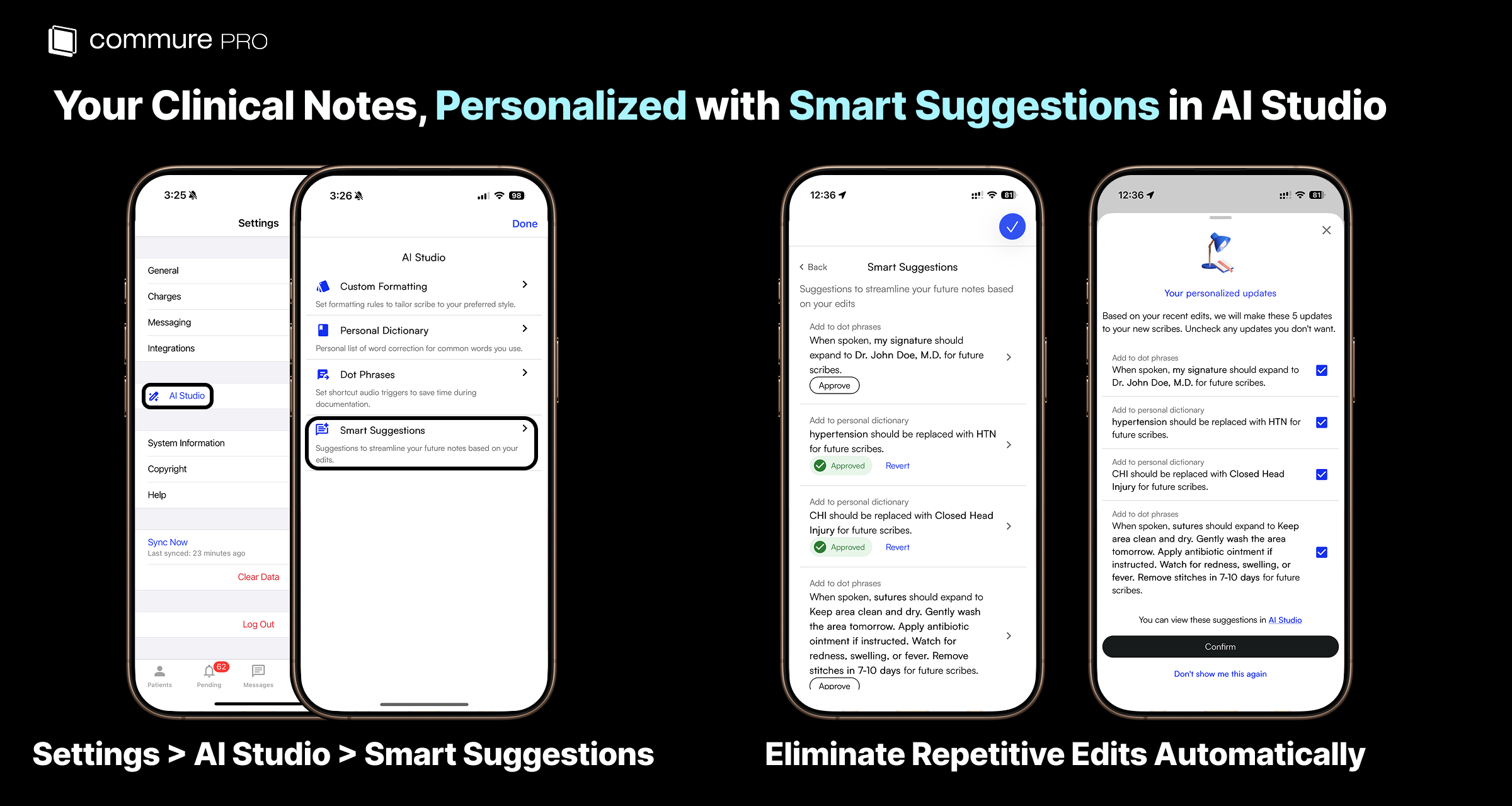
**Smart Suggestions** lets Ambient AI adapt to your documentation style automatically. As you edit generated notes, the system captures those changes as implicit feedback and proposes preferences you can approve or dismiss — no explicit feedback form required.
 ## How It Works
As you correct or refine generated notes, Ambient observes the changes you make over time. When it detects a consistent pattern, it drafts a preference and queues it as a Smart Suggestion.
Smart Suggestions are inferred continuously from your most recent edits. Once a week (on a configurable day), any new unreviewed suggestions pop up when you open the app so you can approve or dismiss them. You can also review pending suggestions anytime from **Settings** > **AI Studio** > **Smart Suggestions**.
## Reviewing Suggestions
Once a week, new unreviewed suggestions pop up when you open the app. You can also open pending suggestions anytime from **Settings** > **AI Studio** > **Smart Suggestions**.
Each suggestion shows the inferred preference and the editing pattern it was learned from.
Approve to apply the preference to future notes, or dismiss to discard it. Dismissed suggestions will not be re-proposed from the same pattern.
## Smart Suggestions vs. Explicit Settings
Smart Suggestions sits inside AI Studio and works alongside Custom Formatting, Dot Phrases, Macros, and Personal Dictionary. Where those features let you set preferences explicitly, Smart Suggestions infers them from your actual editing patterns over time.
Approved suggestions apply to future notes only. To update an existing note, use *[Resume Scribe](/apple/ambient_ai_scribe/scribe-actions#resume-scribe)* from the Note Actions page.
## Next Steps
Return to AI Studio to configure other note generation settings.
Set per-template rules for tone, structure, and section formatting.
Set shortcut audio triggers to save time during documentation.
Define reusable content that is automatically injected into note sections.
## How It Works
As you correct or refine generated notes, Ambient observes the changes you make over time. When it detects a consistent pattern, it drafts a preference and queues it as a Smart Suggestion.
Smart Suggestions are inferred continuously from your most recent edits. Once a week (on a configurable day), any new unreviewed suggestions pop up when you open the app so you can approve or dismiss them. You can also review pending suggestions anytime from **Settings** > **AI Studio** > **Smart Suggestions**.
## Reviewing Suggestions
Once a week, new unreviewed suggestions pop up when you open the app. You can also open pending suggestions anytime from **Settings** > **AI Studio** > **Smart Suggestions**.
Each suggestion shows the inferred preference and the editing pattern it was learned from.
Approve to apply the preference to future notes, or dismiss to discard it. Dismissed suggestions will not be re-proposed from the same pattern.
## Smart Suggestions vs. Explicit Settings
Smart Suggestions sits inside AI Studio and works alongside Custom Formatting, Dot Phrases, Macros, and Personal Dictionary. Where those features let you set preferences explicitly, Smart Suggestions infers them from your actual editing patterns over time.
Approved suggestions apply to future notes only. To update an existing note, use *[Resume Scribe](/apple/ambient_ai_scribe/scribe-actions#resume-scribe)* from the Note Actions page.
## Next Steps
Return to AI Studio to configure other note generation settings.
Set per-template rules for tone, structure, and section formatting.
Set shortcut audio triggers to save time during documentation.
Define reusable content that is automatically injected into note sections.