> ## Documentation Index
> Fetch the complete documentation index at: https://docs.pro.commure.com/llms.txt
> Use this file to discover all available pages before exploring further.
# Widgets
> Start or resume a scribe straight from your iOS Home Screen or Lock Screen — without opening the app and navigating to a patient first.
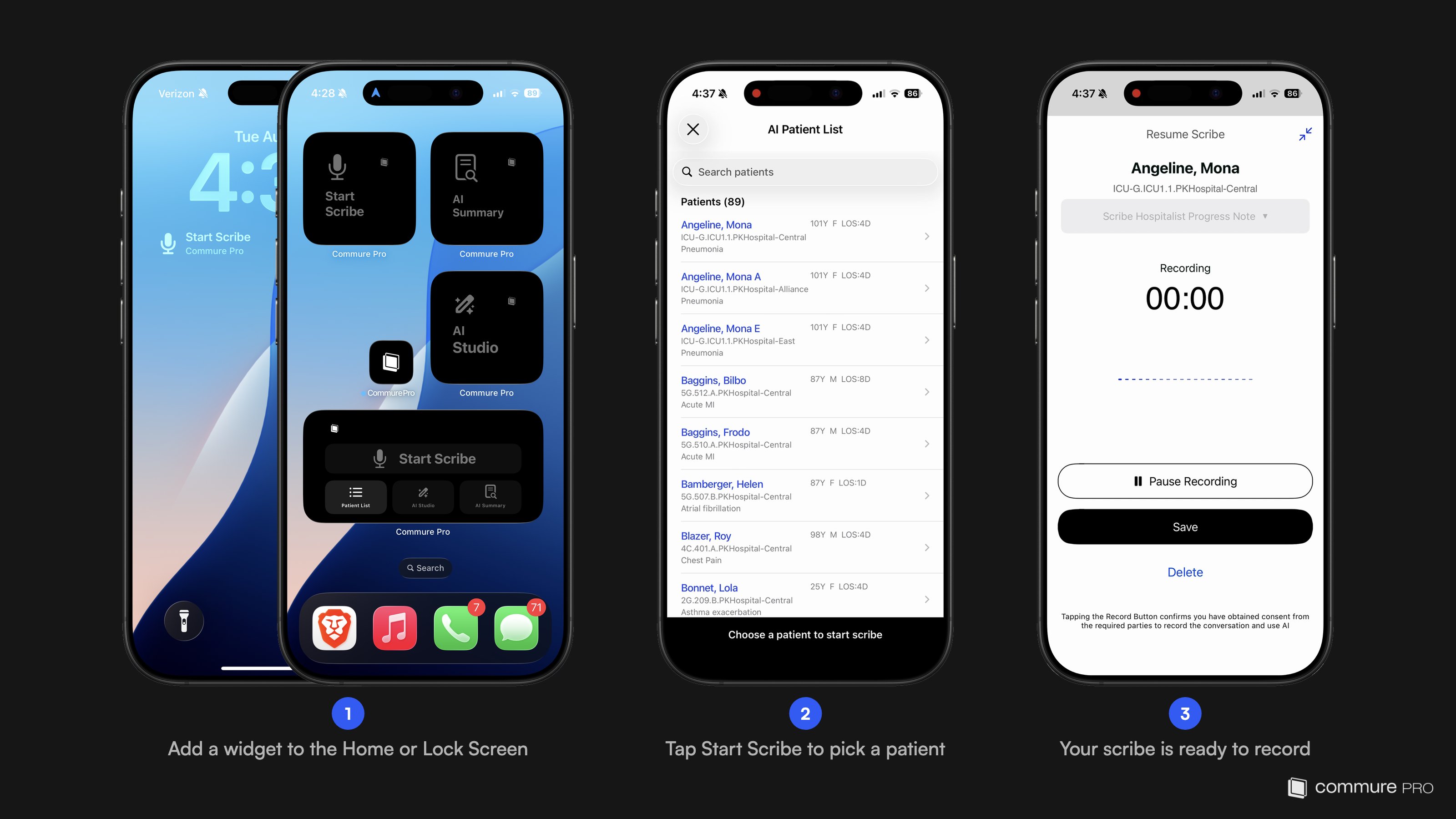
Commure Pro's iOS widgets put scribe entry points outside the app: add a widget to your **Home Screen** or use the **Lock Screen** accessory to jump straight into a new or resumed scribe. The widget set includes small **Start Scribe**, **AI Summary**, and **AI Studio** widgets, plus a medium widget that pairs **Start Scribe** with **Patient List**, **AI Studio**, and **AI Summary** shortcuts.
**Save the clicks:** a widget tap takes you straight into the scribe flow — no opening the app, finding the patient in the list, and starting a scribe from there. Widget taps land correctly whether the app is closed, in the background, or already open, including after biometric login.
 ## Adding a Home Screen Widget
Touch and hold an empty area of your Home Screen until the apps begin to jiggle, then tap **Edit** > **Add Widget** (on earlier iOS versions, the **+** button) in the top-left corner.
Search for **Commure Pro** in the widget gallery and tap it to see the available widgets.
Choose the widget you want, tap **Add Widget**, and drag it into position. Tap **Done**.
## Lock Screen Accessory
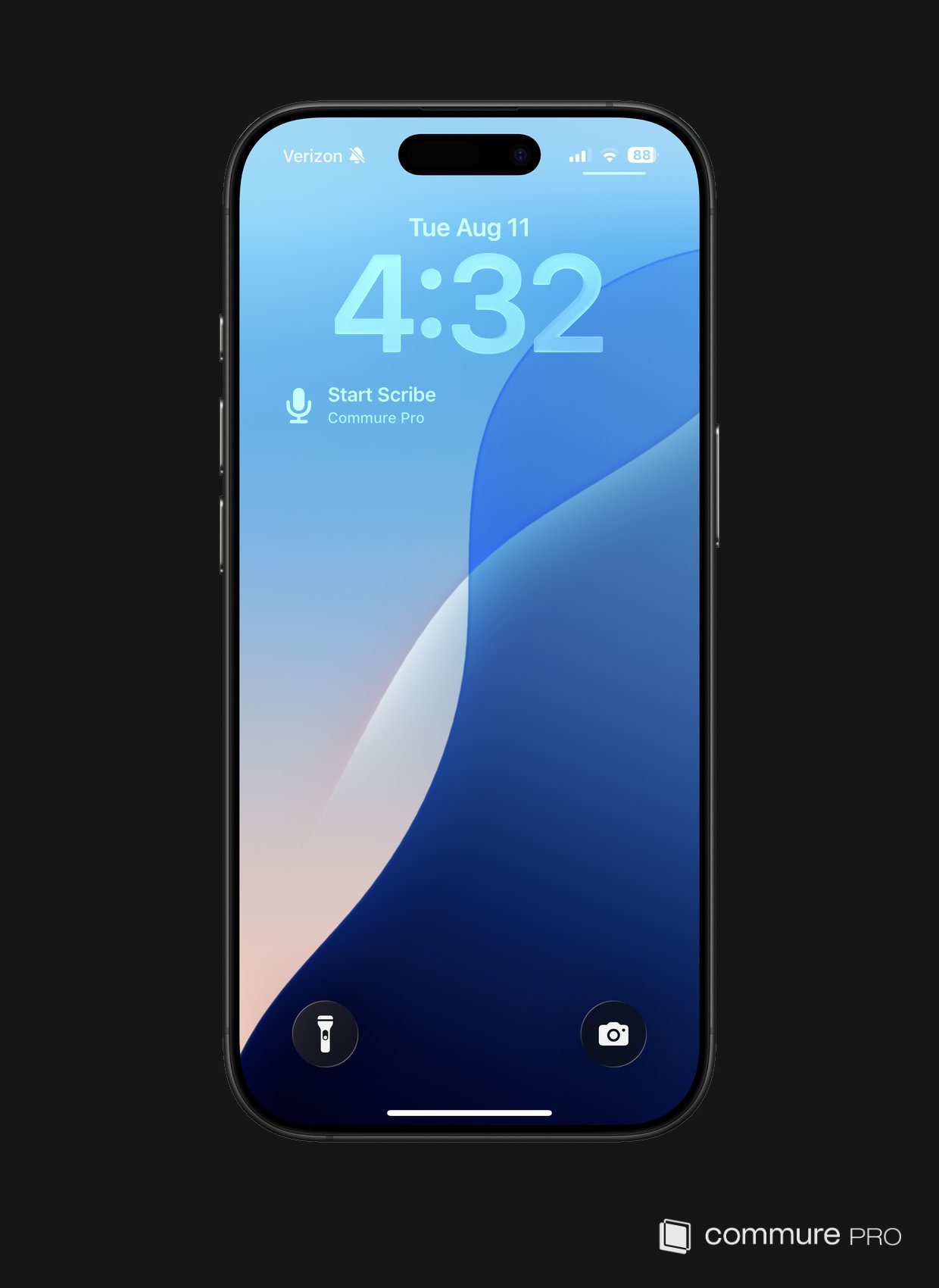
You can also add a Commure Pro accessory widget to your Lock Screen: touch and hold the **Lock Screen**, tap **Customize**, select the Lock Screen, tap the widget area, and choose **Commure Pro** from the gallery. The **Start Scribe** accessory comes in a circular icon format and a rectangular format with a label. This gives you a scribe entry point without even unlocking to the Home Screen first.
## Adding a Home Screen Widget
Touch and hold an empty area of your Home Screen until the apps begin to jiggle, then tap **Edit** > **Add Widget** (on earlier iOS versions, the **+** button) in the top-left corner.
Search for **Commure Pro** in the widget gallery and tap it to see the available widgets.
Choose the widget you want, tap **Add Widget**, and drag it into position. Tap **Done**.
## Lock Screen Accessory
You can also add a Commure Pro accessory widget to your Lock Screen: touch and hold the **Lock Screen**, tap **Customize**, select the Lock Screen, tap the widget area, and choose **Commure Pro** from the gallery. The **Start Scribe** accessory comes in a circular icon format and a rectangular format with a label. This gives you a scribe entry point without even unlocking to the Home Screen first.
 ## Starting a Scribe from a Widget
Tap **Start Scribe** from the Home Screen widget or Lock Screen accessory. If the app is locked, complete biometric login as usual — the widget action still runs after login.
The **AI Patient List** opens with a **search bar**, so you can find the patient quickly instead of scrolling. Tap the patient for this encounter.
The app opens the patient's detail screen and starts the scribe flow. From here the recording works the same as any other scribe — see *[Recording an Ambient Note](/apple/ambient_ai_scribe/recording-a-scribe)*.
A resumed scribe opened from a widget also lands on the patient's detail screen first. If the patient already has a draft note, a **Resume Scribe** sheet appears there, letting you resume the draft or choose **Start New Scribe Instead**.
## Widget Access
Widget actions follow your existing feature access: the scribe widgets require AI Scribe access, and the AI Summary widget requires AI Summary access. If a widget action doesn't appear or doesn't run for you, check with your administrator that the corresponding feature is enabled for your account.
## Starting a Scribe from a Widget
Tap **Start Scribe** from the Home Screen widget or Lock Screen accessory. If the app is locked, complete biometric login as usual — the widget action still runs after login.
The **AI Patient List** opens with a **search bar**, so you can find the patient quickly instead of scrolling. Tap the patient for this encounter.
The app opens the patient's detail screen and starts the scribe flow. From here the recording works the same as any other scribe — see *[Recording an Ambient Note](/apple/ambient_ai_scribe/recording-a-scribe)*.
A resumed scribe opened from a widget also lands on the patient's detail screen first. If the patient already has a draft note, a **Resume Scribe** sheet appears there, letting you resume the draft or choose **Start New Scribe Instead**.
## Widget Access
Widget actions follow your existing feature access: the scribe widgets require AI Scribe access, and the AI Summary widget requires AI Summary access. If a widget action doesn't appear or doesn't run for you, check with your administrator that the corresponding feature is enabled for your account.