> ## Documentation Index
> Fetch the complete documentation index at: https://docs.pro.commure.com/llms.txt
> Use this file to discover all available pages before exploring further.
# Home Screen Widget
> Add the Start Scribe widget to your Android home screen to begin an ambient AI recording without opening the app first.
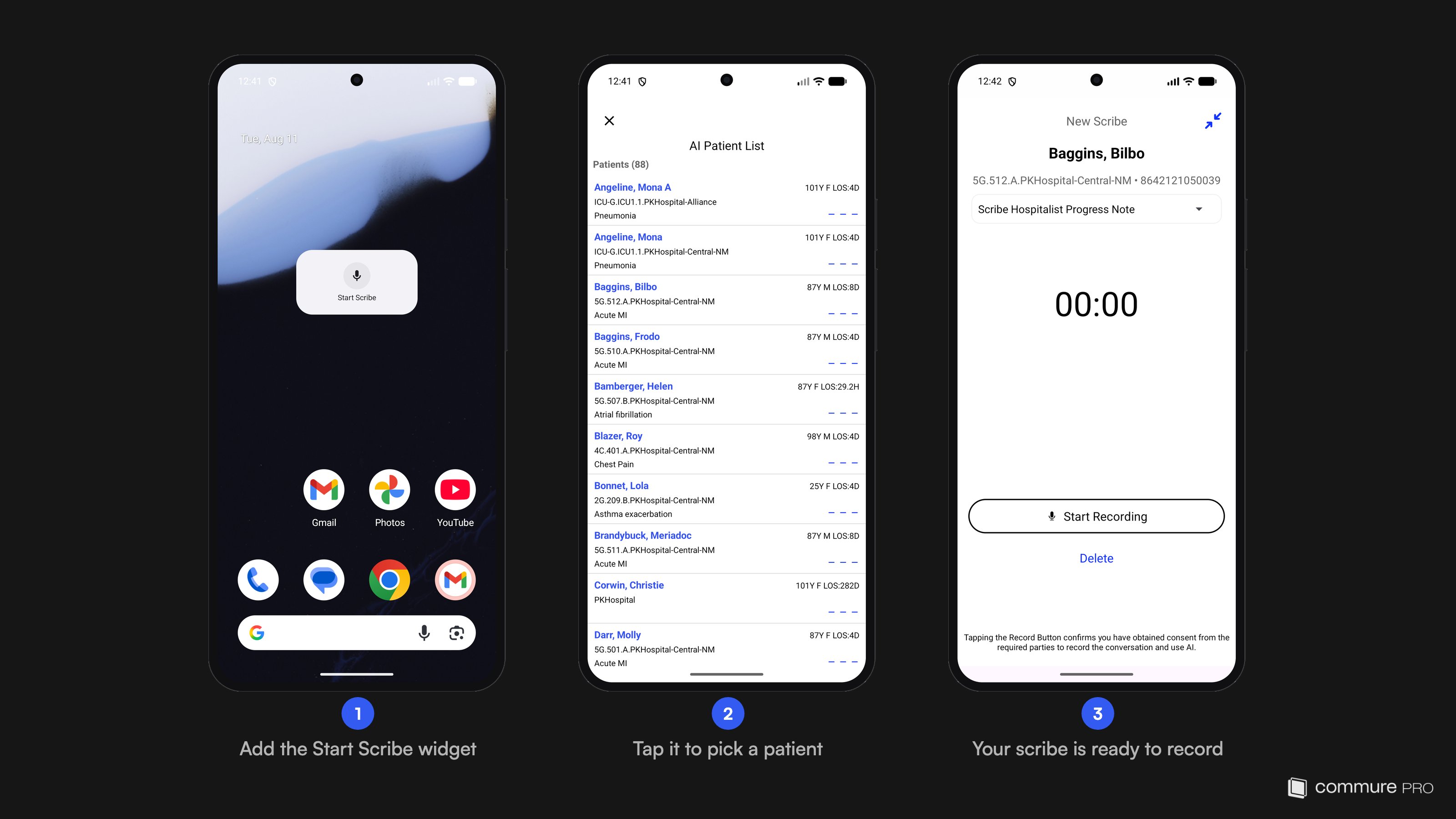
The **Start Scribe** widget is the fastest way to begin a recording: tap it on your home screen, pick a patient, and your scribe is ready to record — no need to open the app and navigate to the patient first.
**Save the clicks:** from your home screen, the widget gets you to a ready-to-record scribe in just two taps — tap the widget, tap the patient. There's no opening the app, finding the patient in the list, and starting a scribe from there.
 ## Adding the Widget
Touch and hold an empty area of your home screen, then tap **Widgets**.
Browse or search for **Commure PRO** in the widget list and tap it to expand. You'll see the **Start Scribe** widget (2 × 1).
Touch and hold the **Start Scribe** widget and drag it to your home screen.
## Starting a Scribe from the Widget
Tap **Start Scribe** on your home screen. A patient list picker opens directly — the app presents a single scribe entry point rather than separate resume and new-scribe paths.
Tap the patient for this encounter. If the patient has no scribe in progress, the **New Scribe** screen opens immediately with the patient's identifiers populated.
Choose a note template if needed and tap **Start Recording**. From here the flow is the same as any other recording — see *[Recording an Ambient Note](/android/ambient_ai_scribe/recording-a-scribe)*.
If the patient you select already has a draft note, a **Resume Scribe** sheet appears instead, letting you resume the existing draft or choose **Start New Scribe Instead**.
## App Shortcut Alternative
The same entry point is available as an app shortcut: touch and hold the **Commure PRO** app icon (in your app drawer or on the home screen) and tap **Start Scribe**. This opens the same patient list picker as the widget.
## Adding the Widget
Touch and hold an empty area of your home screen, then tap **Widgets**.
Browse or search for **Commure PRO** in the widget list and tap it to expand. You'll see the **Start Scribe** widget (2 × 1).
Touch and hold the **Start Scribe** widget and drag it to your home screen.
## Starting a Scribe from the Widget
Tap **Start Scribe** on your home screen. A patient list picker opens directly — the app presents a single scribe entry point rather than separate resume and new-scribe paths.
Tap the patient for this encounter. If the patient has no scribe in progress, the **New Scribe** screen opens immediately with the patient's identifiers populated.
Choose a note template if needed and tap **Start Recording**. From here the flow is the same as any other recording — see *[Recording an Ambient Note](/android/ambient_ai_scribe/recording-a-scribe)*.
If the patient you select already has a draft note, a **Resume Scribe** sheet appears instead, letting you resume the existing draft or choose **Start New Scribe Instead**.
## App Shortcut Alternative
The same entry point is available as an app shortcut: touch and hold the **Commure PRO** app icon (in your app drawer or on the home screen) and tap **Start Scribe**. This opens the same patient list picker as the widget.
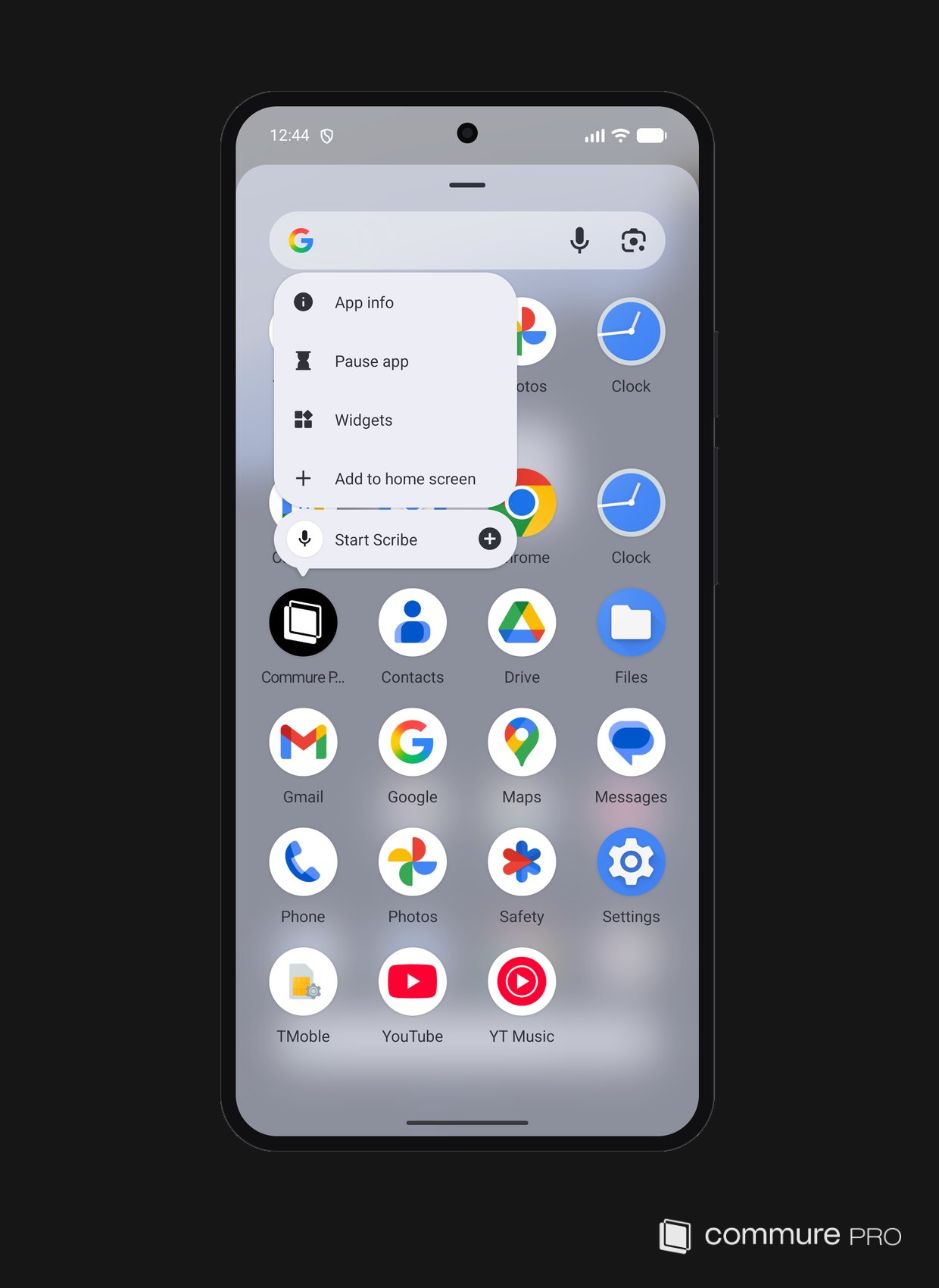 You can also touch and hold the **Start Scribe** entry in the shortcut menu and drag it to your home screen to pin it as its own icon.